Newsletter Subscribe
Enter your email address below and subscribe to our newsletter

Enter your email address below and subscribe to our newsletter
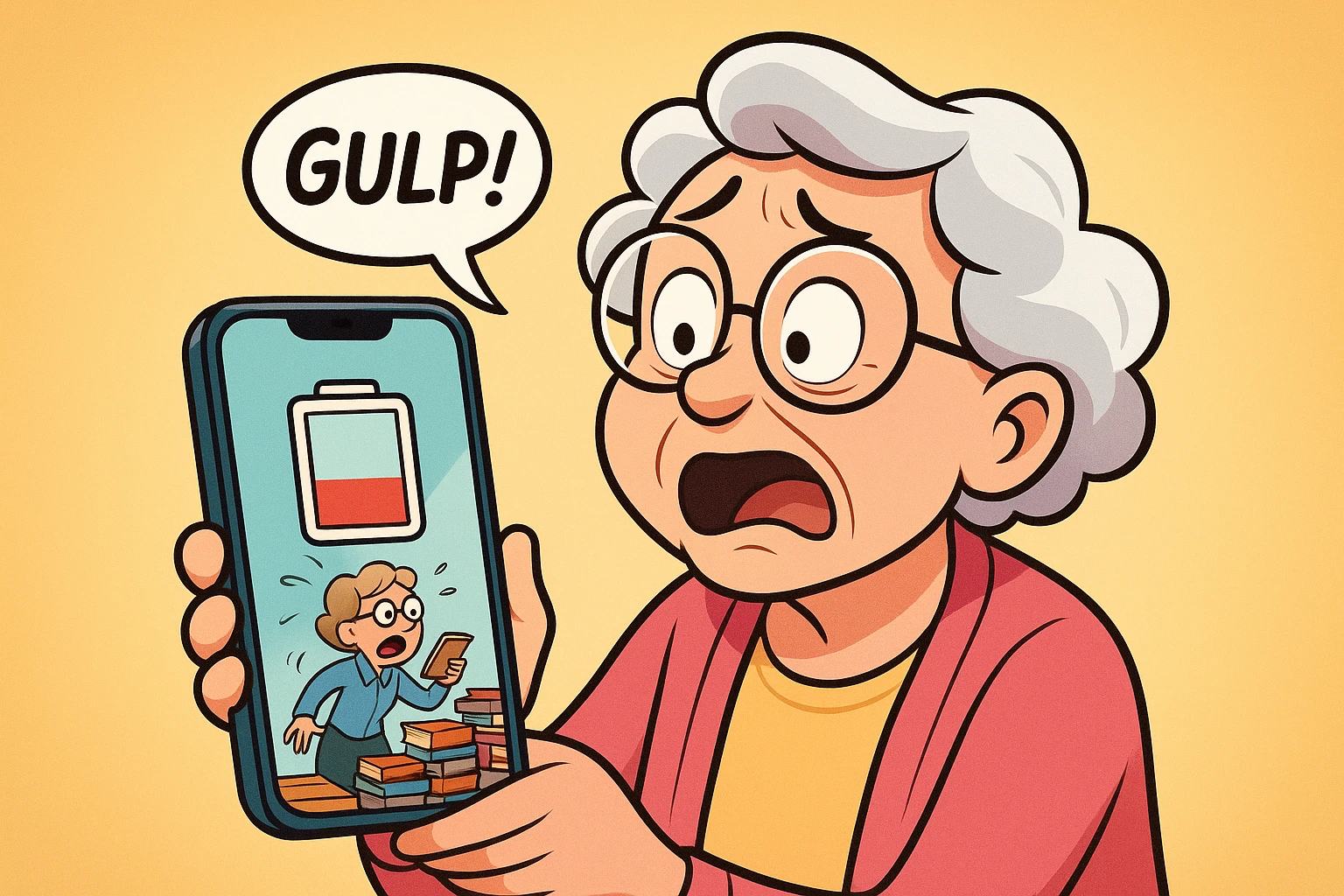
You know the feeling. You plug your phone in before bed, treating it to a nice, full meal of electricity. You tap “Install Update” because a little red dot told you to, and you drift off to sleep, dreaming of a faster, smarter device.
But when you wake up, disaster strikes. Your phone, which should be bright-eyed and bushy-tailed at 100%, is panting at a meager 70%. Or worse, by lunchtime, it’s begging for a charger like a marathon runner at mile 20.
Did the update break your phone? Is this that “planned obsolescence” your nephew warned you about—a secret button pressed at corporate headquarters to force you to buy the new model?
Before you march down to the carrier store ready to demand answers (or throw the phone into the nearest lake), take a deep breath. Your phone likely isn’t broken. In fact, that rapid battery drain is usually a sign that it is doing exactly what it’s supposed to do. It’s not dying; it’s just working overtime.
When the little progress bar on your screen hits 100% and the phone restarts, we tend to think the update is “done.” It’s like painting a room; once the paint is on the wall, the job is finished, right?
Not quite. In the world of smartphones, the installation is just the beginning.
Think of your phone’s storage like a massive public library. Over the years, you’ve filled this library with thousands of books (your photos, apps, messages, and contacts). Everything is organized nicely so the phone can find it quickly.
When you install a major software update (like moving from iOS 17 to iOS 18, or Android 14 to 15), it’s like the library gets a new Head Librarian. This new Librarian has a completely different filing system.
Suddenly, every single book needs to be pulled off the shelf, re-labeled, and put back in a new spot. In technical terms, this is called “indexing” or, on Android devices, a process known as “dex2oat” (don’t worry, you don’t need to memorize that; just know it’s the phone translating the new software language so your apps run smoothly later).
This reorganization takes a tremendous amount of brainpower. Your processor is running at full speed, reading and writing data, categorizing your emails, and optimizing your apps. And just like a human moving thousands of books, your phone gets hot and thirsty.
The result? Your battery drops like a stone, even if the screen is off and the phone is sitting on the counter.

Here is another scenario that causes panic attacks. You check your “Battery Health” settings (the feature that tells you the maximum capacity of your battery compared to when it was new). Before the update, it said 95%. Immediately after the update, it says 92%.
Did the update physically damage your battery by 3% in ten minutes?
No. This is what we call the Bathroom Scale Effect.
Imagine you’ve been weighing yourself on an old, rusty mechanical scale for a year. It says you weigh 150 pounds. Then, you buy a brand-new, high-tech digital scale. You step on it, and it says 153 pounds. The new scale didn’t make you gain three pounds; it just measured you more accurately than the old one.
Software updates often include better calibration tools. They measure the chemical reality of your battery more precisely. The drop you see isn’t damage—it’s the truth being revealed.
While we are discussing battery life, we need to address a habit that refuses to die. Many of us have been taught that if you want to save battery, you should double-click your home button (or swipe up) and close all your apps. It feels like cleaning up a messy room.
Please, for the love of lithium-ion, stop doing this.
Modern smartphones are designed to freeze apps in the background. When an app is in the background, it is asleep. It is not using power.
However, when you force-close an app, you kill it completely. When you open it again five minutes later, the phone has to load it from scratch.
Think of it like a car engine. If you are stopping at a red light for thirty seconds, you don’t turn the engine off and restart it when the light turns green. That uses more gas than just idling. Closing your apps forces your phone to “restart the engine” every time you check your messages.
So, your phone is hot, the battery is draining, and you are worried. Before you call tech support, follow this “Calm Down” checklist.
This is the hardest part: Do nothing.
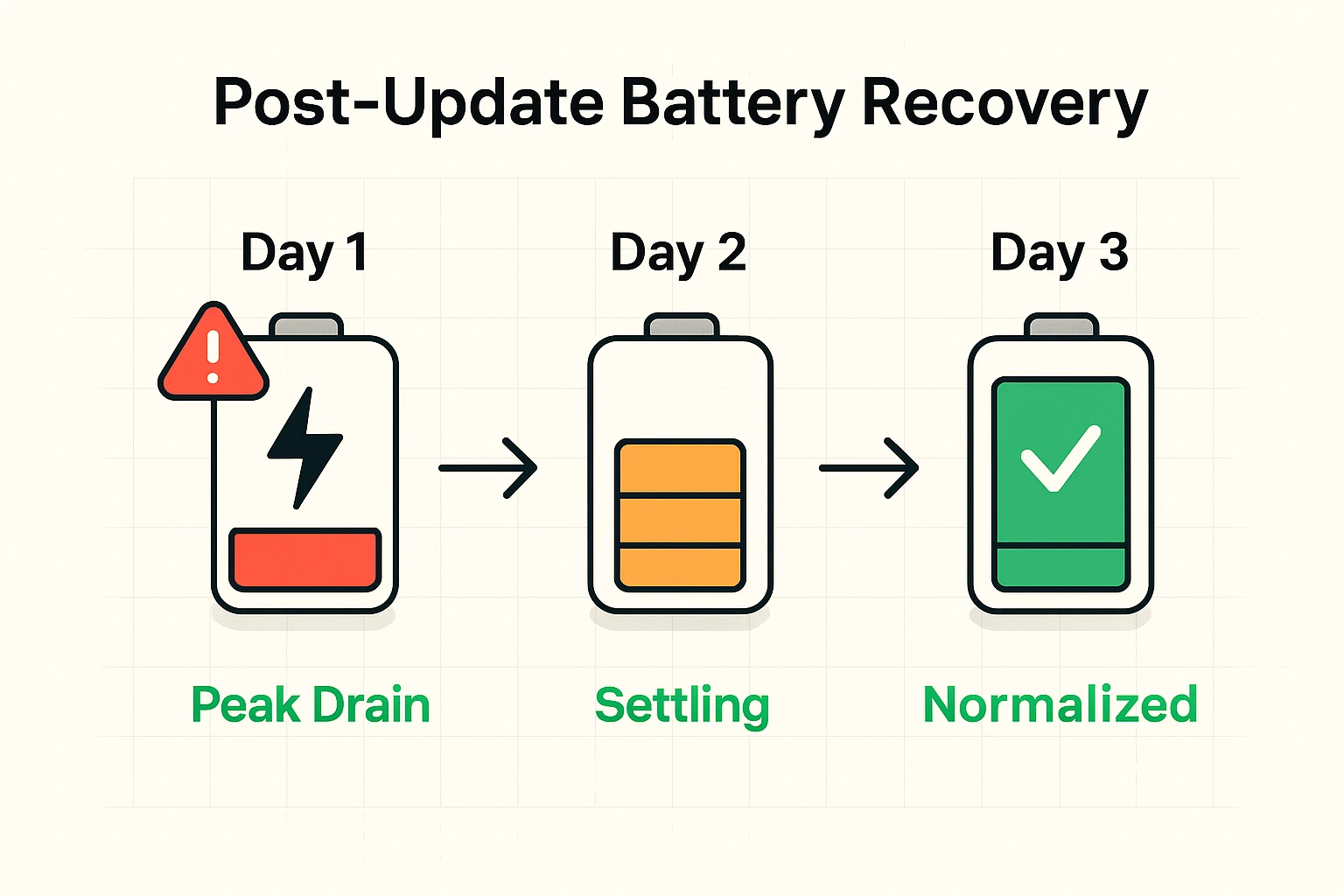
For 48 to 72 hours after a major update, ignore the battery life. Let the Librarian finish organizing the books. Keep your charger handy, let the phone stay plugged in overnight connected to Wi-Fi, and let it do its work. In almost all cases, the battery life will return to normal—or even get better—once the housekeeping is done.
Sometimes, a specific process does get stuck. Maybe the Librarian dropped a stack of books and is staring at them in confusion.
Perform a single, simple restart. Turn the phone all the way off, wait a minute, and turn it back on. This clears out temporary memory glitches. However, if your phone refuses to turn on properly, or you see a screen about getting your phone ready stuck for hours, that is a different issue that requires a different fix.
Updates occasionally reset your personal preferences to the factory “defaults.” After the update settles, check these two settings:

Because the processor is running at high speed to index your files. It’s like your car engine running hot when driving up a steep hill. As long as it isn’t too hot to hold, and it cools down after a few hours, it is normal during the “indexing” phase.
Not yet. Never make a decision about hardware repairs based on how the phone behaves in the first week after a software update. Wait a week. If the drain persists after 7 days, then have it looked at.
Generally, no. While big tech companies want you to buy new phones, “breaking” your current battery via software is a PR nightmare they try to avoid. The drain is almost always temporary housekeeping, not malicious destruction.
Technology can be frustrating, especially when it changes the rules on us overnight. But when it comes to post-update battery drain, the best tool in your toolkit isn’t a screwdriver or a credit card—it’s patience.
Give your digital librarian a few days to sort the books, keep your charger nearby, and chances are, your phone will settle down and get back to business as usual.