Newsletter Subscribe
Enter your email address below and subscribe to our newsletter

Enter your email address below and subscribe to our newsletter

You did it. You braved the store, navigated the sea of acronyms and gigabytes, and emerged victorious with a shiny new device. It sits on your kitchen table, a sleek rectangle of pure potential, gleaming with the promise of connecting you to grandkids, recipes, and that one cat video your friend swore would change your life.
But there’s another feeling creeping in, isn’t there? A tiny voice whispering, “What if I can’t figure this thing out? What if it just becomes the world’s most expensive paperweight?” This, my friends, is the dreaded Buyer’s Remorse. It’s the technological equivalent of bringing home a puppy and suddenly realizing you have to house-train it.
Fear not. Getting a new device shouldn’t feel like preparing for a rocket launch. We’re going to turn that box of anxiety into a box of bliss. This is your success plan—a simple, step-by-step guide to get you from unboxing to up-and-running without pulling your hair out.
Think of this as a calm, orderly archeological dig, not a frantic treasure hunt. Before you tear into the box like a squirrel with a nut, take a deep breath. Most companies, from Verizon to Motorola, design this part to be simple. Here’s what you should do first.
First, gently open the box and lay everything out. You’re looking for the main event (the device), its trusty sidekick (the charging cord and plug), and a little packet of paperwork that usually includes a tiny metal tool for the SIM card. Don’t throw this packet away—it’s more important than the instructions for assembling Swedish furniture.
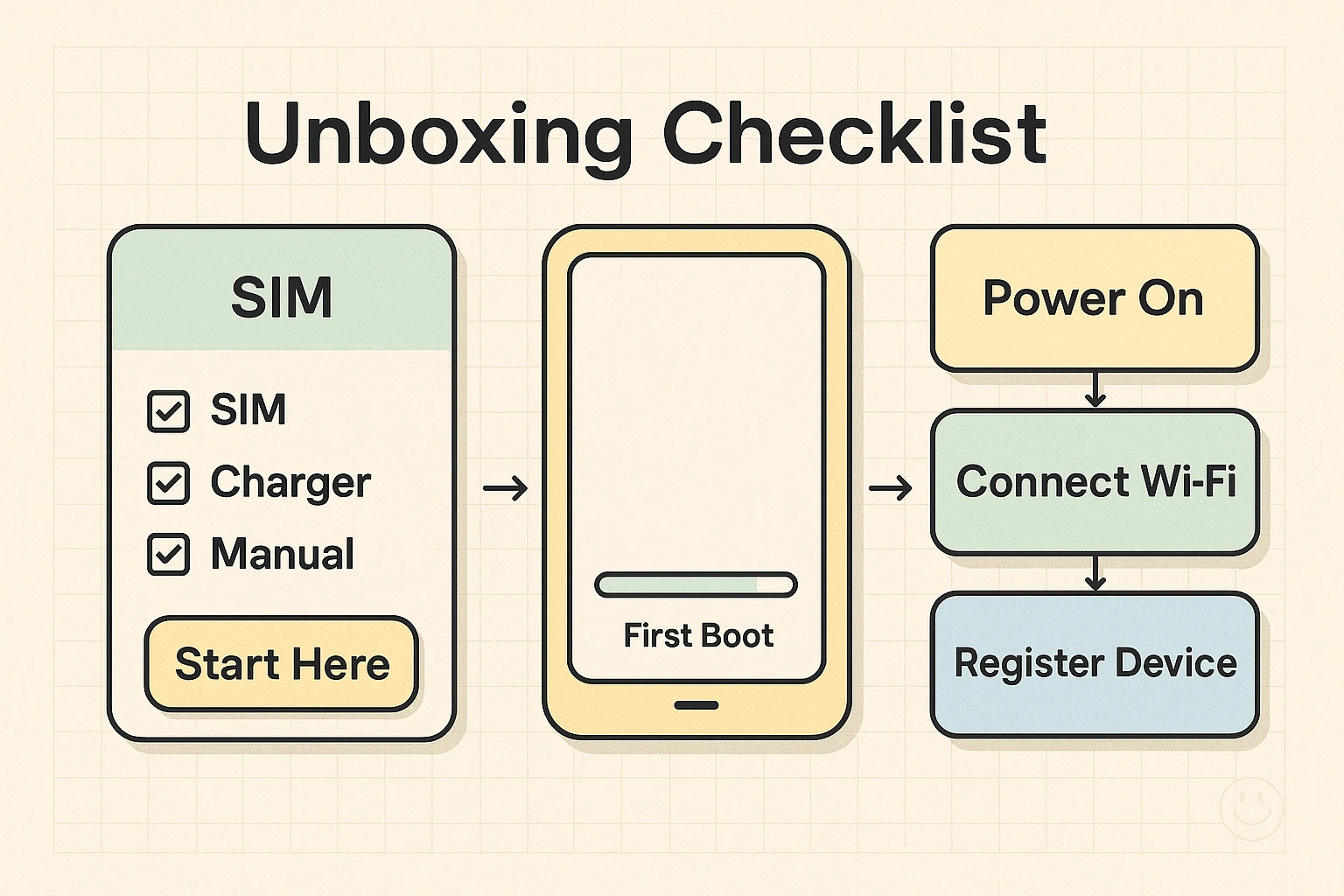
Now for the three magic first steps:
To do anything useful, your device needs to connect to the internet. Think of your Wi-Fi network as its home base. When it asks for your Wi-Fi password, just type in that nonsense phrase you have taped to the bottom of your router.
Next up is the SIM card. This tiny chip is what gives your phone its unique phone number, connecting it to your cellular carrier. It’s like your phone’s driver’s license. If you got a new one, use that little metal tool to pop open the SIM tray on the side of the phone and gently place the card inside.
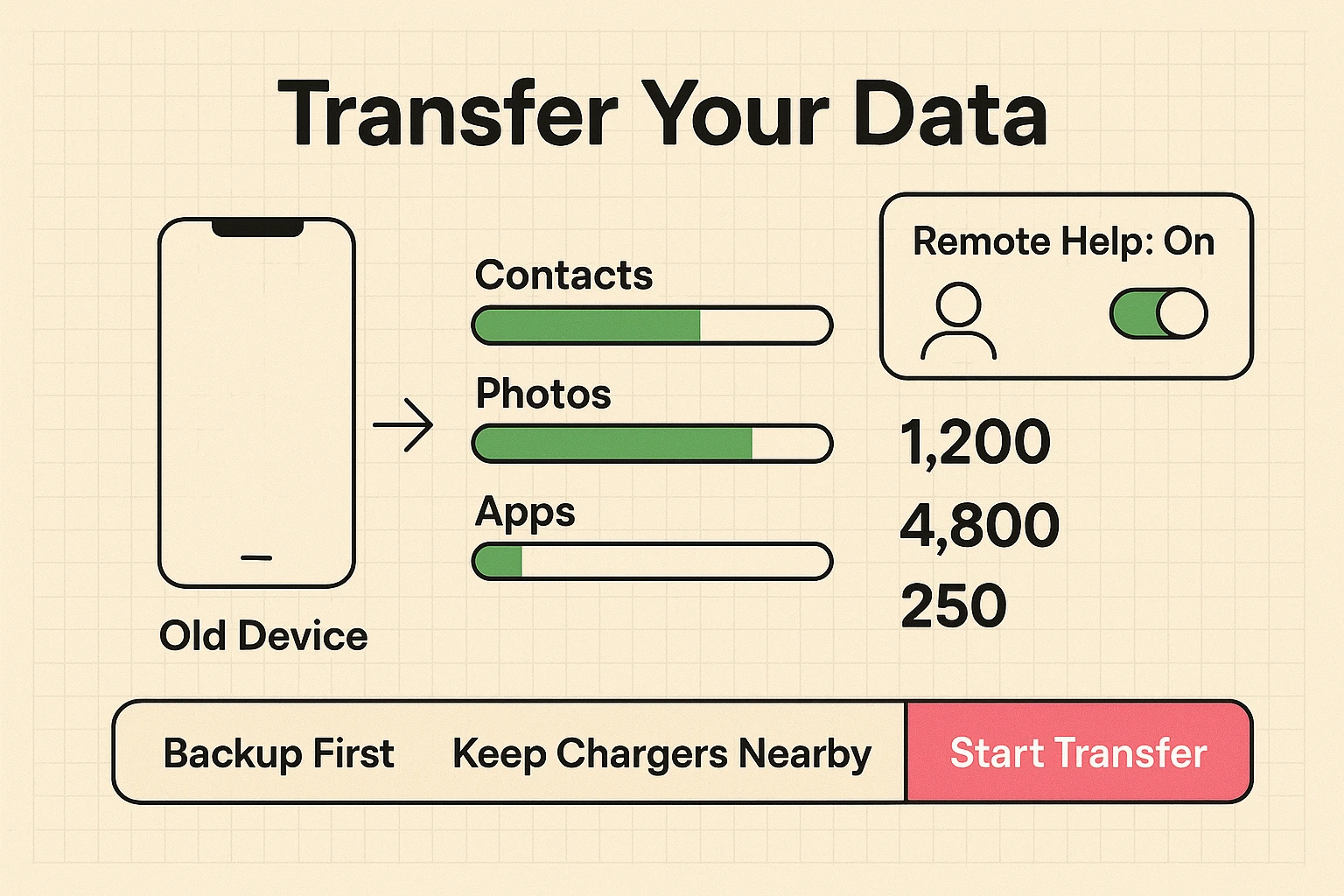
Okay, this is the part that makes most people sweat. How do you get your contacts, photos of the grandkids, and calendar appointments from the old device to the new one? Years ago, this required a degree in computer science and a lot of patience. Today, it’s much simpler.
Most phones have built-in tools to help with this. During setup, your new device will likely ask if you want to transfer data from an old device. Just say yes and keep both devices close to each other. If you’re wondering in detail how to transfer everything to a new phone, we have a complete guide that walks you through it.
For caregivers helping a loved one, many modern phones have features that allow for remote access and support, which research shows is a huge benefit for seniors getting comfortable with new technology.
I know, I know. Registering your product feels like homework. But this is one of the most overlooked steps, and it’s your number one defense against future problems. Registering your device officially starts your warranty period.
Think of it like this: the warranty is your device’s health insurance. If something goes wrong that isn’t your fault, the company will fix or replace it. All you have to do is go to the manufacturer’s website (like Motorola, Samsung, or Apple), find the “product registration” page, and enter the serial number. This one small step provides immense peace of mind.

With the basics handled, it’s time for the fun stuff. You can now download apps that make life easier. Perhaps it’s a smart assistant like Alexa, which can tell you the weather or play your favorite radio station. Or maybe you need a reliable app that works as a digital medication timer to keep you on schedule. The app store is your new best friend.
And if you ever have grandkids over, you might want to look into parental controls. Don’t feel overwhelmed by this; a Kaspersky study found that about half of all parents find these apps intimidating to set up. The goal isn’t to become a security expert, just to prevent little Timmy from accidentally buying a yacht on Amazon.
Don’t panic! Ninety-nine percent of the time, the battery is just completely drained. Plug it in with the charger that came in the box and give it a solid 30 minutes before trying the power button again.
This is a very common fear, but modern transfer tools are incredibly reliable. The key is to follow the on-screen instructions and not interrupt the process. Your memories are safe.
You are not alone in wanting to be independent. That’s why resources like Senior Tech Cafe exist! Start with our guides, and remember that most manufacturers and carriers have helpful support sections on their websites. You’ve got this.
By following this plan, that sleek new device will stop being a source of stress and start being the helpful tool you bought it to be. You’ve successfully navigated the post-purchase journey. Now go enjoy that cat video—you’ve earned it.