Newsletter Subscribe
Enter your email address below and subscribe to our newsletter

Enter your email address below and subscribe to our newsletter
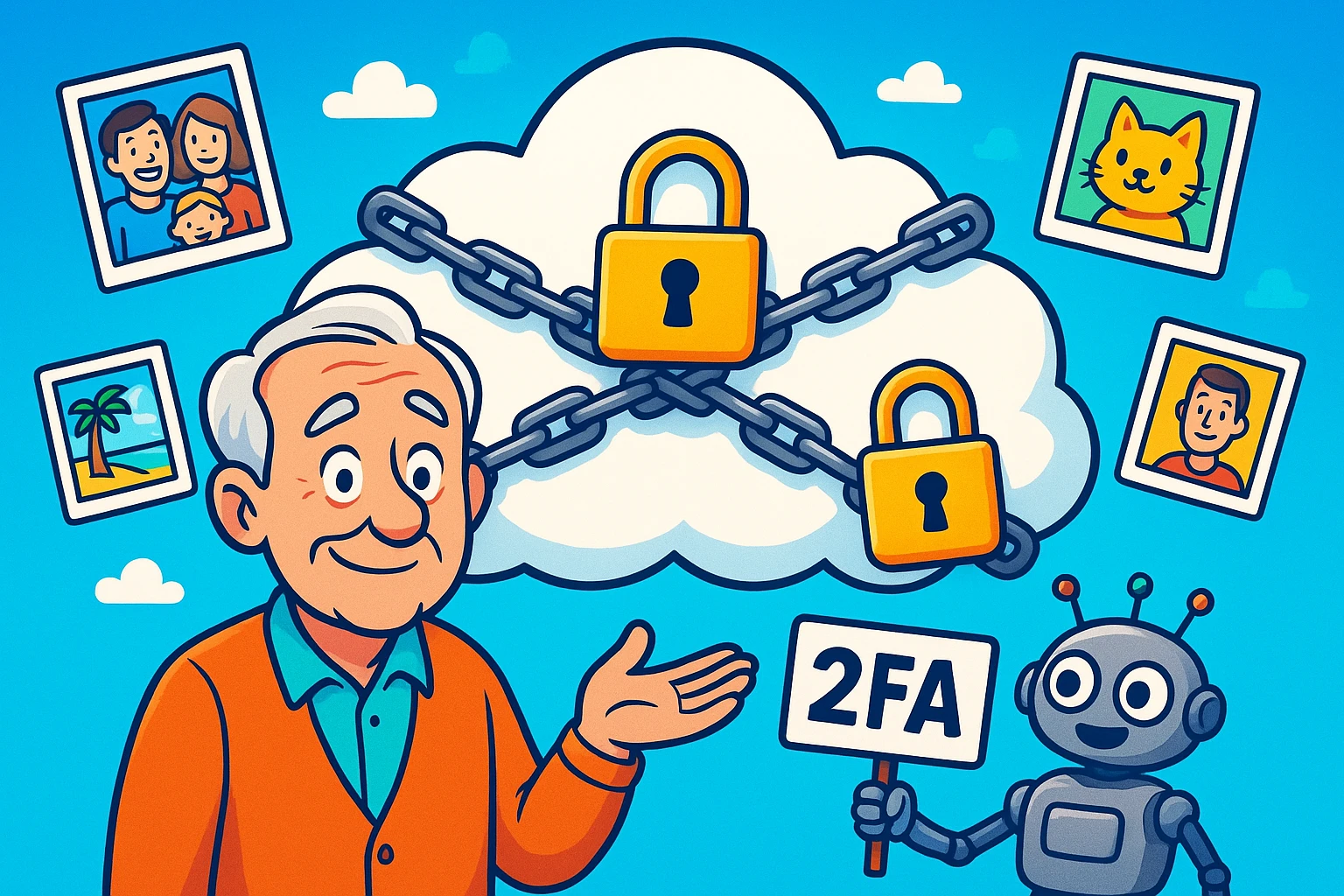
Back in the day, inheriting the family photo history was a straightforward—albeit heavy—affair. It usually involved climbing into an attic, wrestling with a cardboard box that smelled vaguely of mothballs, and discovering that Aunt Mildred had chopped her ex-husband’s head out of every wedding photo with nail scissors.
It was tangible. It was accessible. And unless there was a house fire or a particularly aggressive colony of termites, those photos were safe.
Fast forward to today. We take more photos before breakfast than our ancestors took in a lifetime. But instead of shoeboxes, we have “The Cloud”—a mystical, invisible storage locker floating somewhere over Nevada. It’s convenient, sure. But have you ever stopped to think about what happens to that digital shoebox when you move on to the Great Wi-FiWi-Fi, short for Wireless Fidelity, revolutionizes connectivity by enabling devices to access the in... More Network in the Sky?
Here is the uncomfortable truth: If you don’t have a plan, your precious memories aren’t just going to sit there waiting for your grandkids to find them. They are going to be locked behind a passwordA password is a string of characters used to verify the identity of a user during the authentication... More you took to the grave, guarded by a robot demanding a six-digit code sent to a phone that has been disconnected.
It sounds dramatic, but for thousands of families every year, it’s a reality. We are going to fix that today. We are going to turn that digital fortress into a welcoming library for your loved ones.
You might be thinking, “Relax, I wrote my password on a sticky note and put it in the safe.”
That’s a great start (assuming your handwriting is better than a doctor’s prescription), but it’s no longer enough. Why? Because of a little villain called Two-Factor Authentication (2FA2FA, or Two-Factor Authentication, is a security measure that uses two different types of proof to v... More).
You know 2FA. It’s that annoying thing where you type in your password, and the computer says, “I don’t believe you. I just sent a text to your phone. Tell me what it says.” If your heirs have your password but not your unlockedUnlocked means that restrictions have been removed from a device, app, or digital content, so you ca... More phone, they are stuck at the gate.
Furthermore, tech companies are not storage units. They are businesses. If you stop logging in, they assume you’ve lost interest.
Fortunately, the tech giants realized this was a PR nightmare waiting to happen, so they built tools to help. Unfortunately, they buried them deep in the settings menus where only teenagers and insomniacs dare to tread.
Here is the plain English breakdown of how to set them up.
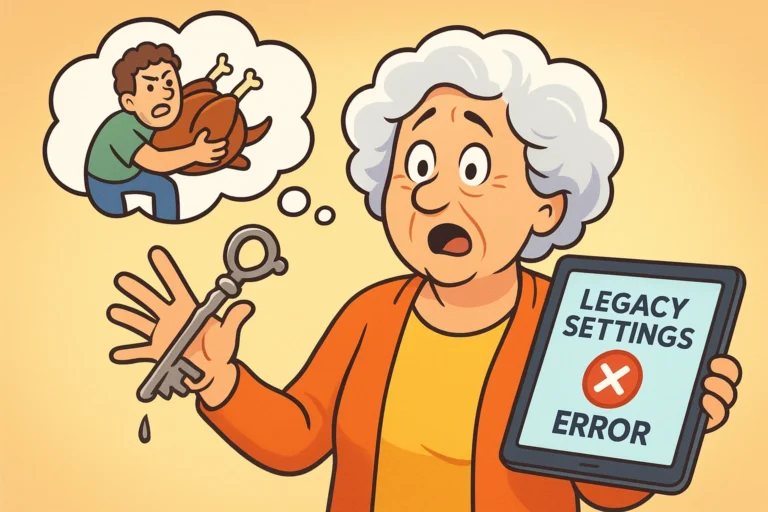
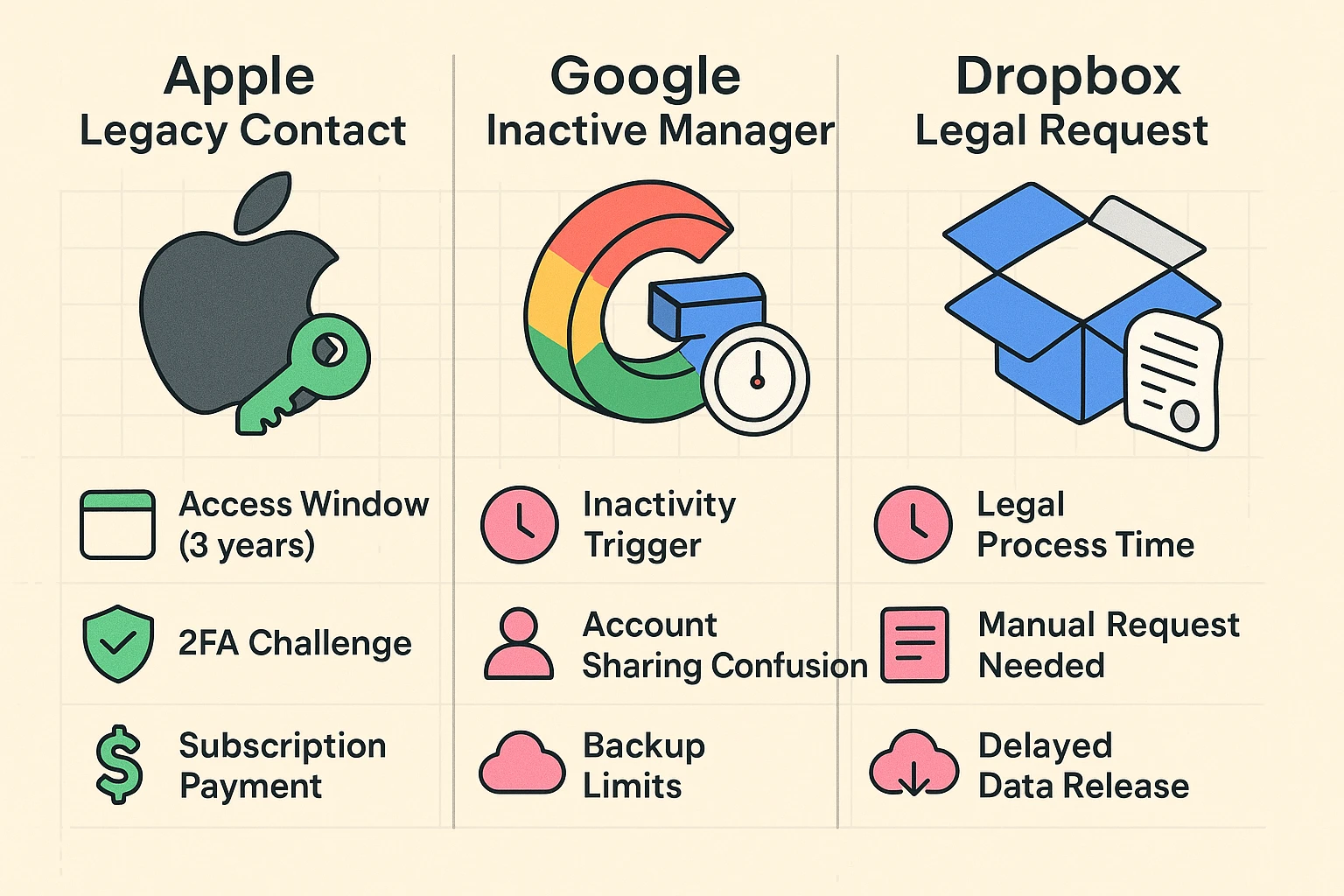
Apple has a feature called Legacy Contact. It is essentially the “Golden Ticket.” You designate a trusted person (spouse, child, tech-savvy nephew). When you pass away, they provide Apple with a death certificate and a special Access Key you generate today.
The Aha Moment: Apple doesn’t keep your account open forever. Once your Legacy Contact unlocks the account, they have a three-year window. That is a retrieval period, not a permanent home. They need to download"Download" means saving something from the internet onto your device—like your phone, tablet, or c... More the photos and move them elsewhere, or Apple deletes the account permanently.
Google uses something that sounds like a spy movie plot: the Inactive Account Manager. You tell Google, “If I don’t log in, read an email, or watch a YouTube video for 3 months (or up to 18 months), assume I am gone.
Once that timer runs out, Google automatically emails your trusted contact with a linkA link, or hyperlink, is a tool used in electronic documents and websites to jump from one online lo... More to download your data. It’s like a Dead Man’s Switch for your digital life.
Dropbox is a bit more old-school. They don’t have a fancy “legacy” button. If you pass away, your heirs generally have to provide a court order or prove they are the legal executor of your estate to get access. It is a headache you want to avoid by planning ahead.
Relying on a single cloud"The cloud" refers to storage and services that are accessed over the internet instead of being stor... More company to keep your life’s memories safe is like trusting a single suspender to hold up your pants. It might work, but why take the risk?
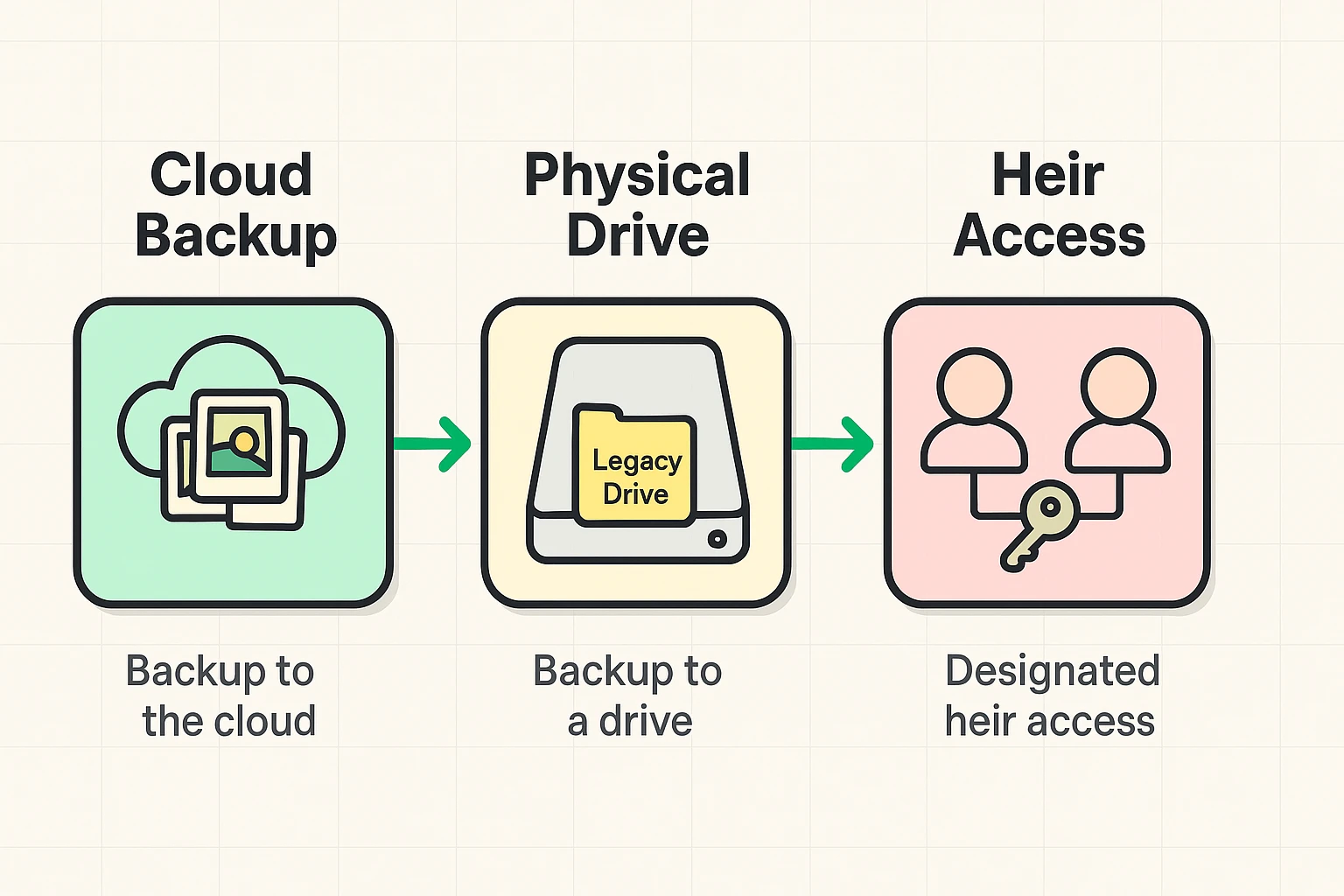
To truly protect your legacy, use the 3-2-1 Backup Rule, adapted for passing things down.
This is your “viewing copy.” Keep your photos organized in Google Photos or iCloud so you can enjoy them now. Use the Legacy tools mentioned above so your family can get into this layer easily.
This is the step most people skip. Once a year, copy your photos to an external hard driveA hard drive is a part of your computer that stores all your files and data, like documents, photos,... More (a physical device that sits on your desk).
This isn’t a piece of tech; it’s a conversation. You must tell your Legacy Contact that they are your Legacy Contact.
If you really want to impress your grandkids, learn about Google Takeout. Despite the delicious name, it does not involve dumplings.
Google Takeout is a tool that lets you download everything Google knows about you—emails, contacts, and yes, all your photos—into one giant file. You can do this once a year, put that file on a thumb drive, and voila: you have created a permanent, offline backup of your life. It’s the ultimate insurance policy against getting locked out.
No! This is a common trap. If you share an album, your daughter can see it. But if your account gets deleted because of inactivity, poof—the album disappears for her too. She needs to “Save” the photos to her own library, not just view yours.
That depends on the settings. With Apple, the Legacy Contact usually gets photos, messages, files, and backups, but not your passwords or your browsing history (so your secret obsession with conspiracy theories about crop circles is safe). With Google, you can specifically choose which data (Photos, Gmail, etc.) to share.
Your kids might be geniuses, but they aren’t hackers. Without the password or the 2FA code, Apple and Google are notoriously impossible to crack. They prioritize privacy over sentimentality. Don’t make your kids fight a trillion-dollar company while they are grieving.
Technology moves fast, but memories are meant to stand still. Taking 15 minutes this weekend to set up a Legacy Contact or download your photos to a hard drive isn’t just “tech maintenance.” It’s an act of love.
It ensures that fifty years from now, when your great-grandchild wants to see what you looked like (and laugh at your haircut), the digital door will be open.
So, go ahead. Give your digital shoebox a key. Your family will thank you for it.