Newsletter Subscribe
Enter your email address below and subscribe to our newsletter

Enter your email address below and subscribe to our newsletter

Imagine this: You’re finally sitting down to a hot dinner. The fork is halfway to your mouth when your phone buzzes. It’s your mom. She sounds like she’s negotiating a high-stakes hostage situation, but she’s actually just trying to attach a photo of her cat to a text message. Suddenly, your dinner is getting cold, your blood pressure is creeping up, and you’re trying to explain over the phone what the “share” button looks like. (“It’s a square with an arrow! No, not the triangle!”)
If this sounds familiar, congratulations. You have been unofficially drafted into the Family IT Department. The pay is non-existent, the hours are terrible, and the retirement plan is just hoping someone invents a brain-computer interface before your parents buy yet another smart device.
Being the family tech guru often leads to a very real phenomenon called “Resentment Fatigue.” You feel deeply guilty for being annoyed, but you’re also incredibly tired of rebooting routers on your days off. Don’t worry, you’re not a bad person. You just need a better system.
Let’s talk about why helping loved ones with technology feels so incredibly exhausting. Caregivers and adult children often fall into the “Teaching vs. Fixing” paradox. Most tech guides just tell you to “be patient,” which is about as helpful as telling a drowning person to “be buoyant.”
The real underlying issue is cognitive load. For you, double-clicking an icon or swiping away an app is pure muscle memory. For a senior who didn’t spend their formative years tethered to a mouse, it’s a deliberate, multi-step mechanical action that requires intense concentration.
There is a concept in caregiving circles known as the 40/70 Rule. It states that if you are over 40 and your parent is over 70, you are entering a brand new phase of your relationship. In today’s digital world, a solid 40% of that new caregiving burden is simply acting as a tech translator.
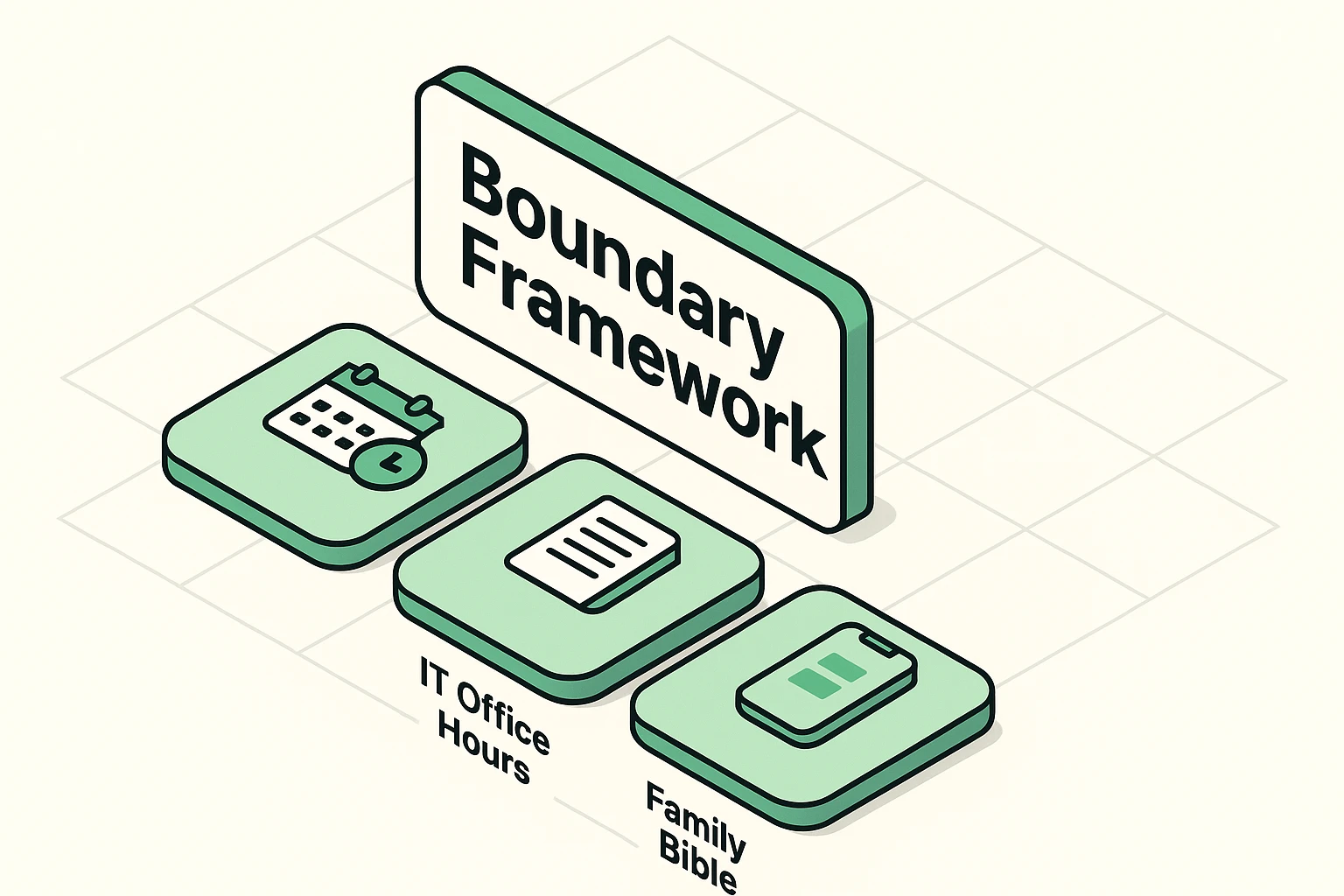
The key to surviving the Family IT Department is treating it like an actual department. That means setting up a structured “Boundary Framework” so you aren’t perpetually on call. Let’s look at three practical ways to reclaim your weekends.
Unless a hacker is actively draining their bank account, most tech emergencies are not actually emergencies. A lost Facebook password does not require an ambulance or an immediate interruption of your workday.
Set up specific “IT Office Hours” for your family. Tell your parents, “I do all my tech troubleshooting on Sunday mornings over coffee.” If they call on Wednesday in a panic about a printer jam, lovingly remind them that the IT desk is closed until Sunday.
Create a shared document or a physical notebook that serves as the ultimate tech cheat sheet. Write down their most vital passwords, step-by-step instructions for common tasks, and a “Translation Guide” for confusing jargon.
Seniors don’t always understand tech-speak, so translate it into “Life-speak.” For example, explain that clearing a “Browser Cache” is exactly like cleaning expired food out of the fridge to make room for fresh groceries.
Smartphones and computers come loaded with apps most of us never use. Do them a favor and delete the clutter. Move all their essential apps to the main home screen and hide the rest in a folder.
Next, introduce the “Sandbox Method.” Set up a restricted guest account or a simplified tablet profile where they literally cannot break anything vital. Tell them it’s a safe playground, and if they get lost, the “One-Button Rule” applies: just press the home button and start over.
When we are frustrated and rushed, our natural instinct is to just snatch the phone, fix the problem in three seconds, and hand it back. This is a terrible idea. It teaches them absolutely nothing and guarantees they will call you again tomorrow for the exact same issue.
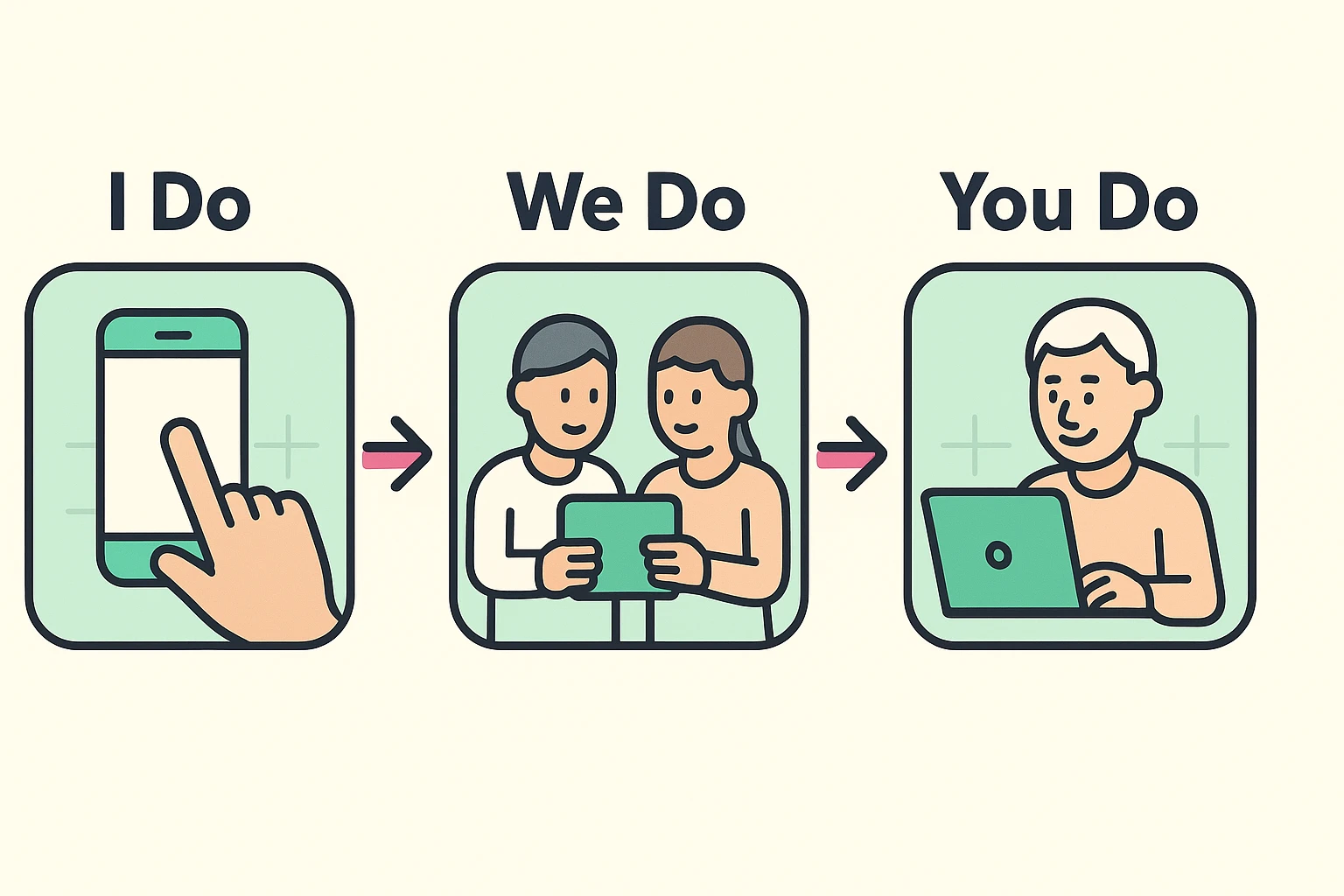
Instead, borrow the “Gradual Release of Responsibility” model used by teachers. In plain English, it goes: “I do, we do, you do.”
First, you show them how to perform the task while they watch. Next, they do it while you guide them verbally (sit on your hands if you have to). Finally, they do it entirely on their own while you cheer them on. It takes twenty minutes today, but it saves you hours of headaches tomorrow.
Sometimes, a tech problem is simply too big, too complex, or too emotionally loaded for the family IT department to handle. If you find yourself spending more than two hours on a single issue, or if the frustration level is causing actual family arguments, it’s time to call in the professionals.
Do not feel guilty about this! Outsourcing is a perfectly valid and incredibly smart boundary. Whether it’s Geek Squad, HelloTech, or a patient local repair shop, paying a neutral third party is often the cheapest way to preserve family harmony.
You can phrase the handoff gently. Try saying, “Mom, this computer glitch is pretty stubborn and I want to make sure it’s done right. Let’s take it to the experts so we can just enjoy our visit together instead of wrestling with this machine.”
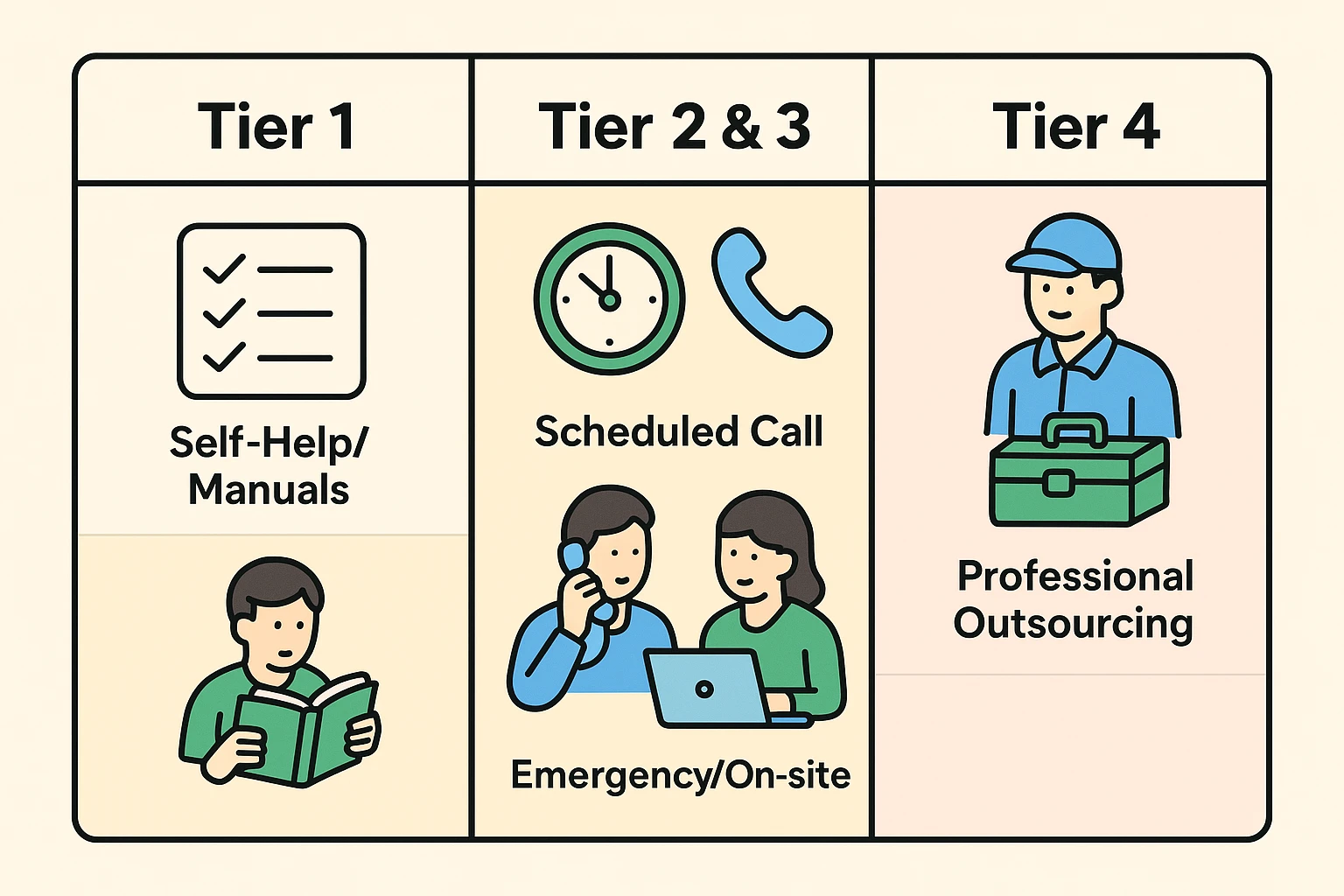
Frame your boundaries as a way to ensure they get your undivided attention. Say something like, “I really want to help you figure out this email issue, but I’m distracted by work right now. Let’s write it down and tackle it properly on Saturday morning.”
Tools like TeamViewer, Zoom’s screen-sharing feature, or Apple’s built-in Screen Sharing can be absolute lifesavers. They allow you to see exactly what your parent is seeing on their screen, finally eliminating the dreaded “what does the little box say now?” guessing game.
Occasional forgotten passwords or confusion over a software update are perfectly normal. However, if a senior is suddenly unable to perform basic tech tasks they’ve done daily for years, or if they are repeatedly falling for obvious phishing scams, it may be time to consult a doctor. Keep an eye out for sudden, unexplainable regressions in their routine.
Set up multi-factor authentication (MFA) on their banking and email accounts, and consider linking the secondary approval text to your own phone number. You should also help them freeze their credit to prevent major identity theft, and turn on the automatic spam-blocking features offered by their cell phone carrier.
Being the family IT department doesn’t have to be a life sentence of frustration. By setting clear boundaries, creating easy-to-follow cheat sheets, and knowing exactly when to call for backup, you can help your loved ones stay connected and safe—without losing your own mind in the process.