Newsletter Subscribe
Enter your email address below and subscribe to our newsletter

Enter your email address below and subscribe to our newsletter
Picture this: You’ve finally made it to your hotel room. You’ve successfully dragged your suitcase across that mysteriously sticky lobby carpet, figured out which of the three identical light switches controls the bathroom, and collapsed onto the bed. Now, you just want to connect to the Wi-Fi to let your kids know you survived the flight and to check if your cat is still ignoring the pet sitter.
You open your phone or tablet, and suddenly you’re staring at a list of fifteen different networks. There’s “HotelGuest,” “HotelGuestFree,” “Room402,” and someone’s personal phone named “FBISurveillanceVan.” It’s like standing in a crowded room where everyone is shouting your name, and you have to guess which one isn’t a pickpocket.
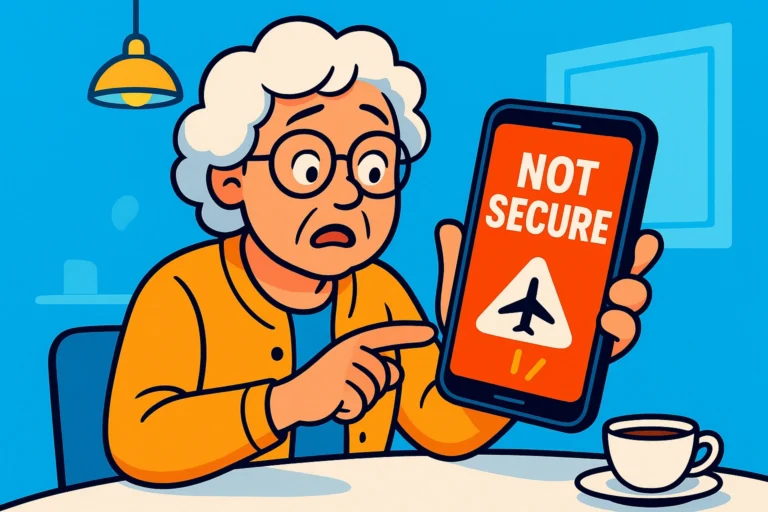
If connecting to hotel Wi-Fi makes you feel a little uneasy, your instincts are spot on. According to a recent AARP Travel Tech Study, 59% of seniors are worried about data theft while traveling. We all know we should be careful, but most tech advice out there either assumes you have a degree in computer science or simply yells at you to “BE SAFE!” without telling you how.
Today, we are going to fix that. We’re going to walk through the exact, simple steps to get online in your hotel safely—from the front desk to the bedside table. No jargon, no panic, just plain English.
Before we press any buttons, let’s talk about how hotel Wi-Fi actually works. Think of the hotel Wi-Fi network like the physical hallway outside your hotel room door.
Even though you have a room key and you’re a paying guest, that hallway is still a public space. You wouldn’t walk out there in your pajamas to do your banking, would you? (If you would, please ignore this and consult a different kind of blog).
When you log onto the hotel’s free Wi-Fi, your device is stepping out into that digital hallway. Other guests—and potentially some bad actors sipping $9 coffees in the lobby—can be in that same hallway. If you aren’t properly dressed (digitally speaking), your personal information is out there for everyone to see.
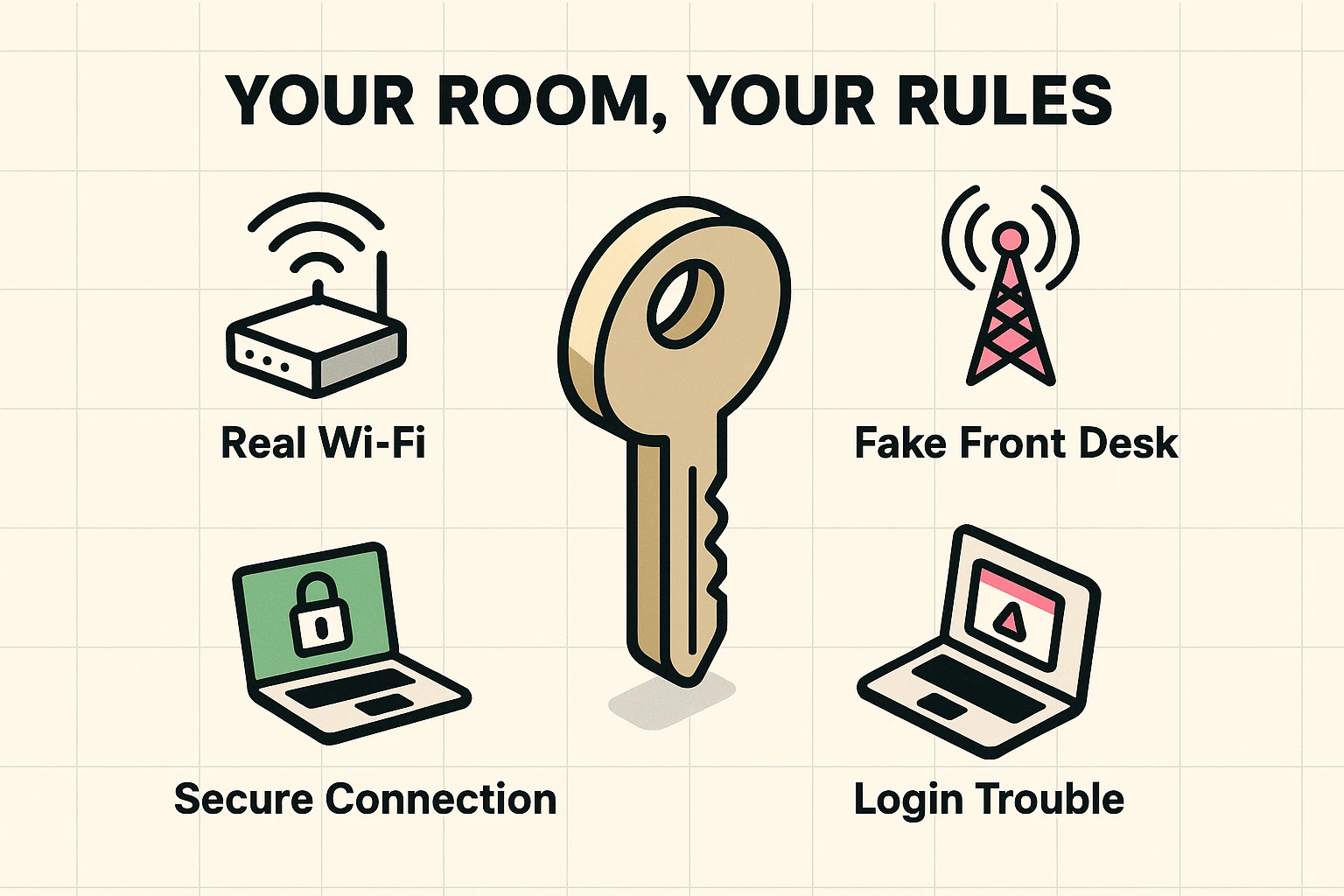
Your Wi-Fi security doesn’t start in your room; it starts at the check-in desk. When the clerk hands you your key cards in that little paper sleeve, ask them for the exact name of the hotel’s Wi-Fi network.
Why? Because of something security folks call the “Evil Twin” trick. Let’s say you’re staying at the Seaside Inn. A scammer sitting in the lobby can easily set up a Wi-Fi network on their laptop and name it “SeasideInnFree.”
If you connect to the scammer’s fake network instead of the real one, they can peek at everything you do. It’s the digital equivalent of someone setting up a folding table next to the real front desk and asking for your credit card. Always verify the exact network name before heading to the elevators.
You’re in your room, you’ve verified the network name, and you tap it on your phone or tablet. Usually, a little login screen pops up asking for your room number and last name.
But what happens when that screen plays hide-and-seek? You’re connected to the Wi-Fi, the little fan-shaped icon is at the top of your screen, but the internet just won’t work. This is the number one frustration for senior travelers.
Here is a magic trick to force that stubborn login screen out of hiding. Open your internet browser (like Safari, Chrome, or Edge) and type this exactly into the address bar at the very top: neverssl.com or if you’re on a Windows computer, type msftconnecttest.com.
These special websites don’t use modern security barriers, which forces the hotel’s Wi-Fi to say, “Ah, wait! Before you go there, you need to sign in!” Presto, your login screen appears, and you can finally get online. And if you’re ever worried if the hotel’s actual login page is fake, you can always check their website directly or call the front desk to confirm.
Remember the Pajama Rule? Once you’re connected, it’s time to cover up. The best way to do this is with a VPN, which stands for Virtual Private Network.
Don’t let the acronym scare you. You don’t need to be a hacker in a dark hoodie to use one. Think of a VPN as a secure, windowless tunnel that runs right through that public hotel hallway. When you use it, nobody can see what you’re doing.
Modern VPNs (like ExpressVPN or NordVPN) are essentially a single “on/off” button on your phone or tablet screen. You open the app, tap the big button that says “Connect,” and you are instantly invisible to anyone trying to snoop on your hotel network. It’s that simple.
If you don’t have a VPN yet, you need to treat your hotel internet activities like a traffic light. Here is your quick cheat sheet:
Green Light (Safe to do): Reading the news, checking the weather, finding local restaurants, or watching funny dog videos on YouTube. If someone spies on this, all they learn is that you like golden retrievers.
Yellow Light (Proceed with caution): Checking standard emails or looking at social media. Make sure the websites you use have a little padlock icon next to the web address, which means the connection has some basic protection.
Red Light (Stop immediately): Logging into your bank account, entering your credit card number to buy something, or checking sensitive medical records. Never do these on hotel Wi-Fi without a VPN. Save it for when you get home!
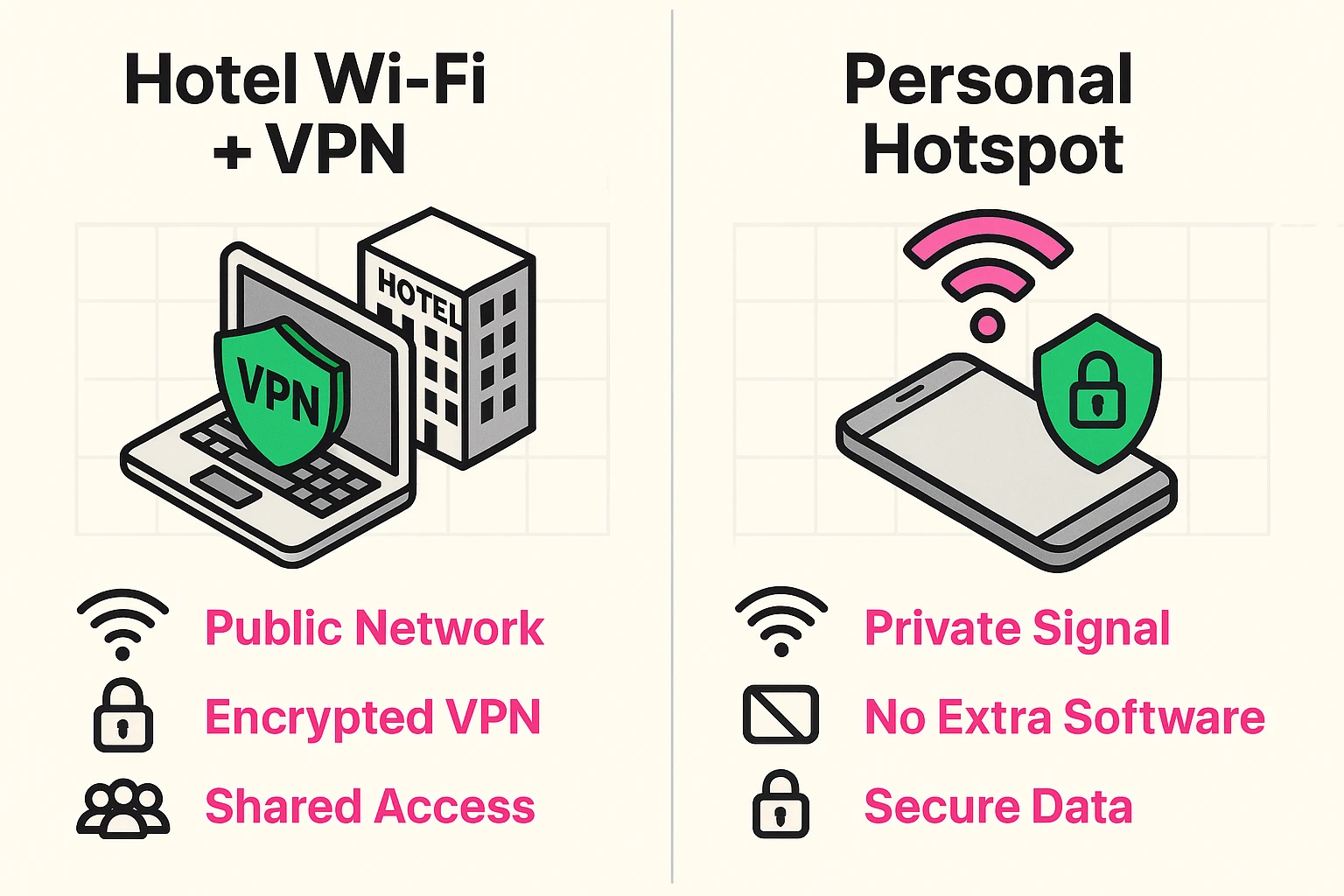
If you really need to check your bank balance and you don’t have a VPN, there is a built-in safety net right in your pocket: your smartphone’s cellular data.
Instead of using the hotel’s Wi-Fi, you can turn your phone into a “Personal Hotspot.” This uses your cellular network (like AT&T, Verizon, or T-Mobile) to create a private, invisible mini-Wi-Fi network just for your own tablet or laptop.
Because it uses your cellular data instead of the hotel’s open network, it’s significantly safer. Just be aware that doing this uses your phone’s monthly data plan, so it’s better for a quick bank check rather than binge-watching a six-hour documentary series about ancient Rome.
Yes, as long as you stick to “Green Light” activities. Apple devices are relatively secure, but they still transmit data through the hotel’s public network. For banking or shopping, you still need a VPN or your personal cellular hotspot.
That scary warning simply means the hotel network doesn’t require a password to join the signal. Even if they ask for your room number later on a web page, the initial connection is open air. It’s your device’s way of reminding you about the “Pajama Rule.”
If they are a skilled hacker, and you are not using a VPN or secure websites, yes, they potentially could. But don’t panic—just follow the traffic light rules we outlined above, and your snooping neighbor will see nothing but a locked door.
Traveling is stressful enough without having to worry if your digital pockets are being picked while you’re trying to figure out how the hotel room’s coffee maker works. By asking the right questions at the front desk, using our login screen tricks, and remembering the Pajama Rule, you can browse with confidence.
Next time you pack your bags, think of your digital safety just like your physical safety. Lock your doors, verify who you’re talking to, and enjoy the trip.
If you found this guide helpful, stick around and explore more of our plain-English tech guides. We’re here to make sure you rule your devices, not the other way around!