Newsletter Subscribe
Enter your email address below and subscribe to our newsletter

Enter your email address below and subscribe to our newsletter

There is a very specific, cold sweat that breaks out when you look at the calendar and realize your grandson’s birthday was yesterday. You can almost hear the disappointment radiating through the cosmos.
In the old days, we had excuses. “The mail is slow,” we’d say, while frantically shoving a five-dollar bill into an envelope. Or, “I bought a card, but the dog ate it.” But today? We live in the future. We carry supercomputers in our pockets that can calculate the trajectory of a rocket to Mars, yet somehow, we still forget to send a simple “Happy Anniversary” text to our niece.
It’s not your fault. Life is busy, and memory is a fickle beast. But here is the good news: You don’t need to rely on your memory anymore. You have a personal assistant living inside your smartphone who is desperate to help you. They don’t take coffee breaks, they don’t ask for a raise, and they never judge you for forgetting Aunt Mildred’s middle name.
We are going to explore how to use AI (Artificial Intelligence)—which is just a fancy word for “smart software”—to schedule messages and set reminders so you never miss a special occasion again.
Before we start pushing buttons, let’s clear up a misconception. When people hear “AI,” they often picture a Terminator robot or a sci-fi computer taking over the world.
In reality, the AI on your phone (Siri on iPhone or Google Assistant on Android) is more like a very eager, slightly literal-minded librarian. It wants to organize things for you. It wants to remind you of things. It is waiting for you to give it a job.
Using these tools isn’t “cheating.” It’s efficient. Think of it as the digital equivalent of writing a note on the calendar on the fridge—except this calendar taps you on the shoulder when it’s time to act.
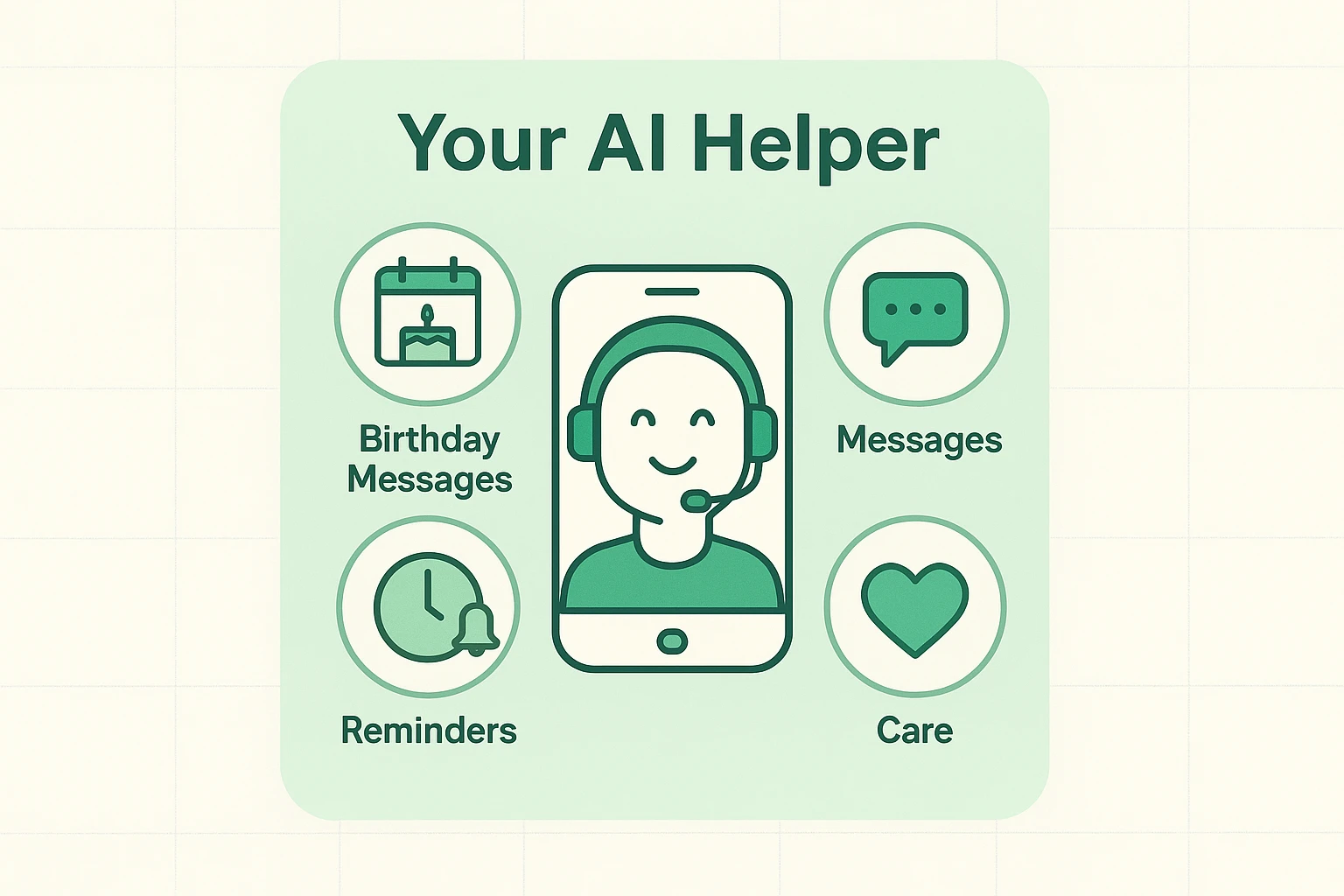
Here is the scenario: It is 11:00 PM on a Tuesday. You suddenly remember that tomorrow is your daughter’s birthday. You want to text her “Happy Birthday,” but if you send it now, you’ll wake her up. If you wait until morning, you might forget before you’ve had your coffee.
Most people don’t know this, but your phone allows you to write a text now and have it automatically deliver itself later. It is like a time-traveling letter.
However, there is a catch. While you can ask Siri or Google to remind you to do things, they sometimes struggle to schedule the text entirely by voice alone. They need a little help from your fingers. Here is the “workaround” that makes you look like a tech wizard.
If you have an iPhone running modern software (iOS 18 or newer), this is built right in. If you have an older version, you might need to use the “Shortcuts” app, but let’s focus on the easiest method available in the standard Messages app.
Android phones (Samsung, Pixel, Motorola) make this incredibly easy.

Maybe scheduling a text feels a bit too high-tech for you right now. That is perfectly fine. You can use the “String Around the Finger” method using just your voice.
This doesn’t send the message for you, but it buzzes your phone and puts a notification on your screen at the exact right moment telling you to do it.
You don’t need to touch anything. Just say the “Wake Word” (either “Hey Siri” or “Hey Google”) and speak clearly.
That’s it. You can go back to gardening or watching your show. When 10 AM rolls around tomorrow, your phone will chime and display: Call Robert for his birthday.
This voice-command feature is incredibly powerful for health, too. Many seniors use a dedicated medication timer to manage their pills, but your phone’s voice assistant is a fantastic backup for those daily health routines.
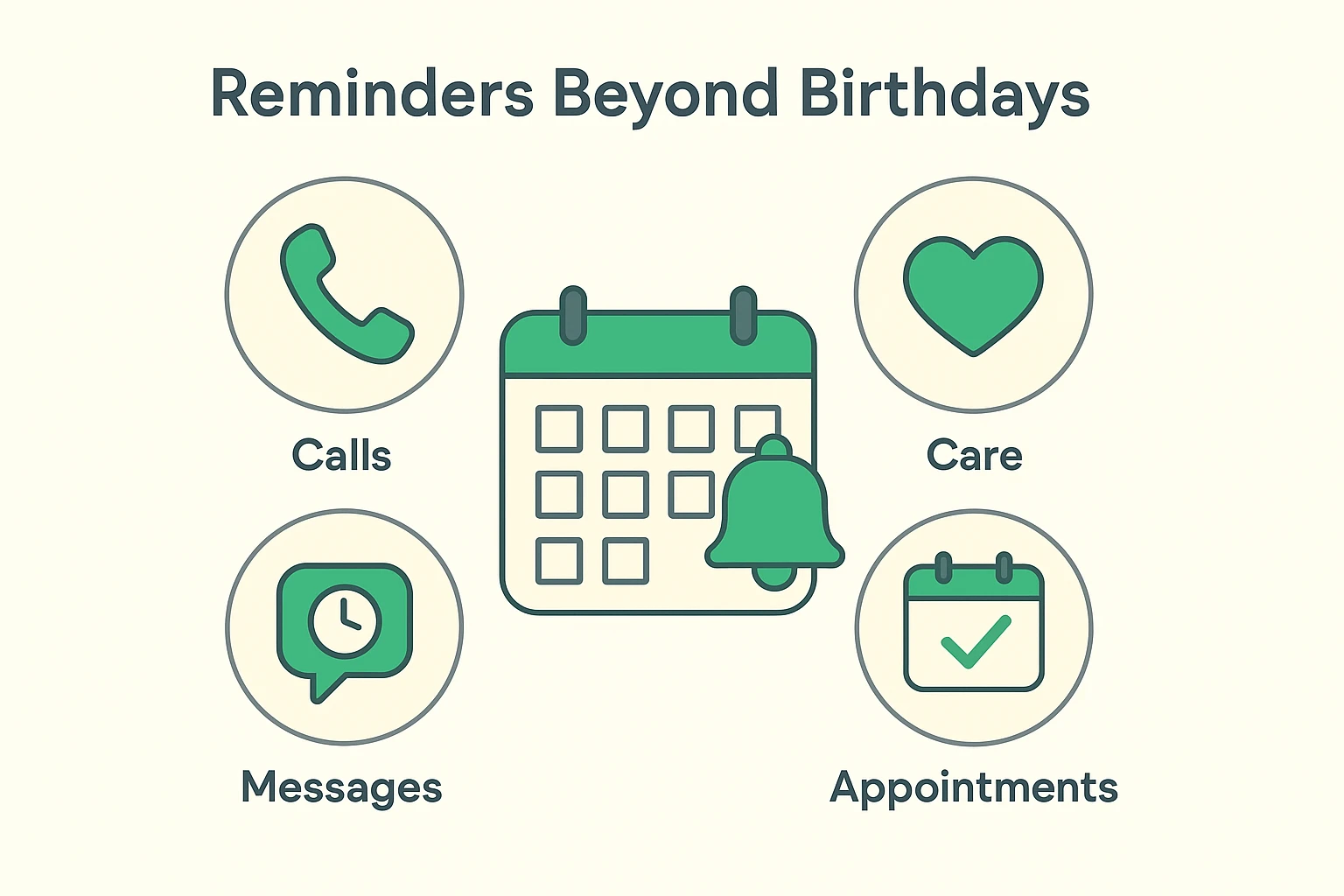
Once you get comfortable bossing your phone around, you realize it can manage much more than just social calls. The mental load of “remembering” is exhausting. Why not outsource it?
Here are a few “Smart Assistant” commands that can make your day smoother:
We know that trying new tech features can raise a few eyebrows. Here are the answers to the questions you might be thinking but haven’t asked yet.
No. Siri (Apple) and Google Assistant (Android) are free features built into your phone. Scheduling a text message costs the same as sending a regular text message (which is usually unlimited on most modern plans).
Generally, yes. For the message to actually leave your device and travel through the airwaves to your grandchild, your phone needs to be powered on and have a signal at the scheduled time. If your phone is off, it will usually send as soon as you turn it back on.
This is a very common fear. Your digital assistant is “listening” only for its specific wake word (“Hey Siri” or “Hey Google”). It ignores the rest of your chat about the weather or what’s for dinner. It’s like a dog sleeping in the corner—it only perks up when it hears “Walk” or “Treat.”
You can edit or delete scheduled messages! In your text conversation, scheduled messages usually appear with a little clock icon or in a separate “Scheduled” list. You can tap on them to delete them or change the time if you realize 6:00 AM is perhaps a bit too early to say Happy Birthday.
We aren’t letting you leave without trying this out. Here is your mission:
Pick a friend or family member. It doesn’t have to be their birthday. Open your text messages, write “Thinking of you!”, and practice the Scheduled Send (Long-press the send button on Android, or use the + menu on iPhone). Schedule it to send 15 minutes from now.
Put your phone down. Make a cup of tea. When 15 minutes passes, check your phone. You’ll see the message sent automatically.
Congratulations. You have just mastered time travel—or at least, the next best thing.