Newsletter Subscribe
Enter your email address below and subscribe to our newsletter

Enter your email address below and subscribe to our newsletter
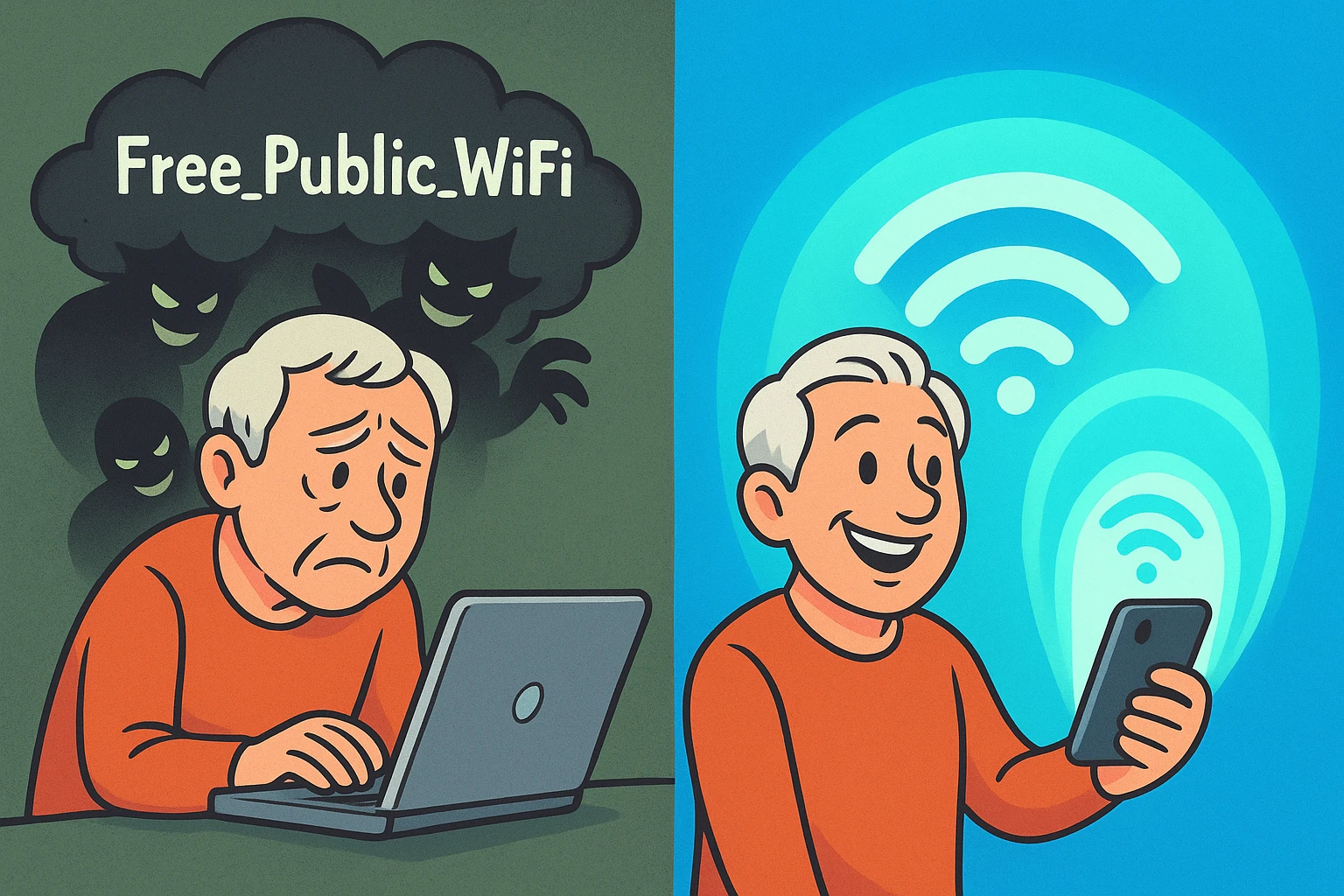
Picture this. You’re sitting in an airport terminal. Your flight is delayed because the pilot’s astrological sign doesn’t align with the baggage handler’s, and you just want to check your email or read the news on your iPad. You open your Wi-Fi settings and see an oasis: “FreeAirportWiFi.” You click it, feeling like you’ve won the digital lottery.
But connecting to free public Wi-Fi is essentially the digital equivalent of shouting your social security number into a crowded elevator. It’s a hacker’s paradise. Cybercriminals love hotel lobbies, coffee shops, and airports because public Wi-Fi is like a communal toothbrush—everyone uses it, and it’s deeply unsanitary for your privacy.
The good news? You don’t have to rely on shady public networks. You already have a private, highly secure, VIP internet connection sitting right in your pocket or purse. It’s called a mobile hotspot. Today, we’re going to show you how to turn your smartphone into a secure, personal Wi-Fi bubble. No engineering degree required.
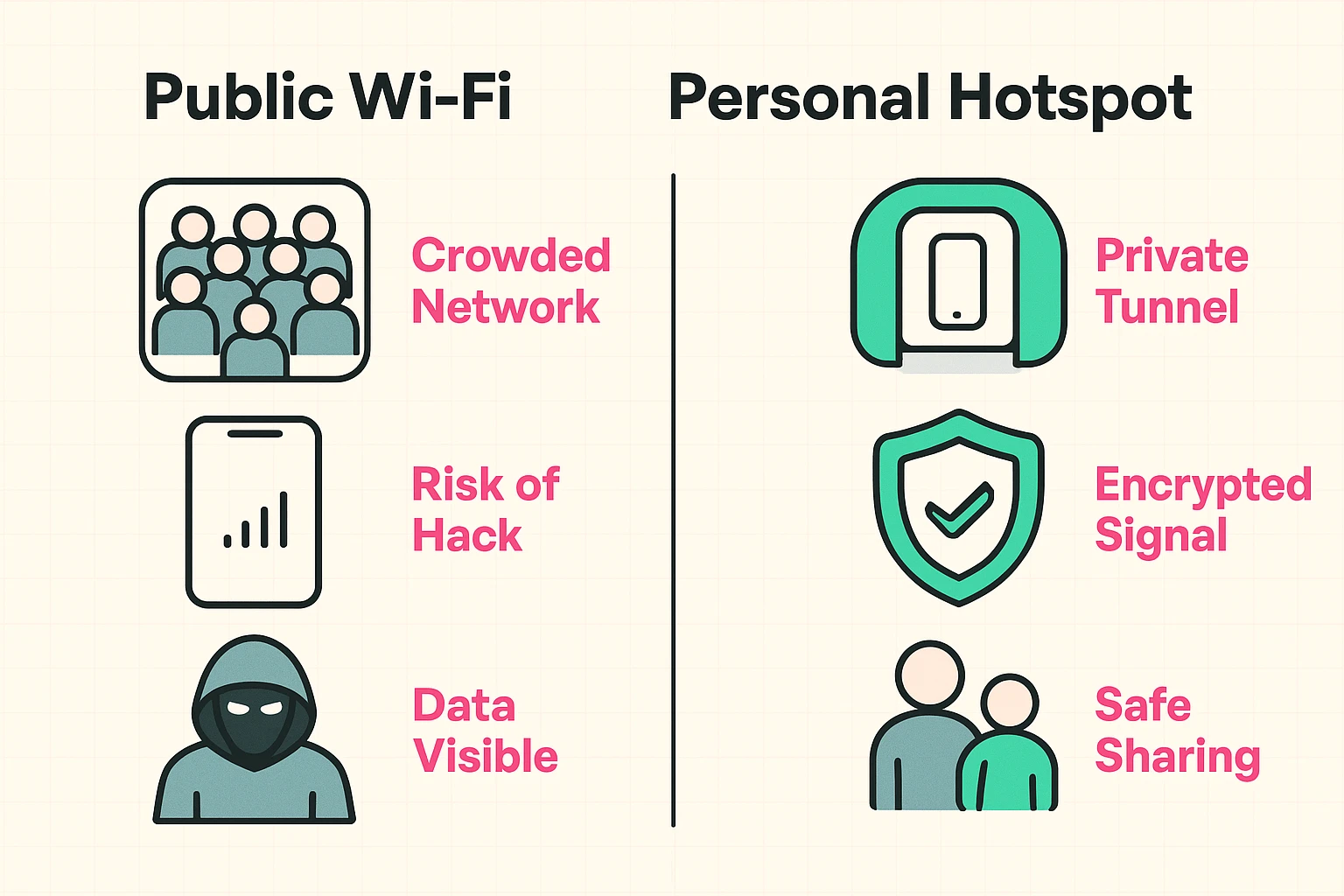
To understand why a personal hotspot is better, let’s look at how the internet travels. When you use public Wi-Fi at a local cafe, you are sitting in a “crowded lobby.” Everyone in that digital room can potentially see what you are doing. This leads to what security experts call a “Man-in-the-Middle” attack, where a scammer quietly intercepts your passwords before they even reach your bank.
Your phone’s cellular connection, however, is completely different. When you turn on your mobile hotspot, your phone acts as a secure, encrypted router. It creates a “private tunnel” directly from your device to the cell tower.
Instead of sharing the internet with thirty strangers and a teenager trying to hack your Facebook account, it’s just you. You can safely connect your laptop, your tablet, or even your spouse’s phone to this private tunnel. It is the absolute best way to stay safe while traveling.
Now, before you start muttering about how this sounds expensive, let’s talk about the dreaded “overage charges.” For many of us, using cellular data feels like leaving the front door open while the air conditioning is running. We’ve been conditioned to fear the monthly phone bill.
Here is the plain English truth: A mobile hotspot uses your phone’s cellular data to create a Wi-Fi network. Most modern cell phone plans (like those from Verizon, AT&T, and T-Mobile) include a specific bucket of “hotspot data” for free.
If you have an “unlimited” plan, you almost certainly have hotspot capabilities. The worst that usually happens if you use it too much is “throttling.” That’s a fancy tech word meaning your phone company will temporarily slow your internet speed down to a crawl, but they won’t charge you extra.
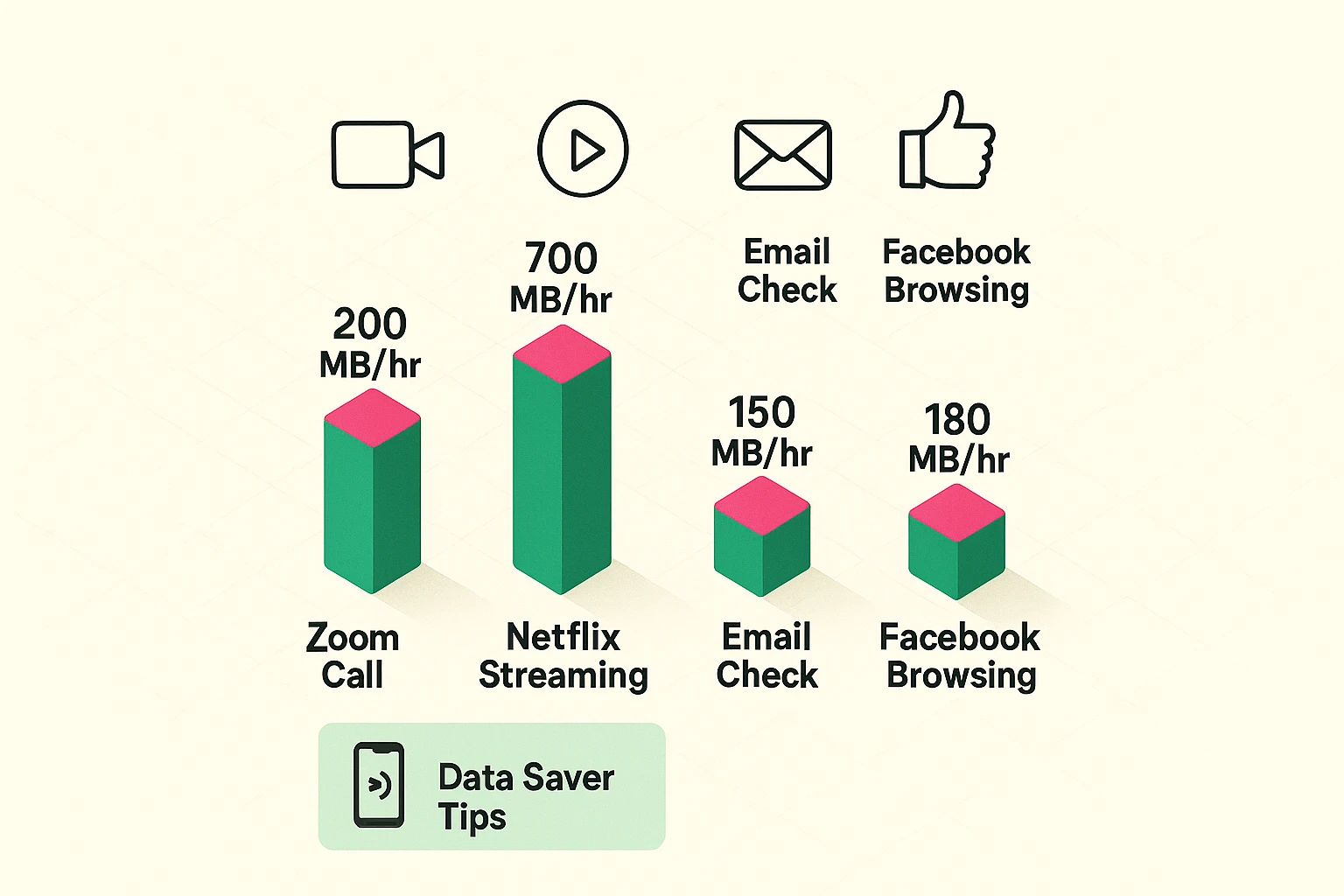
Not sure how much data your daily habits use? Here is a quick breakdown of what different activities cost your hotspot data plan:
Ready to become your own internet provider? Here is how to turn the hotspot on.
For iPhone Users:
For Android Users:
A Quick “Stranger Danger” Tip: By default, your phone broadcasts its name to the world (e.g., “Barbara’s iPhone”). To keep a low profile in public, you can change your phone’s name in your settings to something anonymous, like “Mobile-Network-5” or “Not a Wi-Fi Hotspot.”
Let’s say you’re sitting in a hotel room with your spouse, and they want to connect their tablet to your phone’s hotspot. In the old days, you had to read aloud a password that looked like a cat walked across a keyboard: “Capital Q, lowercase z, the number 7, exclamation point…”
Thankfully, the tech world finally realized this was torture. Today, we have the “QR Code Revolution.”
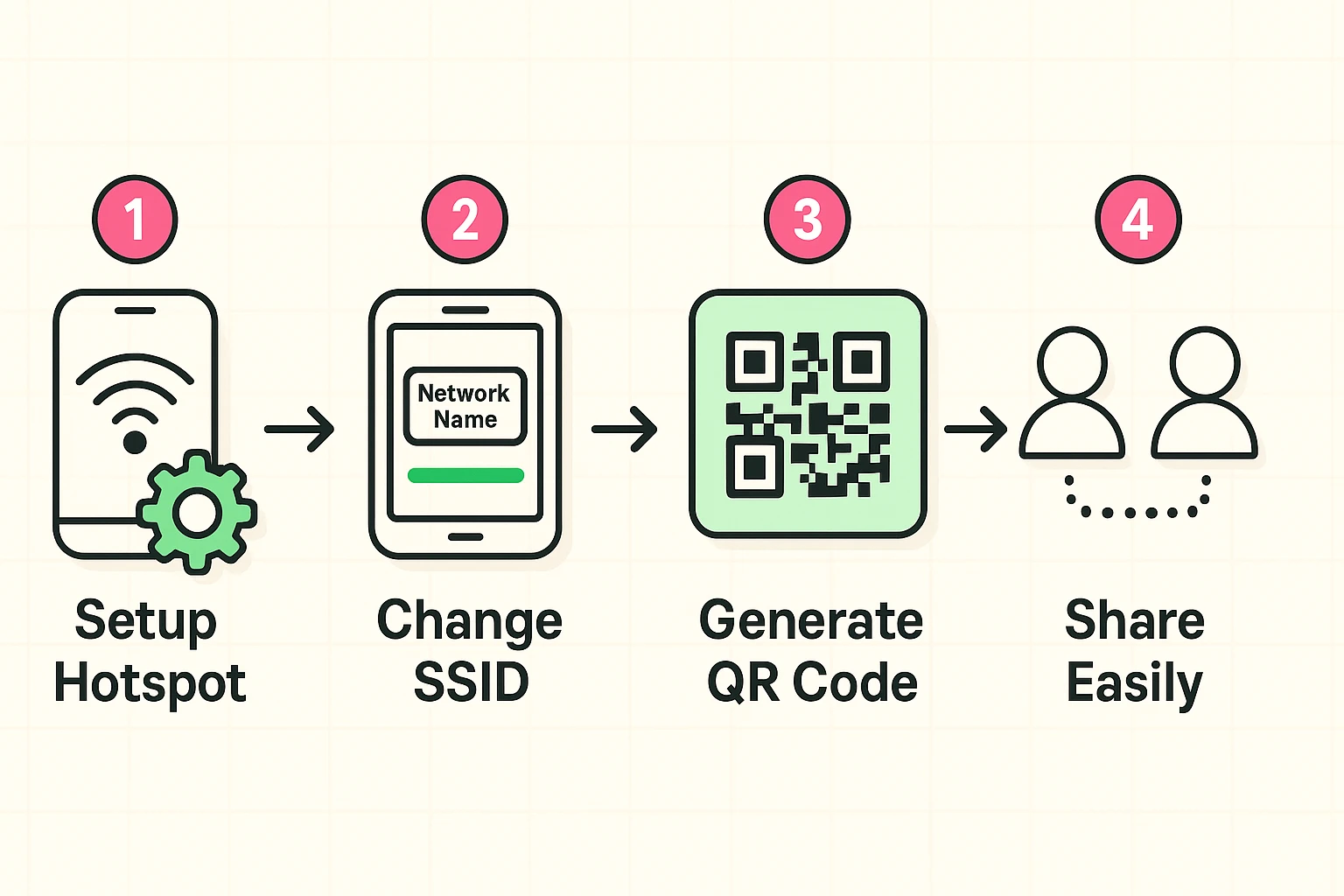
If you have an Android phone, your hotspot settings have a little “QR Code” icon next to them. Tap it, and a square barcode appears on your screen. Your spouse just opens their tablet’s camera, points it at your screen, and boom—they are securely connected. No typing required.
If you both use iPhones, it’s even easier. If your spouse is in your contacts, and they try to join your hotspot on their iPad, a message will magically pop up on your phone asking, “Do you want to share your password?” You tap “Share,” and they are instantly beamed into your private tunnel.
When you are traveling, your hotspot is your best friend. But like any good friend, you need to manage the relationship so it doesn’t drain your energy—literally.
Creating a Wi-Fi network requires your phone to work overtime, which eats up your battery life quickly. If you plan to use your hotspot for more than a few minutes at the airport, make sure your phone is plugged into a charger or a portable battery pack.
Also, when you are done checking your bank account or sending that email, turn the hotspot off. Leaving it on is like leaving your car idling in the driveway; it wastes energy and invites unnecessary wear and tear.
Yes! You can happily browse the web, make phone calls, or text on your smartphone while it simultaneously beams Wi-Fi to your laptop. It’s a fantastic multitasker.
Proceed with caution. Using cellular data internationally can be incredibly expensive depending on your carrier plan (often called “roaming charges”). Unless you have a specific international plan or have purchased an international eSIM, keep your hotspot off while abroad to avoid coming home to a bill the size of a mortgage payment.
Did you share your password with your grandson, and now he’s downloading massive video games on your data plan? The easiest way to kick someone off is simply to turn the hotspot off, wait a moment, and turn it back on. To keep them off permanently, just change your hotspot password in your settings.
Absolutely. Using your cellular hotspot uses advanced encryption (like WPA3) that makes it incredibly difficult for anyone to snoop on your activity. It is the single best way to ensure your passwords and private messages stay yours.
Now, the next time you find yourself staring at a suspicious “FreeCoffeeShopWiFi” network, you can confidently smile, pull out your phone, and create your own private internet oasis. Welcome to the VIP lane of the internet!