Newsletter Subscribe
Enter your email address below and subscribe to our newsletter

Enter your email address below and subscribe to our newsletter
Picture this: You are standing in your living room in your pajamas, holding a mug of coffee, barking orders at a small plastic cylinder. “Alexa, turn on the living room lights,” you say. The cylinder glows with a menacing red ring and replies with the digital equivalent of a shoulder shrug: “I’m having trouble connecting to the internet.” Suddenly, you are standing in the dark, wondering why you didn’t just stick with a trusty, old-fashioned light switch.
It happens to the best of us. Your Ring doorbell stops recording right when the delivery guy drops off a package, or your smart thermostat decides it no longer wants to talk to your furnace. When our “smart” gadgets suddenly go dumb, it is incredibly frustrating. It feels like they are deliberately ignoring us, like a teenager pretending they didn’t hear you ask them to take out the trash.
But before you threaten to throw your smart speaker out the nearest window, take a deep breath. Usually, the gadget itself is perfectly fine, and you haven’t done anything wrong. The real culprit is the invisible highway of information floating through your house: your Wi-Fi network. Today, we are going to play digital detective and translate this invisible world into plain English, so you can get your smart home back online.
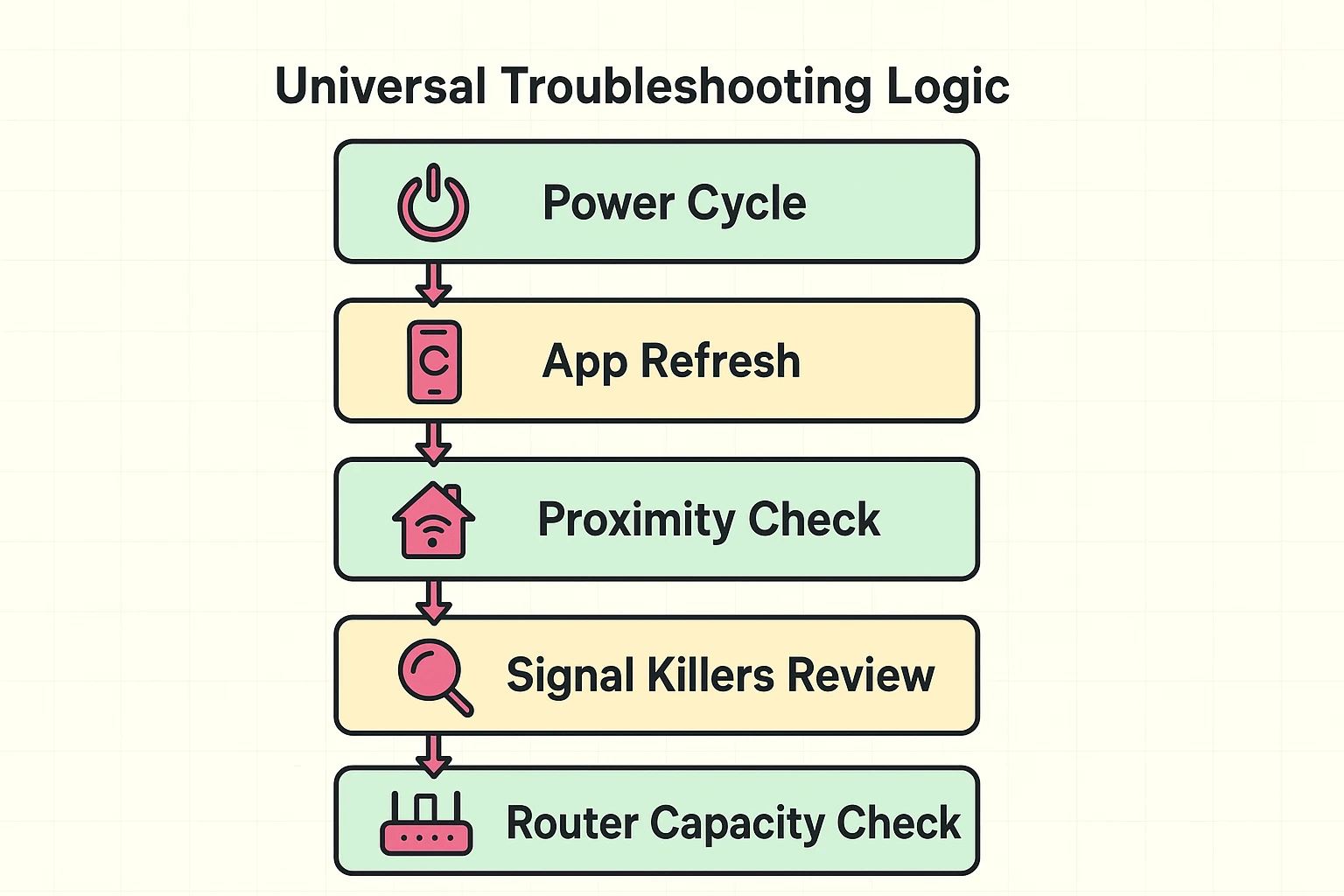
Before we dive into the science of Wi-Fi, let’s start with the “Holy Trinity” of quick tech fixes. Often, devices just get a little confused and need a quick digital nap to clear their digital throats. First, try power cycling the rebellious device by simply unplugging it from the wall, waiting 30 seconds, and plugging it back in.
If a simple reboot doesn’t work, try closing and reopening the smart home app on your smartphone or tablet. Finally, make sure your phone is actually connected to your home Wi-Fi and hasn’t accidentally switched over to cellular data. If these quick 30-second fixes don’t solve the mystery, it is time to look at the bigger picture.
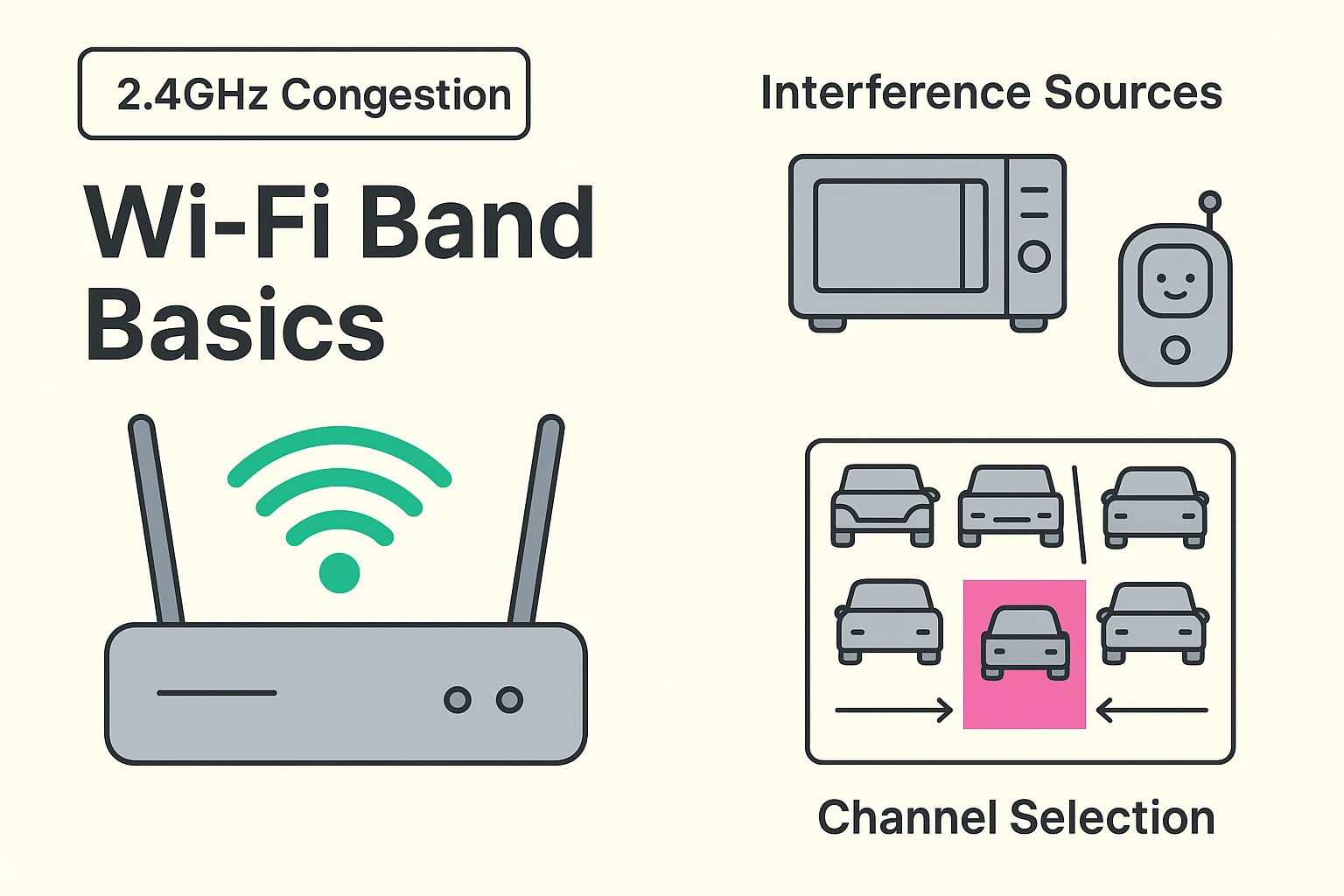
When you got your new internet service, the company probably bragged about having super-fast “5G” or 5GHz Wi-Fi. It sounds impressive, right? Here is the ironic twist: that super-fast Wi-Fi is probably exactly why your doorbell won’t connect. Most smart home devices—like thermostats, plugs, and doorbells—actually refuse to use that fast lane.
Instead, they operate on a slightly older, slower frequency called 2.4GHz. Why? Because 2.4GHz signals are like a slow, sturdy pickup truck; they can easily plow through walls and travel long distances to reach your front door. The 5GHz signal is like a sports car; it’s blazing fast, but it can’t handle a speed bump (or a brick wall) without spinning out.
The problem is that the 2.4GHz band is incredibly crowded. Think of it like a tiny parking lot with only three usable spots. Your smart devices, your neighbor’s baby monitor, and even your microwave are all aggressively fighting for those same three parking spots, and when it gets too full, your Alexa simply gets locked out.
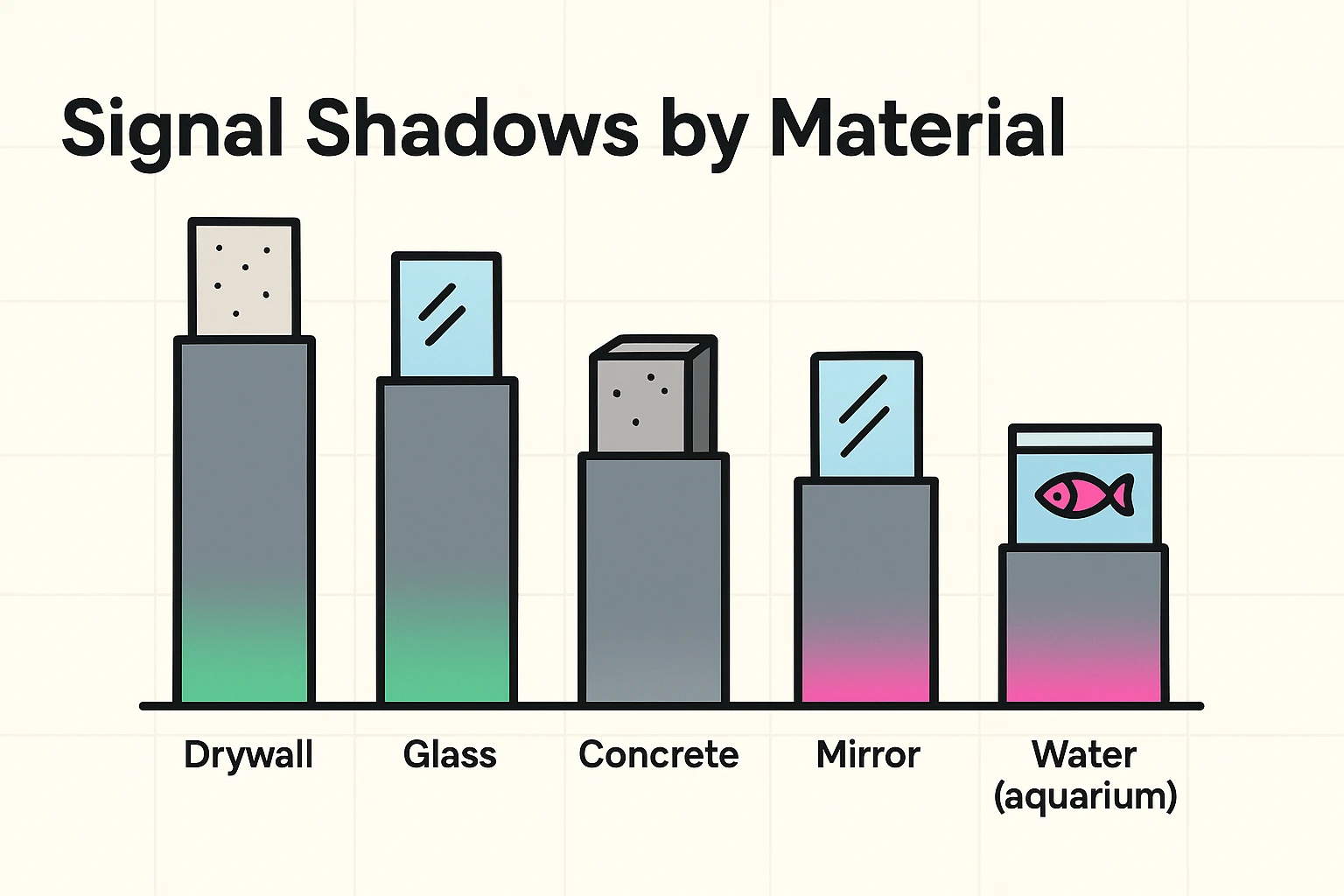
You might look at your internet router and think, “It’s only twenty feet away from the doorbell, what’s the problem?” But Wi-Fi doesn’t travel in a straight, magical line through empty space. It has to push through the physical obstacles in your house to reach your devices. Some everyday materials are absolute kryptonite to a Wi-Fi signal, creating invisible “signal shadows.”
Standard drywall isn’t a big deal, but metal, concrete, and water swallow Wi-Fi signals whole. Have a beautiful, giant mirror in the hallway between your router and your thermostat? That mirror is literally bouncing the Wi-Fi signal right back where it came from. Is your router sitting next to a massive, metal refrigerator or a giant fish tank?
Let’s say you’ve caught the smart home bug and bought a couple of smart plugs, a few lightbulbs, and an Echo dot. Suddenly, random devices start dropping offline for no apparent reason, taking turns being broken. You might be hitting what we call the “Router Ceiling.”
Every time a device connects to your Wi-Fi, your router hands it a digital nametag (known technically as an IP address). Most basic routers provided by your internet company only have enough built-in “nametags” for about 15 or 20 devices. Once you add up your phones, laptops, smart TVs, and all those new smart bulbs, you might simply be out of nametags. The router literally cannot acknowledge your new smart plug because it has no nametags left to give!
Sometimes, the issue has absolutely nothing to do with your house, your router, or your devices. Smart gadgets don’t just talk to your phone; they talk to giant computer servers hundreds of miles away, often referred to as “the cloud.” If Amazon, Google, or Apple is having a bad day and their servers go down, your device goes down with them.
Before you spend an hour moving your router around or trying to reset your passwords, do a quick internet search on your phone for “Is Alexa down?” or “Ring server status.” If the mothership is offline, there is no magic button to press in your living room. All you can do is pour another cup of coffee and wait for the tech giants to fix the problem on their end.
So, how do we fix all this without needing a computer science degree? First, elevate your router. Don’t hide it behind the TV or stick it in a metal cabinet; let it breathe on a high shelf like a proud, slightly ugly houseplant. This helps the signal travel over furniture and avoid common household interference.
If you live in a larger home or have thick plaster walls, consider upgrading to a “Mesh Wi-Fi” system. Instead of one router desperately trying to shout across the whole house, a mesh system uses several small devices placed in different rooms. They act like a digital bucket brigade, passing a strong Wi-Fi signal seamlessly from the living room all the way to the back porch.
Your modern smartphone is a technological marvel designed to easily hop onto that fast, 5GHz Wi-Fi lane we talked about earlier. Most smart plugs, however, only have the hardware to see the older, slower 2.4GHz lane. If your router is only broadcasting the 5GHz signal, your smart plug is completely blind to it.
Not necessarily! Often, just moving your current router to a higher, more central location away from metal and water can work miracles. However, if your router is more than five years old, or was given to you by your cable company a decade ago, upgrading could solve a lot of modern smart home headaches.
Remember the digital “nametags” we discussed earlier? Sometimes, devices get confused when the router takes a nametag back and assigns them a new one. Setting a “Static IP” is just a fancy way of permanently taping the nametag to the device so it never gets lost, which is a great trick for stubborn smart home gadgets.
Technology is supposed to make our lives easier, not turn us into amateur IT technicians on a Tuesday morning. By understanding how your Wi-Fi network actually behaves—like knowing about that crowded 2.4GHz parking lot or those sneaky signal shadows—you take back control. You no longer have to blindly unplug things and cross your fingers in hopes of a digital miracle.
The next time Alexa gives you the silent treatment or your doorbell takes an unapproved vacation, you will know exactly what to look for. You are now officially the smart home guru of your household. If you found this plain-English guide helpful, be sure to bookmark this page for your next troubleshooting session, and share it with a friend who has been arguing with their smart thermostat!