Newsletter Subscribe
Enter your email address below and subscribe to our newsletter

Enter your email address below and subscribe to our newsletter
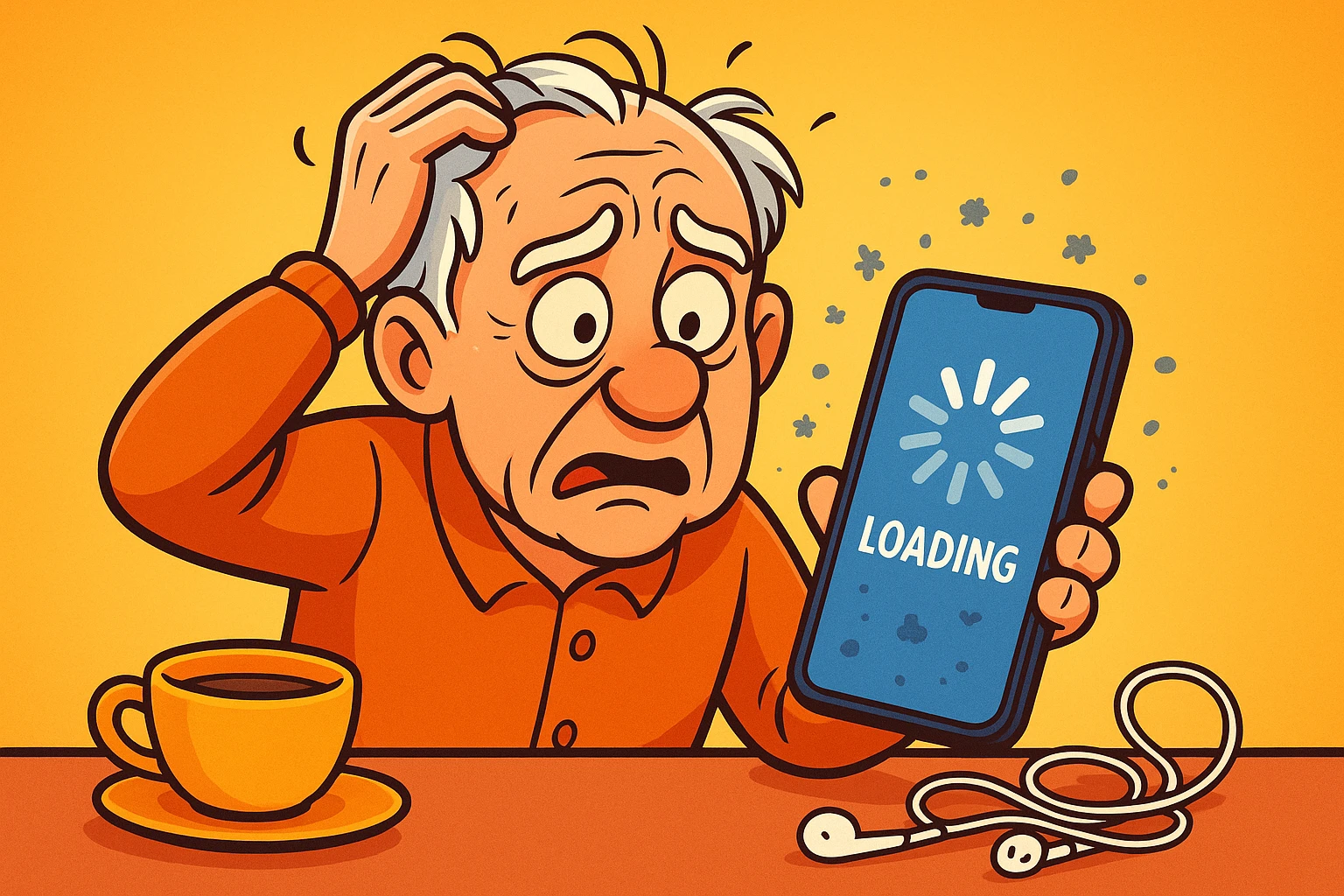
Have you ever stared at your phone screen, watching a little circle spin round and round, feeling a strange mixture of hope and rage? You just want to update your solitaire game or get the latest version of WhatsApp so you can see the photos of your granddaughter’s new puppy. But the phone refuses. It says “Pending.” It says “Downloading…” but the progress bar hasn’t moved since the Carter administration.
It’s a technological standoff. You click “Update.” The phone crosses its digital arms and says, “Make me.”
If this sounds familiar, you aren’t crazy, and your phone isn’t necessarily broken. It’s just being difficult. For many seniors, a stuck update is one of those invisible annoyances that makes you want to toss the device into the nearest body of water. But before you go searching for a lake, take a deep breath. Usually, the problem isn’t the phone itself—it’s a confused connection, a clogged digital pipe, or a grumpy security setting.
We are going to walk through this together, step by step. We’ll start with the easy fixes (the digital equivalent of jiggling the handle), move on to the deep cleaning, and even tackle those tricky apps that don’t live in the regular App StoreApp Store is a digital shop on your phone, tablet, or computer where you can find, download, and upd... More.
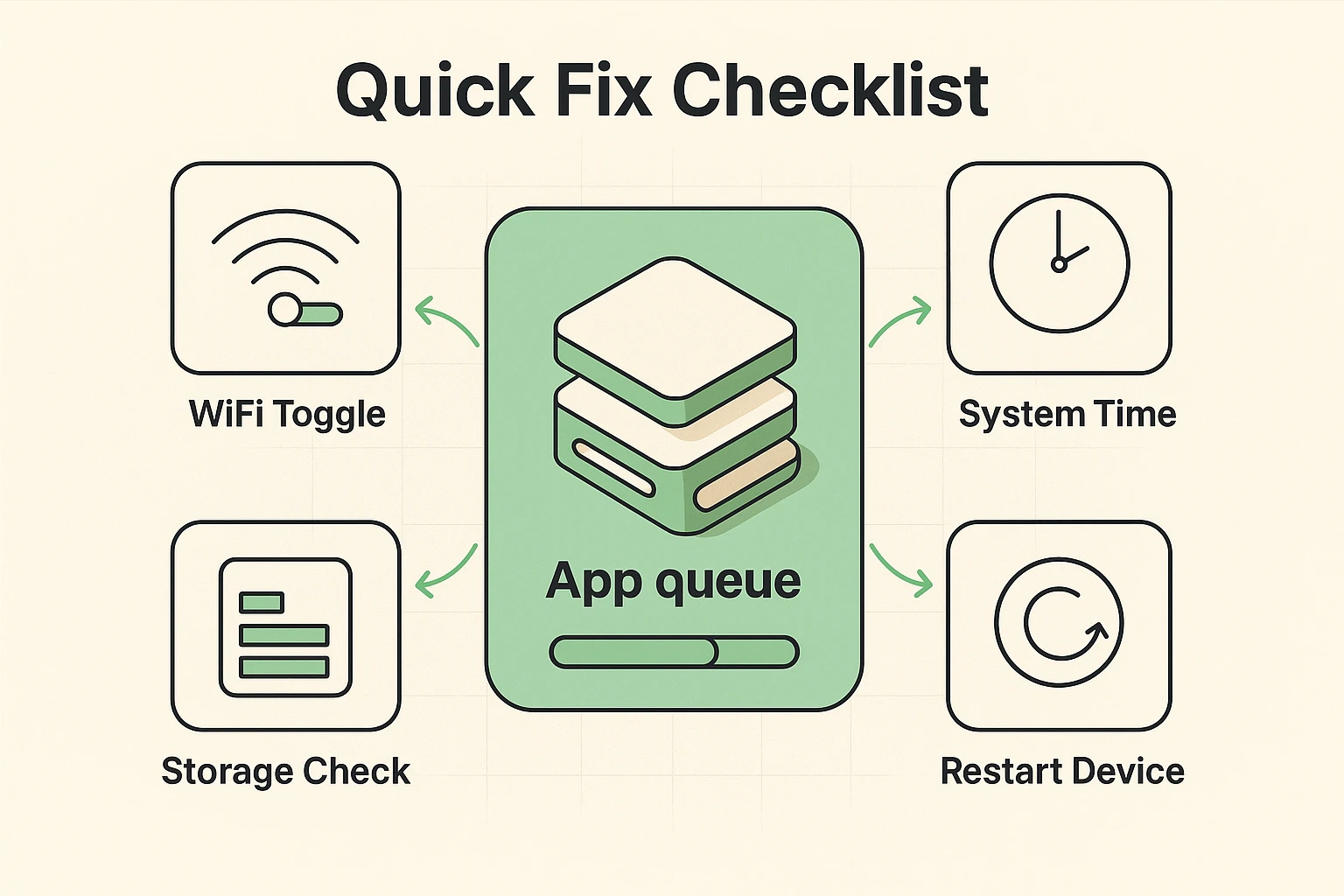
Before we start taking things apart, let’s try the simple stuff. You’d be amazed how often these five-minute fixes solve the problem.
Sometimes your phone is connected to the Wi-FiWi-Fi, short for Wireless Fidelity, revolutionizes connectivity by enabling devices to access the in... More, but they aren’t actually speaking to each other—like a couple at a restaurant staring at their own menus in silence.
Here is a secret that phone manufacturers rarely tell you. If an appAn app (short for application) is a program that helps you do specific tasks on your smartphone, tab... More update is 500MB, having 500MB of free space isn’t enough. Your phone needs room to unpack the boxes, so to speak.
This is a weird one, but stick with me. If your phone’s internal clock is wrong—even by two minutes—the App Store servers might block your download"Download" means saving something from the internet onto your device—like your phone, tablet, or c... More. They think you are a security risk.
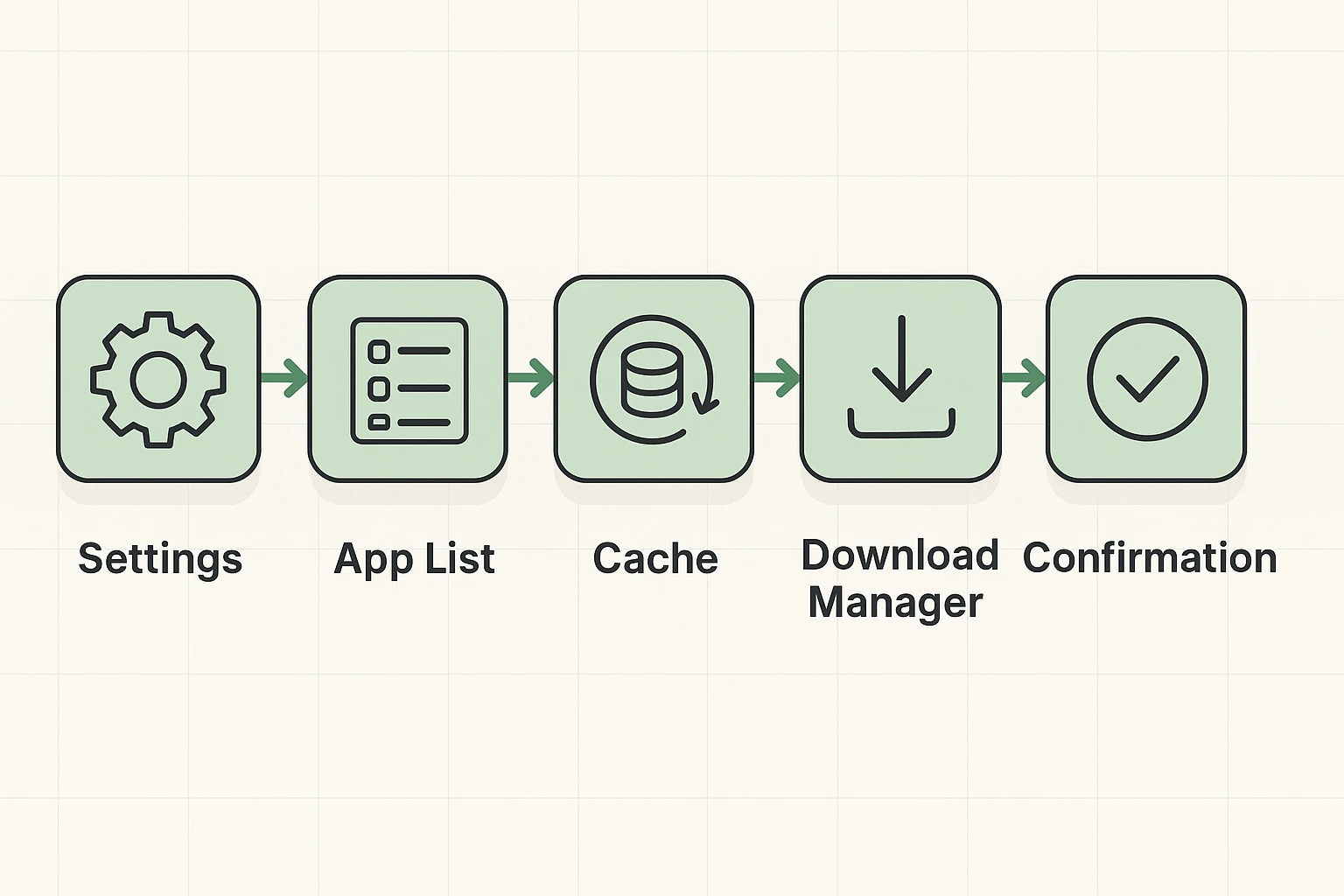
If the simple stuff didn’t work, we have a “clogged pipe” situation. Inside your phone, there are temporary files called “CacheCache is a part of your computer or device that stores copies of information you use frequently to h... More.” Think of Cache as digital lint. A little bit is fine, but too much starts a fire—or in this case, freezes your updates.
We need to clear the Cache for the Google Play StoreThe Google Play Store is an online marketplace for digital content, including apps, games, movies, m... More (or App Store) and, crucially, the Download Manager.
Most guides tell you to restart your phone. But about 30% of you have a deeper issue where the “Download Manager”—the invisible traffic cop inside your phone—is asleep on the job.
Here is how to wake him up (don’t worry, this won’t delete your photos or contacts):
Pro Tip: If that fails, do the same steps for Google Play Services and Download Manager. These are the gears turning behind the scenes.
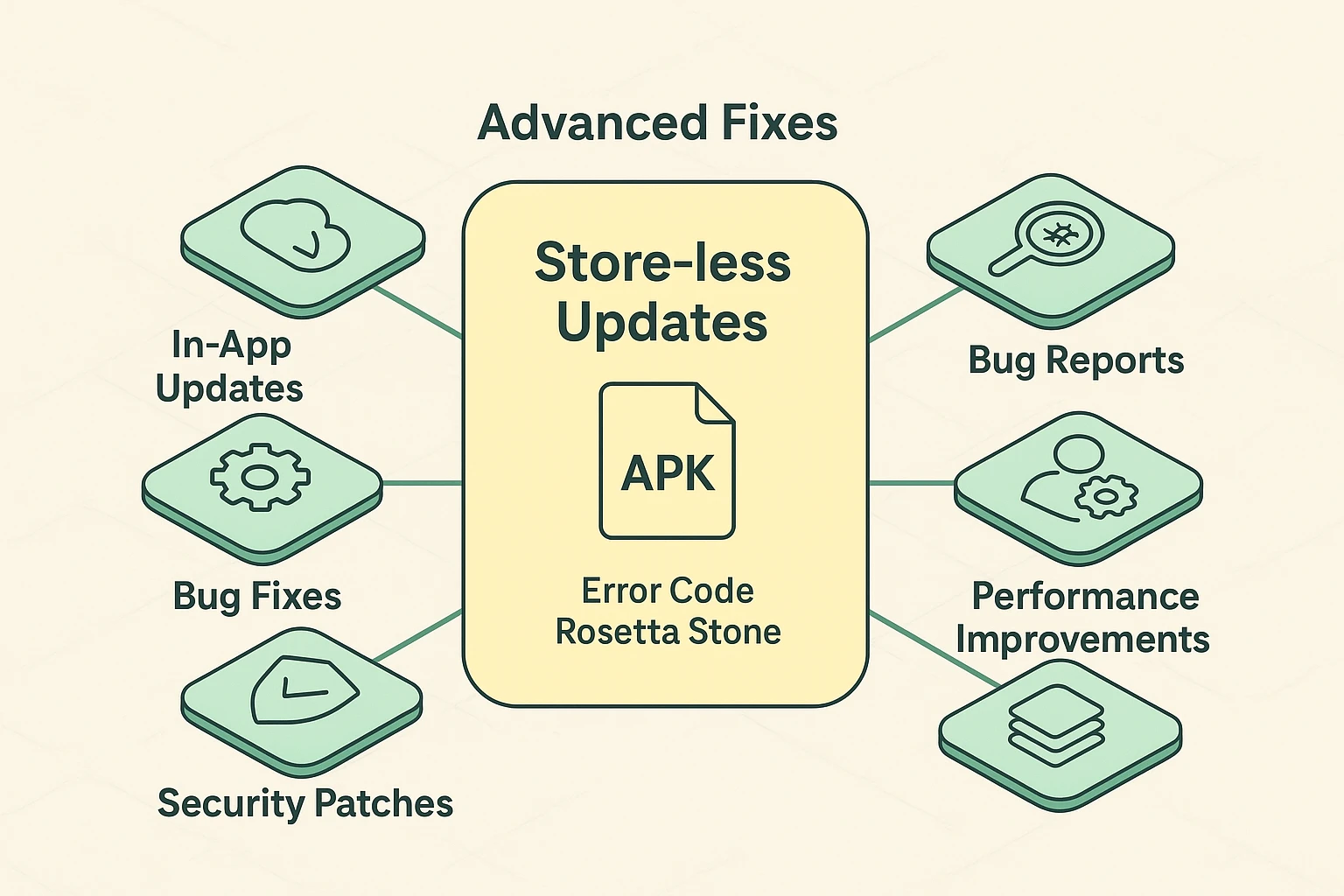
This is where things get tricky, and where a lot of seniors get stuck. Not every app lives in the official Google Play Store or Apple App Store.
Maybe you use a specific betting app like Betpawa, or a specific version of Ludo that your knitting group uses. These apps often require you to download updates from their websiteA website is a collection of interconnected web pages or digital content that are accessible via the... More directly. In tech-speak, this is called “Sideloading.”
If these apps refuse to update, the Play Store troubleshooting steps above won’t help you because the Play Store doesn’t control them.
Your phone is designed to be paranoid. It blocks anything that doesn’t come from the official store unless you tell it otherwise.
If you are trying to update one of these niche apps manually and get an error, it usually means the versions are fighting. You might need to uninstall the old version of the app entirely before downloading the new one from the official website.
Sometimes your phone spits out a random number like “Error 495” as if you are supposed to know what that means. Here is a quick cheat sheet for the most common gibberish:
Usually, this means Google Play Services is quietly updating itself in the background. It’s like waiting for the cleaning crew to finish before you can enter the building. Give it 10 minutes. If it’s still stuck, refer to the “Deep Clean” section above.
You could, just like you could drive a car with the “Check Engine” light on. It works for a while, until it doesn’t. Updates often contain security patches that close doors to hackers. We recommend keeping them up to date.
Check your internet connection source. Some huge updates (over 100MB) have a setting that says “Download over Wi-Fi only.” If you are on mobile data (4G/5G), the phone is waiting for you to get home to Wi-Fi to save you money.
Technology is wonderful when it works, and a sophisticated paperweight when it doesn’t. Remember, a refused update isn’t a personal attack—it’s usually just a digital traffic jam.
By clearing out the digital lint (cache), ensuring you have enough “elbow room” (storage), and knowing when to use the manual override, you can get those little circles to stop spinning and get back to doing what you actually wanted to do.
Now, go update that Solitaire app. You have a high score to beat.