Newsletter Subscribe
Enter your email address below and subscribe to our newsletter

Enter your email address below and subscribe to our newsletter
Imagine you are sitting in a charming hotel room, rain pouring outside. You just want to use your tablet to read a book or check your email. You click on the hotel’s Wi-Fi network, expecting a quick connection. Instead, a screen pops up demanding your room number, your last name, your email address, and a daily fee roughly equivalent to the cost of a decent steak dinner.
Alternatively, you’re at a local coffee shop, and the only free Wi-Fi network is suspiciously named “FreeCoffeeShopWiFiDefinitelyNotA_Hacker.” You wisely decide to skip it, but you’re still left without internet. You could resort to reading the ingredients on the back of a sugar packet, but there is a much better way.
What if I told you that you already have a secure, personal internet tower sitting right in your pocket or purse? Yes, your smartphone can magically transform into a personal Wi-Fi network. It’s called a “Mobile Hotspot,” and it’s about to become your new best friend for travel, power outages, and dodging sketchy public networks.
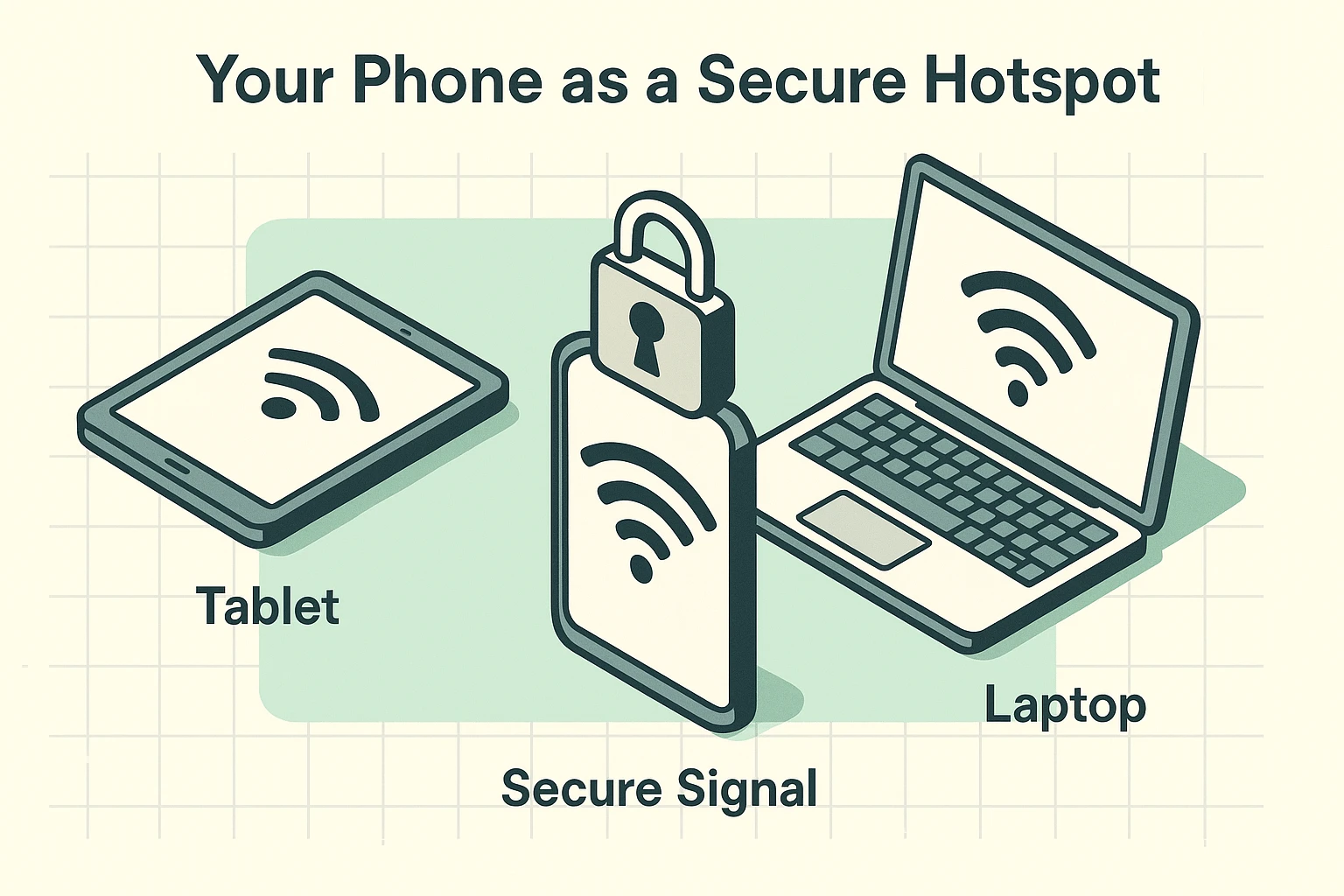
Think of your smartphone as a tiny, very efficient post office. Normally, it receives “mail” (the internet) directly from the cell phone towers for its own personal use. This is how you read the news or check the weather while standing in line at the grocery store.
When you turn on the hotspot feature, your phone suddenly becomes a generous postmaster. It takes that internet connection and “mails” it out invisibly to your nearby tablet, laptop, or even your spouse’s phone.
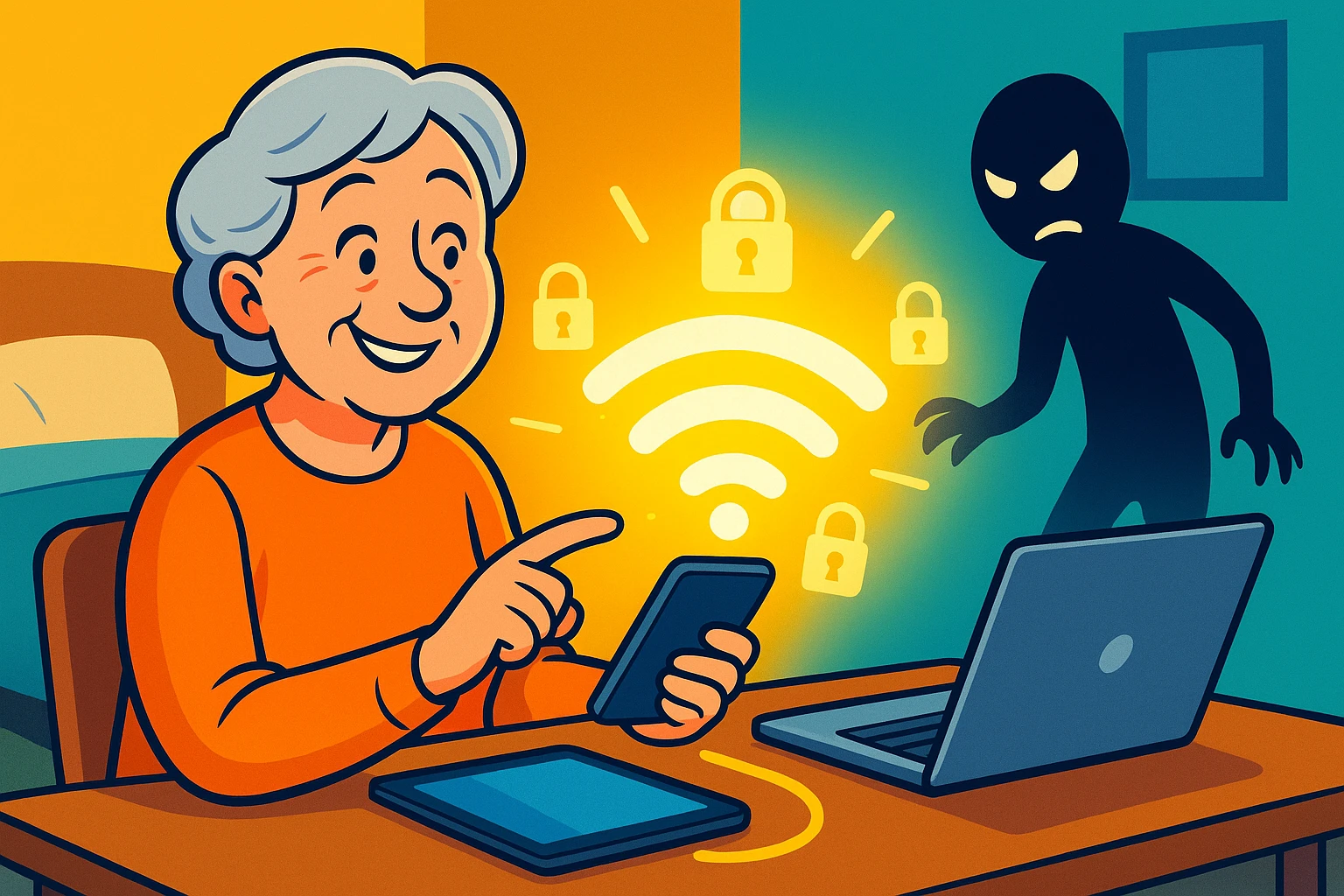
You are essentially creating your very own private Wi-Fi bubble. Wherever your phone goes, your personal Wi-Fi bubble goes with it.
Public Wi-Fi is a bit like a public hot tub. It’s free, it’s convenient, but you really have no idea what’s floating around in there. Since anyone can join a public network, it’s incredibly easy for people with bad intentions to peek at what other people are doing online.
If you are doing anything remotely sensitive, like checking your bank balance or paying a bill, you want absolute privacy. Before you ever enter passwords on an unfamiliar network, you should always check their website for security markers.
But the ultimate way to stay safe is to avoid the public network entirely and use your phone’s hotspot instead. Your hotspot acts as your private digital vault, keeping snoops entirely locked out.
Before we turn the internet faucet on, we need to make sure the neighbor’s teenager can’t magically connect to your phone and use your data to play video games. We do this by setting up a solid defense.
First, give your phone a name you’ll actually recognize. If you are in a crowded airport, you don’t want to guess which “iPhone 13” is yours. Change the name in your phone’s settings to something clear, like “Bob’s Private Network” or “Not Free WiFi.”
Second, set a strong but memorable password. It doesn’t need to be thirty random symbols that require a magnifying glass to read. A phrase like “BlueChairApple99!” is much better and easier to type than “password123”.
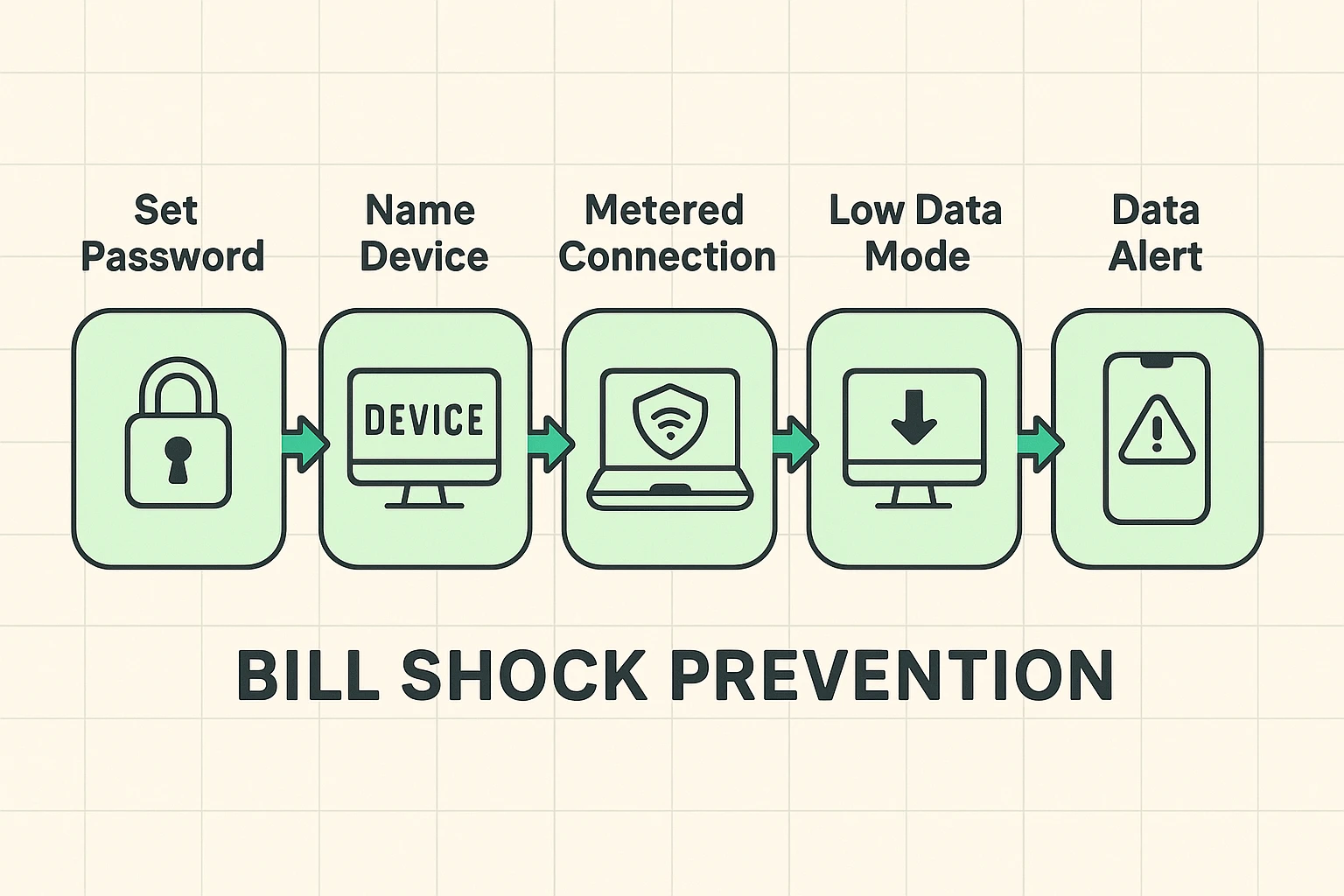
Now we must address the elephant in the room: Your data plan. Your cellular provider gives you a certain amount of mobile data every month. If you go over that limit, the phone company might charge you extra fees or slow your internet down to a crawl.
When your laptop or tablet connects to your phone’s hotspot, it assumes it is connected to a regular, unlimited home Wi-Fi network. It might decide right then and there to download a massive Windows update or automatically backup pictures from iphone to the cloud. This innocent mistake can gobble up your entire monthly data allowance in ten minutes.
To prevent this, we need to put your connected devices on a strict “Data Diet.” This is a crucial, money-saving step that most tech guides completely forget to mention.
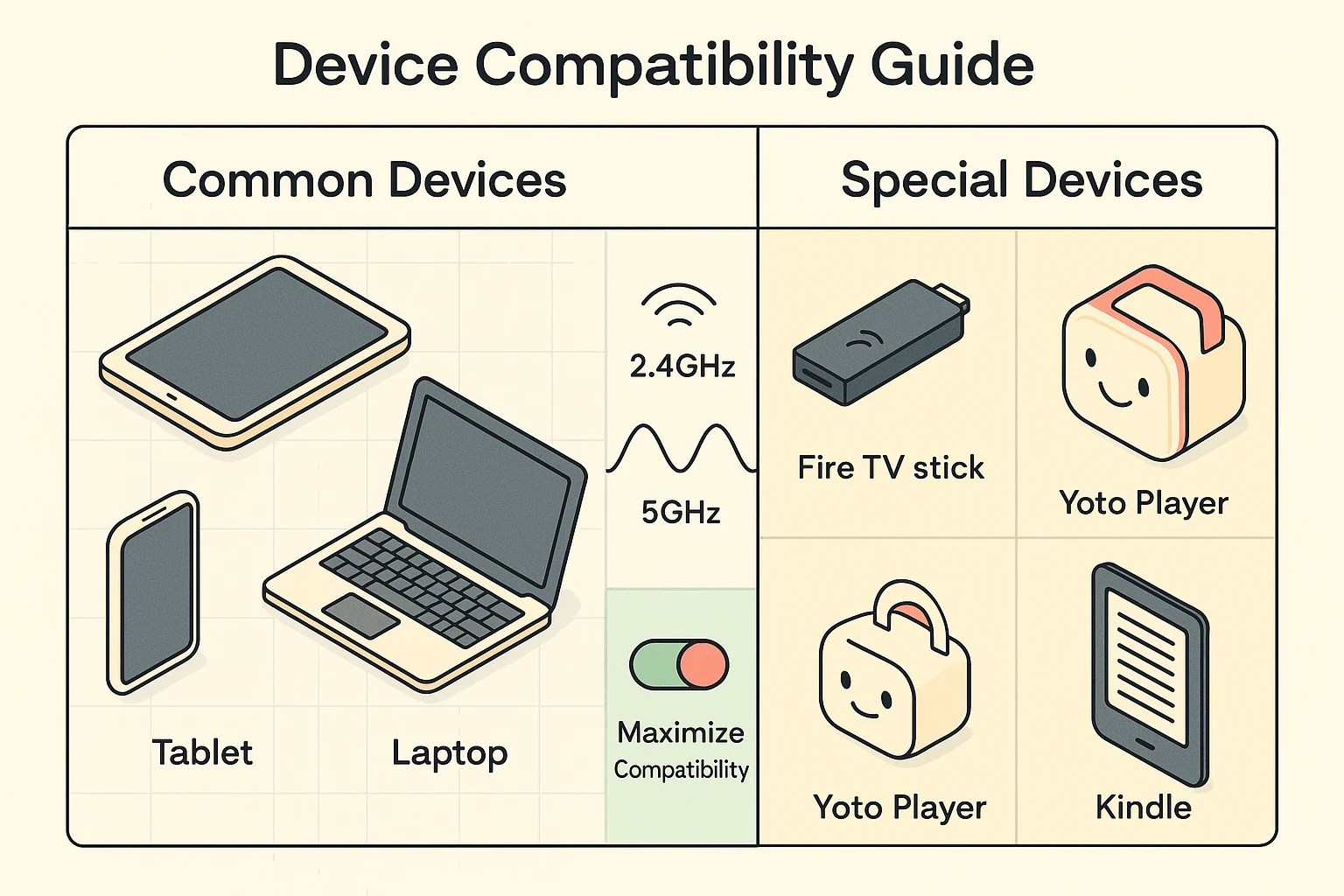
Sometimes you aren’t connecting a fancy laptop. Maybe you brought an Amazon Fire TV Stick to plug into the hotel television, or the grandkids brought their favorite Yoto audio player for the car ride.
You might run into a frustrating glitch where these specific devices simply cannot see your phone’s hotspot network at all. You stare at the screen, your phone is sitting right there, but it’s like they are speaking two completely different languages.
This happens because newer phones broadcast their Wi-Fi signal on a fast, modern frequency called 5GHz. However, many smart toys, e-readers, and streaming sticks only understand the older, slightly slower 2.4GHz frequency.
To fix this invisible barrier, go back to your phone’s Hotspot settings. On an iPhone, turn on the switch that says Maximize Compatibility. On an Android, look for a setting to change the “AP Band” or “Band preference” to 2.4GHz. Suddenly, your devices will see the network and connect perfectly!
Yes, it absolutely guzzles battery life. Your phone is working overtime catching cellular signals from the tower and simultaneously broadcasting Wi-Fi to your tablet. Always try to plug your phone into a wall charger or portable power bank while using it as a hotspot.
Not exactly. Wi-Fi is the invisible radio wave that connects your devices together. A hotspot is simply the source of those Wi-Fi waves. Your home internet router is a stationary hotspot; your smartphone is a portable one.
No. Hotspots use your cellular data plan, not your talking minutes. If you aren’t sure how much data you have included in your monthly plan, it’s always a good idea to call your phone provider or check your latest bill before using a hotspot extensively.
You now possess the power to create a secure, private internet connection anywhere you have a decent cell phone signal. No more begging coffee shop baristas for passwords or paying outrageous fees just to check your email on vacation.
Take five minutes today to find the hotspot settings on your smartphone. Change the password to something secure, and practice connecting your tablet while comfortably sitting on your couch.
By practicing at home, you’ll be a connectivity wizard the next time the power goes out or you hit the road. If you found this plain-English guide helpful, explore more simple, jargon-free senior technology tips right here on our site. We’re here to help you outsmart your devices, one tap at a time.