Newsletter Subscribe
Enter your email address below and subscribe to our newsletter

Enter your email address below and subscribe to our newsletter

Remember when family game night meant crowding around a card table, arguing over whose turn it was to buy properties in Monopoly, and inevitably losing a crucial die under the sofa? It was chaotic, loud, and wonderful. Then came the era of the virtual get-together, where “game night” suddenly morphed into staring at a grid of foreheads while Uncle Bob asked, “Am I unmuted?” for forty straight minutes.
We’ve all been there. You log on hoping for some laughs, but instead, you get a technological standoff. You spend more time looking at your cousin Linda’s ceiling fan than you do actually socializing. It’s enough to make you want to send a carrier pigeon instead of an email invitation.
But here is the good news: Zoom has grown up, and we have, too. You no longer have to settle for just talking over each other or playing a grueling round of “20 Questions.” Today, you can turn a regular video call into an interactive, wildly entertaining game night without needing an advanced degree in computer science.
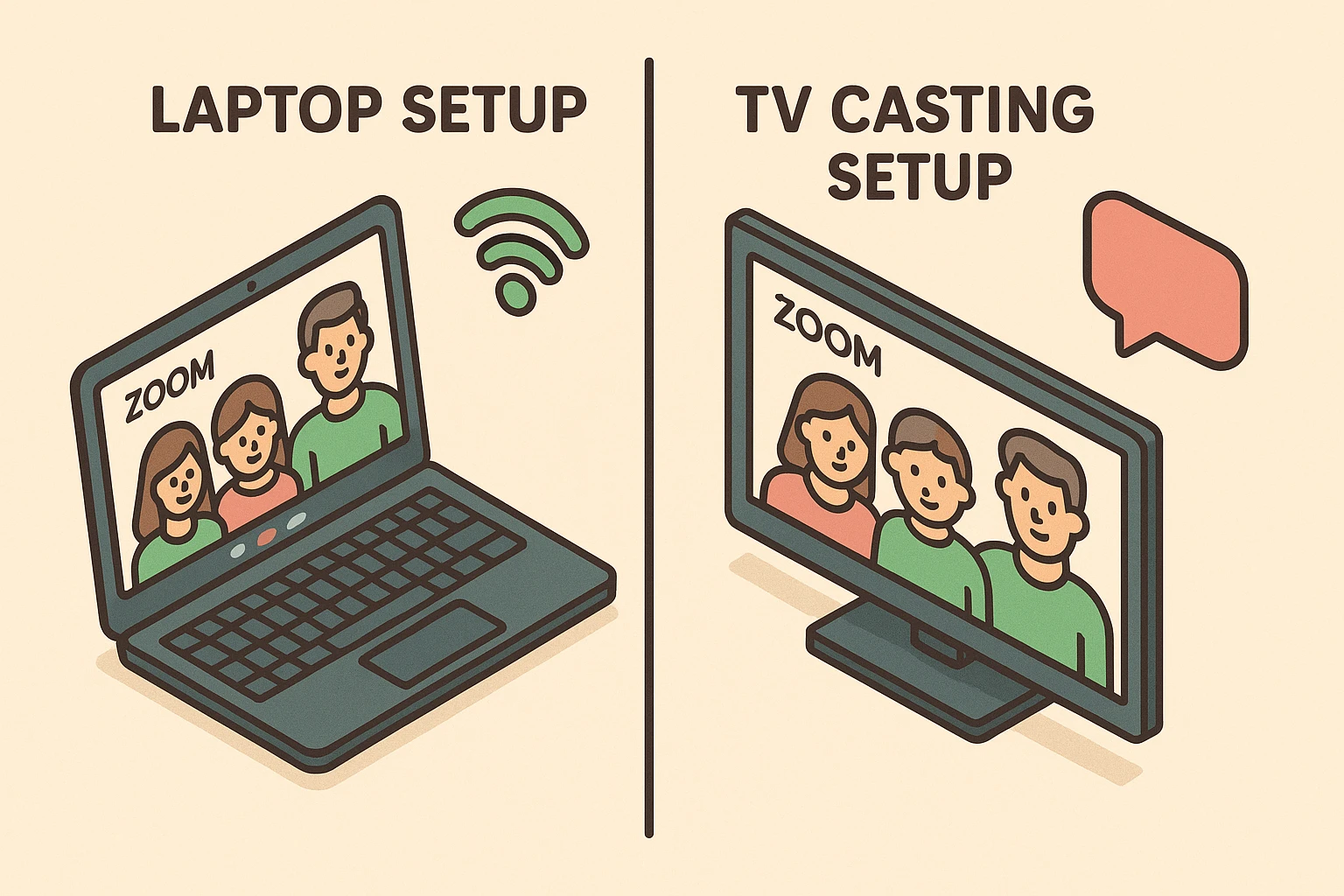
Before the games begin, you have to decide how you are going to view your family. The most foolproof method for the host is using a standard laptop. It puts the camera, microphone, and screen right in front of you, making it incredibly easy to control the game.
However, if you have a house full of people on your end, crowding around a 13-inch screen is a recipe for spilled drinks and bumped heads. This is when casting your computer screen to your living room TV becomes magical. You can connect your laptop to your TV with an HDMI cable, turning your television into a giant digital window to your family.
Just remember one crucial rule if you hook up to the TV: audio feedback is your enemy. If your laptop microphone picks up the sound coming out of your TV speakers, everyone will hear a high-pitched screech that sounds like a choir of angry robots. Simply keep the volume reasonably low, or use an external microphone if you want to get fancy.
If you take away nothing else from this article, let it be this: Zoom is designed to block out background noise. It thinks a dog barking, a lawnmower, and the fun sound effects from your digital trivia game are all just annoying rackets to be silenced.
If you try to share a game or a YouTube video on your screen, your family will sit in total silence watching your mouth move. To fix this, when you click the green “Share Screen” button at the bottom of your Zoom window, look for a tiny checkbox in the bottom left corner that says “Share sound.”
Check that box. It is the magic key. Suddenly, your family won’t just see your trivia game; they will hear the dramatic jeopardy music, too. It’s a tiny button that prevents massive frustration.
Once your setup is running smoothly, it’s time to actually play. The modern Zoom game night relies on three distinct “pillars” of play. You don’t need to master all of them; just pick the one that sounds the most fun for your crew.
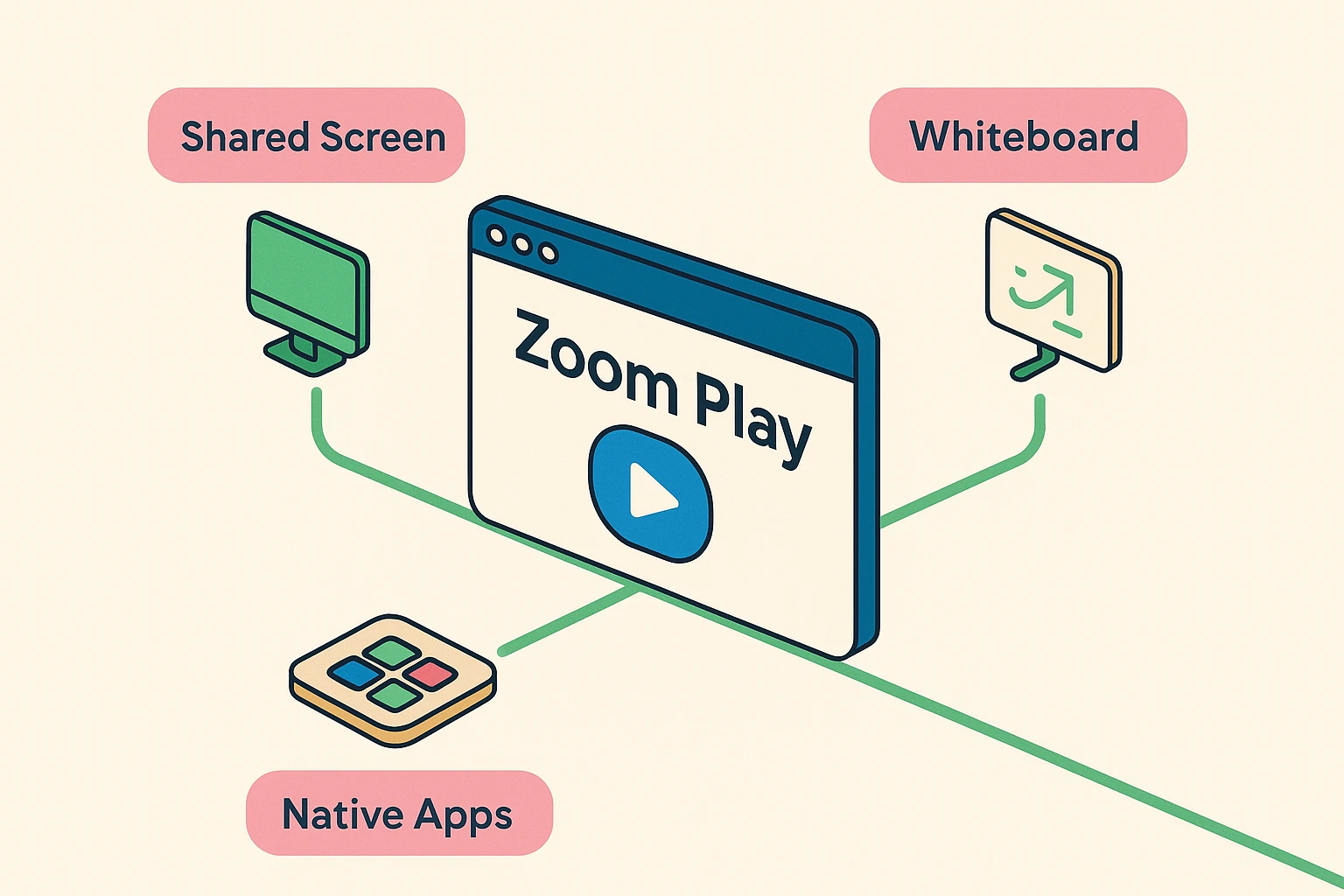
This is the easiest entry point. The host opens a game on their computer—like a website with trivia questions or a visual puzzle—and uses the “Share Screen” button.
Everyone else simply watches the screen and yells out their answers, just like watching a game show on television. You do all the clicking and typing. They just do the playing and the laughing.
Did you know Zoom has a built-in whiteboard? When someone shares their screen, look at the top of your Zoom window for a button labeled “View Options,” then click “Annotate.”
A little toolbar will pop up, allowing everyone on the call to draw directly on the shared screen with their mouse or finger. Boom: you instantly have a platform for Pictionary, Tic-Tac-Toe, or Hangman. Will someone immediately scribble outside the lines or draw a funny mustache on the host? Yes. Embrace the chaos.
Zoom recently realized that people actually want to have fun on their platform. If you look at the bottom of your Zoom window, you’ll see an “Apps” button.
Clicking this opens a treasure trove of built-in games like Kahoot! or Heads Up! that you can launch directly inside the meeting. No extra tabs or confusing links are required. It’s like opening a digital board game closet right in the middle of your living room.
Let’s be honest: trying to get a hyperactive five-year-old and a retired accountant to enjoy the exact same game is a lesson in futility. The secret to a great virtual game night is tailoring the activities to your audience’s attention span.
Young kids don’t want to sit still and stare at a screen, so make the screen the referee, not the game. Try a Visual Scavenger Hunt. The host shouts, “Find something blue and fuzzy and bring it to the camera!”
You can also play “Snowball Toss.” Have the kids crumple up pieces of scrap paper. On the count of three, everyone throws their “snowballs” at their own webcams. It looks hilarious on screen and gets the wiggles out.
Your teenagers probably know more about navigating digital worlds than we do. Let them take the reins! Allow a teenager to share their screen while they play a round of Minecraft or a harmless web game.
Alternatively, try digital “Balderdash.” The host shares an incredibly obscure word, and everyone secretly texts the host their made-up definition. The host reads them all out loud, and everyone votes on which one is the real dictionary definition.
Adults thrive on social strategy and a little bit of deception. Scattergories is a perfect choice; the host shares a screen with a letter and a list of categories, and everyone writes their answers on actual paper at home.
You can also easily adapt physical board games. If you have a physical Yahtzee game, just point a webcam at the dice tray. Everyone at home can roll their own dice and keep their own scorecards while chatting away.
Inevitably, someone is going to log on, and you’ll see their mouth moving enthusiastically, but hear absolutely nothing. Before they get frustrated and hang up, calmly guide them through this 3-step script:
If all else fails, remind them they can call the Zoom phone number listed on the invitation from their cell phone for audio, while still watching the video on their computer. Problem solved, no tech-shaming required.
If you are using a free Zoom account, you will get a warning that your meeting is going to abruptly end after 40 minutes. Do not panic, and do not feel pressured to pull out your credit card to upgrade.
Instead, reframe this limitation as a feature. Tell your family in advance: “The system kicks us out at 40 minutes for a mandatory bathroom and snack break!” When the meeting ends, simply have everyone click the exact same invitation link you sent them originally.
The meeting room will reopen, everyone will pop back in with fresh beverages, and the games can continue. It is a completely free way to host a multi-hour game night.
You don’t need to buy special software. Using Zoom’s built-in whiteboard for Pictionary, hosting a scavenger hunt, or pulling up free trivia questions from the internet and sharing your screen are all 100% free.
For games like Monopoly, the host sets up the physical board at their house and points a camera at it. The host moves all the pieces. Guests can roll their own physical dice at home and simply announce their numbers over the microphone. For Battleship, everyone just needs their own physical copy of the game at home, and you simply call out the coordinates verbally over the video chat!
Generally, yes, if you stick to the official Zoom App Marketplace. However, as with all technology, be mindful of privacy. When you install a game app, Zoom will show you a screen detailing what permissions that app wants. If a simple trivia game is asking for access to your personal contacts or email, skip it and find a different game.
Technology doesn’t have to be an intimidating hurdle that keeps families apart; it can be the exact bridge that brings you together. You don’t need a fancy setup or a gamer’s reflexes to host a phenomenal virtual game night.
All you need is a little bit of patience, a willingness to laugh when someone accidentally turns themselves into a digital potato, and the courage to try one new button on your screen. So pick a game, send out that invite, and get ready to create some new family memories.
If you enjoyed these tips and want more plain-English guides to making technology work for you—without the confusing jargon—keep exploring our resources. We’re here to help you navigate the digital world with confidence, safety, and a healthy dose of humor.