Newsletter Subscribe
Enter your email address below and subscribe to our newsletter

Enter your email address below and subscribe to our newsletter
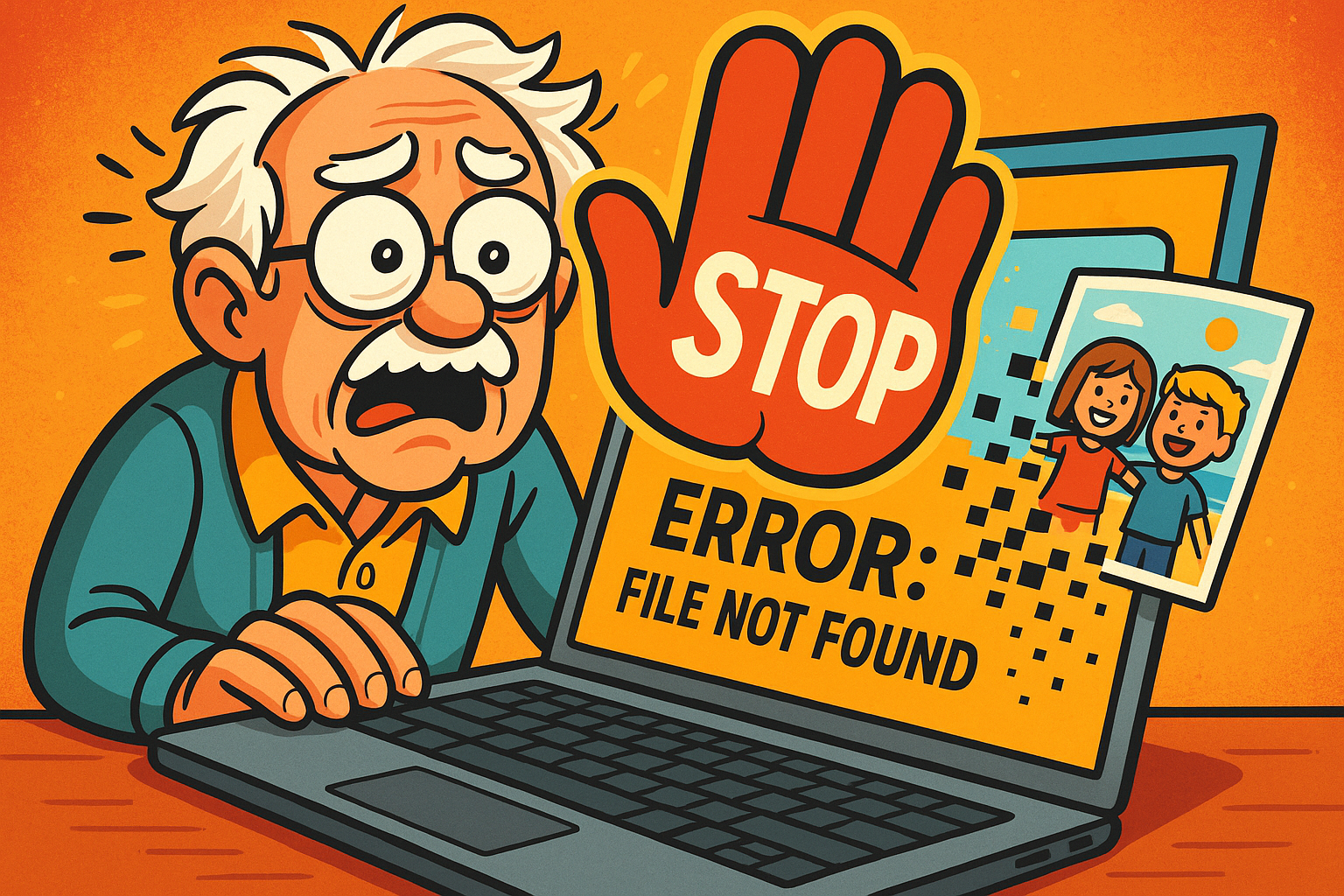
You know the feeling. It’s a specific kind of stomach-lurching, cold-sweat-inducing panic. You click on the folder labeled “Grandkids’ Florida Trip 2023,” and instead of seeing sunny, smiling faces, you get a cryptic message like “File Not Found” or “The Directory is Corrupt and Unreadable.”
Your heart does a little tap dance against your ribs. You try again. Nothing. You restart the computer, convinced that a good old-fashioned reboot will fix everything. It doesn’t.
This, my friend, is the moment a digital hiccup becomes a potential data disaster. All those precious photos, important tax documents, or that novel you’ve been writing for ten years are suddenly trapped inside a silent, uncooperative hunk of plastic and metal. Before you start frantically downloading strange software from the internet or, heaven forbid, giving your computer a good thumping, let’s take a deep breath and talk about what to do next. And more importantly, what not to do.
A “data disaster” sounds like something that happens in a spy movie, but for most of us, it’s a lot more personal. It’s simply when you can’t get to your important digital stuff.
Think of your computer’s hard drive like a giant, magical library. There are two main ways you can lose a book in this library.
Logical Damage: This is like the librarian messing up the card catalog. The books (your files) are still on the shelves, perfectly fine, but the system used to find them is scrambled. You accidentally deleting a file is a form of logical damage. The file is still there for a short time, just marked as “space available.”
Physical Damage: This is like the library itself catching fire or getting flooded. The shelves are broken, the books are singed or waterlogged, and you can’t just walk in and browse. This happens when you drop your laptop, spill coffee on it, or the delicate moving parts inside the hard drive simply wear out and break.
Understanding this difference is the key to knowing your next move.
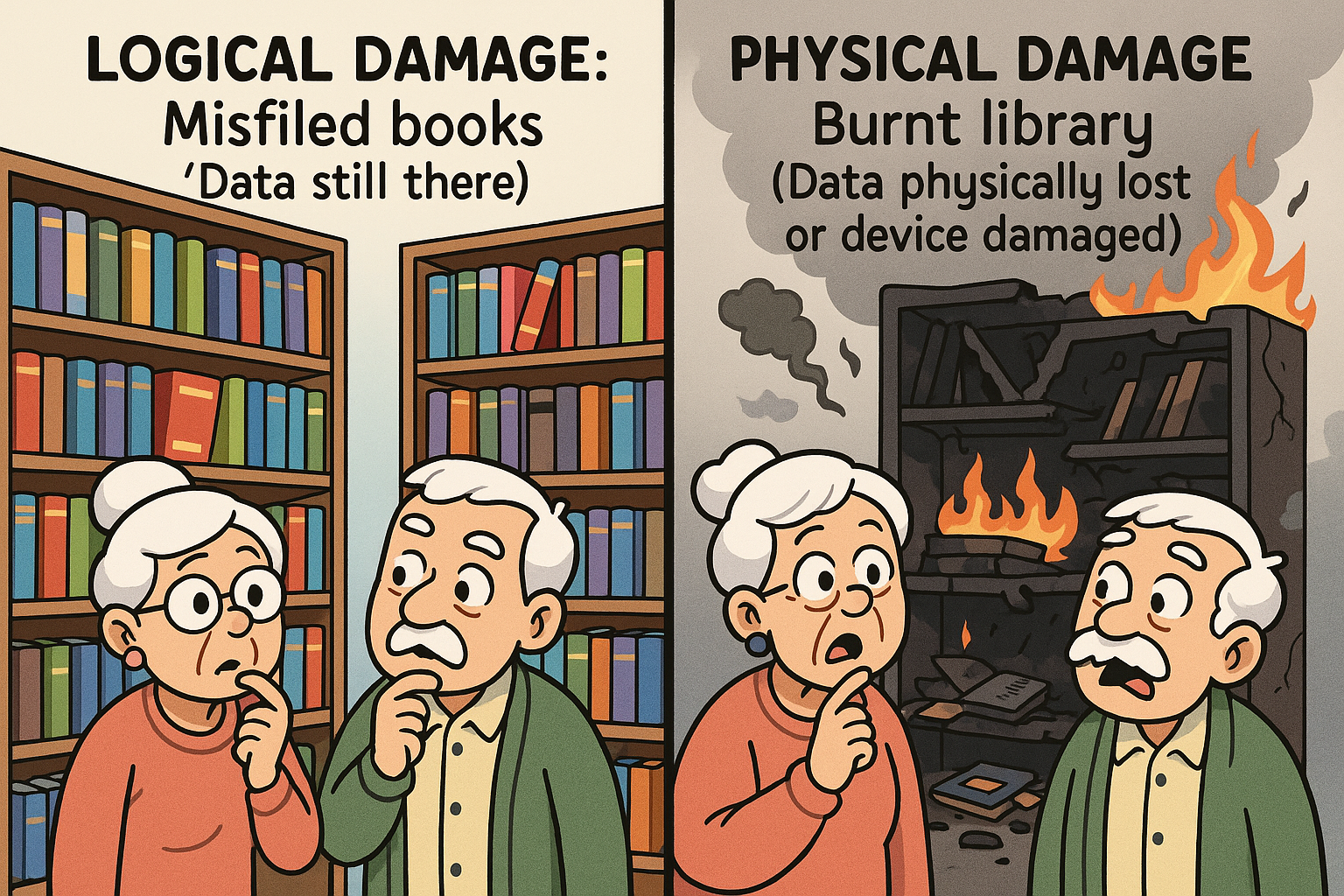
Visualizing data damage: Logical damage is like misfiled books you can still find, while physical damage is like a burnt library where the books and shelves are destroyed. Understanding this helps decide when to try DIY recovery versus calling a professional.
No matter what you suspect the problem is, the absolute first, most important, golden rule of data recovery is: Stop using the device immediately.
Every second your computer is on, it’s writing new information. If you try to save a new document or even just browse the web, you might be accidentally writing over the very “empty” space where your lost photos are hiding. It’s like paving a new parking lot over an archaeological dig site. Once it’s paved, there’s no going back.
Okay, you’ve stopped everything. You’re just staring at the screen. Now what? Here’s a simple decision-making guide to help you figure out what to do.
Your action plan for data loss: A clear, stepwise guide to decide if you can try easy DIY fixes or need to stop and call a professional based on device symptoms and damage type. Following this helps prevent permanent data loss.
Before you panic, do a quick check. Did you look in the Recycle Bin on your Windows PC or the Trash on your Mac? It sounds silly, but you’d be amazed how often missing files are just waiting patiently in there. If you use a cloud service like Google Photos or Dropbox, check their “recently deleted” folders, too.
If you find your files, breathe a sigh of relief, restore them, and go make yourself a cup of tea.
If your files aren’t in the trash and your computer is otherwise working perfectly, you might be dealing with a simple accidental deletion. This is the only time you should even consider using do-it-yourself (DIY) data recovery software.
However, a word of caution: be very careful. Use only well-known, reputable software. Free, sketchy programs can be loaded with viruses or, worse, can bungle the recovery attempt and make your data permanently unrecoverable.
This is the most important part of the guide. If you experience any of the following, do not pass Go, do not download any software, and do not try to fix it yourself. Power down the device safely and call a professional data recovery service.
If your lost files are truly irreplaceable—the only copy of your wedding video, the photos of your kids when they were little—it’s often best to skip the DIY step entirely and go straight to a pro. The risk of making it worse just isn’t worth it.
Calling a “data recovery professional” can feel intimidating. It sounds expensive and technical. But reputable companies have made the process surprisingly straightforward because they deal with panicked people every day.
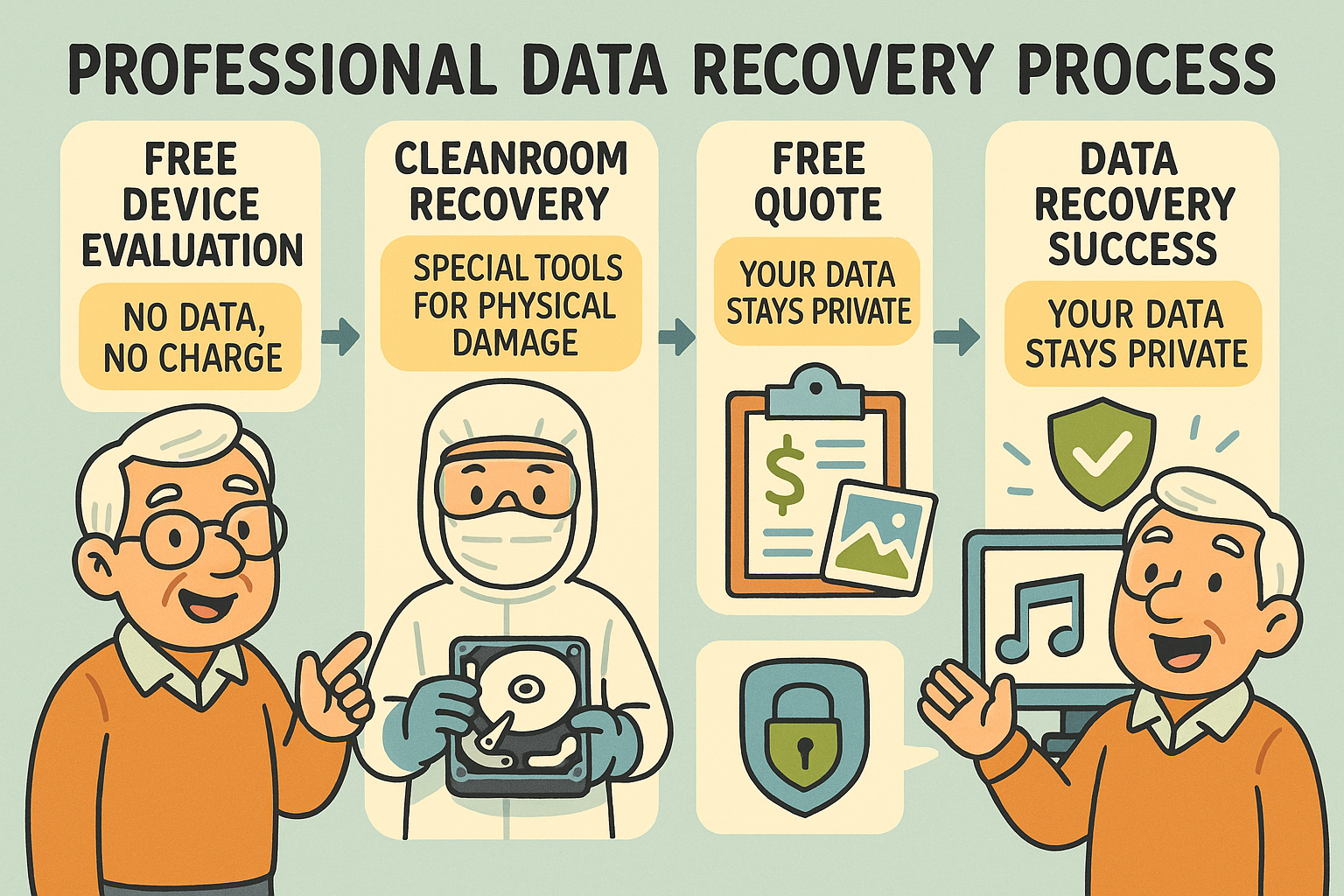
What happens when you call a pro: Understand the straightforward, transparent process pros follow to safely recover your data, why it’s worth trusting experts, and what to expect including timelines and costs.
Here’s generally how it works:
Most professionals also operate on a “no data, no fee” policy, meaning if they can’t recover your files, you don’t pay for the recovery service.
The calmest person in a data disaster is the one who has a good backup. Getting your files back is great, but not losing them in the first place is even better.
The gold standard for protecting your digital life is the 3-2-1 Backup Rule. It sounds technical, but it’s as easy as pie:
An easy way to do this is to have your main files on your computer, back them up regularly to an external hard drive you keep at your desk, and also use an automatic cloud backup service. That way, if your computer dies, you have the external drive. If your house has a fire or flood, your files are safe in the cloud.
That “click of death” is often the sound of the read/write head—the tiny arm that zips back and forth to access your data—failing and repeatedly trying to reset itself. A grinding or scraping noise can mean the head has crashed into the platter where your data is stored, physically scraping it away. Turn it off immediately!
Don’t just pull the plug. If you can, use the normal shutdown procedure from the operating system. If the computer is frozen, press and hold the power button until it turns off. The goal is to prevent the hard drive’s read/write heads from causing more damage when the power is abruptly cut.
Great question! Ask them: “Do you offer a free evaluation?” “Do you have a ‘no data, no fee’ policy?” “Is your work done in a certified cleanroom?” and “What are your data privacy and security policies?”
Reputable data recovery companies have very strict privacy protocols. Their process is typically automated to look for file types (like .jpg for photos or .docx for documents), not the content of the files themselves. Technicians are professionals focused on recovery, not on snooping.
Losing your digital memories is a uniquely modern kind of awful. But it doesn’t have to be permanent. By staying calm, recognizing the warning signs, and knowing when to step back and let an expert take over, you give your precious files the best possible chance of a happy homecoming.