Decoding Your Wi-Fi Router Lights: What the Blinking Colors Mean (and When to Worry)
You know the scene well. You have just settled into your favorite chair with a fresh cup of coffee, ready to stream the season finale of that British mystery show where everyone wears wool sweaters and looks suspicious. The detective is about to reveal who stole the vicar’s prize-winning marrow, and then… it happens.
The screen freezes. The dreaded spinning circle of doom appears. The internetThe Internet is a vast network of computers and other electronic devices connected globally, allowin... More has left the building.
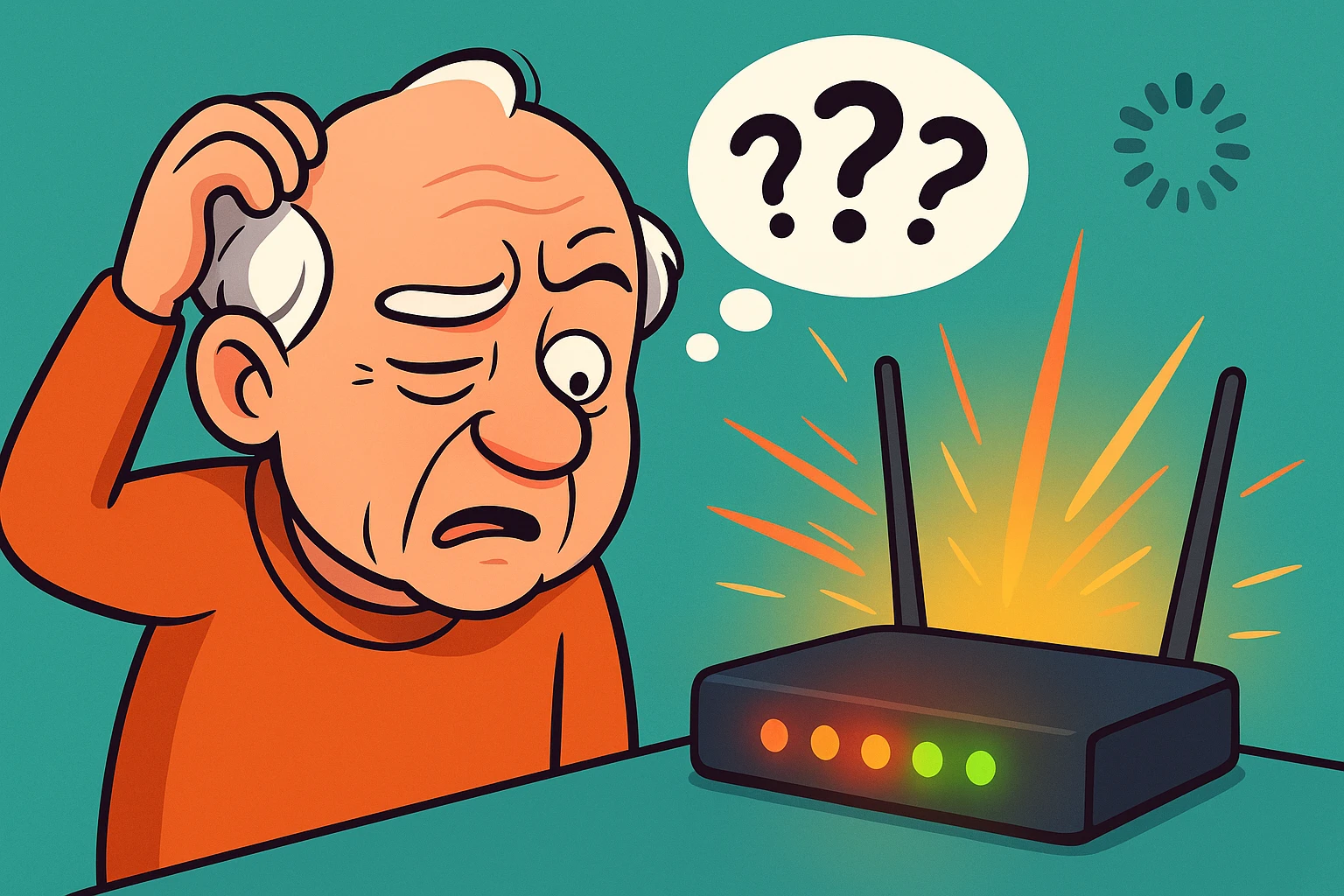
You trudge over to that mysterious plastic box in the corner—your routerA router is a device that helps connect all your gadgets, like computers, smartphones, and smart hom... More. It’s flashing like a disco ball having a panic attack. There are green lights, amber lights, maybe a terrifying red one that seems to be glaring at you personally. You stare at it, hoping that if you squint hard enough, you can intimidate it into working again.
If you’ve ever felt personally victimized by a blinking LED light, this guide is for you. We are going to demystify that box, translate its robot language into plain English, and figure out if your internet is actually broken or just “thinking.”
First: Know Your Box (Modem vs. Router vs. Gateway)
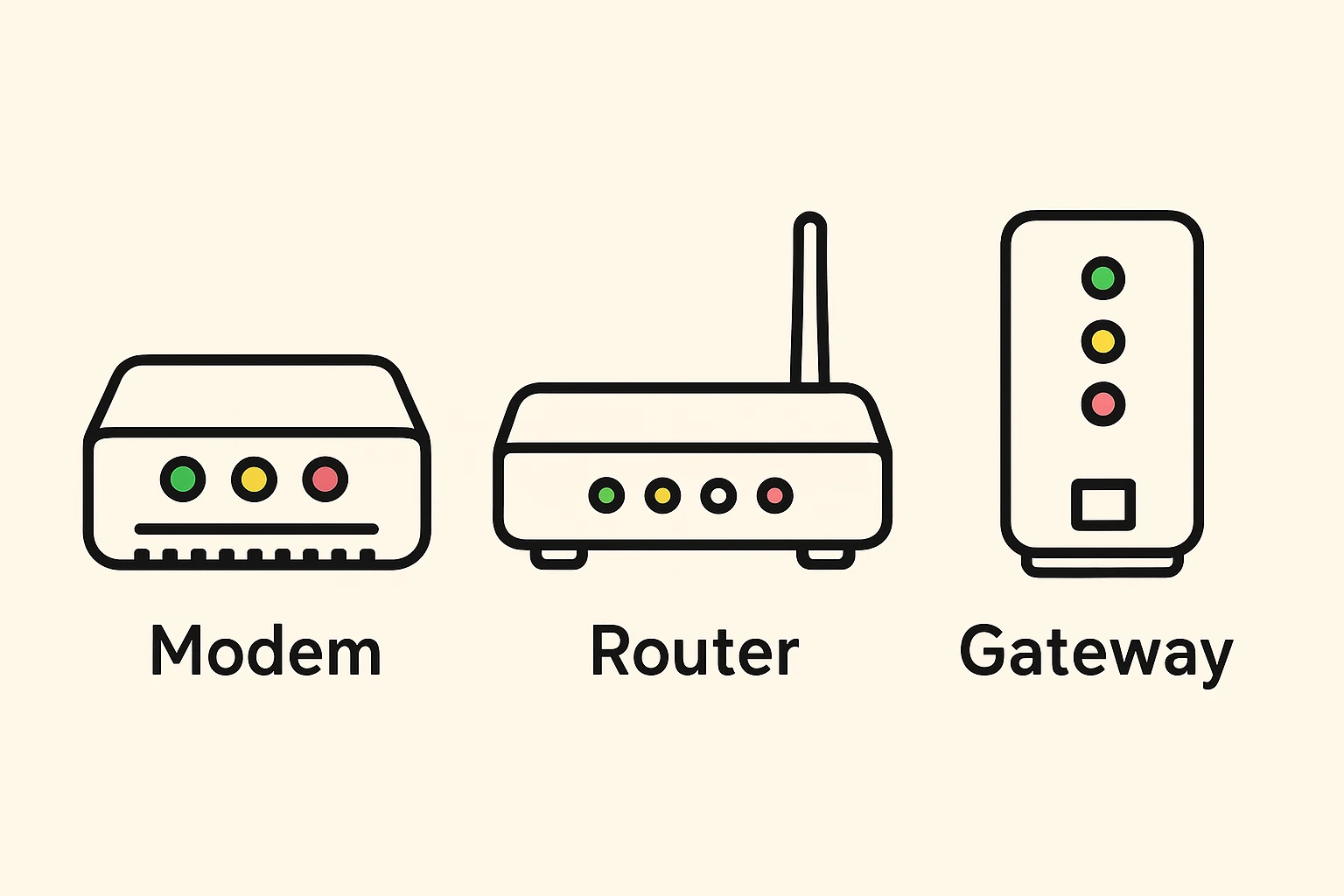
Before we start interpreting the light show, let’s make sure we are looking at the right box. In the world of home internet, there are usually three characters:
The ModemA modem, short for modulator-demodulator, is a device that enables computers and other digital devic... More: This is the box that brings the internet from the street into your house. It usually has a coaxial cable (the thick round one) screwed into the back. Think of the Modem as the Translator—it speaks the language of the cable company.
The Router: This connects to the modem and broadcasts the Wi-FiWi-Fi, short for Wireless Fidelity, revolutionizes connectivity by enabling devices to access the in... More signal to your iPad, laptop, and smart thermostat. Think of the Router as the Traffic Cop—it directs traffic to the right devices.
The GatewayA gateway is a networking device that connects two or more networks, allowing data to flow between t... More: If you only have one box, you likely have a Gateway. This is a Combo Meal—it’s a modem and a router squished into a single plastic shell.
Most of the lights we care about today are on the Router or the Gateway.
The Universal Traffic Light System
While every manufacturer likes to be a little different (because why make things easy?), most adhere to a universal “Traffic Light” philosophy.
Green or White: The “All Clear”
If the lights are solid green or white, congratulations! Your router is happy.
Solid Green/White: This is like a car idling in the driveway. The engine is on, it’s connected, and it’s ready to go.
Flickering Green/White: This is the car driving down the highway. The flickering actually means data is moving. It’s working hard to download"Download" means saving something from the internet onto your device—like your phone, tablet, or c... More that email or stream that movie. Do not panic if it flickers—that means it’s doing its job.
Amber or Yellow: The “Wait a Minute”
This is the router’s way of saying, “Hold your horses, I’m thinking.”
You’ll usually see this when you first turn the router on. It’s waking up, stretching its digital legs, and looking for a connection.
If it stays amber for more than 15 minutes, the router might be stuck in a loop.
Red: The “Hard Stop”
Red is universally bad. It’s the router screaming for help.
Solid Red: Usually means a hardwareHardware refers to the physical components of a computer system or electronic device, as opposed to ... More failure or a complete loss of signal from the cable company (like a cut line outside).
Blinking Red: Often means the router is trying to connect but failing—perhaps because the bill wasn’t paid, or there is a local outage.
Decoding the Hieroglyphics (The Symbols)
Beneath those lights are tiny symbols that look like ancient cave drawings. Here is your cheat sheet:
The Globe or Saturn Ring (WAN/Internet)
This is the most important light. It represents the World Wide WebThe World Wide Web, often called simply the web, is the part of the internet that people use to visi... More.
Lit Up: You are connected to the outside world.
Dark or Red: You are cut off. You can talk to your printer, but you can’t GoogleGoogle is a multinational technology company known for its internet-related products and services, i... More a recipe for lasagna.
The Wi-Fi Symbol (Curved Lines)
This looks like a piece of pie or a baseball field.
Lit Up: Your Wi-Fi broadcasting is on.
Dark: The Wi-Fi radio is off. You might be able to get internet if you plug a cable in, but you can’t do it wirelessly.
The Ethernet Port (Computer Icons or Numbers 1-4)
These correspond to the ports on the back where you plug in cables.
Lit Up: Something is plugged in and recognized.
Blinking: Data is moving through that cable.
The “Timeline of Worry” (When to Panic)
One of the biggest mistakes people make is panicking too early. Routers are slow wakers. If you unplug your router and plug it back in, here is the timeline of what you should see:
0–2 Minutes (The Disco Phase): Lights will flash on and off randomly. Do not worry. It’s just booting up.
2–5 Minutes (The Handshake): The “Internet” light might blink amber or yellow. It is trying to shake hands with your Internet Service Provider (ISPAn Internet Service Provider, or ISP, is the company that gives you access to the internet. You pay ... More). Still normal.
5–10 Minutes (The Danger Zone): If the lights are doing something weird here, like pulsing slowly, it might be downloading a firmwareFirmware is a type of software that’s built directly into hardware devices like smartphones, route... More update. CRITICAL RULE: Never unplug a router that is updating software. You could turn it into a paperweight.
10+ Minutes: If it has been red or amber for this long, you officially have permission to be annoyed. It’s time to troubleshoot.
Blinking vs. Pulsing (Yes, There’s a Difference)
In the last few years, tech companies decided that “blinking” was too aggressive, so they introduced “pulsing.”
Blinking (Fast, erratic flickering): This is Activity. It means data is flying through the air. This is good!
Pulsing (Slow, rhythmic fading in and out): This usually means Searching or Pairing. If you have a modern Mesh system (like Eero, Google Nest, or Orbi), a slow pulse means it’s trying to find the main unit.
Brand-Specific Quirks
Just to keep us on our toes, some brands ignore the rules:
Spectrum: They often use Blue for “Online” and White for “Power.” If you see a “Voice” light blinking but you don’t have a landline phone, ignore it. It’s just lonely.
Xfinity (Comcast): Their newer gateways use a single light on top. White is good. Yellow is no internet. Red is no cable signal.
TP-Link: Often uses an orange light for the “Internet” globe iconAn icon is a small graphical symbol used to represent an object, action, or concept in a digital int... More if the cable is plugged in but there is no service, switching to green only when data is flowing.
Actionable Fixes: The “30-30-30” Reset
If your router is acting up and a simple unplug-and-replug didn’t fix it, tech experts swear by the 30-30-30 Rule. It clears out the “cobwebs” of the router’s memory.
Hold the Reset Button: While the router is ON, use a paperclip to hold down the tiny “Reset” button on the back for 30 seconds.
Unplug the Power: While STILL holding the button, unplug the power cord. Keep holding the button for another 30 seconds.
Plug it Back In: While STILL holding the button, plug the power back in. Keep holding for a final 30 seconds.
This is the “nuclear option” that resets the router to factory settings (so you may need to re-enter your Wi-Fi name and passwordA password is a string of characters used to verify the identity of a user during the authentication... More), but it fixes 99% of problems that aren’t caused by a neighborhood outage.
Frequently Asked Questions
Why are my router lights blinking like crazy even when I’m not using the internet?
Your devices are chatty! Even when you aren’t browsing, your phone is checking for emails, your smart thermostat is checking the weather, and your laptop is looking for updates. A blinking light is just the heartbeat of your home network.
What does the “WPS” light mean?
WPS stands for “Wi-Fi Protected Setup.” It’s a feature that lets you connect a device by pushing a button instead of typing a password. If this light is blinking, it means you (or a neighbor, or a cat) pressed the button and it is looking for a device to pair with. It will stop after two minutes.
Is it okay to tape over the lights if they are too bright?
Absolutely. If your router is in your bedroom and looks like a landing strip at O’Hare airport, feel free to put a piece of black electrical tape over the lights. It won’t hurt the signal. Just remember to peel it back if your internet stops working so you can see what’s wrong!
My router is hot to the touch. Is that bad?
Routers are mini-computers, and they generate heat. Warm is normal. “Too hot to touch” is not. Ensure your router isn’t buried under a pile of magazines or shoved in a drawer. It needs to breathe air to keep working efficiently.
Final Thoughts
Technology is wonderful when it works and a headache when it doesn’t. But remember: those blinking lights aren’t there to confuse you; they are trying to communicate. Next time the internet drops out, don’t panic. Look at the lights, check the color, and remember the timeline. You might just find that a simple five-minute patience break is all the “fix” you need.
Now, if you’ll excuse me, I need to go see who stole the vicar’s marrow. Hopefully, my router cooperates.