Newsletter Subscribe
Enter your email address below and subscribe to our newsletter

Picture this: You’ve popped the popcorn. You’ve poured your beverage of choice. You and your sister, who lives three states away, are finally sitting down for a virtual screening of The Help. You fire up your computer, click “share screen” on your video call, and… nothing.
Your sister is staring at a black rectangle. She can hear the dramatic music, but she can’t see a single thing. You frantically click buttons, muttering words you haven’t used since the great toaster malfunction of 1998. You could have driven to her house, rented a VHS tape from Blockbuster, and watched it on a tube TV in the time it takes to fix this digital disaster.
If this sounds familiar, take a deep breath. A virtual movie night glitch is a universal irritant, right up there with finding out your favorite snack now comes in a “new, smaller-sized” package. But don’t let a black screen or missing audio ruin your family night.
Usually, your computer is just acting like an overzealous security guard, and we simply need to know the secret password to get past it. Let’s look at the simple “first-aid” checks you can do to save movie night, without needing an engineering degree.
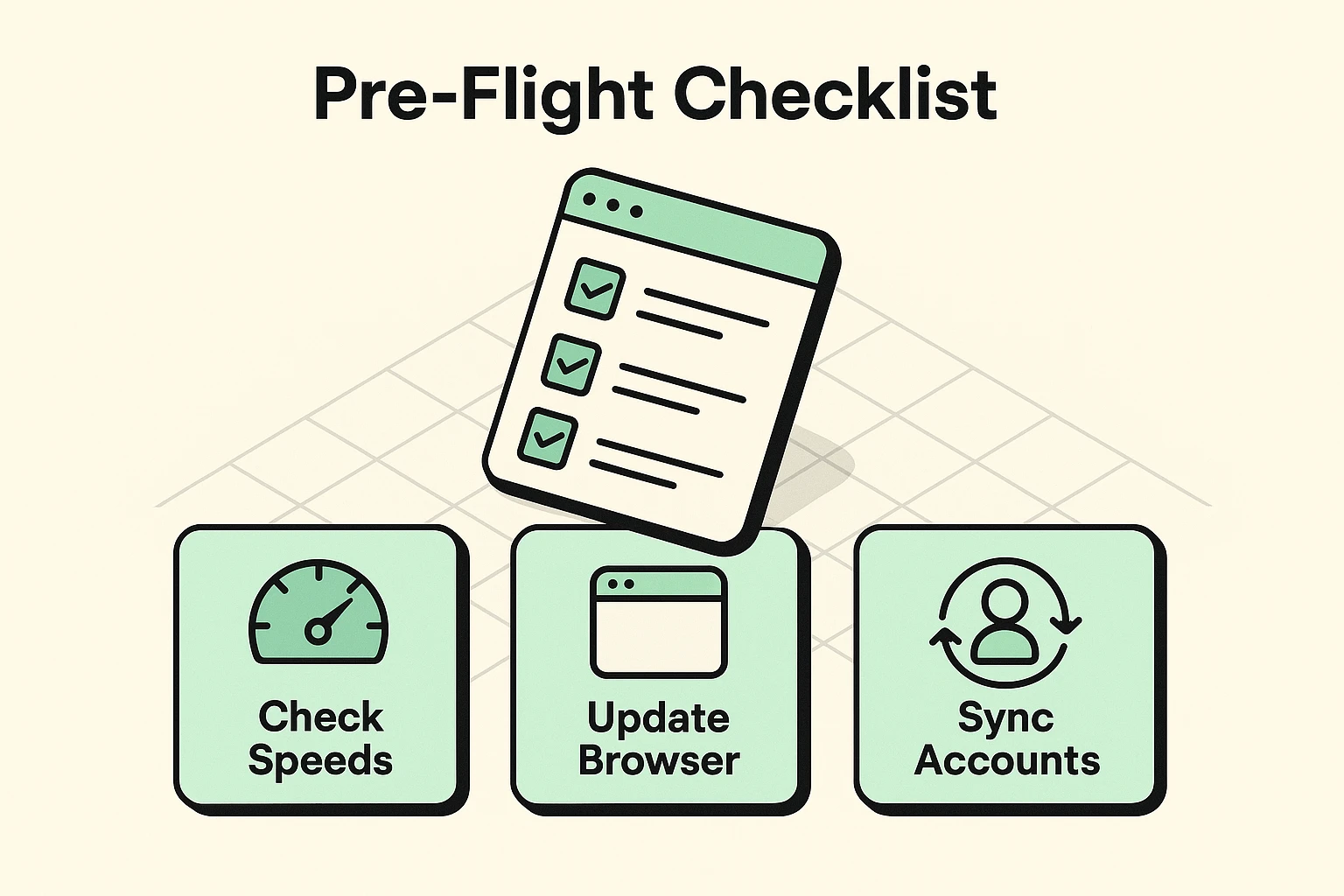
Just like an airline pilot wouldn’t take off without checking the engine, you shouldn’t start a watch party without a quick system check. Doing these three things first will save you a massive headache later.
First, check your internet speed. For a smooth video call and movie stream at the same time, you need an internet speed of about 15 Mbps. Anything less, and your movie will stutter like a nervous public speaker.
Next, update your web browser. Whether you use Chrome, Edge, or Firefox, make sure it’s running the latest version. An outdated browser trying to run a modern streaming extension is like trying to win the Kentucky Derby on a rocking horse.
Finally, beware of the “Account Trap.” If you are using a tool like Teleparty to watch Netflix or Max together, everyone watching needs their own active subscription. You unfortunately cannot use these tools to sneak your friends into the digital theater for free!
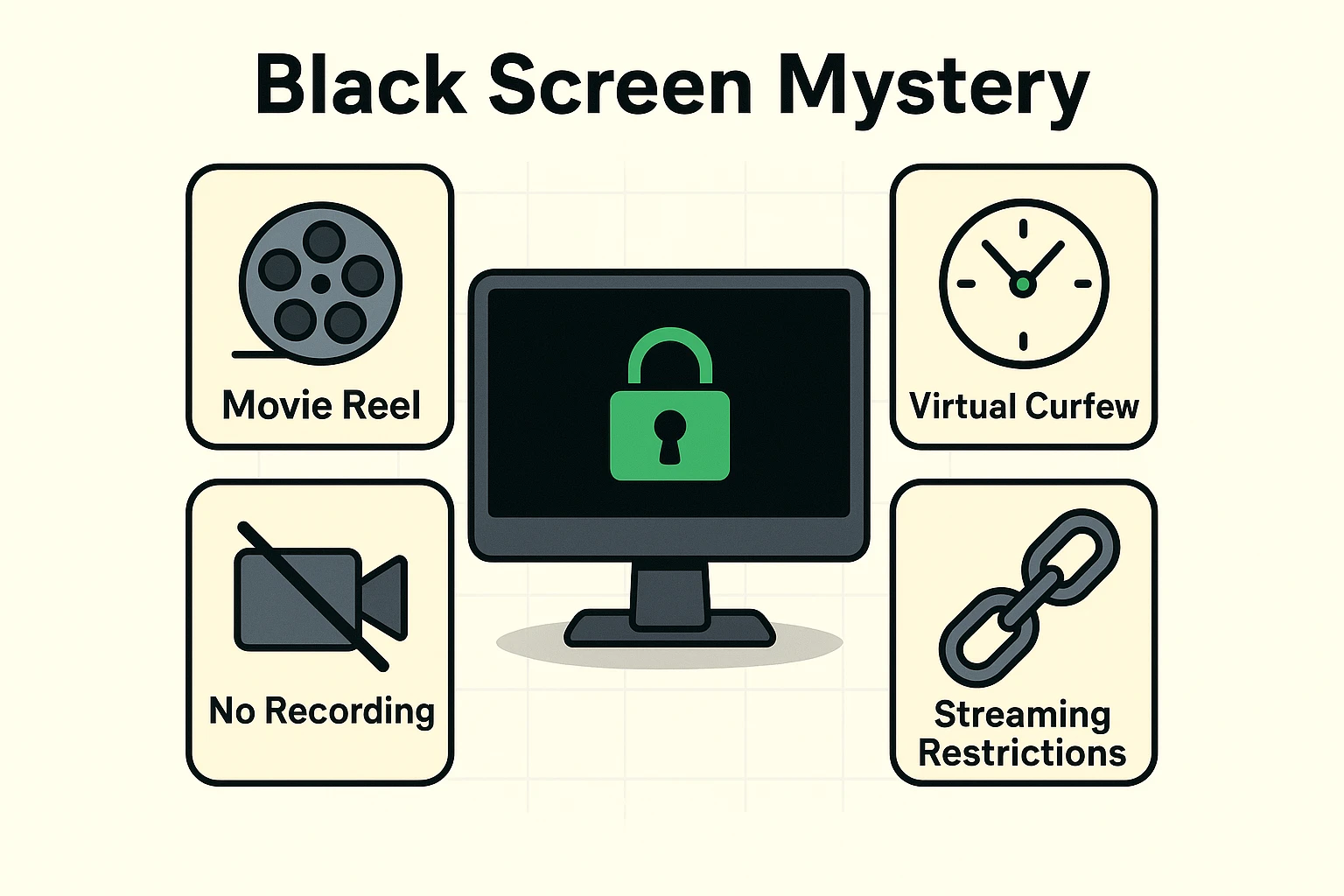
This is the number one complaint of the virtual movie night. You share your screen on Zoom, and your guest sees nothing but black. They hear the actors talking, but they can’t see a single thing happening.
You might think your computer is broken, but it’s actually doing exactly what it was programmed to do. Enter the “DRM Wall.” DRM stands for Digital Rights Management, but you can just think of it as a very strict, invisible bouncer protecting the movie.
Just as you can’t bring a camcorder into a movie theater to record the latest blockbuster, streaming services block your computer from “recording” or sharing the screen to prevent piracy. Your computer thinks you are trying to steal the movie, so it pulls down a black curtain.
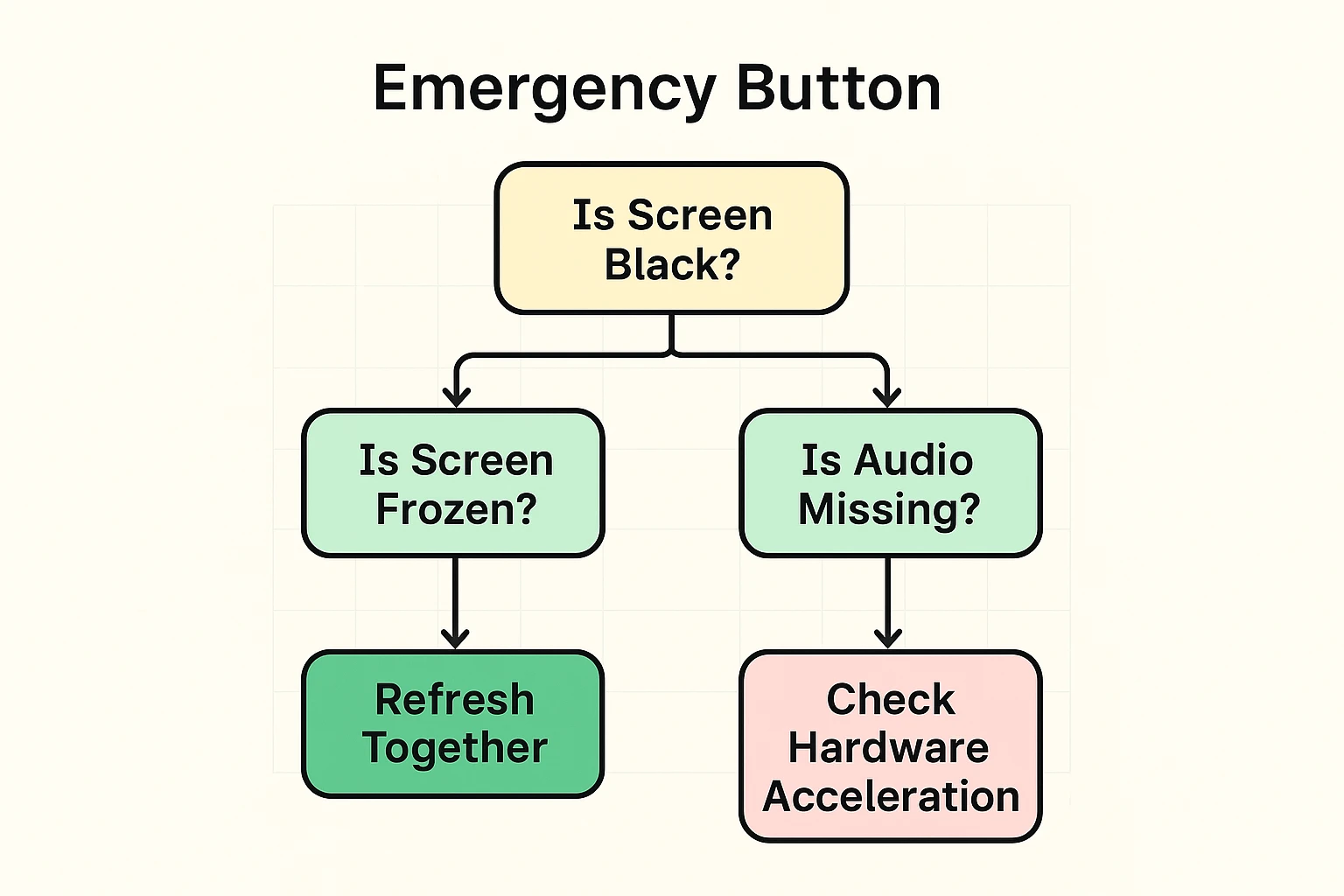
There is a perfectly safe, legal workaround for this black screen issue. It involves turning off a setting in your web browser called “Hardware Acceleration.”
Normally, Hardware Acceleration lets your browser take a little technical shortcut to make videos run smoother. However, this specific shortcut is exactly what tips off the invisible bouncer to block your screen sharing. By turning it off, you force the browser to take the scenic route, bypassing the bouncer entirely.
To fix this, go into your web browser’s settings (usually found by clicking the three little dots in the top right corner of your screen). Type the word “Hardware” into the settings search bar, and toggle the “Hardware Acceleration” switch to the off position. Your browser will restart, and presto! Your sister can finally see Harry Potter.
Another classic hiccup is the great audio battle. Either the movie is so loud you can’t hear your grandkids laughing, or you can hear your grandkids perfectly, but the movie sounds like it’s playing at the bottom of a well.
The trick is understanding how your computer routes audio. If you are sharing your screen on a platform like Zoom, you must remember to check the little box that says “Share Sound” before you click the final share button. Otherwise, Zoom treats the movie like unwanted background noise and actively tries to mute it.
Once the movie is playing, leave your computer’s main master volume turned up. If you need to lower the movie volume so you can hear your family chat, use the volume slider inside the video player (like on the Netflix or YouTube screen) instead. This lowers the movie for you, but keeps the audio clear for everyone else.
Let’s say you’ve done everything right. The movie is playing, the sound is great, and suddenly, the video freezes. Your friends are now staring at a very unflattering, paused image of an actor mid-sneeze.
Before you panic, or before you get completely disconnected because your phone died while you were trying to call them for tech support, try the “Simultaneous Refresh.”
This is the digital equivalent of turning it off and on again. Have the host and the guest hit the circular ‘Refresh’ arrow on their web browsers at the exact same time. Roughly 80% of synchronization issues are instantly cured by this simple trick. It forces the connection to wake up, apologize for dozing off, and get right back to work.
Google Chrome and Microsoft Edge are generally the most reliable for running watch party extensions like Teleparty. Safari can sometimes be a bit stubborn when it comes to screen sharing and syncing.
Streaming a movie while running a video call can use a fair amount of data—roughly 1 to 3 Gigabytes per hour. If your home internet has a strict data limit, you might want to keep an eye on your usage.
Usually, no. To prevent piracy, tools like Teleparty require everyone in the “virtual room” to have their own active subscription to the specific streaming service you are watching.
Technology is wonderful when it works, and a great way to practice your deep-breathing exercises when it doesn’t. Remember, you aren’t fighting a broken machine; you’re usually just navigating digital security rules designed to protect the movies.
Keep these quick fixes in your back pocket for your next digital get-together. The next time the screen goes black, you’ll know exactly which digital bouncer to bypass. Now go pop some fresh popcorn, hit that refresh button, and enjoy the show!