Newsletter Subscribe
Enter your email address below and subscribe to our newsletter

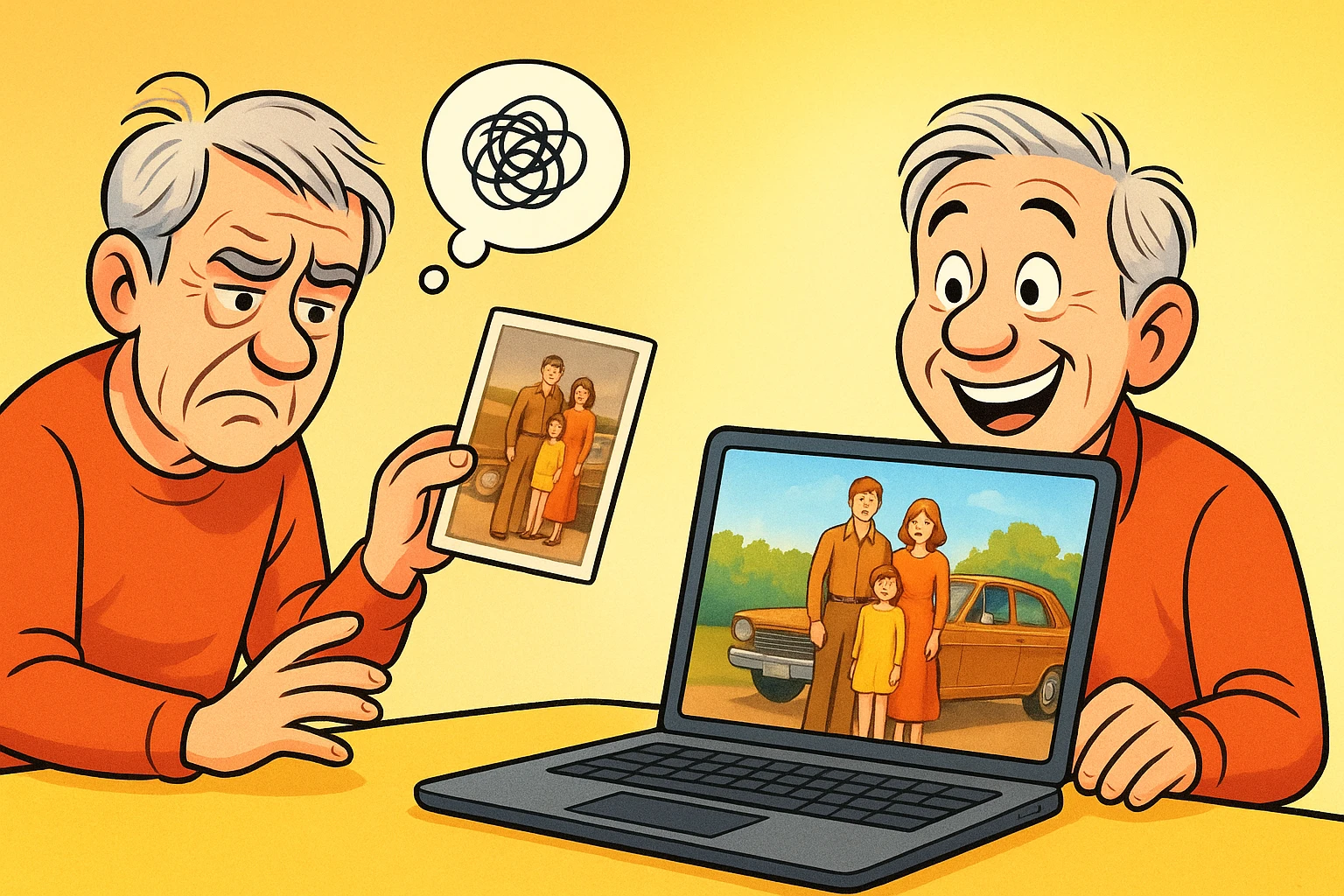
Picture a typical family video call. Your grandson is staring vacantly at the ceiling fan. Your daughter is yelling at the dog to drop a shoe. Someone—usually Uncle Bob—is completely muted but talking passionately, looking exactly like a goldfish in a bowl.
Meanwhile, you are holding up a faded, 3×5 photograph of your great-grandfather to the webcam. Unfortunately, the camera’s autofocus has decided to blur it into something resembling a grilled cheese sandwich. You’re trying to share a piece of family history, but instead, you’re competing with a barking labradoodle and a bad Wi-Fi connection.
There has to be a better way to share your family’s legacy, right? Thankfully, there is. By organizing a virtual “Show and Tell,” you can transform a chaotic video chat into a meaningful, structured event. It takes a little bit of tech know-how and a sprinkle of organization, but the result is a digital family reunion that people will actually want to attend.
Most tech guides on the internet stop at telling you how to click the “Join Meeting” button. They treat video calls like a purely technical hurdle to jump over. But they completely miss the point of why we are connecting in the first place.
A Virtual Show and Tell isn’t just a casual chat; it’s an event. When you give a family call a specific purpose—sharing 5 to 10 old photos and the stories behind them—everyone behaves differently. The grandkids actually listen, the dog gets put in the other room, and Uncle Bob finally figures out the mute button.
Instead of an aimless conversation about the weather, you are building a digital family archive. You are capturing stories that might otherwise be lost to time, all from the comfort of your favorite armchair.
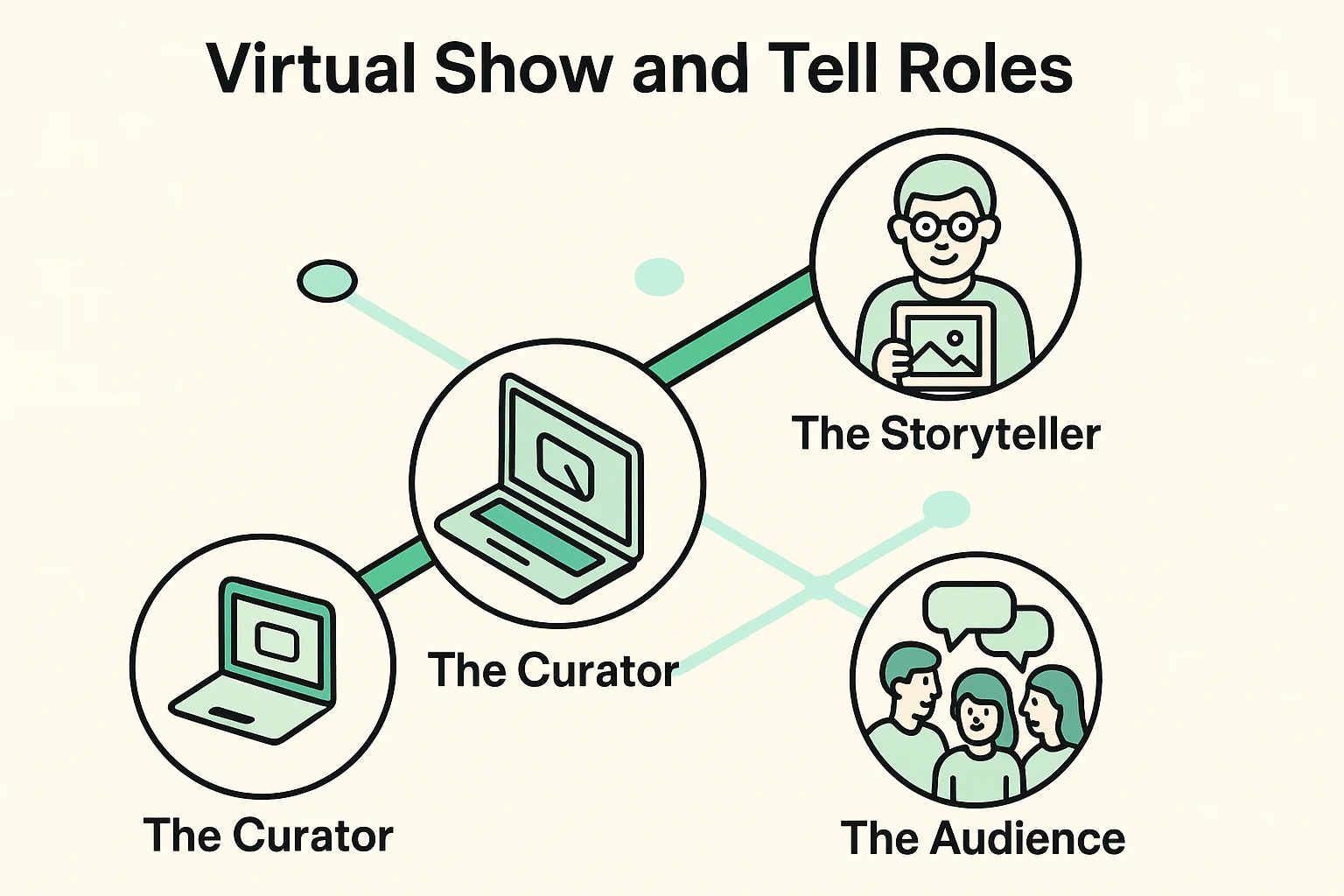
If the thought of managing a Zoom call while simultaneously organizing 50 years of family photos gives you tech-induced heartburn, take a deep breath. You do not have to do this alone. The secret to a successful virtual event is dividing up the labor.
Think of it like producing a tiny, family-run television show. There are three roles to fill:
By separating the tech duties from the storytelling duties, the anxiety immediately drops. You can focus on remembering the name of that 1970s station wagon, while your grandson focuses on keeping the video feed running.
If you’re feeling adventurous and want to handle the tech yourself, screen sharing is your best friend. Screen sharing allows everyone on the call to see exactly what is on your computer screen, in crisp, clear detail. No more holding physical photos up to the webcam like you’re providing evidence in a trial.
However, there is a golden rule to screen sharing: Share the Window, not the Desktop. When Zoom or Google Meet asks what you want to share, always select the specific photo application (like Apple Photos or a specific folder). If you share your whole desktop, your family will see everything—including your messy digital background, your private text messages popping up, and that recipe for bran muffins you left open.
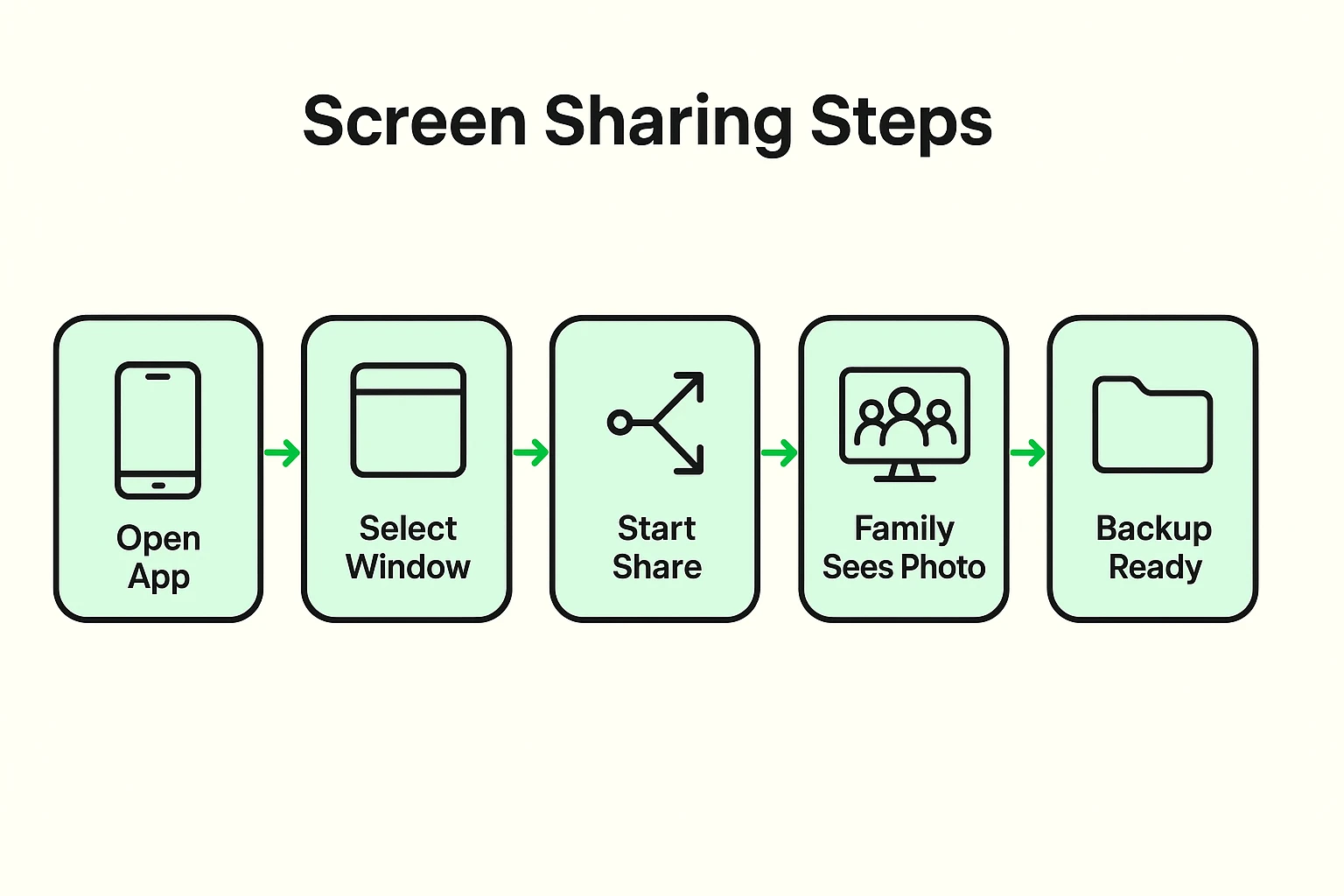
Before you can show off your digital shoebox, you actually need the photos on your device. Getting those old physical photos digitized—or safely moving photos from your phone to your computer—is step one. If you’ve ever stared at your smartphone and wondered exactly how to backup iphone photos without accidentally deleting your entire camera roll, we’ve got you covered with step-by-step guides.
Once your photos are safe, backed up, and sitting in a folder on your computer, you are ready to roll.
When you have a captive audience, it is very tempting to show them all 400 photos from your 1982 trip to the Grand Canyon. Please resist this urge. The fastest way to turn a heartwarming family event into a hostage situation is to share too many photos.
Instead, use the Digital Shoebox Method. Pick just 5 to 10 “hero” photos for the entire session. These should be photos that have a great story attached to them, not just nice scenery.
To keep the momentum going, introduce the 3-Minute Story Rule. Spend about three minutes talking about the photo, and then open the floor for the family to ask questions. This turns a monologue into a lively conversation.
Finally, always use the “Safety Net” Protocol. Technology has a wicked sense of humor, and your internet will likely decide to crash right as you reach the climax of a great story. To prevent panic, email your 5 to 10 photos to your “Curator” a day before the event. If your screen share fails, they can instantly share their screen instead, and you can just keep talking over the phone.
While a Virtual Show and Tell is undeniably fun, there is actually some serious science backing it up. This structured trip down memory lane is a casual form of what psychologists call “Reminiscence Therapy.”
Recalling and sharing old memories does wonders for cognitive health. It stimulates the brain, reduces stress, and significantly combats the feelings of isolation that many older adults experience.
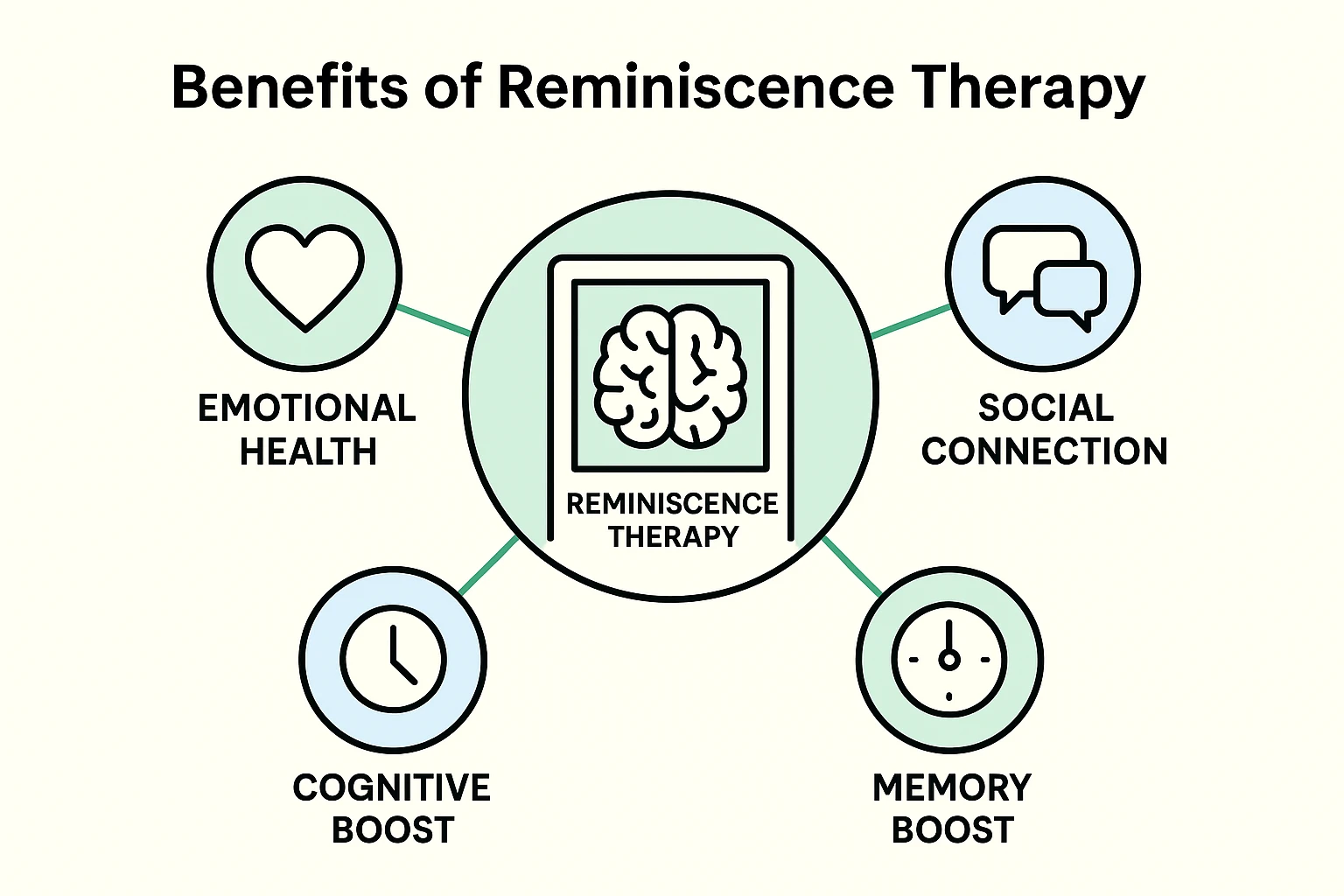
When you share your history, you aren’t just entertaining your family; you are actively strengthening your own mental well-being. Furthermore, for younger generations, hearing these stories provides a profound sense of grounding and identity. It turns out that listening to Grandma talk about her first car is actually good for everyone’s health.
Staring at a massive photo album trying to pick just five photos can be paralyzing. The easiest way to start is by picking a theme. A theme gives your virtual event focus and makes finding the right photos a breeze.
Here are five great themes to try for your first session:
Pick a theme, gather your 5 photos, call your designated family “Curator,” and get your first date on the calendar.
All three work, but Zoom and Google Meet are generally the easiest for screen sharing, especially if family members are using different types of devices (like a mix of iPhones and Windows computers). FaceTime is great, but only works smoothly if everyone in your family uses Apple devices.
You don’t need a fancy scanner! There are free apps available on your smartphone, like Google PhotoScan, that let you take a picture of an old photograph without getting an annoying glare. From there, you can email them to yourself to open on your computer.
This is where your “Curator” steps in. On apps like Zoom, the host has the magical ability to mute everyone else. Have the Curator mute the audience while you tell your 3-minute story, and then unmute everyone when it’s time for questions.
You can, but slideshows often move too fast and feel impersonal. A Virtual Show and Tell is about the story, not the quantity of photos. Sticking to “one photo at a time” and lingering on it gives people a chance to really look at the details and ask questions.
Don’t panic! This is why you use the “Safety Net Protocol.” Send the photos to a family member beforehand. If your computer decides to be stubborn, let them click the buttons while you sit back, relax, and do what you do best: tell a great story.