Newsletter Subscribe
Enter your email address below and subscribe to our newsletter

By Chris Clark, founder of Senior Tech Cafe
A password manager for family use lets you and an aging parent share the logins you both need, like the electric company or the pharmacy, while each of you keeps a private vault for everything else. It’s the tidiest way to help without taking over.
Compare that with the usual method. You’re sitting at the kitchen table with your mom, trying to log in to her bank to check a mystery charge. She pulls out The Book. You know the one: a battered little address book held together by tape, a rubber band and sheer willpower.
You flip to “B” for Bank, but it says “See ‘C’ for Chase,” which sends you to “M” for Money. When you finally find the page, the password has been crossed out six times. The current version looks less like an English word and more like an ancient hieroglyph decipherable only by Indiana Jones.
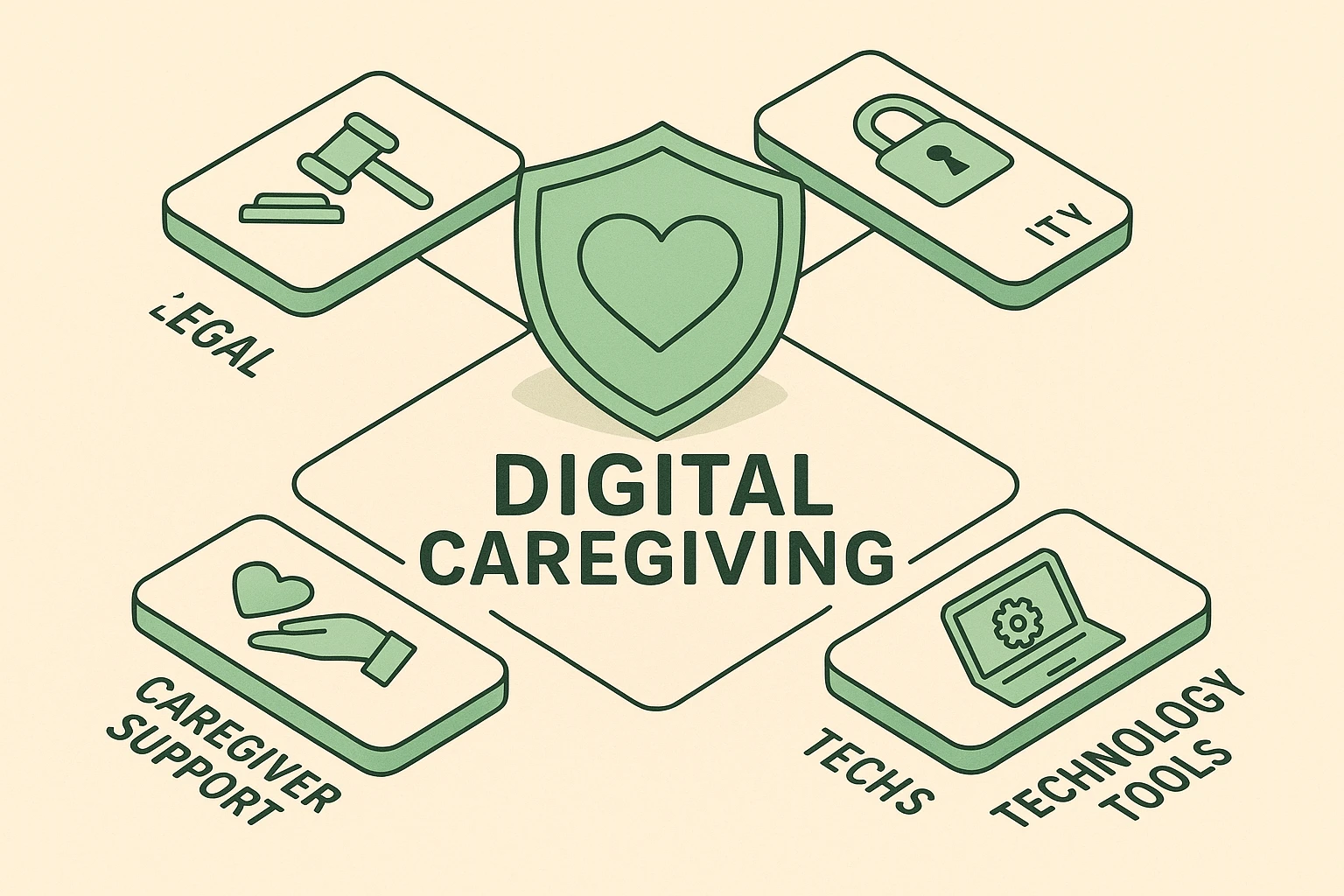
If that sounds familiar, you’re in good company. Helping a parent manage their digital life is part of caregiving now. Doing it wrong, by guessing passwords until an account locks or relying entirely on that fragile little book, leads to headaches, lost access and real security risks. Here’s how to do it right.
Most of us just say, “Dad, what’s your login?” and type it in for him. It feels helpful. It feels natural. It is also, technically speaking, a terrible idea.
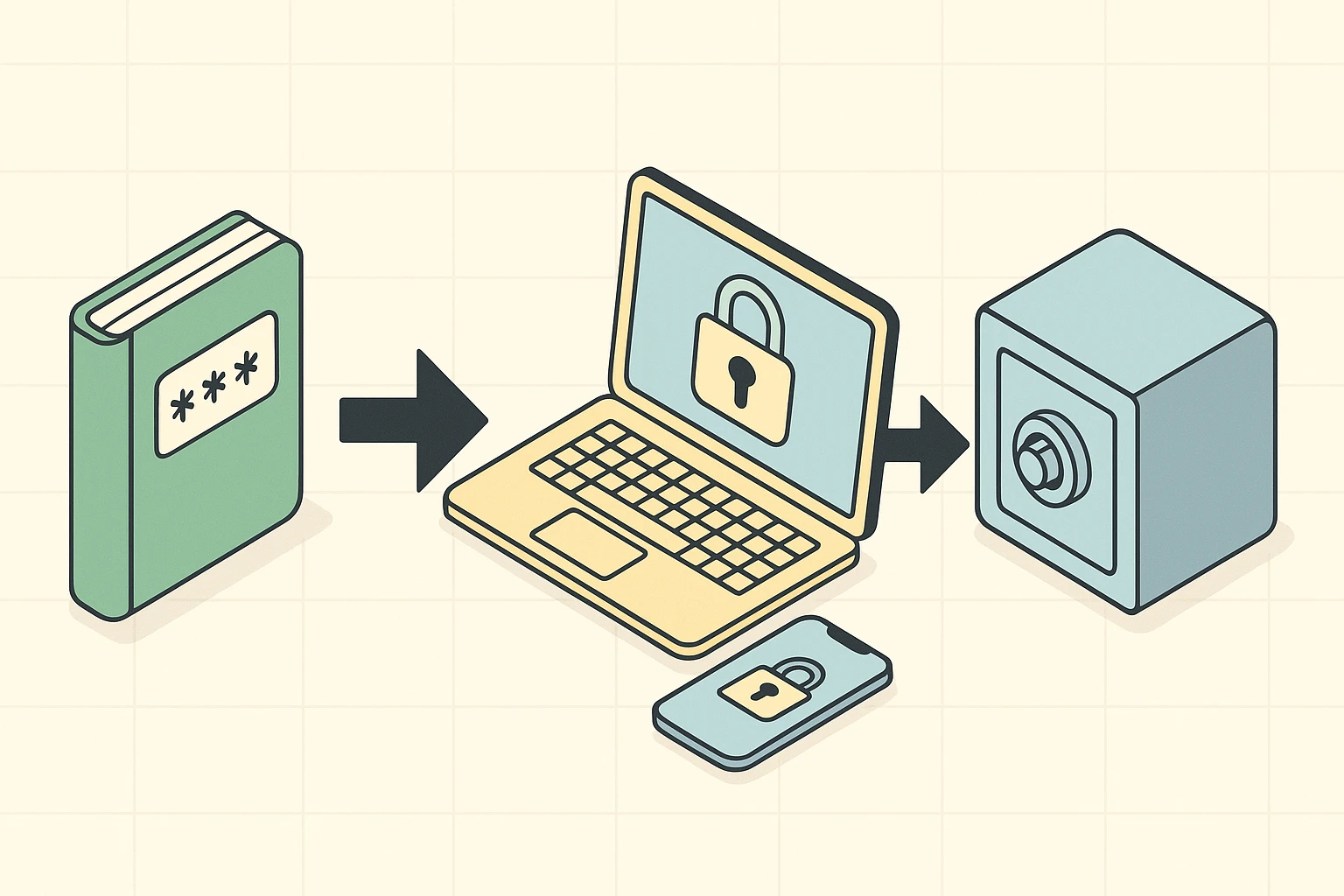
Many websites’ terms forbid sharing a login with anyone. Many online banking agreements hold the customer responsible for anything done by someone they gave their login to, which can make a fraud claim harder if something goes wrong. And logging in to someone else’s accounts without their permission can cross legal lines.
The cleaner route is paperwork. Most states have laws that let the person named in a power of attorney manage someone’s online accounts, but often only if the document specifically says so. When your parent sets up or updates a power of attorney and a will, ask the attorney to include language covering digital assets and online accounts. Banks often have their own options for caregivers, so ask what yours offers.
Timing matters. The home-care company Home Instead popularized the “40/70 rule”: if you’re 40 or your parents are 70, it’s time to start these conversations. Don’t wait for a medical emergency or a locked bank account to go hunting for their email password. Planning ahead keeps the power in their hands and the panic out of yours.
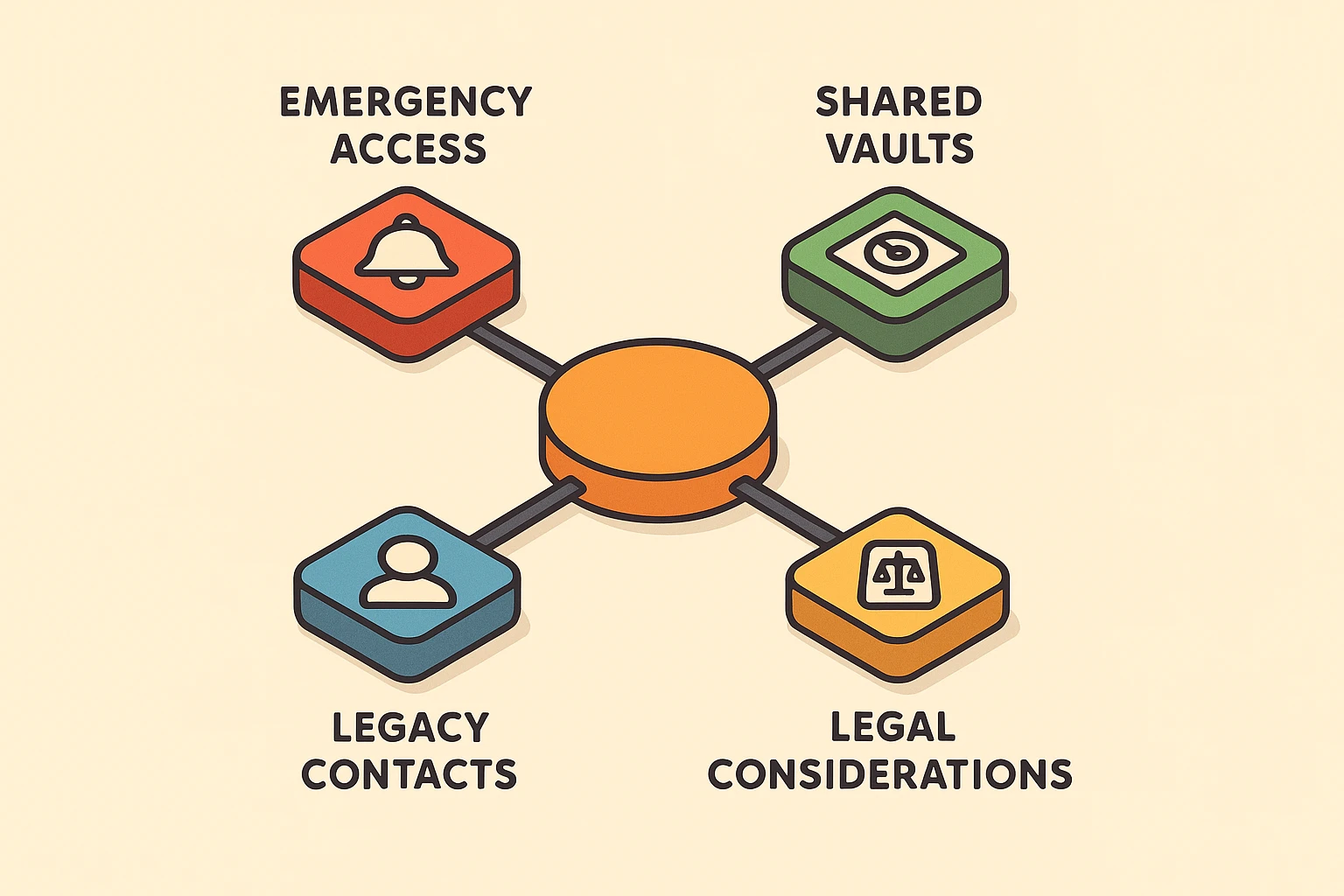
You can’t just throw away The Book and hand your dad a phone app. That’s a recipe for a full-scale technological meltdown, and taking away a system someone relies on can feel like taking away their independence.
Use a hybrid approach instead. Sit down together with some coffee (or a strong cup of tea) and move the book into a reputable, family-friendly password manager as a team, one account at a time.
Don’t burn the paper book right away. Let it stay as a security blanket while they get used to the digital vault. Show them how the app works, and let them see that their passwords are still entirely theirs.
The biggest worry with any password manager is forgetting the one password that unlocks everything. Help them pick a long passphrase they’ll remember (here’s how to remember passwords that are also strong), and set up the recovery options on day one, whether that’s a printed emergency kit or a family member who can restore access.
Password manager sharing doesn’t mean everyone uses one account and one master password. That’s like sharing one toothbrush: technically possible, not recommended for long-term health and happiness.
Think of a family plan as a row of safe deposit boxes. Each person gets a private box, called a vault, for their own logins, with their own master password to open it. Then there’s a shared box for the things you handle together: the utilities, the streaming service, the pharmacy portal. Everyone invited can open that one, and nobody can see into anyone else’s private box.
Setting it up usually goes like this, though the buttons differ from one app to the next:
The same setup works for couples. Decide together what belongs in the shared vault (the joint checking account, Netflix) and what doesn’t (your personal email and Facebook). The goal is openness about shared jobs, not an end to privacy. And if circumstances change, the organizer can remove someone from a shared vault in a few clicks; then change the passwords that were in it.
The best password manager for seniors is the one they’ll actually use, so ease comes first. After that, look for three things: private vaults, shared vaults, and a way back in if someone gets locked out. Here’s how the common choices handle sharing:
Two-factor authentication is phenomenal for security. It’s also where a lot of logins fall apart.
Here’s how it usually goes. Your mom tries to log in to her medical portal. She types the password. The site texts a six-digit code to a phone that’s currently at the bottom of a purse in the other room. By the time she finds the phone and reads the code, the website has timed out and wants to start over.
Two fixes help. First, many password managers can store those codes and fill them in along with the password, so there’s no second device to juggle. Second, many accounts let you add a backup phone number. Adding yours means you can help when her phone goes missing, as long as she’s happy for you to receive her codes.
If a lost phone has already locked someone out, our locked-out account recovery guide covers what to do next.
Here’s a radical thought: you don’t actually need to know every password your parents have. They deserve privacy too. Maybe your mom doesn’t want you reading her knitting forum posts.
Instead of demanding a master list, set up emergency access. In Bitwarden, for example, your parent names you as a trusted contact and picks a waiting period. If there’s a hospital stay or a sudden illness, you request access. Your parent can approve or reject the request; if they don’t respond before the waiting period ends, you’re let in. 1Password handles it differently: in a family plan, a family organizer can help a member who can’t sign in recover their account.
Either way, it preserves their independence while making sure someone can step in if things go wrong.
Plan for the long term too. Apple’s Legacy Contact (in Settings, under your name, then Sign-In & Security) lets a person you choose request your photos, messages and files after your death, using an access key and a death certificate. It doesn’t include passwords saved in iCloud Keychain, which is one more reason to set up emergency access in a password manager. Google’s Inactive Account Manager does something similar, sharing the data you pick with trusted contacts after your account goes unused for a set time.
Then hold a digital fire drill once a year. Test the emergency access, check that the legacy contacts are still right, and make sure nothing’s broken. It takes ten minutes and can save months of headaches later.
The best password manager for family use is the one everyone will actually open. 1Password Families and Bitwarden both give each person a private vault plus shared ones, with ways to recover a locked account. If the whole family uses Apple devices, the free Passwords app can share a group of logins at no cost.
Keeping passwords in a reputable password manager is safer than what most families do instead: reused passwords, sticky notes or a spreadsheet. The vault is encrypted, and good ones are built so the company itself can’t read it. The password that truly matters is the master password, so make it long and protect it with two-factor authentication.
Writing passwords in a notebook beats using the same password for every account. But a notebook can be lost, stolen or destroyed in a house fire, and it doesn’t help when you live three states away and need to get into a parent’s health insurance portal. A shared password manager solves both of those problems.
Blame the hackers. Seriously. Try something like, “Scammers are getting sneakier, and I want to make sure we’re both protected. Can we look at our passwords together?” Making it a team project, with your own accounts on the table too, removes any sense that someone is being checked up on or taken over.
Without a plan, a loved one’s accounts can stay locked for good, because tech companies rarely hand over access, even to family. Apple’s Legacy Contact and Google’s Inactive Account Manager let people choose in advance who gets their data. Ask for digital accounts to be covered in the will, and keep the password manager’s emergency access current.
You don’t have to fix the internet in one afternoon. Start small, and have the conversation with your loved one this weekend.
Sit down together and draft a digital asset inventory: a simple list of which accounts exist (banking, email, medical portals). You don’t even need the passwords yet, just the names of the institutions. Once you know what’s out there, set up a password manager for family use and move those logins in one at a time.
By taking it slow, using plain English and focusing on their safety and independence, you’ll turn a technological nightmare into a peaceful transition. And who knows? You might just get to retire The Book for good.
For the other habits that keep a parent safe online, our online safety guide for seniors is a good place to start.