
Newsletter Subscribe
Enter your email address below and subscribe to our newsletter


By Chris Clark, founder of Senior Tech Cafe
Two factor authentication for seniors adds a second proof of identity after your password. It’s the deadbolt behind the door lock.
That second proof might be a prompt on a device you already own, a code from an authenticator app, a small hardware key, or a text message when nothing better is offered.
The point is simple. If somebody steals your password, it isn’t enough on its own anymore.
Start with email, then banking and anything financial. After that, social media, shopping, and any account holding personal details. That’s the same priority order we use throughout our online safety for seniors guide.
Passwords get stolen constantly. Through phishing, through breaches at companies you’d forgotten you had an account with, or just by being guessable because they contain the dog’s name.
Two-factor authentication limits the damage, because your password stops being the whole key.
It isn’t magic, though. It can’t protect someone who approves a login prompt they didn’t ask for, or reads a code out loud to a caller.
So treat every unexpected code or approval request as a warning rather than an annoyance. Deny it, change the password, and look at recent account activity while you’re in there.
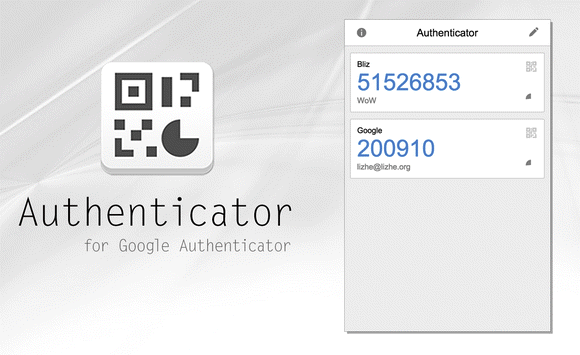
The strongest options are a hardware security key or a passkey. Both are very hard to phish.
A prompt on a trusted device, or a code from an authenticator app, comes next and is plenty for most people.
Text-message codes are a real step up from a password alone. They’re also the weakest of the group, because a stolen phone number or a convincing call to your phone company can redirect them.
Email codes are only ever as safe as the email account receiving them, which is worth sitting with for a moment.
Pick the strongest method you’ll actually use every single time. A perfect method you find annoying gets switched off within a week.
Then add a second method and save your backup codes, so one lost device doesn’t lock you out of your own life. The FTC’s guide to two-factor authentication walks through these same tradeoffs in more detail.
Four steps, and the order matters.
1. Open your bank’s website or app yourself.
Don’t use a link from an email or a text, even one that looks exactly right.
2. Find two-step verification in Security or Sign-in settings.
Pick the strongest option the bank offers. The wording varies, so look for anything about verification, authentication, or sign-in.
3. Set it up and save your recovery codes.
Do this on a private connection, confirm the alert on your own device, and save any recovery codes they hand you.
4. Sign out and test a fresh login.
Don’t walk away from it until you’ve confirmed the new login actually works.
If an account lets you register more than one security key, register two. One lives on your key ring, the spare stays somewhere safe at home.
Name each key in the account settings. When one goes missing you’ll want to know which one you’re removing, and “Security Key 1” tells you nothing six months later.
Before you buy, check the key works with the account, the computer, and the phone you actually own. Connectors change, and a key that won’t plug into your phone is an expensive keyring ornament.
A security key proves you’re holding the thing. It doesn’t replace a unique password or a PIN, and it doesn’t replace having a recovery plan written down somewhere.
Twice a year, spend ten minutes on this. Put it near a birthday or a holiday so you actually remember.
Check that the recovery phone number and backup email still belong to you. Old numbers linger on accounts for years.
Remove phones you no longer own and devices you don’t recognize. Confirm your spare method still works rather than assuming it does.
Generate a fresh set of backup codes if any code has been used or seen by anyone.
Store those codes offline, somewhere secure. Not in the same phone that generates your login codes, which defeats the entire arrangement.
And if you change phone numbers, update your important accounts before you cancel the old one. That order matters more than almost anything else here.
The best security setup is the one that doesn’t create a brand-new way to lock yourself out.
Keep written setup notes that don’t include passwords. Register a spare method. Store your backup codes securely, and tell one person you trust where the emergency instructions live. If your recovery phone number ever changes hands, our account recovery without a recovery phone guide covers what to do.
What you shouldn’t do is let convenience slide into account sharing. Where a service allows separate logins, use separate logins.
Sharing one account feels simpler right up until you need to work out which of you did something.
Two-factor authentication asks for a second proof of identity after your password. That might be a prompt on a trusted device, a code from an authenticator app, or a hardware key. A stolen password on its own then isn’t enough. Knowing your password stops being the same as being you.
Yes. Text codes are meaningfully safer than a password alone, though authenticator apps, trusted-device prompts, passkeys and hardware keys resist phishing and phone-number theft far better. If text codes are all your account supports today, switch them on now and move to something stronger when you can.
Don’t approve it and don’t share the code. An unexpected code usually means somebody already has your password and is trying it right now. Change that password from the official app or website, review recent sign-ins, and remove devices you don’t recognize. Then check wherever else you’ve used the same password.
Register a spare method, save your backup codes somewhere secure, and keep your recovery phone and email current. If the phone goes missing, sign in with the spare method and remove the lost device from the account. Setting up that second option takes a few minutes and saves a long afternoon later.


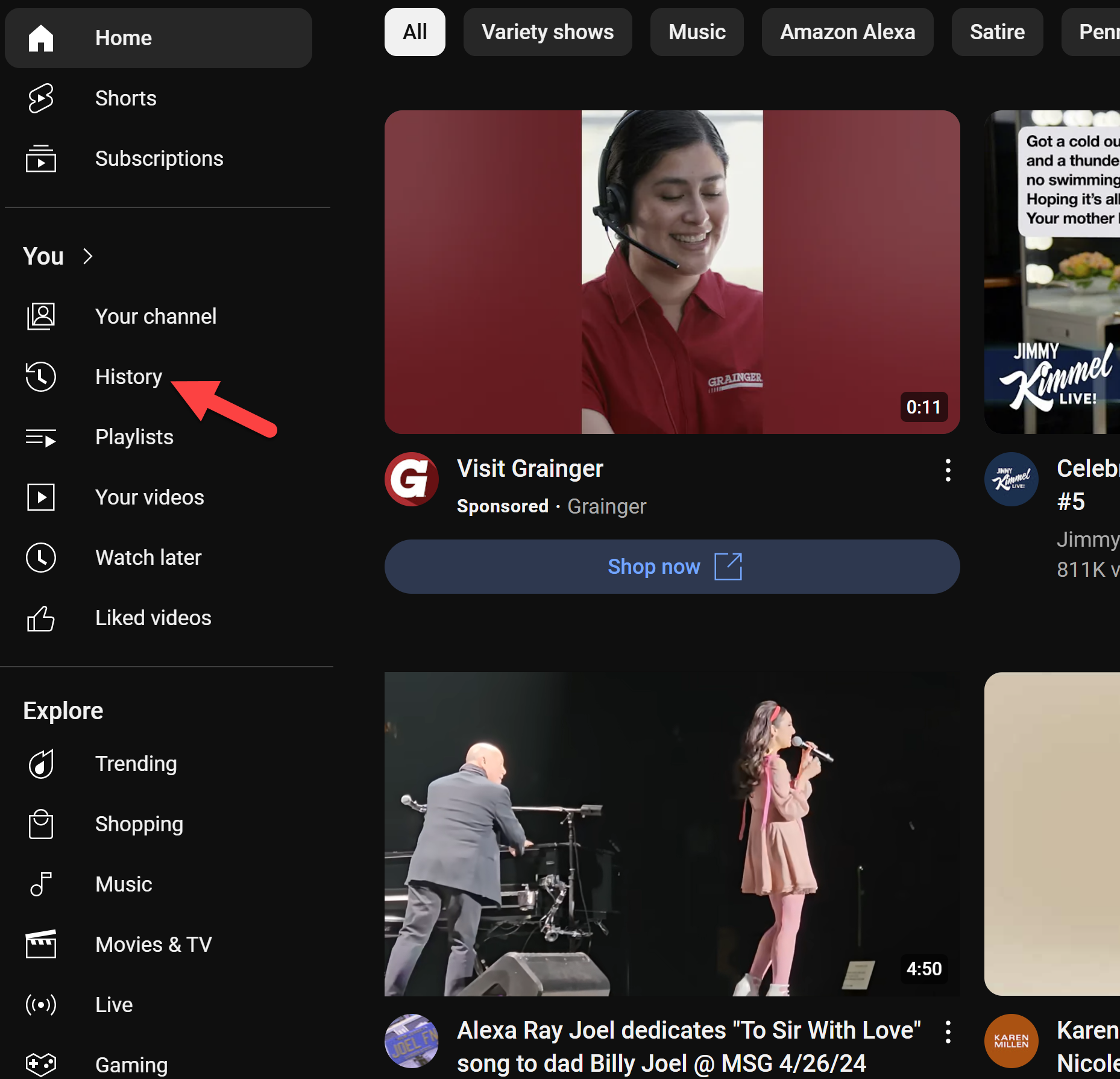




How do you not loose your site when you are signing in when you are looking at email that has the code and try to go back to the log in page and put the code in?
Great question. The trick is not to leave the login page.
On a computer, open your email in a new tab instead of replacing the login page. Leave the login page open, check the email in the other tab, copy or write down the code, then click back to the login tab and enter it.
On a phone or tablet, it can be a little clumsier. You can usually switch back and forth between apps without losing the page, but if that gives you trouble, write the code down on paper before going back to the login screen.
One more tip: if the site offers an authenticator app instead of email codes, that is often easier and safer. The app gives you the code right on your phone, without needing to dig through email.