Newsletter Subscribe
Enter your email address below and subscribe to our newsletter

By Chris Clark, founder of Senior Tech Cafe
Smart home privacy settings decide which of your devices can listen, record, watch, keep what they collect, and pass it to another company.
Start by walking through the house with a notepad. List everything connected to Wi-Fi. Speakers, televisions, thermostats, cameras, doorbells, watches, and any appliance that wanted your email address.
For each one, ask three questions. Does it need its microphone or camera on? Who can see its history? How long does it keep recordings?
Convenience and privacy live together perfectly well. The settings just need to reflect your choice rather than whatever the factory picked.
None of this means unplugging your house. It means knowing what’s switched on.
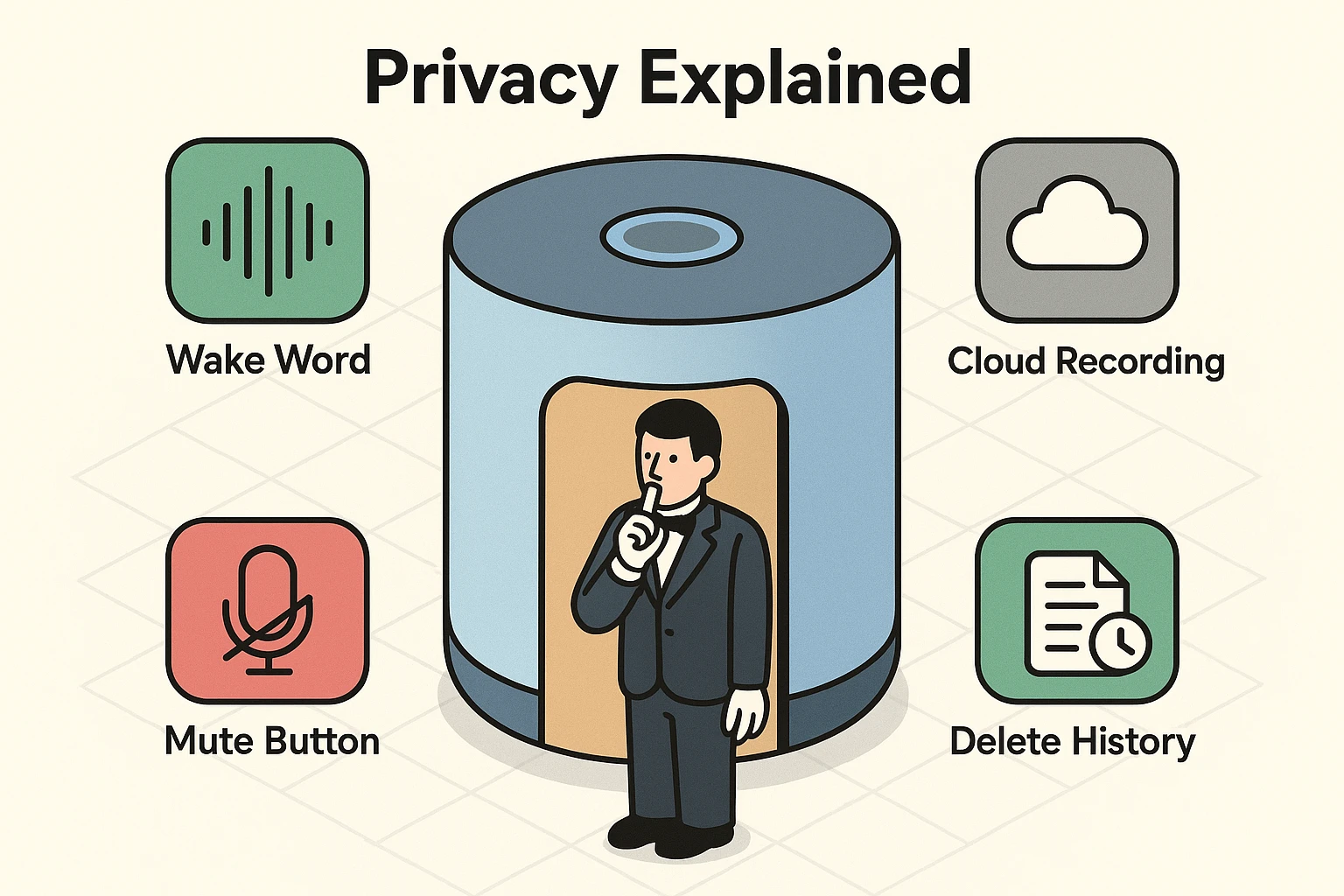
The biggest fear most of us have is that smart speakers are always recording our conversations. To understand what’s really happening, let’s use the “Butler Analogy.” Imagine a very attentive, albeit slightly robotic, butler standing outside your closed bedroom door.
This butler is listening, but only for one specific thing: his name. If you are inside discussing your neighbor’s questionable landscaping choices, the butler mostly doesn’t care. He isn’t actively writing it down, but every now and then, he might mishear something and briefly perk up when he shouldn’t. This is called “local pattern matching.”
The device is designed to wait for its wake word, like “Alexa” or “Hey Google,” using local detection, but it can occasionally get it wrong.
It’s only after you say the magic word that the butler opens the door, pulls out a notepad, and starts recording your request to send up to the cloud. Understanding this difference is key to confidently using alexa for seniors as a helpful tool rather than fearing it as a spy.
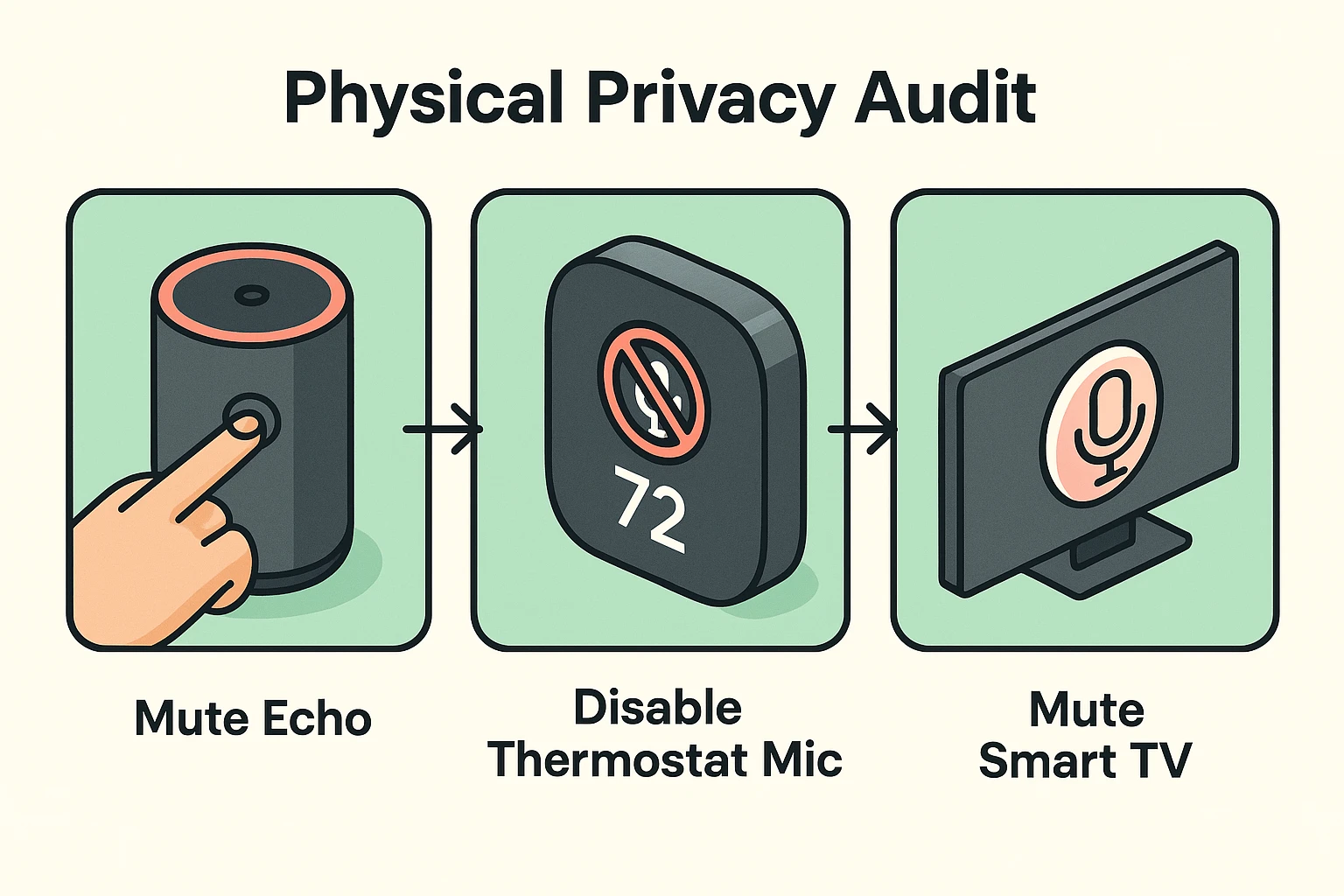
Go room by room, and include the devices you’ve stopped thinking of as computers.
Smart TVs. Thermostats. Video doorbells. Baby monitors. The refrigerator with a screen on the front.
A television is a computer. So is a doorbell.
Open each device’s app and note what it can capture: audio, video, location, contacts, activity history. Most apps list this under Privacy or Permissions. Our guide to review app permissions covers the same idea for the apps on your phone.
If a feature has no obvious benefit to you, switch it off. You can always switch it back on if something stops working the way you wanted. The FTC’s guide to securing your internet-connected devices at home walks through the same room-by-room approach.
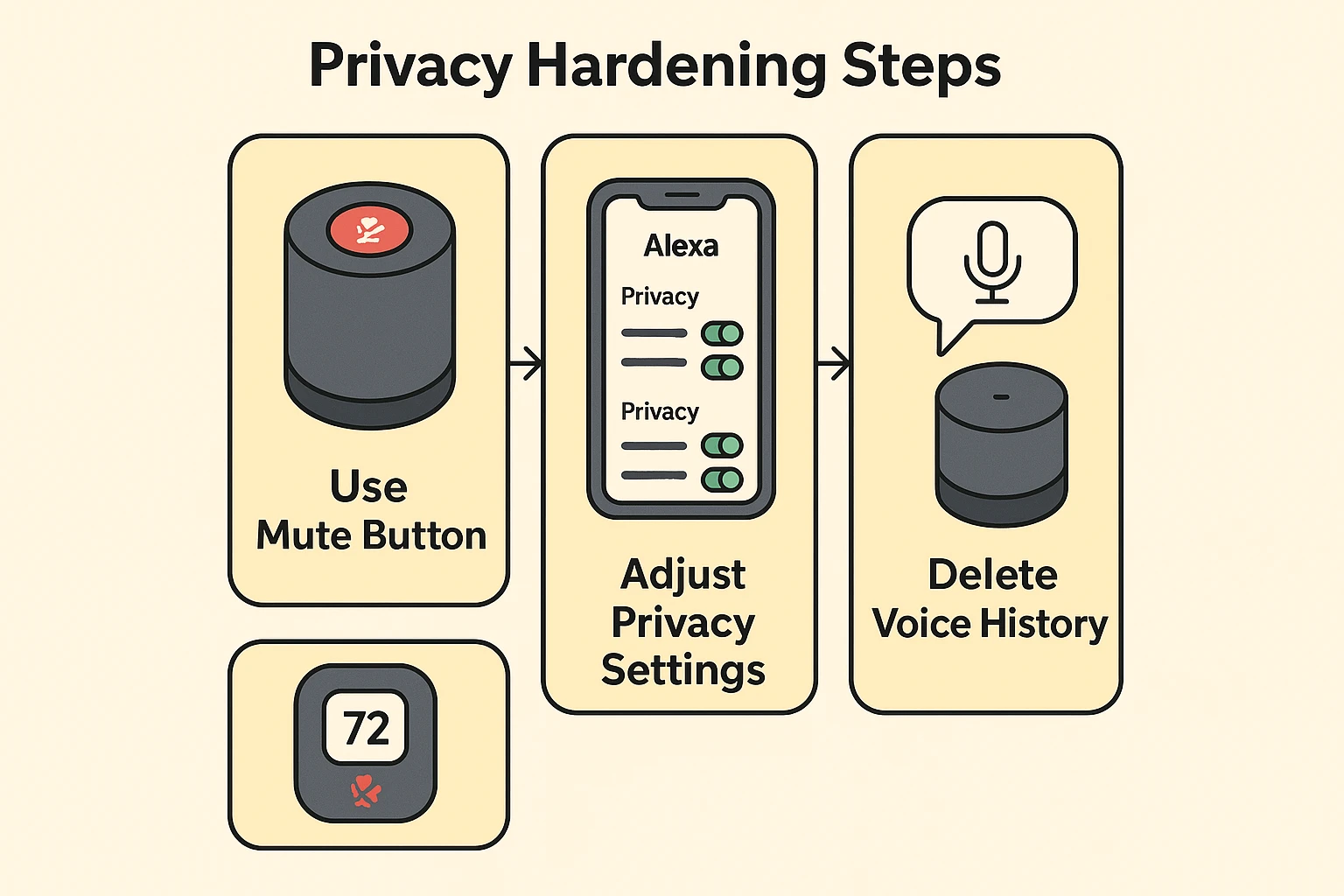
Five settings do most of the work here.
Mute microphones or cover cameras when you don’t need them. A sticky note over a lens is undignified and completely effective.
Turn off human review of recordings where the option exists. It usually sits under Privacy, and yes, it means what you think it means.
Delete old voice and video history, then set the shortest retention period that still works for you.
Remove third-party skills, integrations and household members you no longer use. Then give the account a unique password, two-factor authentication and automatic updates. The same basics apply when you secure every phone, tablet and computer in the house.
Menu names change between app versions, so search the app for Privacy, History, Permissions, Data or Security rather than trusting one fixed path. The FTC’s guide on how to secure your voice assistant covers most of these same settings by name.
And none of this is permanent. Anything you change, you can change straight back.
Fall detection, medication reminders and caregiver alerts genuinely help people stay in their own homes longer. That part isn’t in question.
What matters is that monitoring gets discussed before it’s switched on, rather than afterward.
Agree on what’s collected, who gets the alerts, when someone may look at a camera or its history, and how the person being monitored can pause it.
Then revisit that agreement when health needs change, or when somebody new joins the household.
A camera in your own home is a different object once another person can watch it. Talk about it before it goes up.
AI features can summarize what a camera saw, recognize voices, learn your routine, or work out when the house is empty.
All of that needs more information, stored for longer, usually somewhere other than your house.
So before switching an AI feature on, check four things. What information does it use? Does the processing happen on the device or online? Do your recordings train the service? And how do you delete the history?
Smart is rarely free. It usually means more of your life is kept somewhere you can’t see it.
Tell your guests when a camera, doorbell or voice assistant is running in a shared area. A quick mention at the door is enough.
Don’t put connected cameras or speakers in bedrooms or bathrooms. There’s no version of that which ends well.
Give visitors a guest Wi-Fi network rather than the password for the network your computers and smart-home controls sit on. Offering guest Wi-Fi isn’t rude. It’s just a different door.
And remove access once people no longer need it. Former guests in household apps, and any caregiver, cleaner or contractor who’s moved on.
Write this down once and you’ll never have to reconstruct it from memory.
For each room, note the device, whether its microphone or camera is on, and who can access it.
Then add how long it keeps recordings, whether two-factor authentication is on, and when you last checked for updates.
One page on the fridge beats a perfect spreadsheet you never make.
Review it every six months, and any time you add a device or change caregivers.
If a device has stopped receiving security updates, disconnect it and replace it. An unsupported device on your network is a door nobody maintains anymore. For the wider set of everyday habits, see our online safety tips for seniors guide.
Start by muting microphones and cameras you don’t use, shortening how long recordings are kept, deleting old history, removing third-party access you’ve forgotten about, turning on two-factor authentication and enabling automatic updates. Menu names move between app versions, so search the app for Privacy or Permissions. Begin with the rooms you use most.
A muted microphone can’t hear a voice request, including an emergency one. If you rely on voice calling or fall response, leave the microphone available and shorten retention instead, then confirm how that specific device handles emergencies. Muting the speaker in a spare room is easy. Muting the one you’d count on isn’t.
Yes. Mention any audio or video devices running in shared spaces, keep monitoring out of private rooms, and remove temporary household access once it’s no longer needed. A quick word at the door is enough, and it saves an awkward moment later. The same applies to a caregiver, cleaner or contractor with app access.