Newsletter Subscribe
Enter your email address below and subscribe to our newsletter


You’ve just sat down with a hot cup of coffee when the dreaded words float across the room: “My tablet is doing that thing again.” Instantly, your blood pressure spikes. You are the Unpaid Family IT Director, a title you never applied for, which pays zero dollars, and comes with infinite stress.
If you’ve ever tried to explain the difference between Wi-Fi and cellular data to your grandmother over the phone, you know it feels a bit like explaining electricity to a Victorian ghost. You click. You explain. You repeat. The little loading circle spins, mocking your attempts to quickly resolve an issue so you can get back to your own life.
If this sounds familiar, take a deep breath. You are not alone, and you are not a bad person for wanting to pull your hair out. Helping older relatives navigate the digital world is a universal challenge, right up there with folding a fitted sheet or understanding your cable bill.
The good news? You can absolutely teach them to use their devices safely and confidently without damaging your relationship. We’re going to look at how to decode the way seniors learn, introduce tools that make remote help a breeze, and outline strategies to keep you both from throwing an iPad out the window.
Before you start lecturing your dad about app permissions, we need to talk about why these tech sessions usually end in frustration. It’s rarely because they “just don’t get it.”
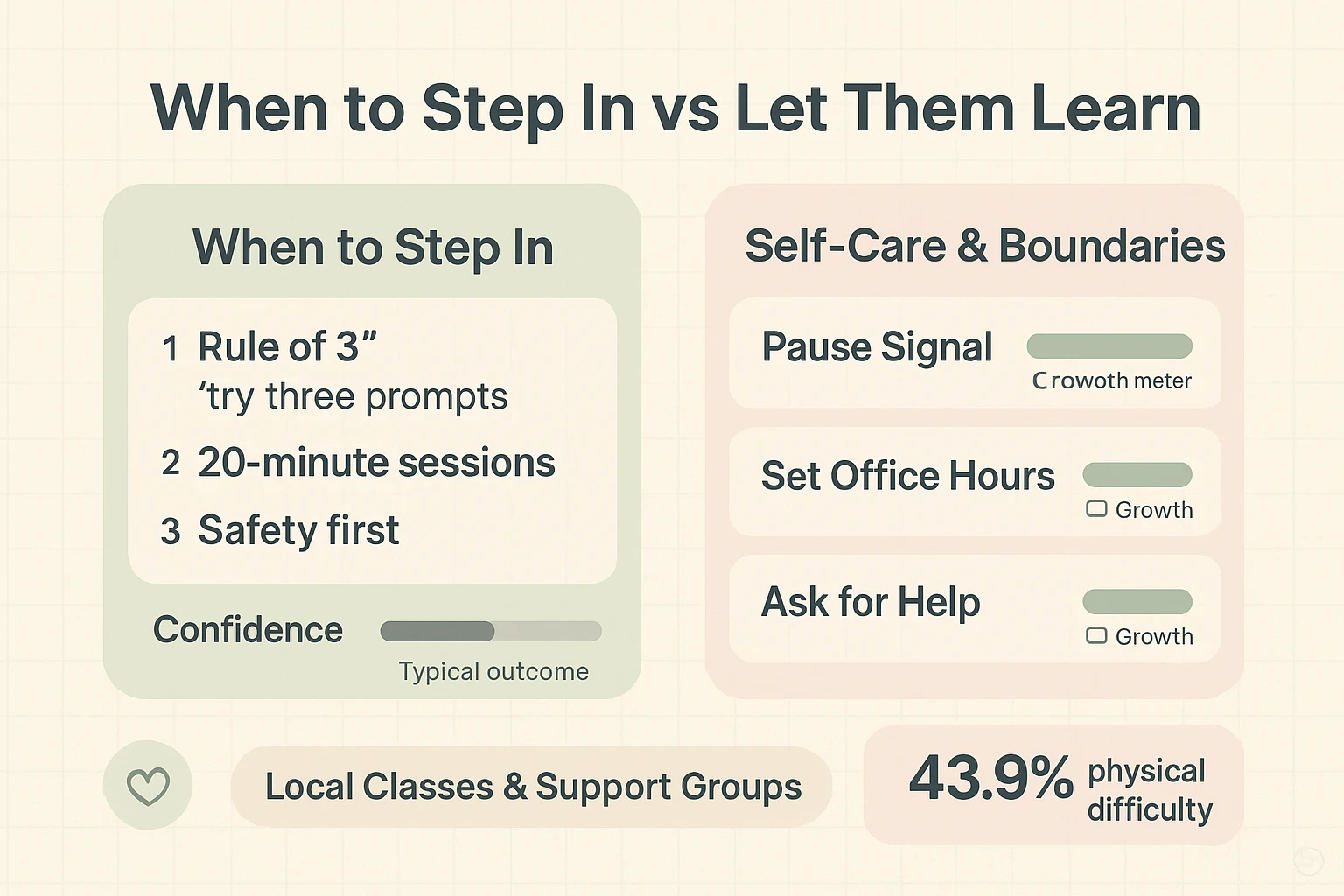
According to recent data, 43.9% of individuals 65 and older deal with physical difficulties that affect their tech use. That means the failure to double-tap isn’t a lack of comprehension; it’s often just arthritis making touchscreens feel like defusing a delicate bomb. Vision changes make low-contrast gray text on a white background completely invisible.
Furthermore, they actually want to be online. A 2024 AARP study revealed that nearly two-thirds of older adults say technology enriches their lives and makes aging easier. They want the connection, the convenience, and the cat videos just as much as we do.
They just don’t want to feel foolish while trying to access them. When you snatch the phone out of their hand to “just do it real quick,” it inadvertently sends the message that they are incapable. Empathy and patience are your best teaching tools here.
Trying to troubleshoot a computer problem over the phone is a special kind of torture. It usually involves you asking, “Do you see a little gear icon?” and them replying, “I see a picture of a duck.”
Instead of playing blindfolded digital darts, you need to use remote support tools. These are programs that allow you to literally see what is happening on their screen from the comfort of your own home. It takes the guesswork out of the equation and lowers the temperature of the conversation instantly.
If they are on a computer, tools like Zoom’s “Share Screen” feature or Chrome Remote Desktop are absolute lifesavers. For Apple users, the built-in Screen Sharing feature on Macs and iPads works like magic. You can point to exactly what they need to click, or in some cases, temporarily take control of the mouse to fix the problem yourself.
You wouldn’t hand a teenager the keys to a Ferrari for their first driving lesson, so don’t hand your mom a smartphone with 400 unorganized apps and notifications blaring every three seconds. A little setup goes a long way.
Start with accessibility. Go into the settings and bump up the text size. Turn on display zoom. Increase the contrast. If tremors make tapping difficult, adjust the screen’s touch sensitivity settings.
Next, eliminate the clutter. Delete apps they will never use. Put their most important tools—messages, photos, weather, and the phone app—right on the main screen in a place that’s easy to reach.
You can also bypass screens altogether. Voice assistants are incredibly helpful for folks who struggle with typing or tiny buttons. In fact, exploring alexa for seniors is a brilliant way to help them set timers, call family, or listen to music using just their voice.
When you teach a senior to use the internet, you inevitably have to talk about security. This is where things get tricky, because the internet actually is full of scammers, but you don’t want to terrify them so much they refuse to turn the computer on.
A staggering 85% of adults aged 50-64 worry about online privacy and security. They hear horror stories on the evening news about identity theft and hacked bank accounts. Your job is to validate those fears while giving them practical, plain-English rules to stay safe.
Teach them the “Pause Rule.” If an email, text, or pop-up demands urgent action—like claiming a prize or fixing a suddenly “locked” account—they must pause and call you before clicking anything. Explain that legitimate companies like their bank or the IRS will never text them demanding gift cards.
Burnout is a real thing, even when it comes to tech support. You might find yourself dreading a visit with your parents because you know it will inevitably devolve into a password recovery session.
It is perfectly okay to set boundaries. You can say, “I’m happy to help you with your email, but I only have 15 minutes today. If we don’t fix it, we’ll try again tomorrow.” Keeping sessions short prevents both of you from reaching the boiling point.
Also, focus on the fun stuff to build their confidence! Did you know that 29% of video game players are over 50? Set up a simple digital jigsaw puzzle or a word game for them. When technology is associated with joy and entertainment, they’ll be far more motivated to learn the mechanics.
Don’t fight the battle over the device; fight it over the benefit. Connect the technology to something they deeply care about. If they refuse to learn FaceTime, remind them it’s the only way to see their grandson’s piano recital live. Once the “why” is strong enough, the resistance to the “how” usually fades.
Use relatable analogies. Don’t talk about servers and data centers. Tell them the cloud is just a digital storage unit. You rent a little bit of space out in the world to safely keep your photos and documents, so if your house (or your iPad) burns down, your stuff is still perfectly safe.
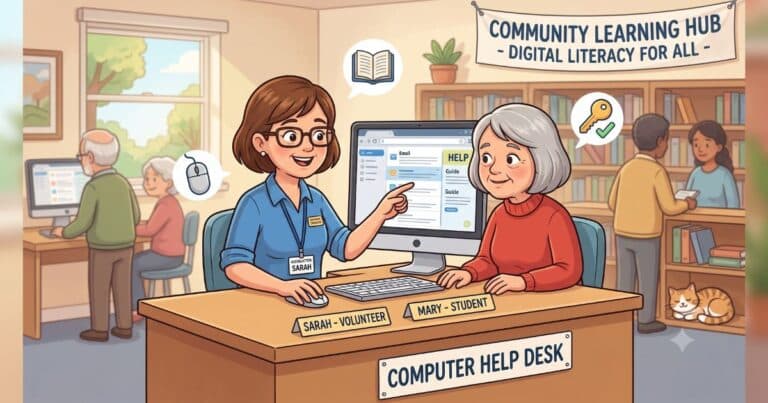
Absolutely. Many local libraries and senior centers offer free, beginner-friendly technology classes. Sometimes, seniors are actually more receptive to learning from a patient stranger in a classroom setting than they are from their own easily frustrated children.
Being the family IT person is an act of love, even when it feels like a punishment. Every time you patiently explain how to attach a photo to an email, you are helping your loved one maintain their independence and stay connected to the modern world.
Start by taking a step back and evaluating your setup. Pick one remote support tool to install on both of your devices this week. Enlarge the text on their smartphone. And most importantly, forgive yourself for the times you’ve lost your patience.
Technology changes faster than any of us can keep up with. But by combining plain-English explanations with a healthy dose of humor and empathy, you can bridge the digital gap without losing your mind.