Newsletter Subscribe
Enter your email address below and subscribe to our newsletter

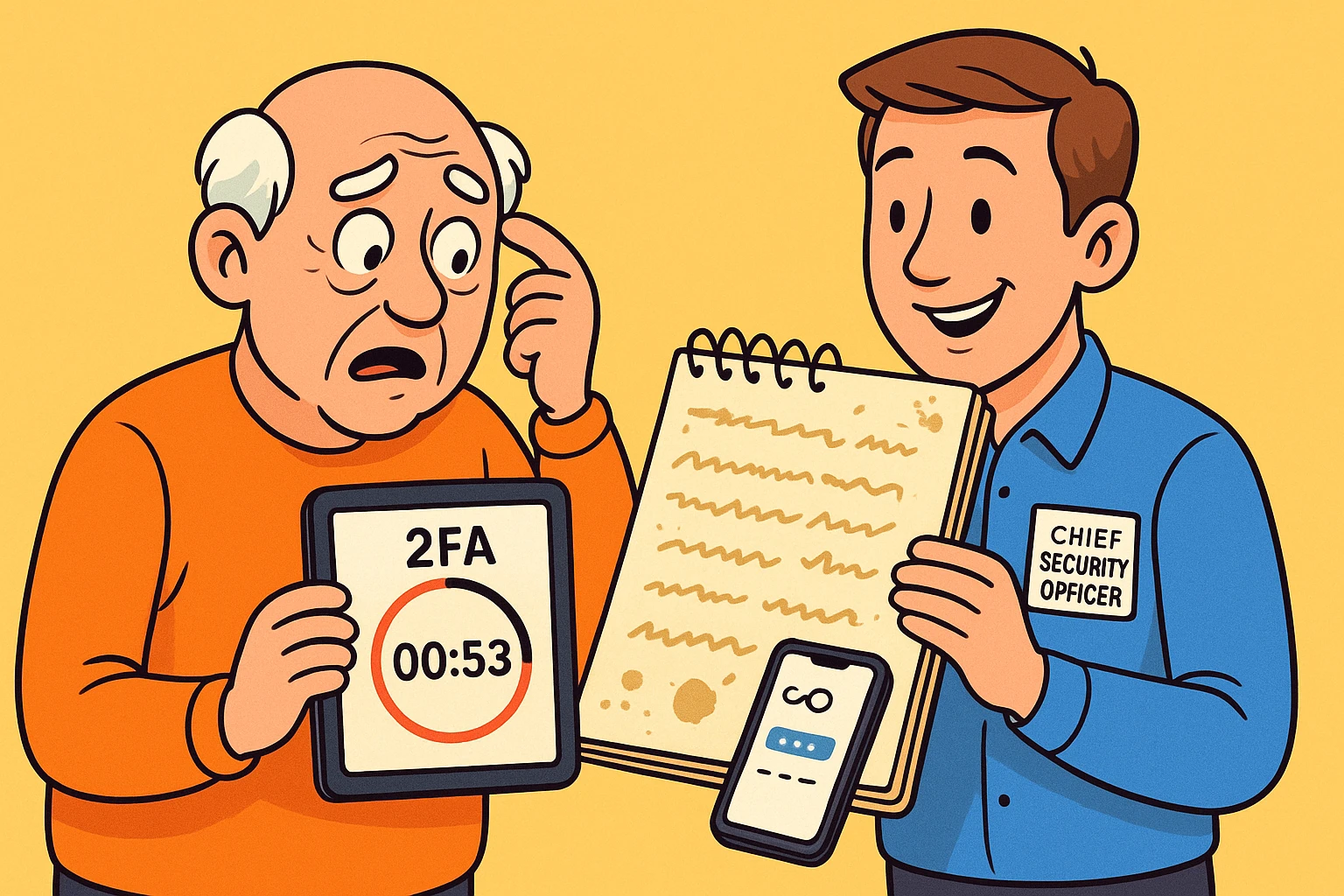
Picture this: You’re visiting your parents for the holidays, enjoying a slice of pie, when Mom casually mentions she can’t access her bank account. “It wanted a code,” she says, waving her hand vaguely at her iPad. “So I threw it in a drawer.”
You ask for her password. She produces a battered, spiral-bound notebook that looks like it survived the Oregon Trail. Inside are hieroglyphics. “Bank” is crossed out three times, and the current password appears to be “Fluffy1998?”, but the question mark might just be a coffee stain.
If you’ve ever spent a Saturday afternoon locked in a technological standoff, trying to reset a parent’s password while a digital timer mocks you, welcome to the club. You are the unofficial Chief Security Officer of your family. It’s an unpaid gig, and the benefits are terrible.
But don’t worry, we are going to fix this. We’re moving away from the “hope and pray” method to something entirely different, so you can both keep your sanity.
Most tech guides expect you to teach your 80-year-old dad how to juggle authenticator apps and 16-character alphanumeric passphrases. This is a recipe for high blood pressure. Expecting a senior with mild memory issues or arthritis to flawlessly execute complex security protocols is simply unrealistic.
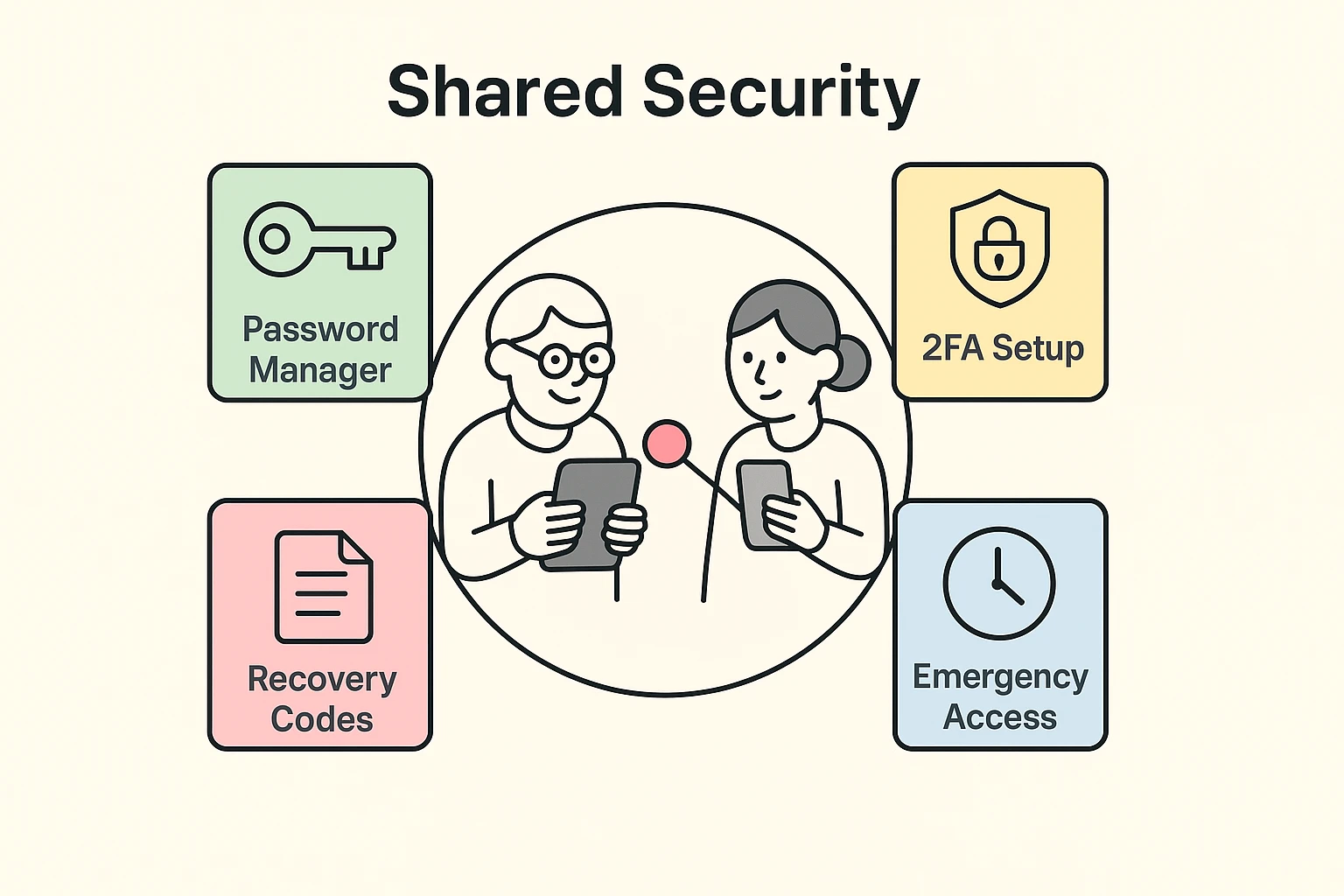
Instead, we need to focus on “Assisted Security.” This is a shared oversight strategy where you don’t just hand them the keys to the vault and walk away. You build a digital safety net.
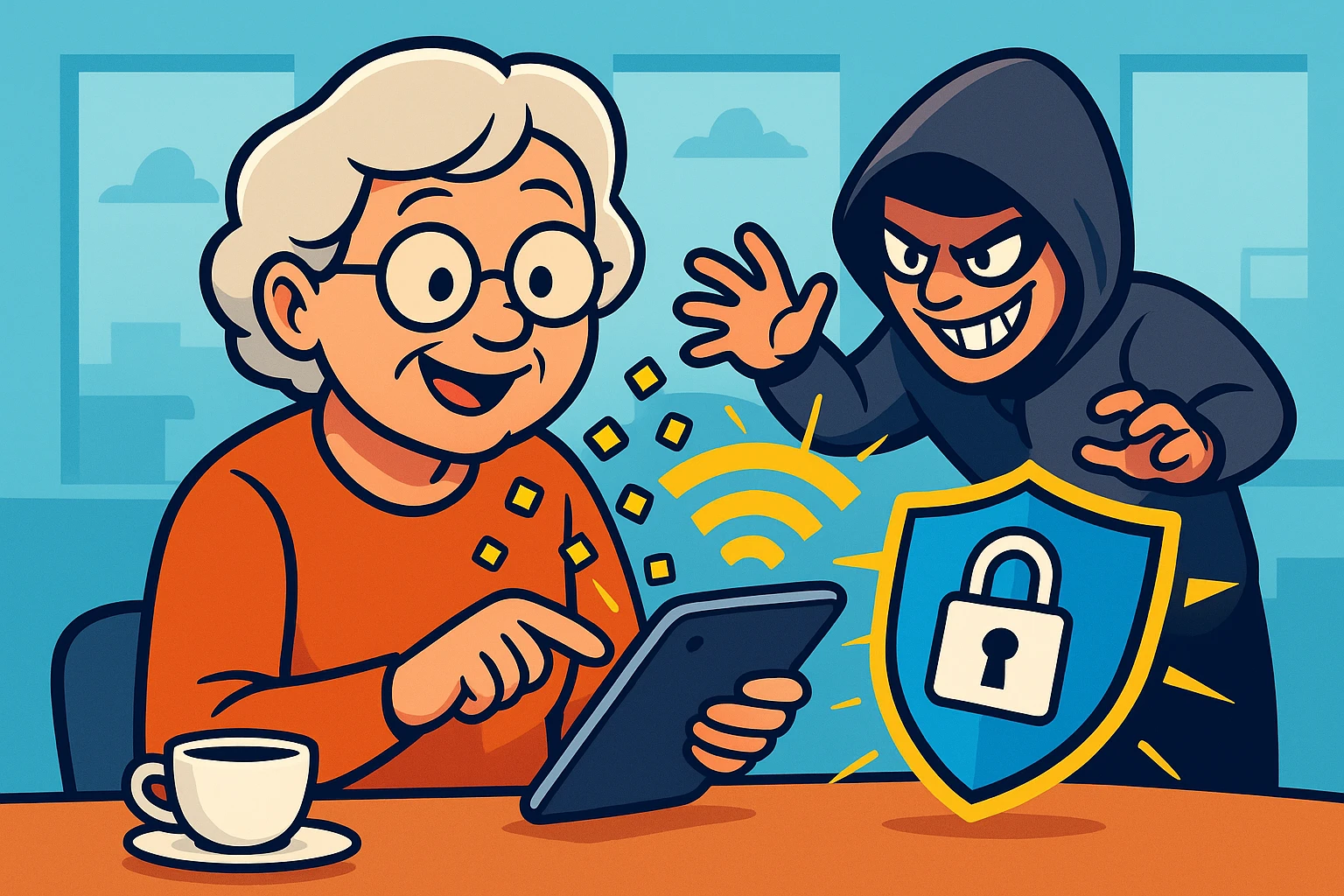
By setting up systems that you can monitor or assist with remotely, you remove the burden from their shoulders. They get to safely look at photos of the grandkids on Facebook, and you get to sleep at night knowing Russian hackers aren’t applying for credit cards in their name.
First things first: that ancient password notebook has to be retired. It’s time to upgrade to a password manager. Think of it as a highly secure digital cookie tin for all their logins.
But here is the secret sauce: Instead of just making an account for your parent, you set up a “Family Plan” or a “Shared Vault.” This allows you to legally and securely link your account with theirs. If Dad forgets his login for the electric bill, you can open your app from three states away and see exactly what it is.
You become the ultimate backup plan. Just be sure to keep your own digital house in order. If you happen to forget the main key to this whole operation, it’s vital to know how to perform a master password reset so you don’t permanently lock both of you out.
Two-Factor Authentication (2FA) sounds like a fancy term invented by a tech-bro in Silicon Valley just to torture us. It involves getting a text message with a six-digit code every time you try to log into an account. For seniors, this creates intense “time-out” anxiety. The code texts arrive, they scramble to find their reading glasses, and by the time they type it in, the code has expired.
To explain why this torture is necessary, use the ATM analogy. To get cash out of an ATM, you need a physical card (Factor One) and your secret PIN (Factor Two). 2FA is simply the digital version of that, and it is non-negotiable for high-risk things like banking or Social Security accounts.
So, how do we make it manageable? We use the Dual-User Setup Protocol.
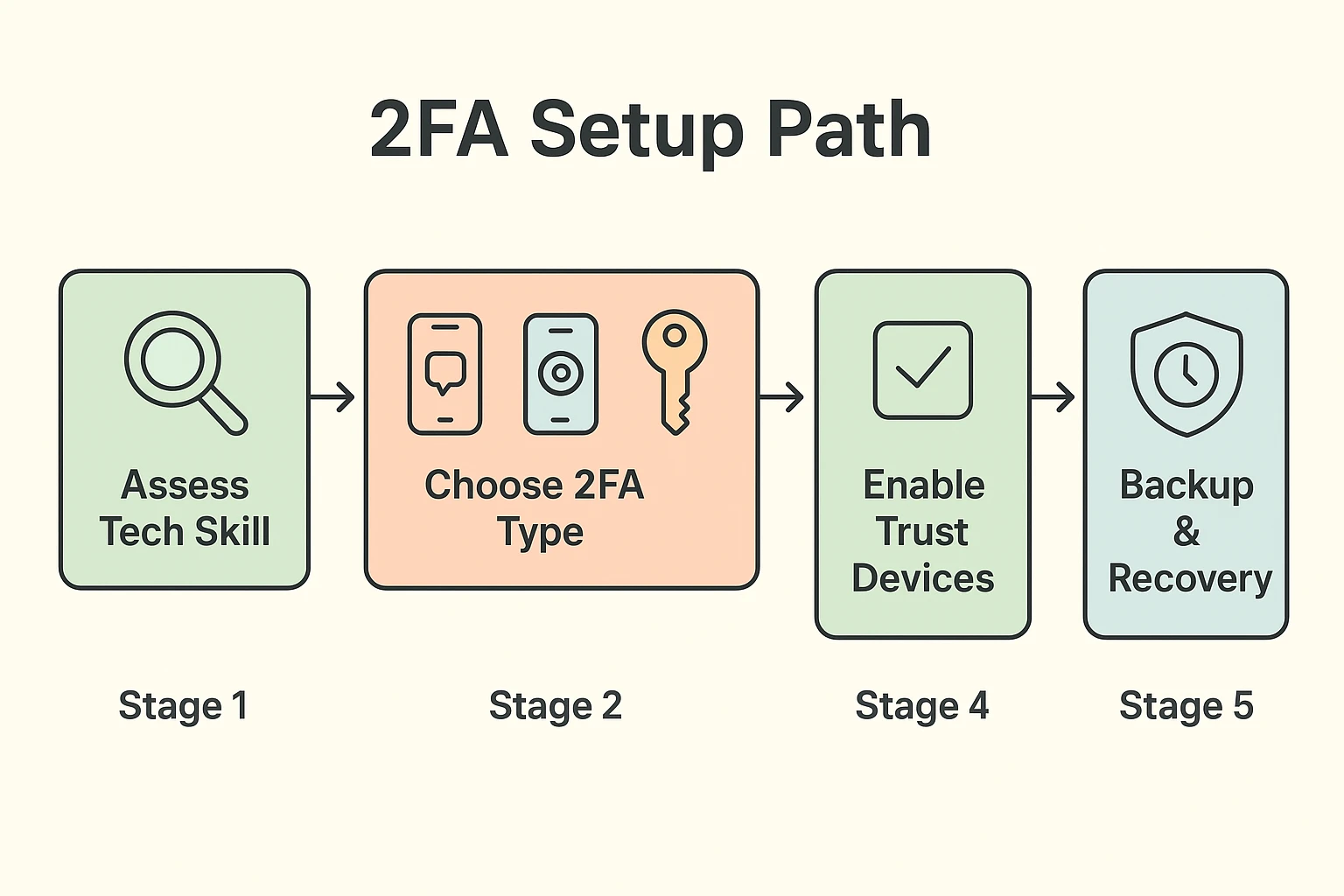
Instead of having 2FA codes sent to your mom’s flip phone, set up a free Google Voice number that you both have access to. When a code is texted, it pops up on her iPad and your smartphone simultaneously. If she gets confused, you can read the code right off your own screen and guide her through it.
Many modern password managers can generate those rotating 2FA codes right inside the app. When your parent goes to log in, the password manager fills in the password and the 6-digit code automatically. No scrambling for text messages or switching between apps required!
Here is the single greatest trick in the elder-tech playbook. When logging in, there is almost always a tiny checkbox that says “Trust this device” or “Remember me for 30 days.”
Always check that box! It tells the security system that this specific iPad sitting in Mom’s living room is safe. It means 2FA doesn’t have to happen every single time she wants to check her email, significantly reducing visual friction and daily frustration.
What happens if you both get locked out, or if you need access to their accounts during a medical emergency? This is where “Emergency Access” features come in to save the day.
Most top-tier password managers allow you to request emergency access to a loved one’s vault. You trigger the request, and if your parent doesn’t decline it within a set waiting period (usually 24 to 48 hours), you are granted entry.
It perfectly respects their privacy while they are healthy, ensuring you aren’t snooping on their Amazon purchases. But it guarantees you aren’t permanently locked out of their digital lives if a crisis occurs.
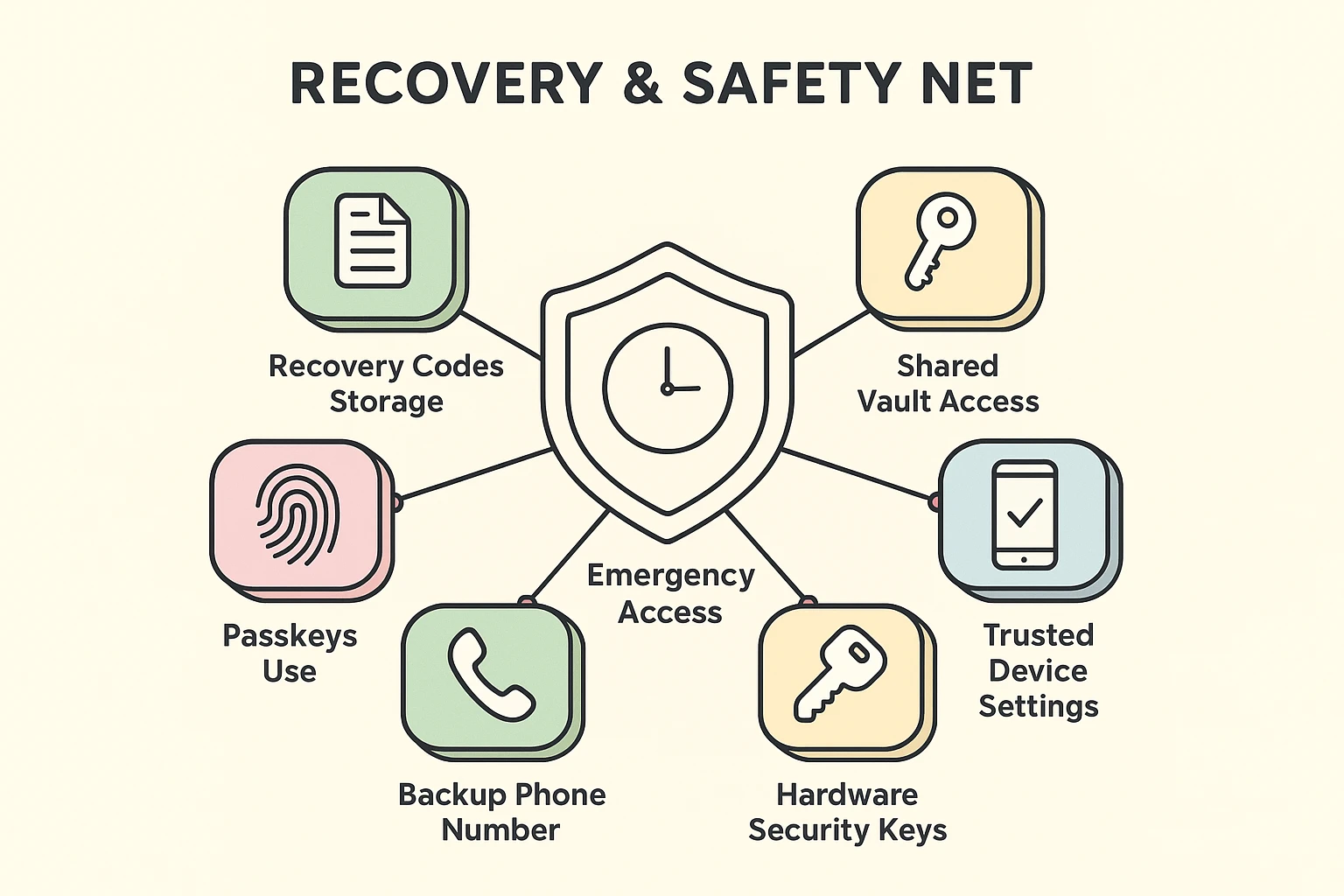
Yes, in theory! Passkeys use a face scan or fingerprint instead of a typed word, which is fantastic for people with memory issues. However, they can currently be tricky for caregivers to manage remotely. For shared oversight, stick to a password manager for now until passkey sharing becomes more caregiver-friendly.
You have a couple of great options. You can set the account to deliver the 2FA code via an automated voice call to their landline. Alternatively, you can purchase a physical hardware token (like a YubiKey) that they simply plug into their computer or tap against their tablet.
Don’t throw it away instantly! That notebook is their security blanket. Set up the digital password manager and let them keep the book as a backup. Once they realize they no longer have to squint at their own handwriting to log into Netflix, the notebook will naturally gather dust.
Taking over the digital reins for an aging parent is no small task. But by shifting from trying to teach them complex security to simply assisting them with shared tools, you remove the friction that causes so many arguments.
Your next step? Create a simple, 1-page “In Case of Emergency” document. Print it in a large font, put it on their fridge, and list out the exact steps they should take if they get locked out of their device.
And remember, technology is supposed to make our lives easier, not drive us crazy. Take a deep breath, brew a cup of coffee, and tackle those security settings together. You’ve got this!