Newsletter Subscribe
Enter your email address below and subscribe to our newsletter


Have you ever tried to capture a heartwarming family moment—perhaps your grandchild taking their first steps or a golden retriever unsuccessfully trying to catch a frisbee—only to watch the replay and feel slightly nauseous?
You press play, expecting a cinematic masterpiece. Instead, you get a video that looks like it was filmed during a mild earthquake while riding a unicycle. The image shakes, the subject is a blurry blob, and for some reason, the audio is just the sound of your own thumb moving over the microphone.
If this sounds familiar, don’t worry. You haven’t failed as a family historian. You’ve just fallen victim to the “Smartphone Shake,” a condition that affects millions of well-intentioned video takers every day.
The truth is, modern smartphones are capable of shooting video that rivals Hollywood cameras from ten years ago. But they don’t come with an instruction manual on how to hold them without getting arm cramps. We’re going to fix that. We’ll turn your shaky, blurry footage into clear, steady memories that you’ll actually want to share (and that won’t require your family to take motion sickness pills to watch).
The biggest myth in smartphone video is that you need steady hands. You don’t. You just need steady posture.
When we hold a phone out in front of us with our arms fully extended—the classic “zombie walk” pose—we are fighting gravity. And gravity always wins. Your arms get tired, the micro-tremors kick in, and suddenly your video looks like a found-footage horror movie.
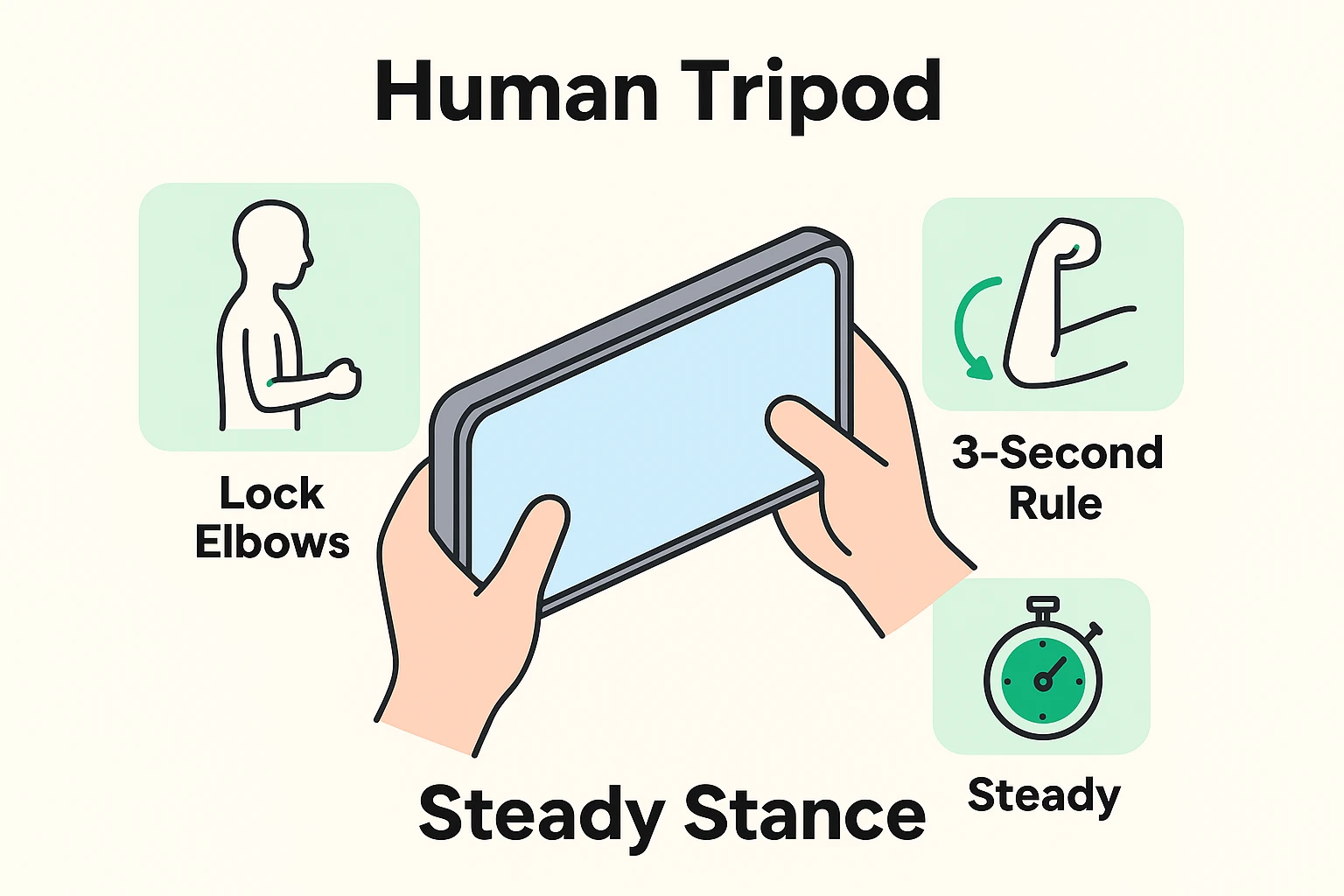
To fix this, we borrow a trick from professional cameramen called the Human Tripod.
Instead of holding the phone away from you, tuck your elbows tight into your ribcage. Hold the phone with two hands, creating a solid anchor against your body. Then, if you need to pan from left to right to follow the birthday cake, don’t just move your hands. Rotate your entire upper body from the hips.
This turns your torso into a smooth, pivoting machine. It’s better for your video, and frankly, it’s much easier on your shoulders.
Here is a secret that tech companies don’t tell you: Your camera needs a second to wake up and get its bearings. When you hit the red record button, your phone may still be adjusting the light, focus, and image stabilization.
If you hit record and immediately whip the camera toward the action, you get that classic “blurry swoosh” at the start of the clip.
The Fix: Point the camera at your subject, hit record, then hold still and count “one-Mississippi, two-Mississippi, three-Mississippi” before moving the phone. That gives the camera a calm opening shot and gives you a cleaner video to watch later.
We need to talk about the “pinch.” You know the move—you see a bird in a tree, pinch the screen to zoom in, and suddenly that majestic eagle looks like a collection of gray Lego blocks.
Older phones, budget phones, and extreme zoom levels often rely on digital zoom. That means the phone is basically cropping the picture and blowing it up. It’s the digital equivalent of taking a small photo and stretching it on a photocopier until it looks grainy and sad.
Newer phones may have better zoom options, including extra lenses or “optical quality” zoom. But the rule is still simple: don’t pinch and drag wildly to some random 7.8x zoom unless you enjoy making family memories look like Bigfoot footage.
The Golden Rule: If you can safely move closer, move closer. We call this “zooming with your feet.” If your phone has preset zoom buttons like 1x, 2x, 3x, or 5x, use those instead of pinching the screen. Those preset buttons usually give you a cleaner result.
If you can’t get closer — perhaps because there is a fence, a stage, or a bear with poor boundaries — it is usually better to record wide and clear than close and blurry.
There is one piece of equipment maintenance that 90% of people forget, and it ruins more videos than anything else.
Clean your lens.
Your phone lives in a pocket or purse. It gathers lint, fingerprints, and remnants of that sandwich you had for lunch. A smudge on the lens creates a foggy “dream sequence” effect that makes everything look hazy. Before you shoot, give the lens a quick wipe with your shirt or a glasses cloth. It takes two seconds and makes a world of difference.
Even with the best posture, things go wrong. Maybe you recorded a video sideways, or the room was so dark your grandson looks like a shadow puppet.
The good news is that you don’t need a computer or a degree in film editing to fix these mishaps. The “Edit” button on your phone isn’t just for cropping photos; it’s a powerful rescue tool for videos, too.
Did you start recording while holding the phone flat, and now the playback is sideways?
Smartphones struggle in low light. If your indoor video looks murky:

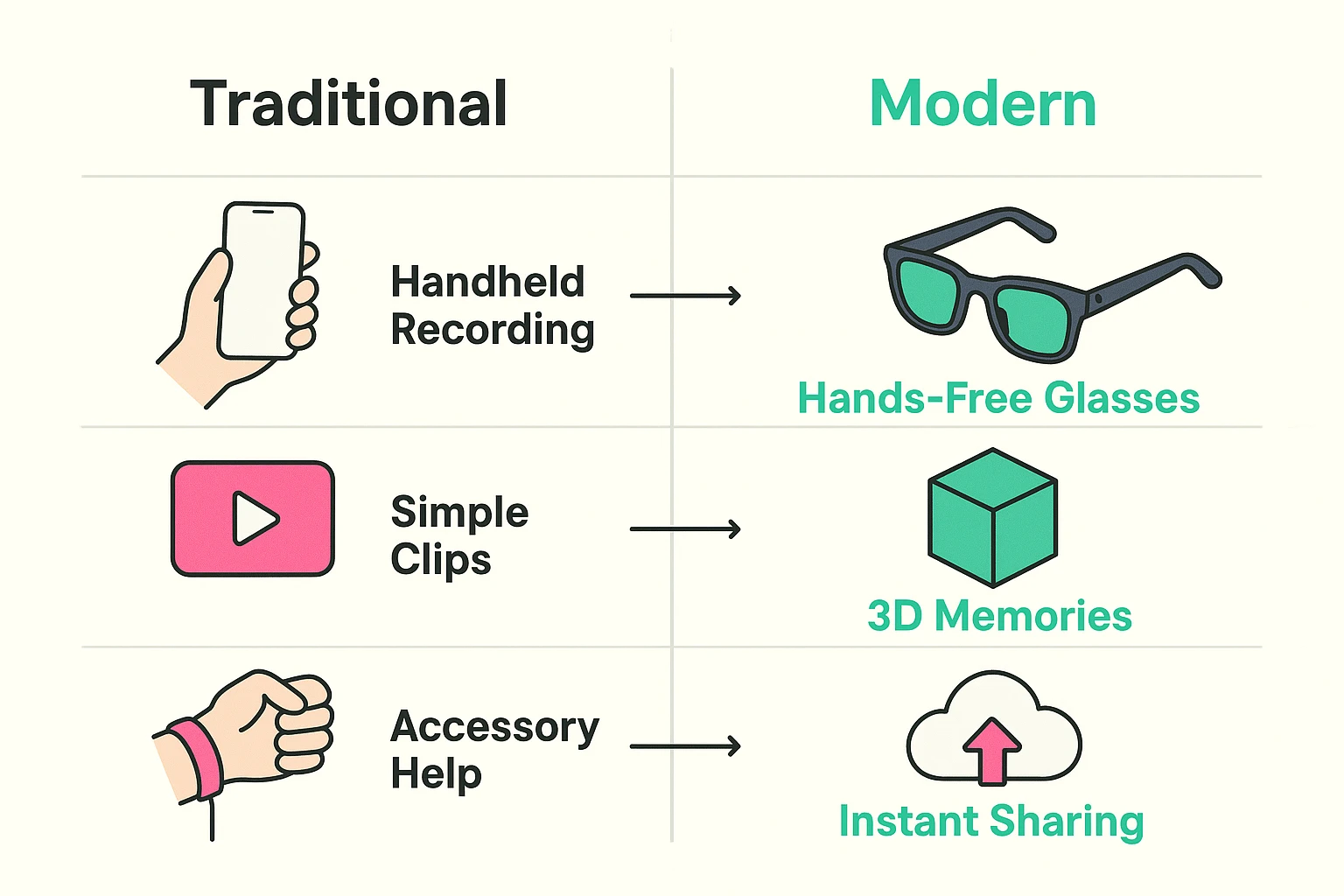
If holding a phone steady still feels like a chore, or if you simply want to enjoy the moment without viewing it through a screen, technology is offering some fascinating new alternatives. We are moving from “taking videos” to “capturing experiences.”
New tools like Ray-Ban Meta smart glasses allow you to record short videos from your point of view, hands-free. Imagine teaching a grandchild how to knead dough or planting flowers in the garden while using both hands instead of holding a phone.
For some people, especially those with arthritis or shaky hands, smart glasses can be useful. They are not necessary, and they are not cheap. They also raise privacy questions, because people around you may not realize they are being recorded. But they are becoming a real option for hands-free family videos.
Apps like Luma AI can turn certain phone captures into interactive 3D scenes. Instead of a flat video, you move around an object or space — maybe a decorated Christmas tree, a classic car, or a favorite room — and the software turns it into something you can look at from different angles later.
This is still more of a fun experiment than a must-have tool. For most family moments, a steady regular video is still the better choice. But for special objects, rooms, or keepsakes, 3D capture can be a neat way to preserve a memory.
This is the great debate of our time.
If you text a video from an iPhone to an Android (or vice versa), the phone carriers compress the video to make it fit, turning your beautiful HD clip into a blurry mess.The Fix: Use WhatsApp, Facebook Messenger, or email to send the file. These services keep the quality much higher than standard text messaging.
Walk with “ninja knees.” Keep your knees slightly bent and roll your feet from heel to toe. It feels silly, but it acts as a shock absorber for your body. Or, better yet, stop walking, plant your feet, record the clip, and then move.
You don’t need to be Steven Spielberg to record great family videos. You just need to remember the basics: elbows in, clean lens, and zoom with your feet.
Next time you’re at a family gathering, try the Human Tripod stance. You might look a little intense with your elbows locked and your serious “director’s face” on, but when you watch that steady, clear footage later, you’ll know it was worth it.
Go forth and capture those memories—just please, wipe that fingerprint off the lens first.