Newsletter Subscribe
Enter your email address below and subscribe to our newsletter

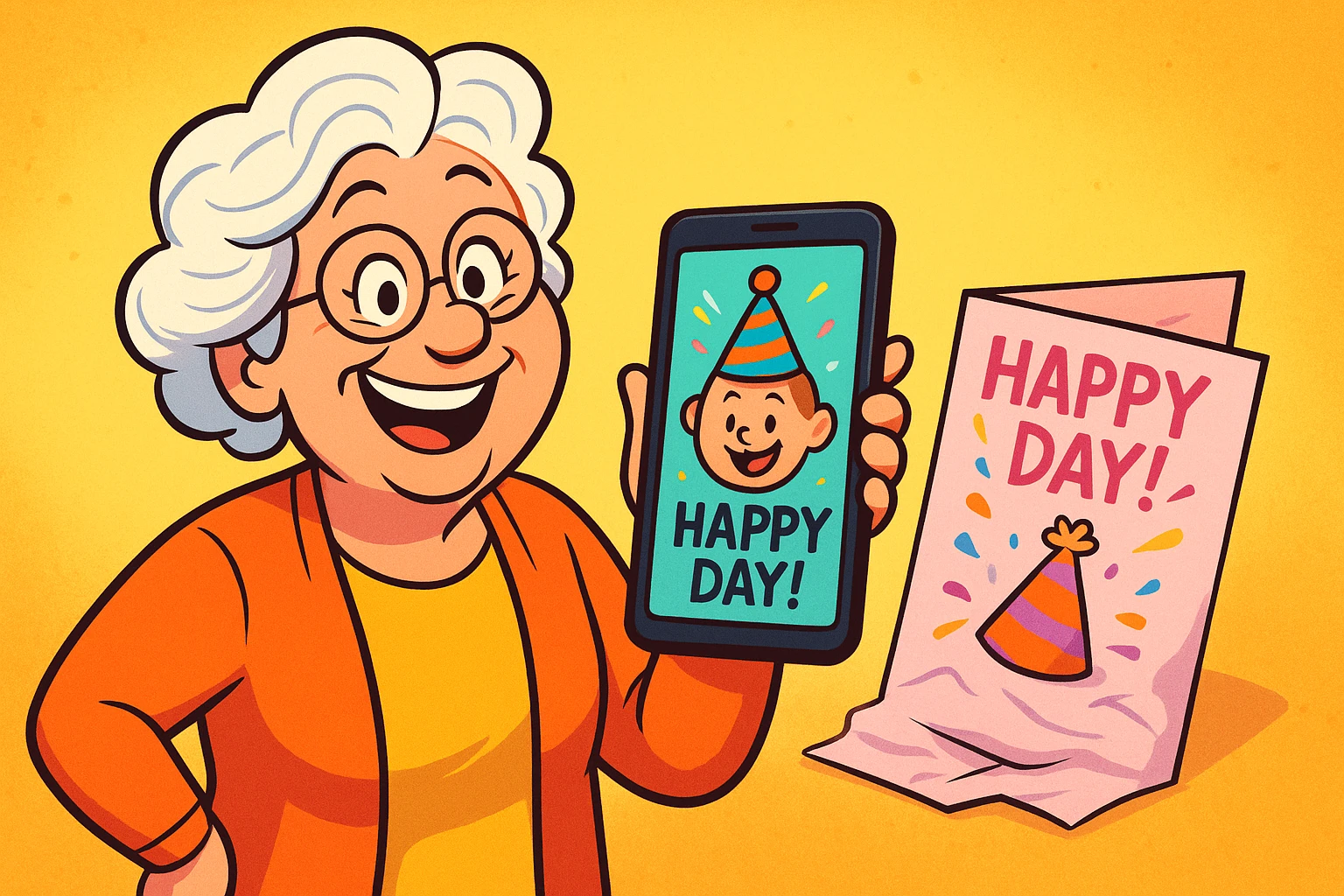
Remember the last time you stood in the greeting card aisle at the pharmacy? You likely spent twenty minutes searching for a birthday card that didn’t feature a) a joke about bodily functions, b) a glitter explosion that will haunt the recipient’s carpet for decades, or c) a price tag that costs more than a gallon of milk.
It’s a specific kind of paralysis. You’re holding a $7 piece of folded paper, thinking, “I have a camera in my pocket that takes better pictures than this.”
And you’re right. You do.
The smartphone in your pocket isn’t just a device for making calls and accidentally taking videos of your shoes while walking. It is a full-fledged creative studio. With just a few taps, you can take that adorable photo of your grandson covered in spaghetti, slap a “Happy Birthday!” sticker on it, and send it off—all without licking a single envelope or getting a paper cut.
We are going to walk through how to turn your digital photos into personalized messages. It’s easier than you think, and unlike watercolor painting, there’s no water to spill on the rug.

Aside from saving money on store-bought cards, there is a “secret sauce” to sending a personalized photo message: Connection.
A generic card says, “I remembered your birthday while I was picking up a prescription.” A photo of you holding a glass of wine with the text “Cheers to 60 Years!” says, “I made this just for you.”
Research into digital literacy shows that when seniors engage in creative tasks on their devices—rather than just passively scrolling through news feeds—it boosts cognitive stimulation and confidence. It shifts the dynamic from “I don’t understand this gadget” to “Look what I made with this gadget.” Plus, it’s just plain fun to put a digital hat on your cat.
You do not need to buy expensive software like Photoshop. Photoshop is like buying a space shuttle when you just need to drive to the grocery store. It has too many buttons, and if you press the wrong one, you might delete the moon.
For most of us, the tools built right into our phones are plenty.
You can do quite a bit without downloading anything.
On an iPhone, open a photo and tap Edit, then Markup. Tap the + button and choose Add Text. You can change the font, size, color, and position of your message. You can even add stickers.
On an Android phone using Google Photos, open the photo and tap Edit, then Markup, then Text. Depending on your version, you may find Markup under Tools.
Have a Samsung Galaxy? Open the photo in Gallery, tap the pencil icon, then the smiley-face Decorations button. From there, you can add text, drawings, and even stickers.
Your phone may look slightly different depending on the model and software version, but you’re hunting for some combination of Edit, Markup, Text, or a little pencil icon.
If you want to get a little fancier—say, adding digital balloons, using pretty fonts, or starting with an actual birthday-card template—you might try a free app like Canva or Adobe Express.
Both are made for this sort of thing. Pick a template or your own photo, add text or graphics, and drag things around until they look right. No graphic-design degree required.
Both have paid features, but don’t let that scare you. For the simple projects we’re talking about here, you can do plenty without paying.
However, a quick word of caution: If you do decide to purchase a subscription or anything else online, always practice secure online shopping habits to protect your financial information.

Just because you can use 15 different fonts and neon green text doesn’t mean you should. We want your message to look inviting, not like a warning label.
Here are three golden rules for adding text to photos:
If your photo is a picture of a snowman, do not use white text. It will vanish like… well, a snowman in July.
Look for “negative space” in your photo—the blue sky above a head, or the grassy field below the dog. That is where your text lives. Don’t paste the words “Happy Anniversary” directly over your spouse’s nose. They generally don’t appreciate that.
A photo is for a headline, not a novel.
Let’s try a simple scenario. You want to send a “Good Morning” picture to your family group chat.
Congratulations! You have just become a digital content creator. You can text that image just like any other photo, but now it carries your personal voice.

Usually, no. On modern iPhones and Samsung phones, you can edit a photo, save it, and later use Revert to restore the original if you change your mind. Google Photos can also let you revert your changes or choose Save as copy, which keeps the untouched original and creates a second version with your edits. So go ahead and experiment. You are not painting a mustache onto the only surviving copy of Grandma’s wedding portrait.
Absolutely not. Most current phones already have basic tools for adding text, and some can add stickers too. If you want more choices, free versions of apps like Canva or Adobe Express give you plenty to work with. There are paid templates, graphics, and extra features in those apps, but you shouldn’t need any of them to make a perfectly respectable birthday message for Aunt Susan.
Yes! Once you save the photo with the text on it, it’s just a regular image file. You can print it at home or send it to a photo-printing service such as Walgreens or CVS just like any other snapshot.
The best way to learn is to play. Open your camera roll, find a picture of your lunch, and practice adding the word “Yum.” If it looks terrible, delete it. No one has to know.
Technology often feels like a serious business of passwords and updates, but it’s also a toy box. Don’t be afraid to open the lid and mess around.
Ready to learn more about keeping your digital life fun and safe? Check out our other guides on managing your photo storage so you have plenty of room for all these new creations!