Newsletter Subscribe
Enter your email address below and subscribe to our newsletter

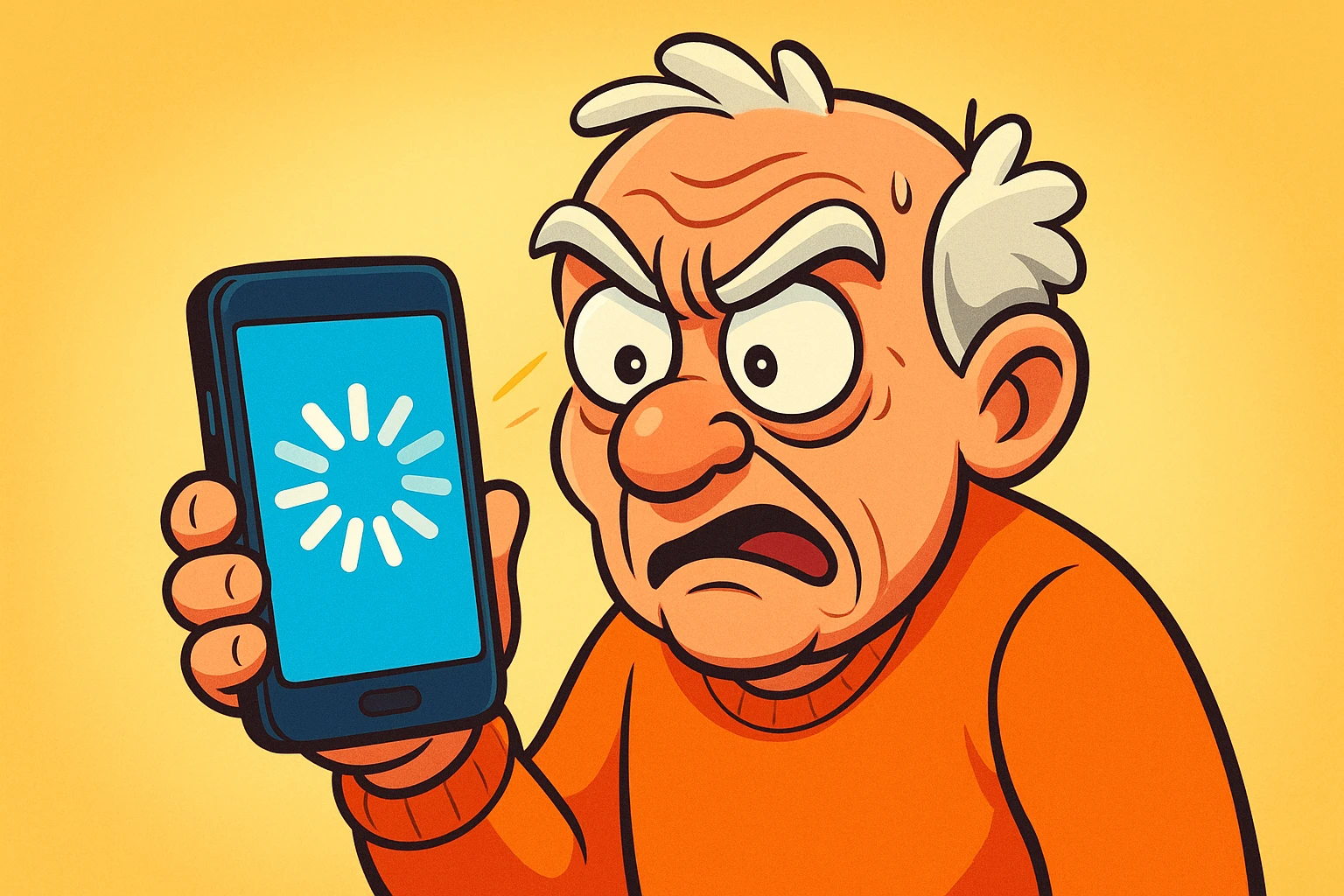
You’ve finally found it. The App. The one that promises to organize your photos, teach you French in three minutes a day, or simply let you play a version of Solitaire that doesn’t require shuffling physical cards. You tap “Get” or “Install” with a sense of optimism usually reserved for buying lottery tickets.
The little circle spins. And spins. And spins.
Then, disaster strikes. You get a message that says “Installation Failed,” or worse, the circle just stops spinning and stares at you blankly, like a cat that refuses to acknowledge you’re speaking to it.
It is infuriating. It feels personal. It feels like the technology inside your phone is holding a secret meeting to decide exactly how to ruin your Tuesday. But here is the good news: Your phone isn’t actually possessed, and you don’t need a degree in computer science to fix it. Usually, the problem is just a simple misunderstanding between your device and the “store” trying to hand over the goods.
We are going to walk through this together, step by step, without using words that sound like they belong in a sci-fi movie. By the end of this, you’ll be the one in charge.
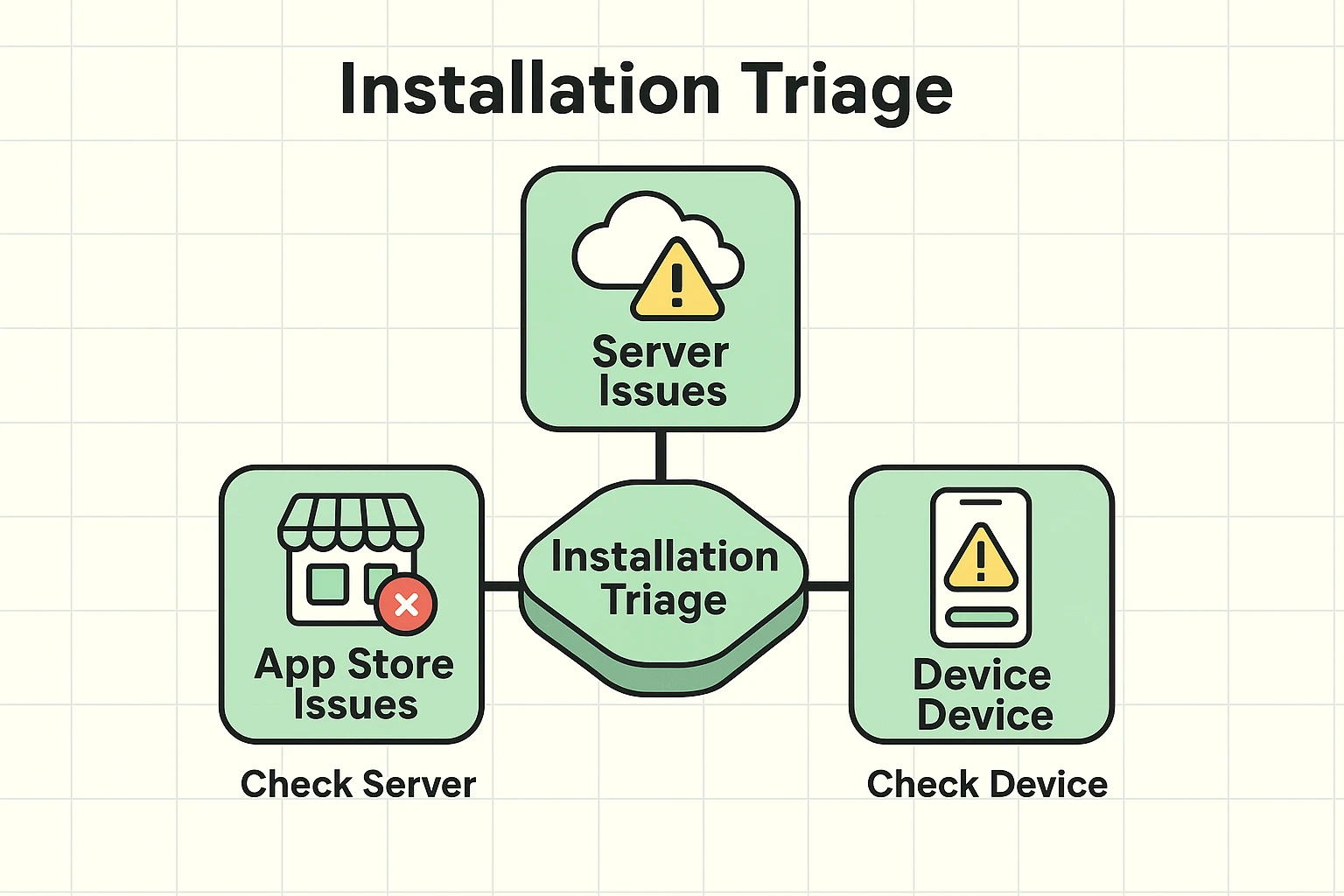
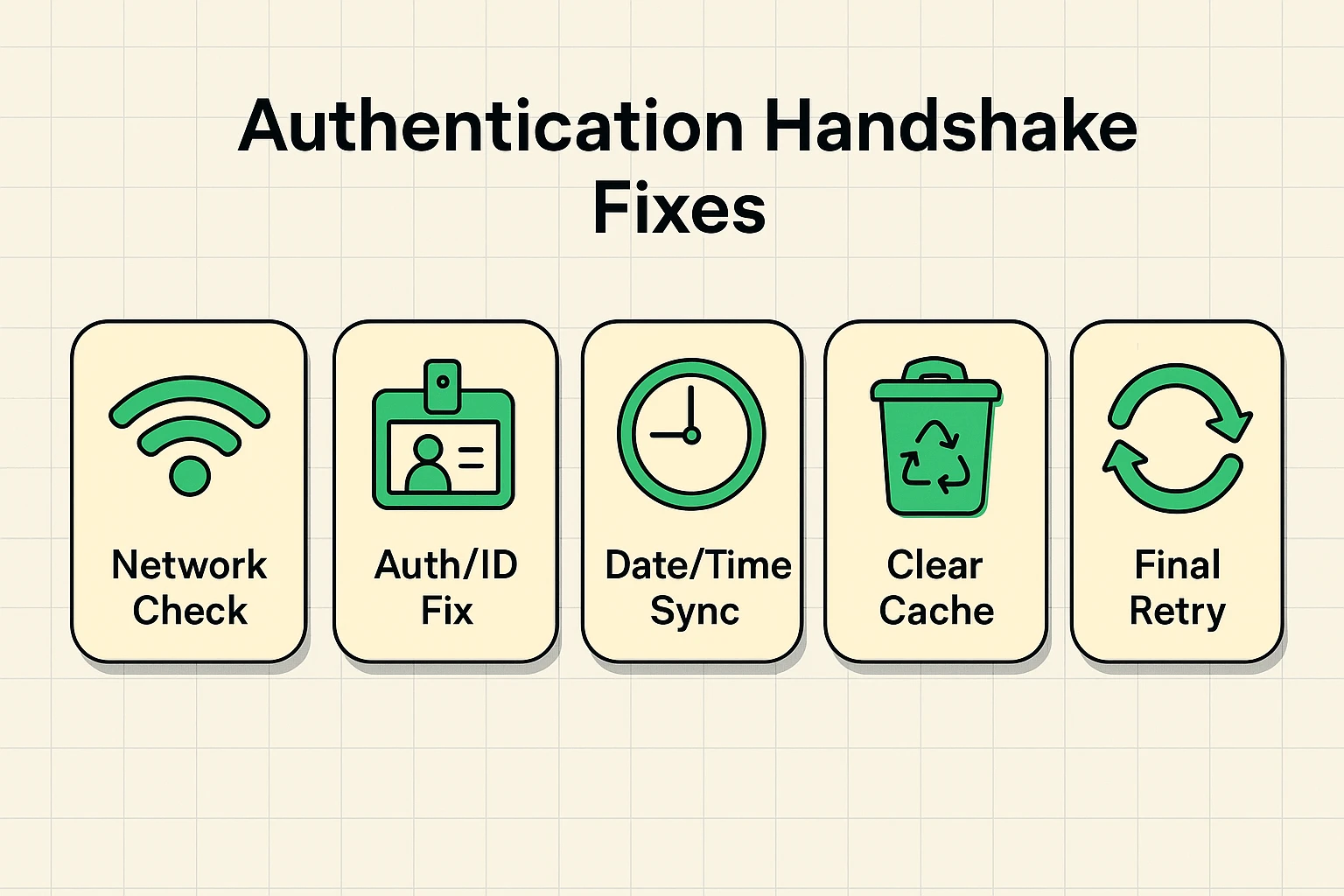
Before an app installs, your phone and the App Store (Apple) or Play Store (Google) have to perform a little greeting ritual. Tech people call this a “handshake.” It’s basically your phone saying, “Hello, I am a valid device,” and the store saying, “Nice to see you, here is the software.”
Sometimes, this handshake fails because your phone is technically “lying” about what time it is.
It sounds bizarre, but if your phone’s date and time are incorrect—even by a few minutes—the secure servers won’t talk to it. They think your phone is a time traveler or a security risk. It’s like trying to get into a club with an ID that says you were born in the year 2050. The bouncer isn’t going to let you in.
The Fix: Go into your settings (General on iPhone, System on Android) and look for “Date & Time.” Make sure “Set Automatically” is turned on. This forces your phone to sync up with the rest of the world, making the digital bouncer happy.
This is the most common “gotcha” in the tech world. You look at your settings, and it says you have 500MB of free space. The app you want is only 100MB. The math seems simple, right? 500 is bigger than 100. You should be fine.
But your phone disagrees.
Think of installing an app like assembling a piece of IKEA furniture. The box (the download) might be small, but you need a huge open space on your living room floor to unpack the parts, throw around the cardboard, and swing the Allen wrench.
Your phone needs “breathing room” to unpack the app and install it. If you cut it too close, the installation fails because there’s no room to work.
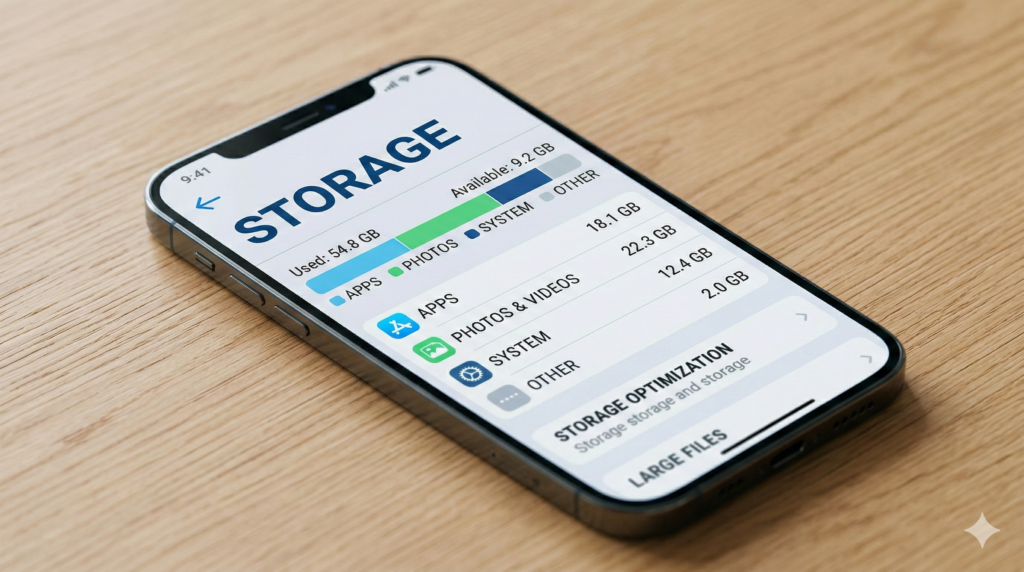
The 1GB Rule: Try to keep at least 1GB of storage free at all times. If you are hovering near the limit, delete a few blurry photos of your thumb or that video of the fireworks from 2018 (you’re never going to watch it again, I promise).
Every time you visit the App Store or Play Store, your phone saves little bits of information to make things load faster next time. This is called “cache” (pronounced “cash”).
Imagine eating a piece of toast over your keyboard every morning. Eventually, the crumbs (cache) get stuck under the keys, and things stop working correctly. The “Store” app on your phone can get clogged with these digital crumbs, causing it to freeze up when you try to download something new.
The Fix (Mostly for Android Users):You can go into your Settings, find “Apps,” select the Google Play Store, and look for a button that says “Clear Cache.”
Important: Do not hit “Clear Data” unless you know what you are doing.
Sometimes, an app tries to update, fails halfway through, and leaves behind a mess. It’s like a contractor walking out in the middle of a kitchen renovation. You can’t start cooking dinner because there is a pile of lumber in front of the oven.
If you have an app that refuses to update, your phone might be confused by these leftover “ghost files.”
The Fix: If an update is failing, try uninstalling the app completely. Delete it. Send it into the digital void. Then, restart your phone (turn it all the way off and on again) and try to install the app fresh. This forces the phone to clean up the construction site before building anew.
This is the “Waiting…” loop of doom. It usually means the connection dropped mid-download. First, try tapping the icon once to pause it, then tap it again to resume. If that fails, delete that grey icon (long-press it until it jiggles) and try downloading it from the App Store again.
If you see a number like “Error 504,” your phone is trying to speak nerd to you. Error 504/495: Usually a connection timeout. Your Wi-Fi blinked. Toggle your Wi-Fi off and on. Error 403: The “Forbidden” error. This usually means two Google accounts on one phone are fighting over who “owns” the app. Try switching accounts.
No! Clearing the cache of the App Store only removes temporary files related to the store itself. Your photos, messages, and high scores in Candy Crush are safe in their own separate rooms.
This is the gentle way of saying your phone might be a senior citizen itself. As apps get fancier, they require newer engines to run. If you have an iPhone 6 trying to run the latest AI-powered video editor, the App Store simply won’t let you install it because it knows the app will crash immediately.
Technology loves to make us feel small, but remember: it’s just a machine. It doesn’t have feelings, logic, or a sense of humor. It just follows rules. When an app won’t install, it’s simply because one of those rules (space, time, or connection) was broken.
Now that you know the secrets of the “Digital Handshake” and the “Storage Lie,” you can approach that “Install” button with confidence. And if all else fails? There is absolutely no shame in turning the phone off, putting it in a drawer, and having a nice cup of tea. Sometimes, the phone just needs a timeout.