
Newsletter Subscribe
Enter your email address below and subscribe to our newsletter

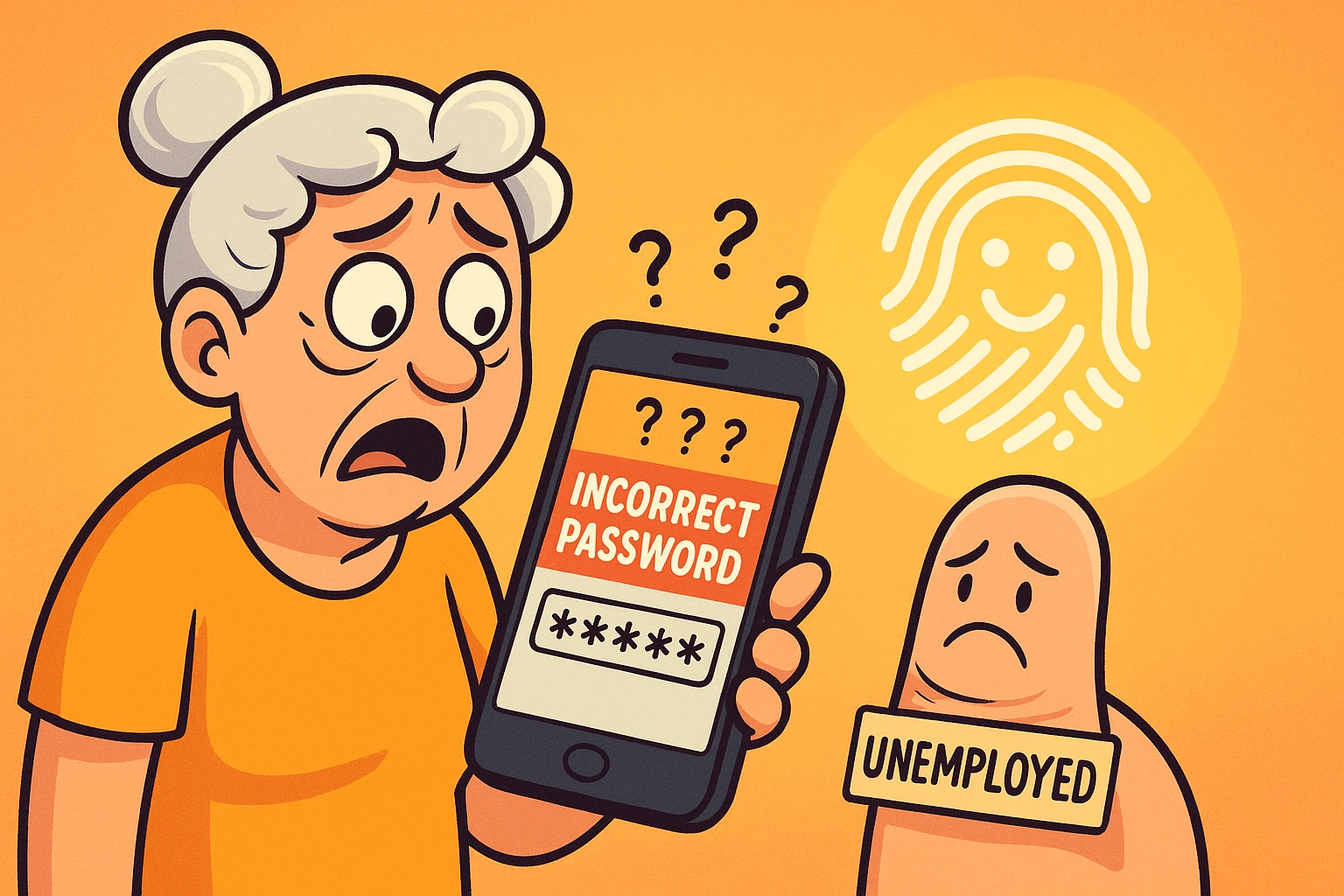
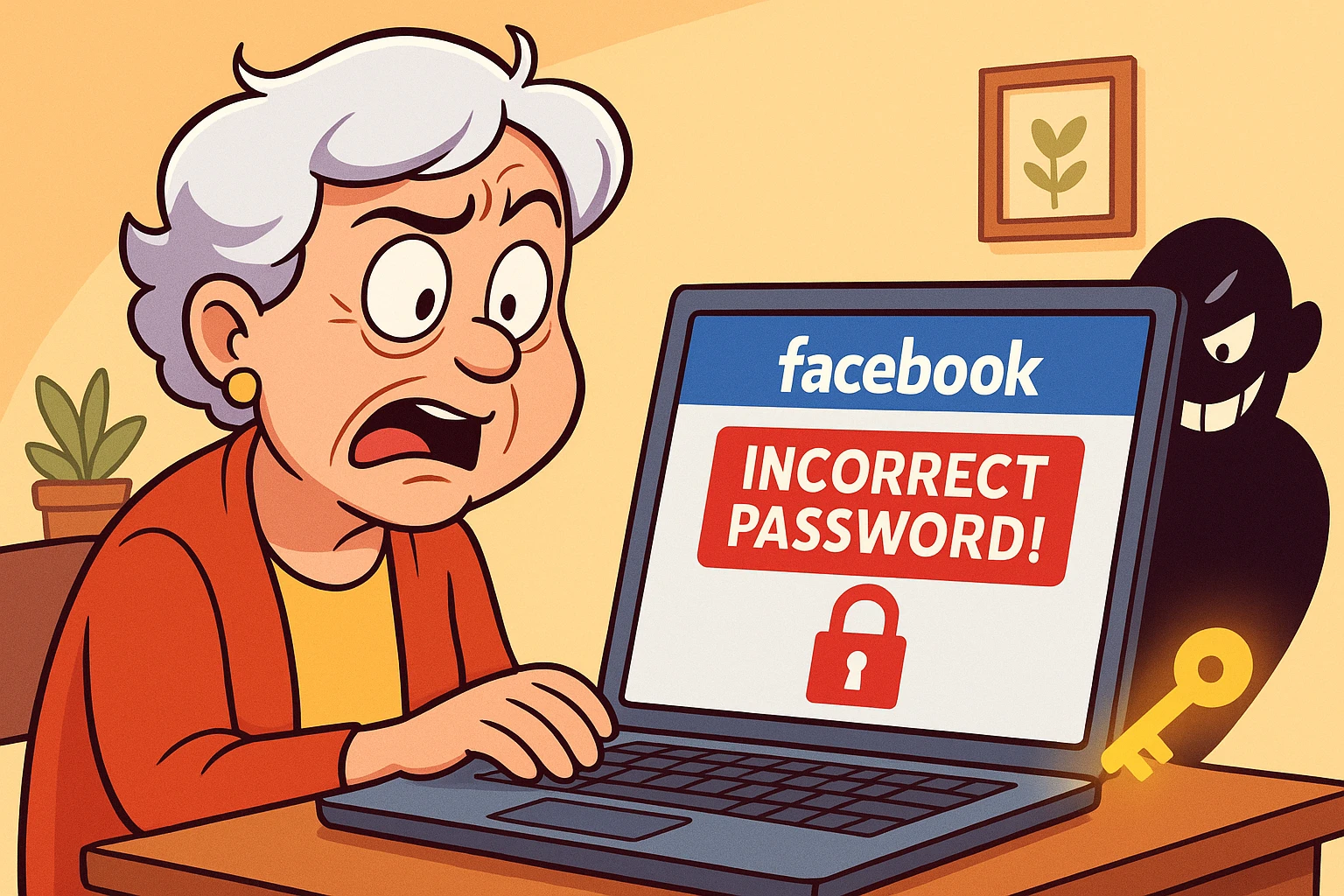
Imagine staring at your smartphone, just trying to log into your bank account to check a balance. The screen aggressively demands a password. You type “Fluffy2009!” Incorrect. You try “Fluffy2009?” Still wrong.
Eventually, you sigh and trigger a password reset, which emails you a link that takes twenty minutes to arrive. By the time you finally get in, you’ve forgotten why you wanted to look at your bank account in the first place. Meanwhile, your thumb—which has been with you your entire life and knows exactly who you are—is just resting on the edge of the screen, completely unemployed.
It’s enough to make you want to throw the device out the nearest window and go back to stuffing cash in a mattress.
If this digital standoff sounds familiar, you are not alone. Remembering dozens of complex passwords is a universal headache.
The good news? You already possess two remarkably convenient keys to your digital life: your face and your fingertips. They are not foolproof, but they are much harder for a faraway scammer to steal than a password you can be tricked into handing over.
Let’s talk about biometrics, how they actually work, and why your phone sometimes acts like it has never met you before.
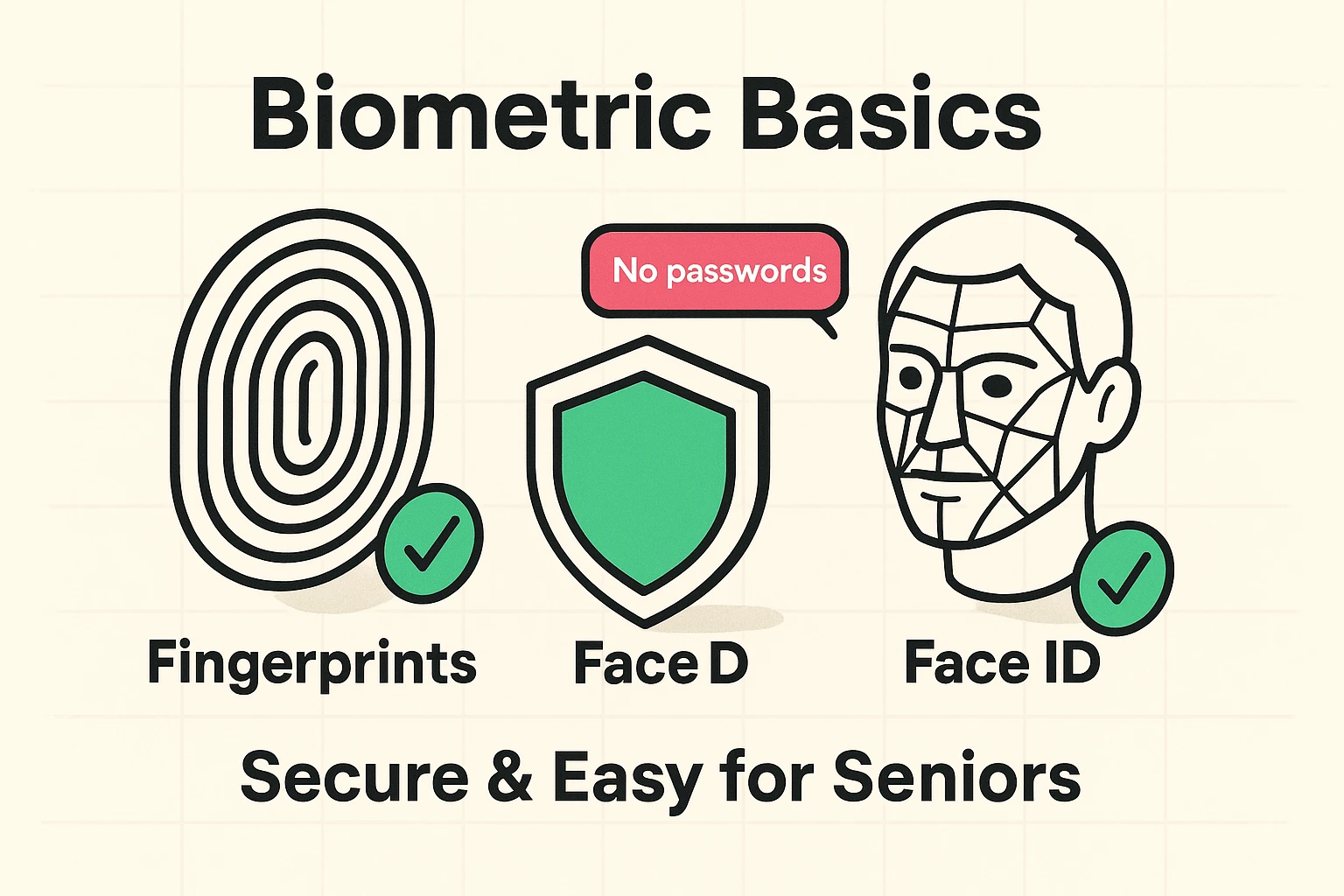
Passwords are a scammer’s best friend. They can be guessed, stolen in data breaches, or socially engineered right out of us by a clever con artist on the phone. And because most of us are exhausted by trying to remember “P@ssw0rd123” for fifty different websites, we tend to reuse the same ones.
Biometrics—a fancy tech term that simply means using your physical traits to prove you are you—can make this problem much easier to manage. Your phone may let you use fingerprint recognition—called Touch ID on some Apple devices—or facial recognition, called Face ID on supported iPhones and iPads.
Biometrics do not magically eliminate all your passwords. But they can unlock your phone, password manager, passkeys, and supported apps without making you type sensitive information every time. When combined with the phone in your possession, they can be part of strong authentication.
Just like how alexa for seniors makes adjusting the thermostat a breeze without having to get up from your favorite chair, biometrics make logging into your accounts effortless.
When seniors first hear about facial recognition or fingerprint scanning, the immediate reaction is usually: “I am not giving my fingerprint to a giant tech company! What if they sell my face to a database?”
This is a totally valid fear, but thankfully, it’s based on a myth. Think of your phone’s memory like two different rooms: a Photo Gallery and a Lockbox.
When you set up fingerprint or facial recognition on a modern smartphone, the phone does not simply save a photograph in your gallery. It creates a mathematical template based on the features it measured.
That template is stored in a protected area of the device. Apple calls its protected system the Secure Enclave; Android phones use their own secure hardware and software. When you sign in to a supported app, the app normally receives only a yes-or-no answer from the phone. It does not receive a copy of your face or fingerprint.
Have you ever tried to use your fingerprint scanner, and the phone just stubbornly vibrates, refusing to let you in? Many older adults assume they are doing something wrong, or that they broke the phone.
We are here to officially absolve you of the guilt: You may not be doing anything wrong. Changes in our skin can make fingerprint readers less reliable, although a dirty sensor, screen protector, or awkward finger placement can also be the culprit.
As we age, our skin loses collagen and elasticity. Our skin gets thinner, and those distinct, mountain-like ridges on our fingertips start to flatten out. Throw in a little dry winter skin, gardening hands, or arthritis that makes it hard to press down evenly, and the phone’s sensor simply gets confused.
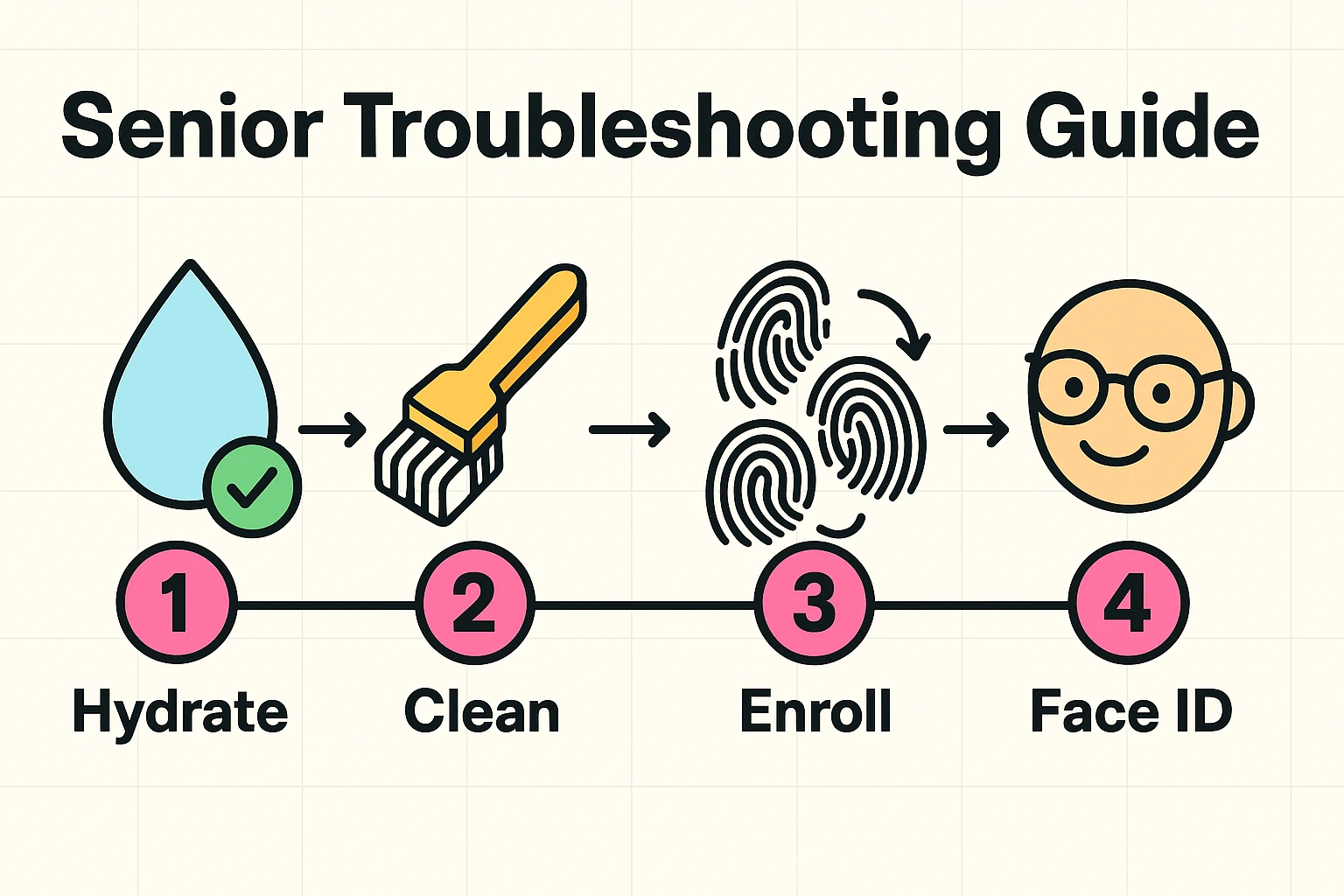
If biometrics have been frustrating for you, try these senior-specific fixes to make the technology bend to your needs, rather than the other way around.
Don’t just scan your dominant thumb and call it a day. Most phones allow you to save several fingerprints, although the exact number varies. Consider adding both thumbs and whichever index finger feels most natural.
If one finger keeps failing, delete that saved print and register it again, carefully following the prompts so the phone captures the center, edges, and tip. If your hands are extremely dry, moisturizer may help—but let it absorb before scanning. Your finger and the sensor should be clean and dry.
If fingerprint recognition remains unreliable, facial recognition may be easier—especially on an iPhone with Face ID. On Android phones, however, facial recognition varies considerably. Some versions are less secure than the fingerprint reader and may not work for banking apps or payments.
But how do you get it to work consistently? Use the “Mirror Test.” Hold your phone exactly the way you would hold a small hand mirror to check if you have spinach in your teeth. That distance—about 10 to 18 inches from your face—is the sweet spot.
Apple’s Face ID is designed to adjust to many everyday changes, including glasses and growing a spectacular winter beard.
Hearing aids generally are not a problem, either.
But certain sunglasses, major changes in appearance, and some Android face-recognition systems may still cause trouble. If that happens, your phone may let you add an alternate appearance or register your face again.
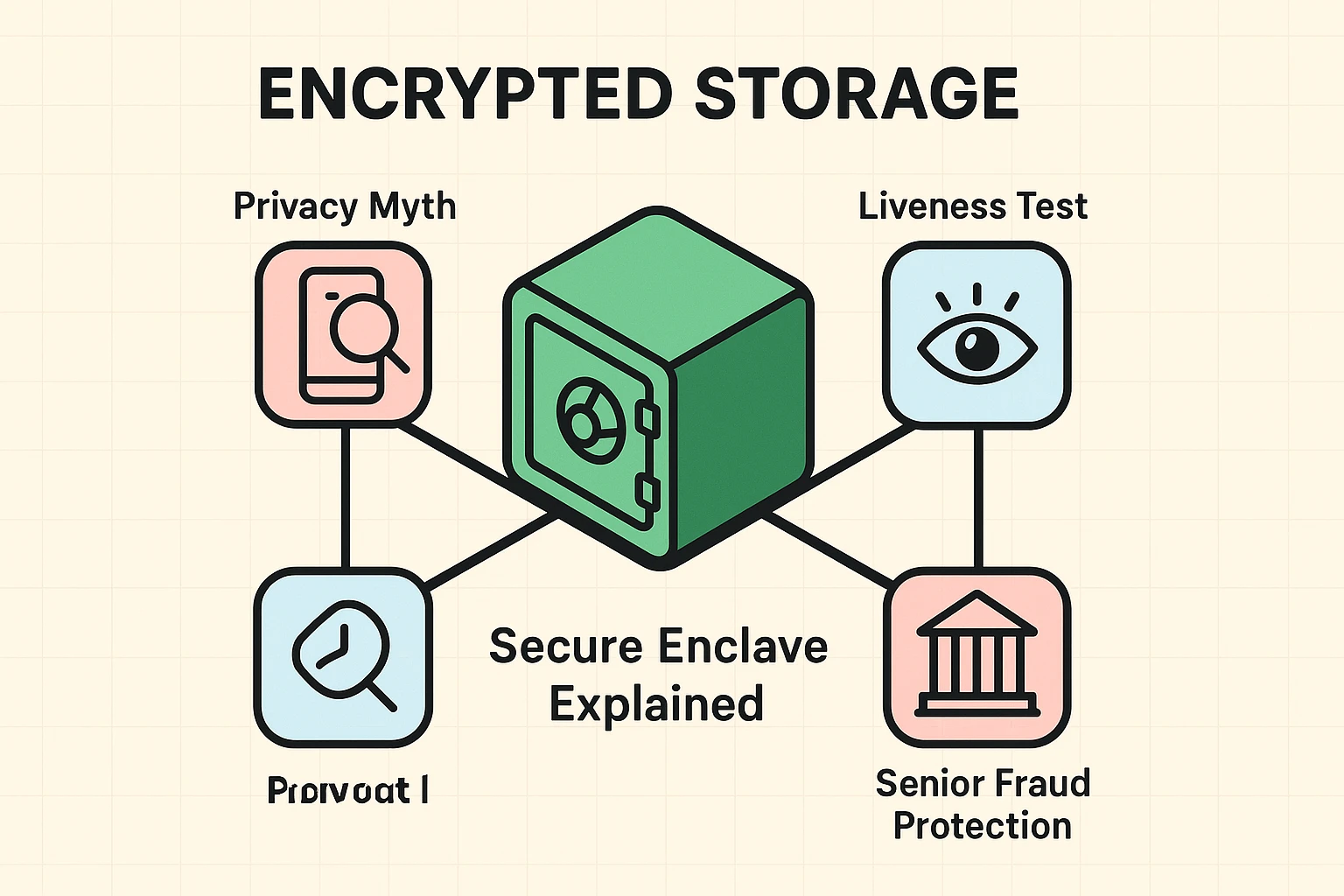
Not if you are using Apple’s Face ID. It projects invisible dots to measure the depth of your face, so a flat photograph should not unlock it. Some Android phones have similarly strong facial recognition, but others rely mainly on the front camera and may be less resistant to photographs or look-alikes. Check your phone’s security information before relying on face unlock for anything sensitive.
Apple’s Face ID normally requires your eyes to be open and looking at the phone, making it difficult for someone to unlock it while you are sleeping. However, that protection can be turned off in the accessibility settings. Some Android phones also have a “Require open eyes” setting, so make sure it is turned on.
Yes. You still need your phone’s passcode, PIN, pattern, or password. The phone will require it after a restart, after too many failed biometric attempts, and occasionally for other security checks.
Individual apps may also ask for their passwords from time to time—especially after an update, logout, or security alert. Biometrics can do much of the daily heavy lifting, but they do not make every other password disappear.
If a family member helps with your phone, the safest choice is usually to unlock it yourself while they are helping. Adding someone else’s fingerprint can give that person access to your phone, saved passwords, purchases, and supported financial apps.
Apple’s “Set Up an Alternate Appearance” feature is intended to help Face ID recognize a different version of your appearance—not to create a second user. If someone truly needs ongoing access, discuss exactly what they should be able to reach before sharing a passcode or adding their fingerprint.
By using biometric logins, you can reduce how often you type passwords where someone might see or steal them, all while making everyday logins much easier. Biometrics will not stop every scam, but they are a useful part of protecting your accounts.
Take five minutes today to open the Settings menu on your smartphone. On an iPhone, look for “Face ID & Passcode” or “Touch ID & Passcode.” On an Android phone, look under “Security,” “Security & privacy,” “Biometrics,” or “Lock screen.” The exact wording varies by phone.






How do you set up the alternate appearance on an iPhone? As seniors we need to do this with each other/Spouse in case of an emergency and that person would be incapacitated?
Thanks for your comment and great questions! On an iPhone, go to Settings > Face ID & Passcode > Set Up an Alternate Appearance. One thing to keep in mind: this isn’t really an emergency-only feature — it can give your spouse regular access to unlock your phone. For most people, Medical ID and Emergency Contacts are a better choice for true emergencies.