Newsletter Subscribe
Enter your email address below and subscribe to our newsletter

Enter your email address below and subscribe to our newsletter
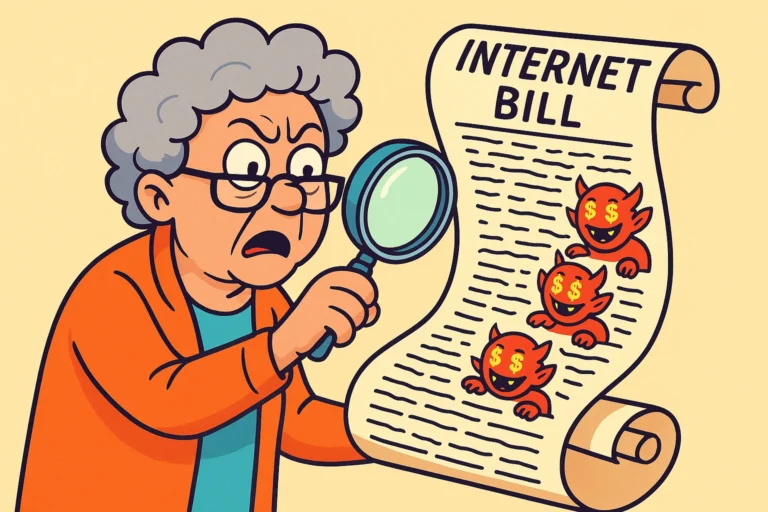
You know that feeling when you look at your cable or internetThe Internet is a vast network of computers and other electronic devices connected globally, allowin... More bill and your blood pressure does a little jump? You scan the charges—Internet Service: $70. Taxes: $5. Fees for breathing air near a utility pole: $3. And then, there it is. The “Equipment Rental” fee.
Usually, it’s about $10 to $15 a month. It sits there, mocking you. It’s the financial equivalent of a houseguest who sleeps on your couch, eats your snacks, and charges you rent for the privilege of their company. Over the course of a year, that little fee adds up to $180. Over five years? You’ve practically bought the ISPAn Internet Service Provider, or ISP, is the company that gives you access to the internet. You pay ... More (Internet Service Provider) a used Honda Civic.
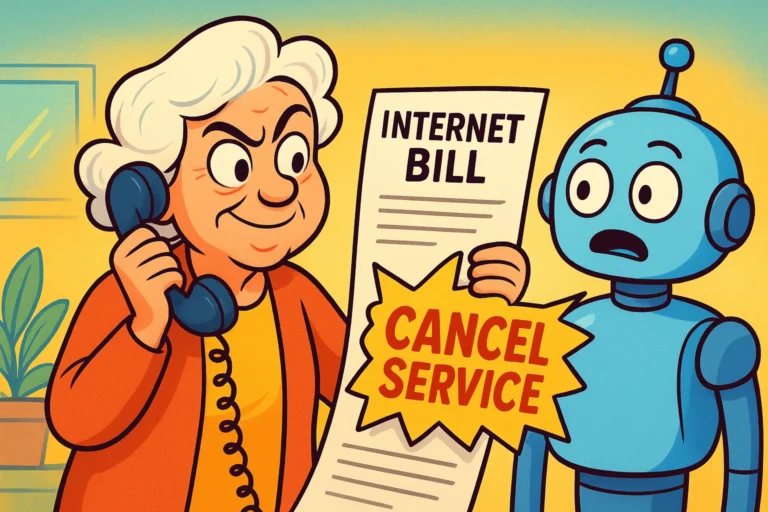
So, the question naturally arises: Can you evict this fee? Can you buy your own equipment and tell the cable company to keep their plastic box?
The short answer is: Yes, absolutely.
The long answer involves a little bit of learning, a tiny bit of shopping, and the satisfying feeling of taking back control of your digital life. Welcome to the Senior Tech Cafe guide to digital independence. Let’s break down the Great ModemA modem, short for modulator-demodulator, is a device that enables computers and other digital devic... More Debate without the headache.
Before we talk about saving money, we need to know what we are actually buying. Most people point to the blinking box in the corner and call it “The WiFi.” But usually, that box is doing two very different jobs.
Sometimes these jobs are done by two separate devices, and sometimes they are smashed together into one unit called a “GatewayA gateway is a networking device that connects two or more networks, allowing data to flow between t... More.” Here is the easiest way to understand them:
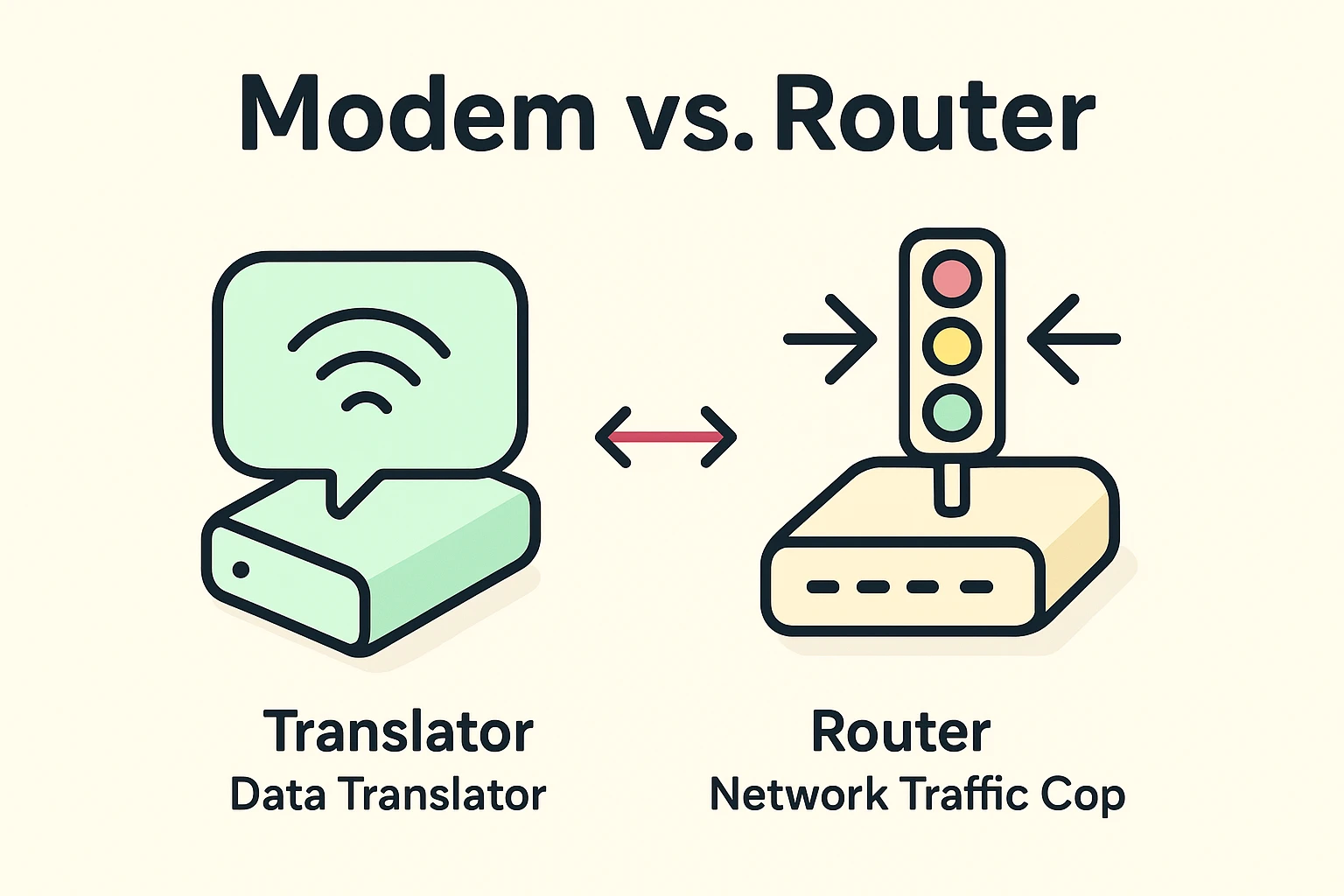
When you rent from the ISP, they usually give you a Gateway (Modem + Router combined). It’s convenient, sure. But it’s also like buying a shampoo-conditioner-body-wash-toothpaste combo. It gets the job done, but it’s rarely the best at any of them.
Let’s talk money. Why should you bother buying your own gear?
The average rental fee for a modem/router combo from companies like Xfinity, Spectrum, or Cox is around $14 to $15 per month.
The Math: If you buy your own equipment, it pays for itself in about 10 to 14 months. After that, you are essentially giving yourself a $15/month raise. If you keep that equipment for four years (a standard lifespan for tech), you have saved over $500. That’s a lot of banana bread ingredients.
Some providers, like Spectrum, might tell you the modem is “free.” But look closer. They often charge $5 to $7 a month for the “Wi-Fi Service”—which is literally just them turning on the router part of the box. By buying your own router, you can eliminate that fee, too.
This is the biggest hurdle. You might be thinking, “If I rent their box and it breaks, they fix it. If I buy my box and it breaks, I’m the IT department.”
This is true, but let’s look at the nuance.
If you own your modem, the ISP is still responsible for the signal coming to your house. If the wire on the telephone pole snaps or the neighborhood network goes down, they still have to come fix it, regardless of whose modem is plugged into the wall.
The only time you are “on your own” is if the actual device you bought smokes and dies. But modern electronics are surprisingly resilient. Most modems sit on a shelf and work quietly for years without complaint.
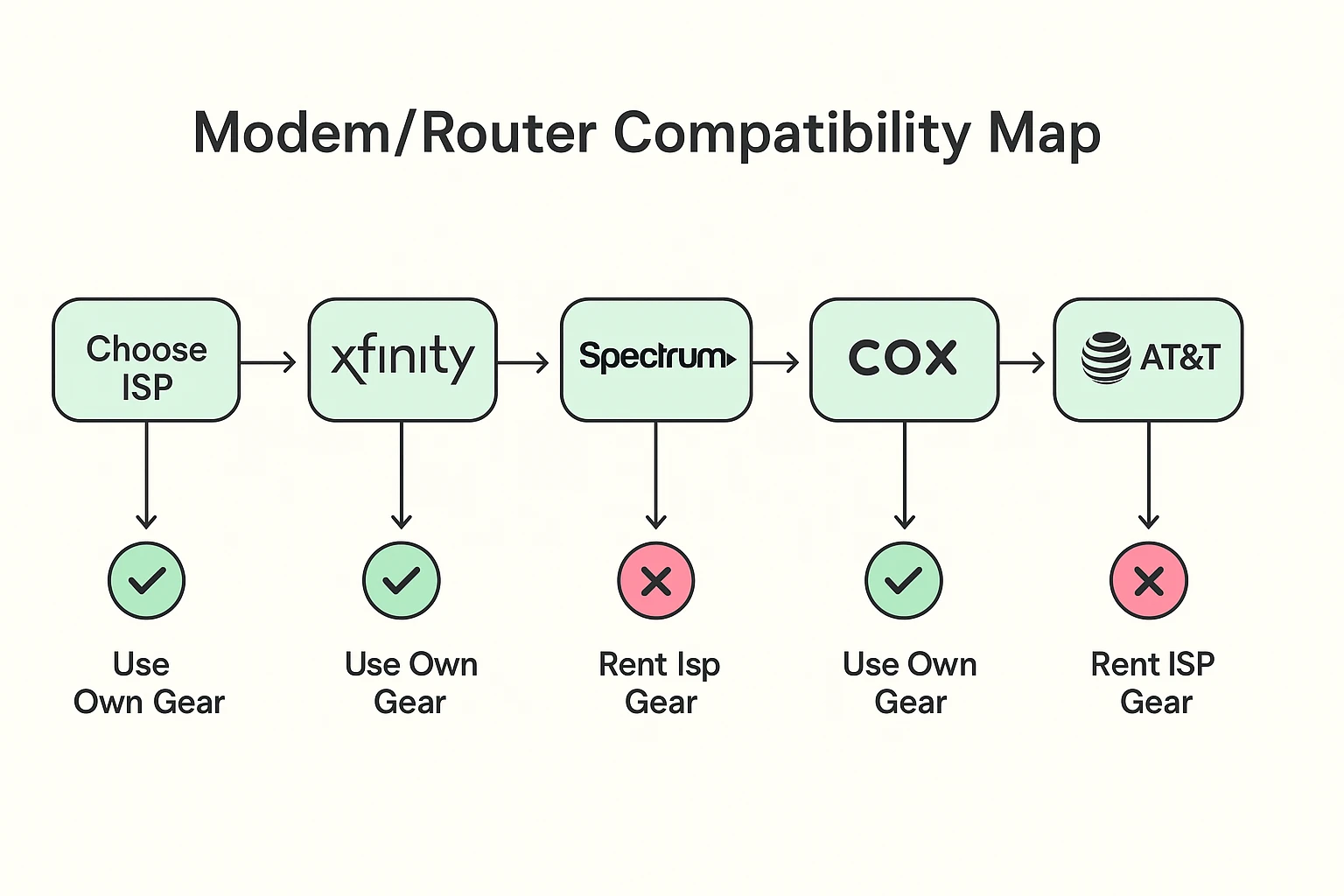
Not every internet provider lets you bring your own gear. It depends on how the internet gets to your house.
One reason seniors hesitate to buy is the fear of those cryptic blinking lights. When the internet stops working, the rented box feels “safer.” But here is a secret: All modems speak the same language.
Whether you rent or buy, the lights mean the same thing. You don’t need a degree in computer science; you just need a decoder ring.
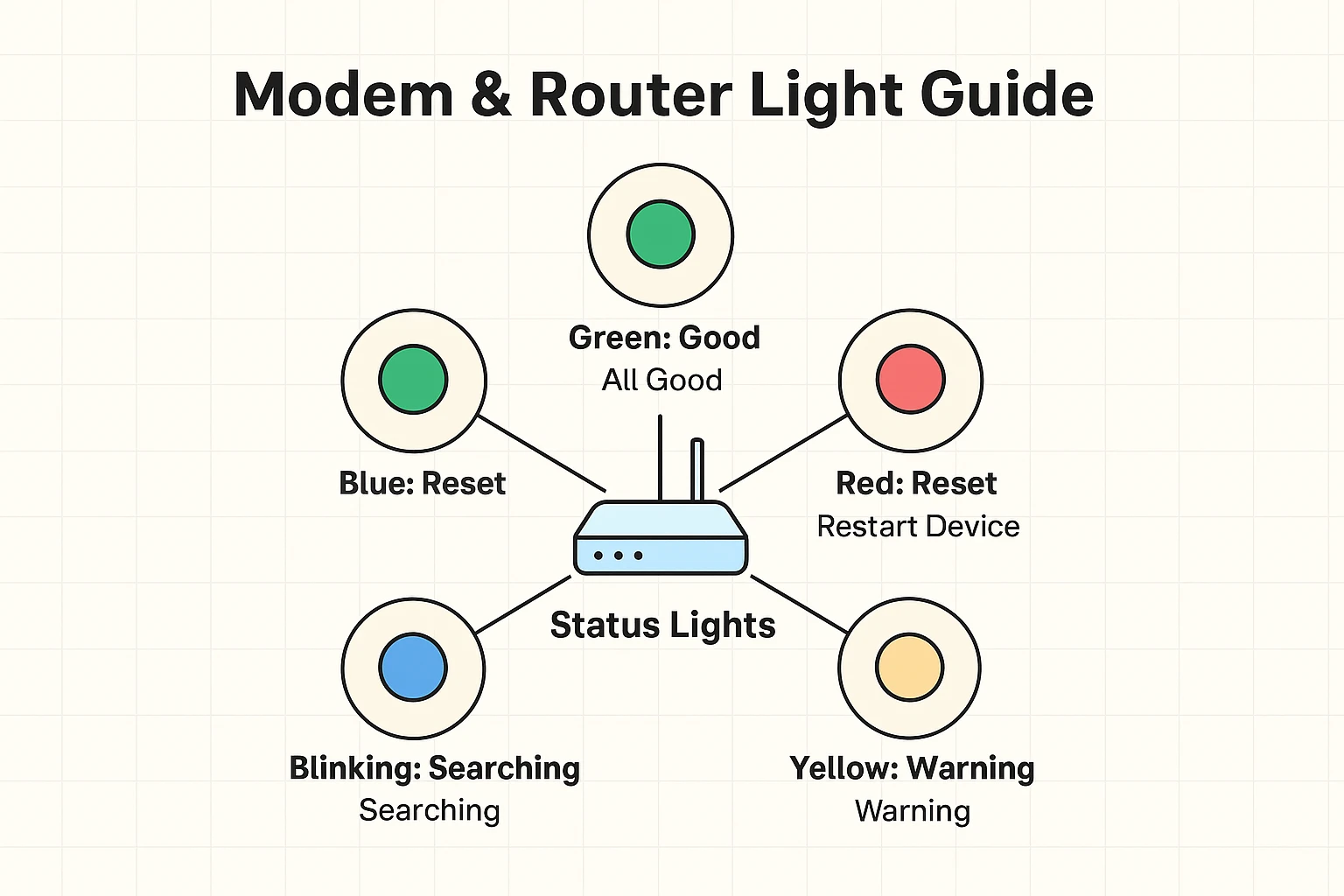
Usually, a solid light is happy. A blinking light is thinking (or trying to connect). A red light means something is wrong—usually that the ISP has an outage in your area, not that your equipment is broken.
If you have standard cable internet, look for a modem that says “DOCSIS 3.1.” This is the modern standard that ensures you get the speeds you pay for. For a router, “Mesh Wi-Fi” systems (like Eero or GoogleGoogle is a multinational technology company known for its internet-related products and services, i... More Nest) are wonderful for seniors because they are incredibly easy to set up and cover the whole house without dead spots.
It’s a three-step dance:
It often does! The equipment ISPs rent out is bought in bulk and isn’t always top-of-the-line. Buying a quality router is like upgrading from a garden hose to a fire hose—it handles the data flow much better, especially if you have grandkids visiting with their iPads and gaming consoles.
Buying your own equipment is one of those rare tech moves that saves you money and improves your experience. It might feel like a leap of faith, but once that $15 fee disappears from your bill, you’ll wonder why you didn’t do it sooner.
If you’re still feeling unsure, or just want to read more about making technology work for you instead of against you, senior tech cafe is here to help. We believe you should control your devices, not the other way around.
Now, go check that bill. Your savings are waiting.