Newsletter Subscribe
Enter your email address below and subscribe to our newsletter

Enter your email address below and subscribe to our newsletter
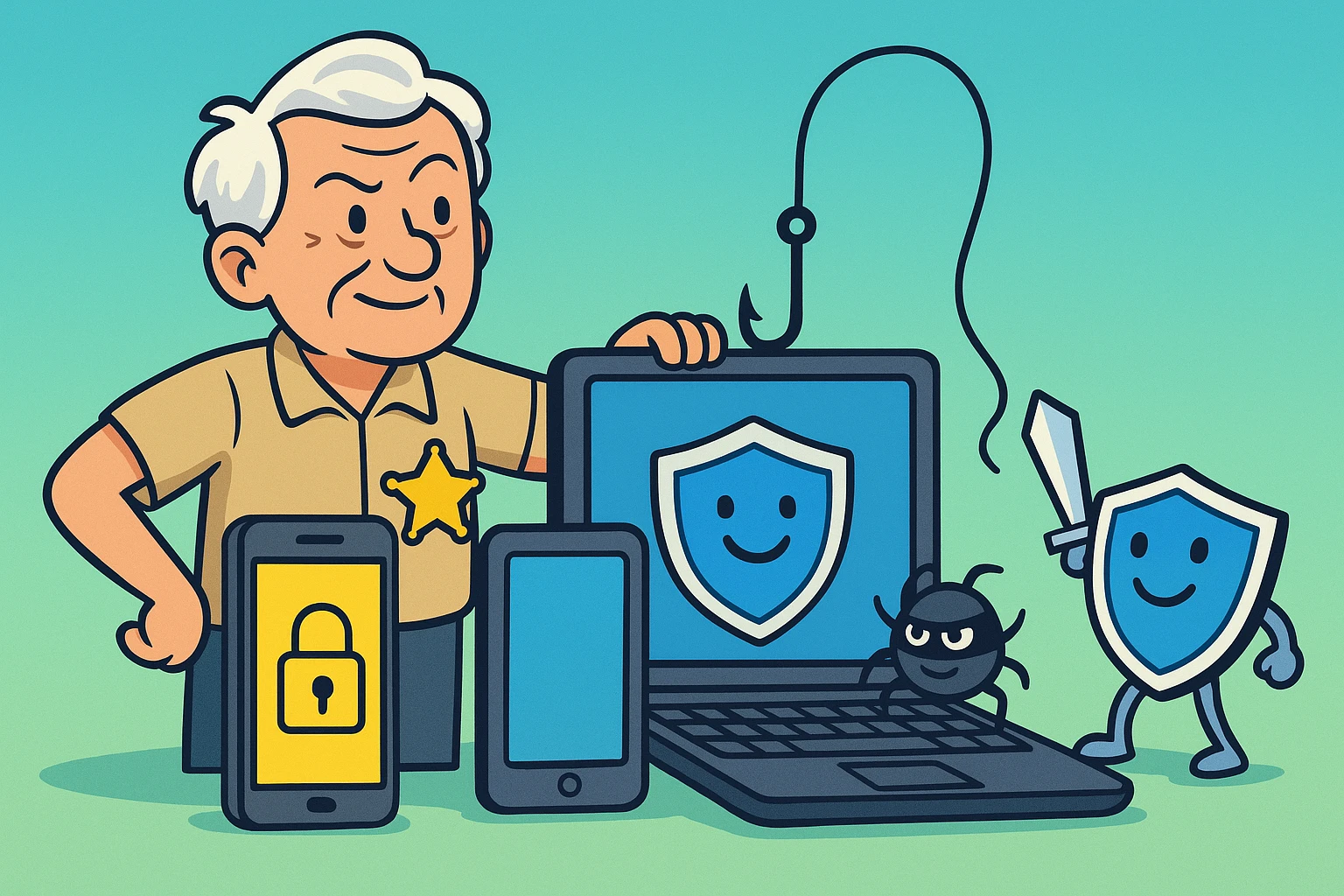
Imagine leaving your house, locking the front door, activating a state-of-the-art alarm system, and then leaving your wallet, passport, and a list of your deepest fears sitting out on the front porch. Sounds ridiculous, right? Yet, that’s exactly what many of us do every day with our smartphones, tablets, and computers.
We buy these glowing rectangular marvels, connect them to the entire world, and then just hope nobody with a keyboard and bad intentions decides to wander in. If this thought makes you want to toss your iPad into the nearest body of water, take a deep breath.
You are not powerless. Defending your devices doesn’t require a master’s degree in computer science or a reinforced bunker in the woods. It just takes a few sensible steps to build a fortress around your digital life. Today, we’re going to secure your devices step by easy step, translating the tech-speak into plain English.
Let’s face it: the internet can sometimes feel like a digital pickpocket convention. Last year alone, security experts blocked a staggering 33.3 million malware attacks on mobile devices globally. Even more alarming? Android “Trojan banker” attacks—nasty little bugs designed specifically to sneak in and snoop on your bank accounts—shot up by 196%.
Add in the 4 million reported mobile social engineering attacks (those fake, panic-inducing text messages pretending to be the post office), and it’s clear the bad guys are working overtime. Phishing exposure on iOS devices has also doubled, proving that no specific brand of phone is magically immune to scams.
But here’s the good news: you don’t need to outsmart every hacker on earth. You just need to make your devices more trouble than they are worth. Think of it like putting a giant “BEWARE OF DOG” sign on your digital lawn. Let’s start with the basics.
Believe it or not, roughly 12% of people walking around right now have absolutely no lock enabled on their smartphones. If they accidentally leave their phone at the diner, whoever finds it immediately has full access to their emails, photos, and Amazon account. (Enjoy that surprise delivery of a life-sized garden gnome!)
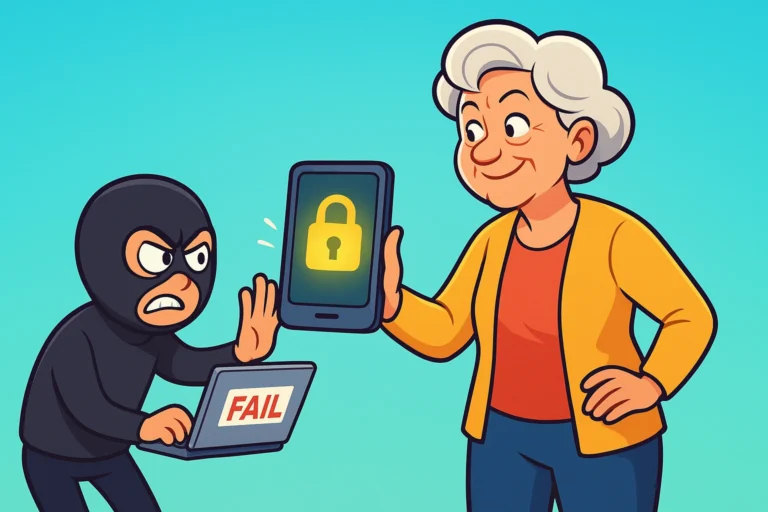
Your absolute first line of defense is the physical lock screen. Whether you use an iPhone, an Android, a Windows PC, or a Mac, you need a lock. It is the cheapest, easiest insurance policy you will ever get.
For smartphones and tablets, set up a PIN code, facial recognition, or a fingerprint scan. If you use a PIN, please make it longer than four digits, and do not use “1234” or your birth year. For your computer, set it to require a password whenever it wakes up from sleep mode.
Finally, turn on your device’s anti-theft tracking—like Apple’s “Find My” or Google’s “Find My Device.” If your tablet slips between the couch cushions or gets swiped at the grocery store, you can track its location or remotely erase your private data before anyone can snoop.
Now that the device itself is locked, we need to protect the software inside from invisible intruders. This is where security and antivirus software come into play. For years, folks thought certain devices didn’t need this protection, but as threats evolve, having a digital bouncer at the door is crucial.
When evaluating security apps, you want something that does the heavy lifting quietly in the background. You might worry that these apps will slow down your phone or eat up your battery. Thankfully, according to independent lab tests from groups like AV-Comparatives, the top mobile antivirus apps now achieve over 99% malware protection rates with minimal battery drain.
Look for software from reputable names that offer real-time scanning and phishing protection. And please, avoid those free, no-name “Phone Booster & Speed Cleaner” apps you see floating around the app stores. Ironically, those are often just data-harvesting malware wearing a helpful disguise.
Have you ever downloaded a simple flashlight app, only to have it ask for permission to access your contacts, your microphone, and your GPS location? Unless your flashlight is planning to call your sister and tell her where you are, it does not need those permissions.
Managing app permissions is like handing out spare keys to your house. You might give a key to the plumber to fix the sink, but you certainly don’t want him rifling through your medicine cabinet.
Newer operating systems, like Android 15, have introduced brilliant advanced privacy controls that make this easier than ever. Take five minutes to open your device’s “Settings,” go to “Privacy” or “Permissions,” and review what your apps can access. If a crossword puzzle app wants your location, turn it off. It can test your vocabulary perfectly well without knowing your zip code.
We all know the feeling. You’re right in the middle of reading an interesting article or watching a video of a dog riding a skateboard, and a little box pops up: “Software Update Available.” Your first instinct is to click “Remind me later”—and then keep hitting “later” until the end of time.
Don’t do it. Studies show that a whopping 29.5% of devices are running outdated operating systems. When tech companies issue a software update, they aren’t just giving you new emojis. They are patching critical security holes that hackers have recently discovered.
Think of an outdated operating system like a leaky roof. The longer you wait to patch it, the more damage the rain will do. Do yourself a massive favor and turn on “Automatic Updates” for your phone, tablet, and computer. Let them patch themselves while you’re fast asleep.
These days, everything from your doorbell to your thermostat connects to the internet. This is wonderfully convenient, but it also creates a web of interconnected devices. If a hacker manages to crack the weak password on your smart lightbulb, they might be able to jump over to your computer on the same network.
This requires a holistic defense strategy that protects your entire home network. First, secure your home Wi-Fi router. Make sure it has a strong, unique password—definitely not “password123” or the default code printed on the sticker underneath it.
Second, consider firmware-level protections for your smart home gadgets. Firmware is the permanent software programmed into your devices. Just like your phone, your smart plugs and cameras need to be kept updated. If an old smart camera stops receiving updates from the manufacturer, it becomes a security risk and is likely time to toss it in the recycling bin.
Apple’s iOS is heavily restricted, so traditional “antivirus” isn’t strictly necessary, but you absolutely need tools to block phishing (fake text messages and websites). Android devices, being more open and customizable, benefit greatly from a reputable security app to catch malicious downloads and fake apps.
Many phones come loaded with pre-installed apps (often called “bloatware”). It is generally safe to disable or delete them if you don’t use them. However, stick to deleting standard apps like games or shopping tools; if an app has “System” or “UI” in the title, leave it alone to avoid making your phone act jittery.
It happens to the best of us! Both Apple and Google have recovery options tied to your main account email address or iCloud/Google account. To save yourself the panic, write your new PIN down and store it in a secure physical location—like a real-world safe or a trusted password manager—not on a sticky note attached to your computer monitor.
Securing your devices doesn’t have to be a stressful, all-day chore. You don’t need to do it all at once. Start with the “quick wins” to immediately boost your device defense.
Tonight, make sure your screen lock is enabled on your phone and set your devices to automatically update. Tomorrow, you can spend five minutes reviewing your app permissions and evicting any apps that are being overly nosy.
By taking these simple, plain-English steps, you are drastically reducing your risk and taking control of your privacy. You can go back to browsing recipes, video chatting with the grandkids, and watching those skateboarding dogs with total peace of mind. Your devices are finally working securely for you, exactly as they should.