
By Chris Clark, founder of Senior Tech Cafe
Public wifi safety for seniors starts before you tap Connect.
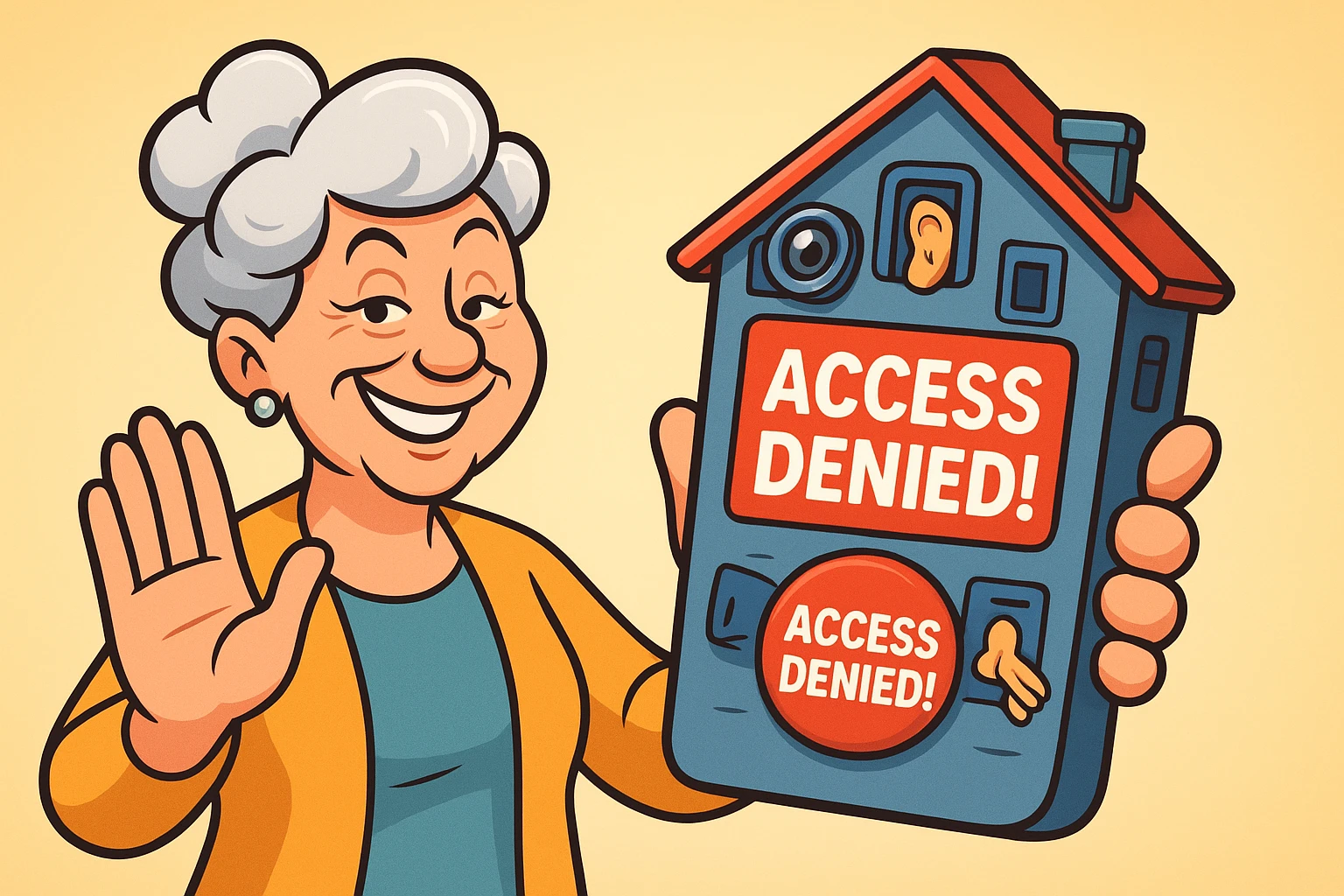
Ask staff for the exact network name. Turn off automatic joining. And for banking, shopping, medical portals or password changes, use your phone’s cellular connection or your own hotspot instead.
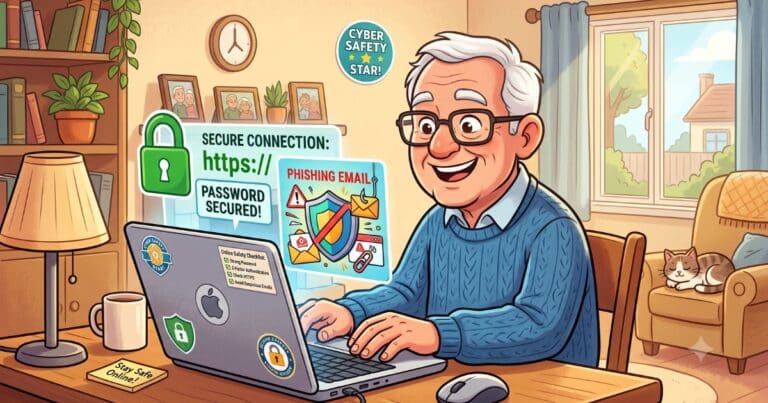
If you do use the public network, stick to sites showing HTTPS, keep sharing features off, install your updates before you leave home, and forget the network when you’re done.
Public wifi is genuinely useful. It just shouldn’t get more trust than it needs.
Treat it like a park bench, not a private office.
Seven steps, and most of them take seconds.
One. Ask staff for the exact network name. The strongest signal isn’t always the real one.
Two. Disable auto-join and file sharing.
Three. Install updates before the trip, not while sitting on the public network.
Four. Check the browser shows HTTPS before you type anything, even ordinary things.
Five. Switch to cellular data or your own hotspot for anything sensitive.
Six. Be suspicious of any sign-in page that appears unasked and wants payment details, a download, or your social-media login.
Seven. Forget the network when you disconnect, and turn wifi off when you don’t need it.
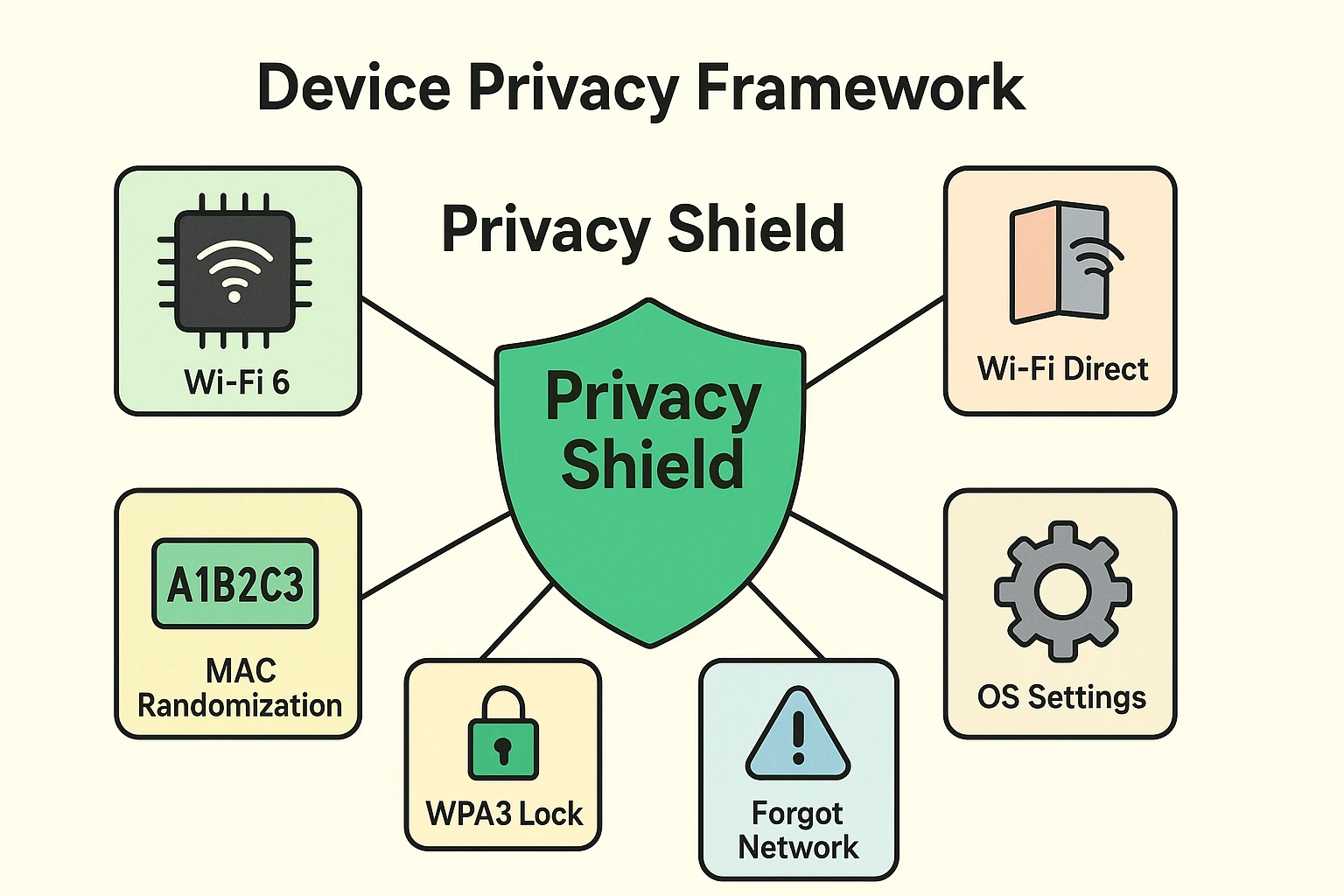
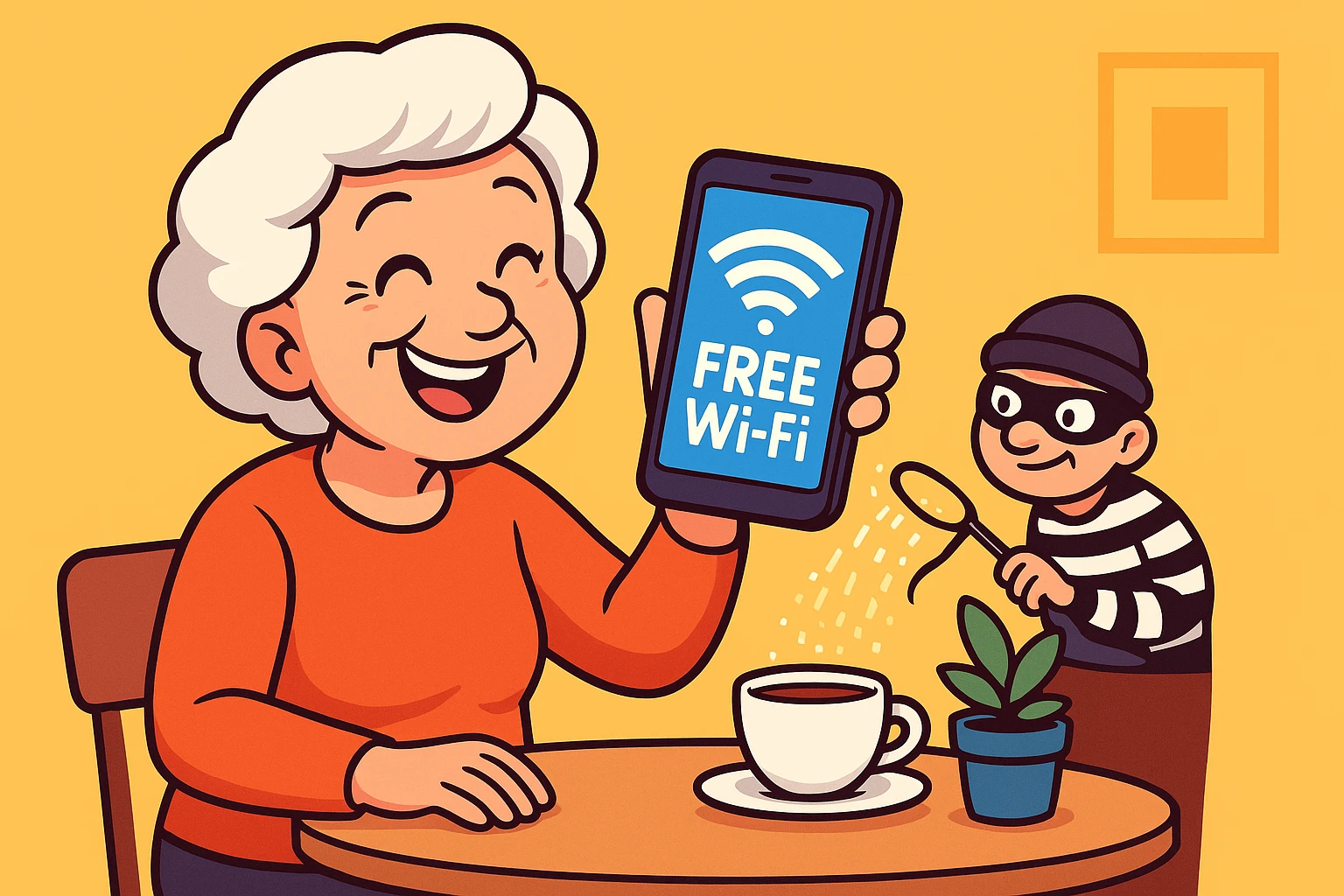
The main risk has a name. An evil twin network is one somebody sets up using the hotel’s name, or the airport’s, or the coffee shop’s, and then waits.
It’s the trick of a stranger in a uniform standing by the door.
From there, an attacker can try to redirect your traffic, read anything unencrypted, or talk you into installing something.
Modern encrypted websites limit how much a stranger on the same network can read. But encryption doesn’t make a fake login page real, and that’s the part people get wrong.
So treat three things as stop signs. An unexpected certificate warning. A sign-in prompt that keeps reappearing, since learning to spot a fake public-WiFi sign-in page is worth a few minutes. Any request to install a profile or an app.
Disconnect and ask staff rather than experimenting.
At a hotel, confirm the network name and the sign-in method at the front desk. One question settles it.
Sign-in pages matter more here than almost anywhere. Those captive portals (the page that pops up when you connect) often ask for a room number, a last name, or loyalty details.
So make sure the page belongs to the hotel or the provider they named before you type any of that in.
Once you’re on, streaming and ordinary browsing over HTTPS is fine.
Move the rest to cellular data or your own hotspot. Banking, investments, tax work, medical portals, password resets. Switching over takes about ten seconds.
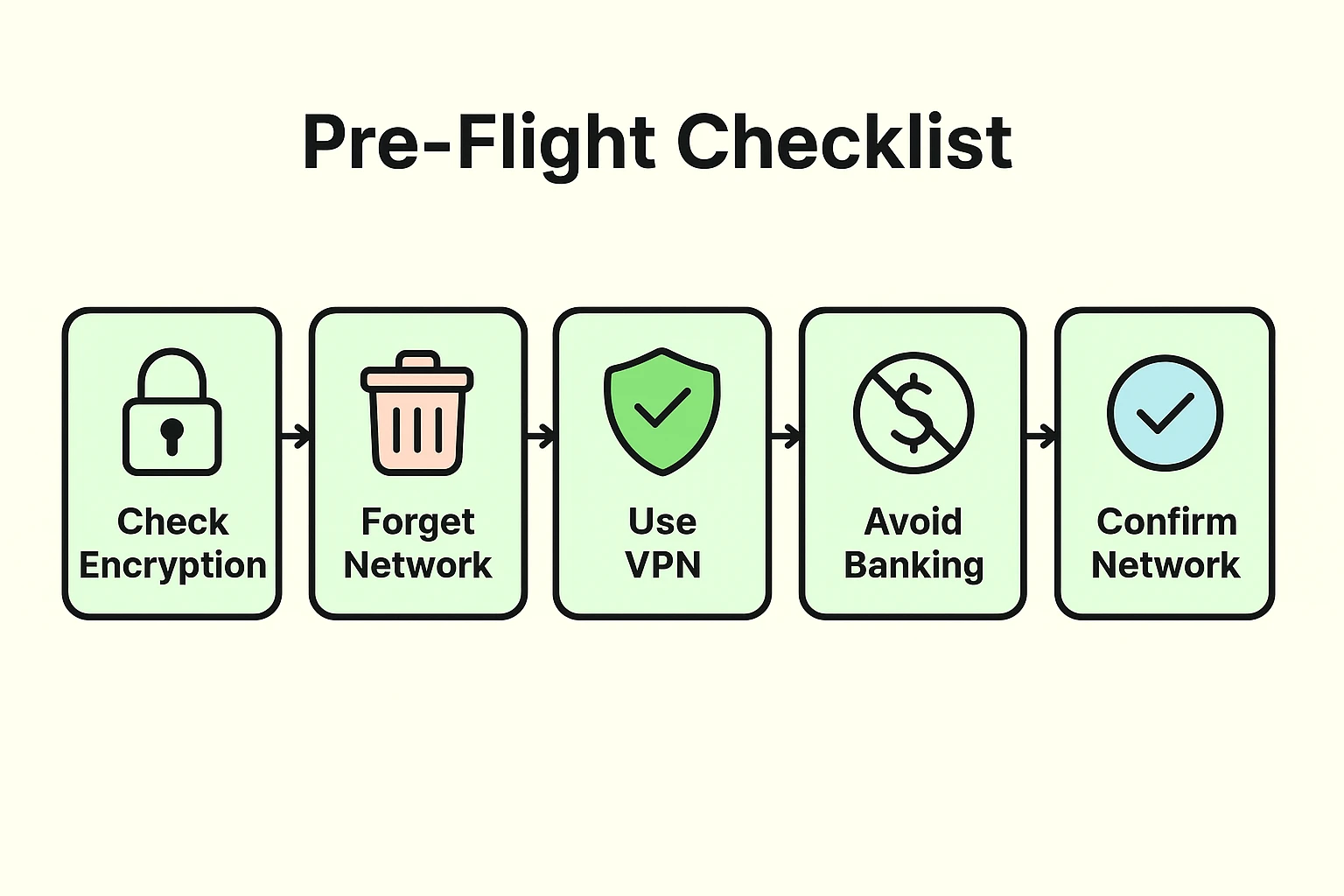
Do the preparation at home, where nothing is urgent.
Update the phone, tablet and laptop. For the full checklist, our guide on how to secure your phone, tablet and computer before travel covers more than wifi alone. Turn on a screen lock and the device-finding feature. Download the tickets and maps you might need without a signal.
Then practice turning on your phone’s hotspot. Practicing at the kitchen table is considerably easier than working it out at a gate with a boarding call going.
While you’re traveling, avoid USB charging ports you don’t control. Use your own wall charger, or a charge-only cable that can’t carry data.
And after connecting to anything public, forget the network before you move on.
Three different things get recommended for public wifi, and they do three different jobs.
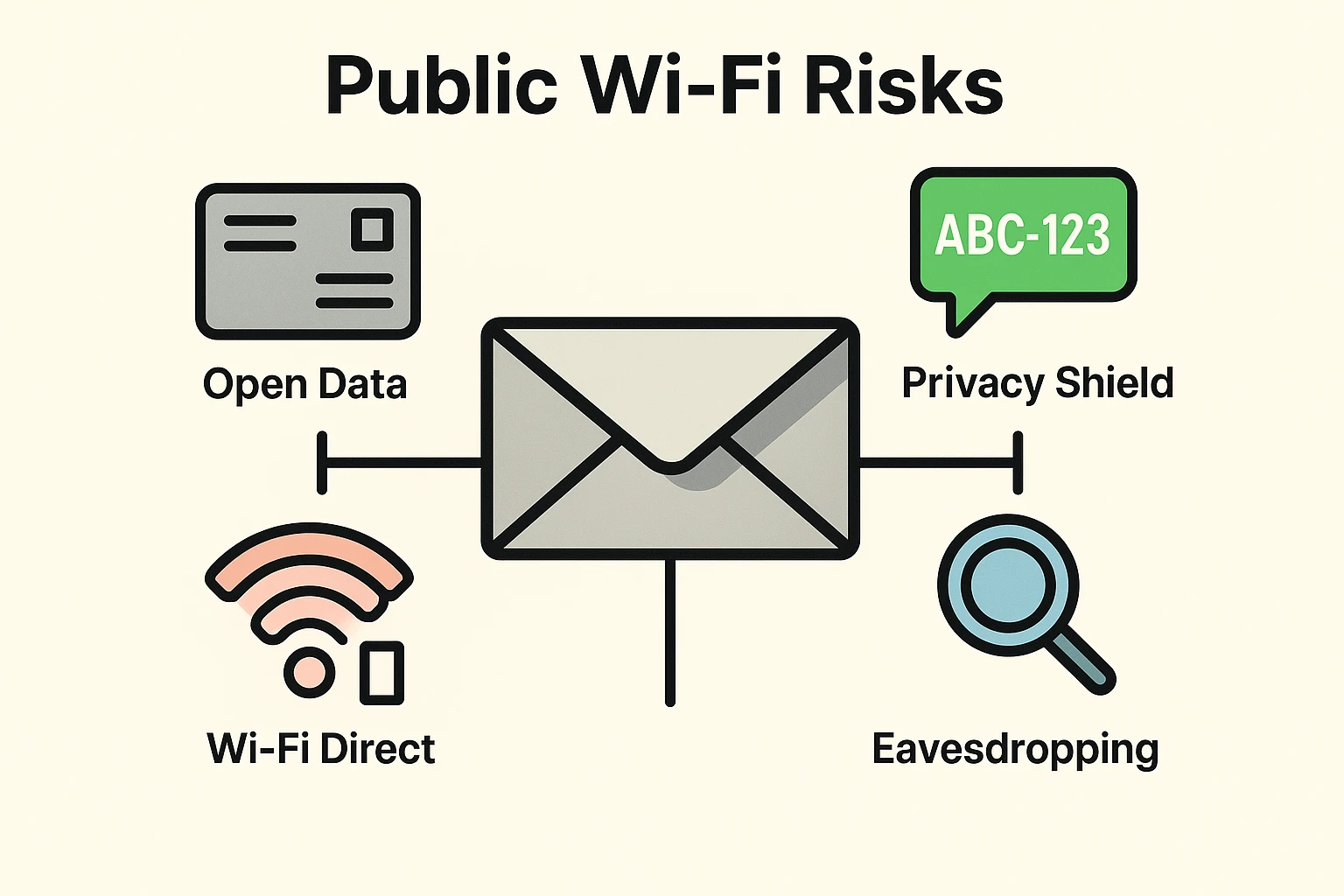
HTTPS encrypts what passes between you and a correctly identified website. The network can still see that your device connected, and often which site.
Think of a sealed envelope. Nobody reads the letter, but the postman sees the address.
A reputable VPN builds an encrypted tunnel to the VPN company. That moves your trust from the coffee shop to that company, which is an improvement, but it’s still a choice about who to trust. It does nothing about phishing or bad downloads.
A personal hotspot skips the public network altogether. For a short sensitive task with cellular service available, it’s usually the simplest of the three.
You’ll find dramatic demonstrations online showing how fast a public network can be compromised. They’re alarming, and the practical lesson underneath is much simpler.
A familiar network name and a strong signal prove nothing about who’s running it.
And nobody is picking on you personally. An attacker doesn’t need to target you when one fake network can catch dozens of devices in an afternoon.
They’re fishing, and a crowded lobby is a good pond.
So verify the name, limit what you do while connected, and disconnect the moment anything looks wrong.
Four short lists. Stick it in the carry-on.
Before travel: update your devices, turn on a screen lock, pack your own charger, and learn where the hotspot setting lives.
Before connecting: verify the network name with staff, and turn off auto-join and sharing.
While connected: stay on HTTPS, and keep the sensitive accounts on cellular data.
Afterward: disconnect, forget the network, turn wifi off, and read any security alert that appeared rather than dismissing it.
And if you did enter a password on a page that now looks suspicious, change it from a trusted connection and turn on two-factor authentication. It’s a routine, not a project.
For the wider picture, our online safety tips for seniors guide covers scams, privacy and security together in one place.
Use cellular data or your own phone hotspot for banking, investments, medical portals, tax work and password changes. A public network isn’t the right place for any of that. Switching to your phone’s connection takes seconds and keeps the activity off the shared network entirely. Or just do it at home.
No. HTTPS encrypts what passes between you and a correctly identified website. It doesn’t prove a login page is genuine, and it won’t stop phishing or a bad download. HTTPS protects the delivery, not the destination. Treat any sign-in page you didn’t go looking for as suspicious.
A reputable VPN reduces what the local network can see, but it moves your trust to the VPN company and it doesn’t stop scams. For a short errand, your phone’s own hotspot usually does the same job more simply. You’re not behind if you don’t have one.
Disconnect, forget the network, check your account alerts, and change any password you entered on a suspicious page. Do that from home or from cellular data, not from the same network. Turn on two-factor authentication where you can. If something did go wrong, changing the password quickly is what limits it.