Newsletter Subscribe
Enter your email address below and subscribe to our newsletter

Enter your email address below and subscribe to our newsletter
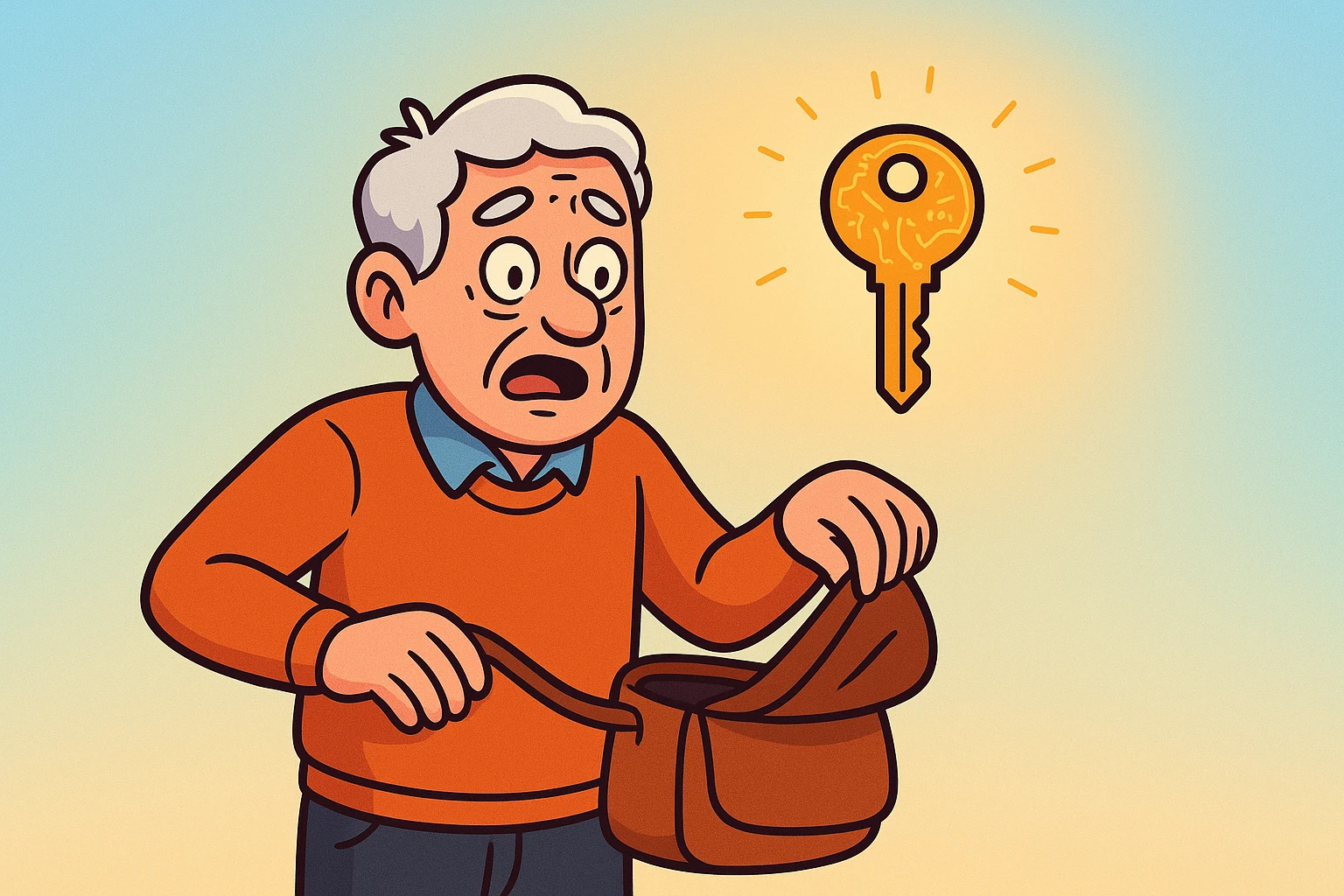
You know that feeling. You reach into your pocket or purse for your phone, expecting the familiar, comforting slab of glass that contains your entire life. Instead, your hand meets… lint. Or a used tissue. Or perhaps the wrapper of a butterscotch candy you saved for later.
Your heart does a little gymnastics routine. You check the other pocket. The table. The car. The refrigerator (don’t laugh, it happens).
Losing your phone is bad enough. It’s like losing your connection to the outside world, your camera, and your map all at once. But in today’s high-security world, there is a second, more terrifying realization that hits about five minutes later: “Wait. That phone was the only way I could log into my bank!”
If you have Two-Factor Authentication (2FA2FA, or Two-Factor Authentication, is a security measure that uses two different types of proof to v... More) turned on—that’s the security feature where you type in your passwordA password is a string of characters used to verify the identity of a user during the authentication... More and then have to enter a special code sent to your phone—you might feel like you’ve just locked your keys inside your car while the engine is running. You have the password (the key), but the phone (the door handle) is gone.
First, take a deep breath. Inhale… exhale. You are not locked out forever. The digital world hasn’t exiled you to a deserted island. While it feels like a crisis, getting back into your accounts is actually a structured process—you just need to know which door to knock on.
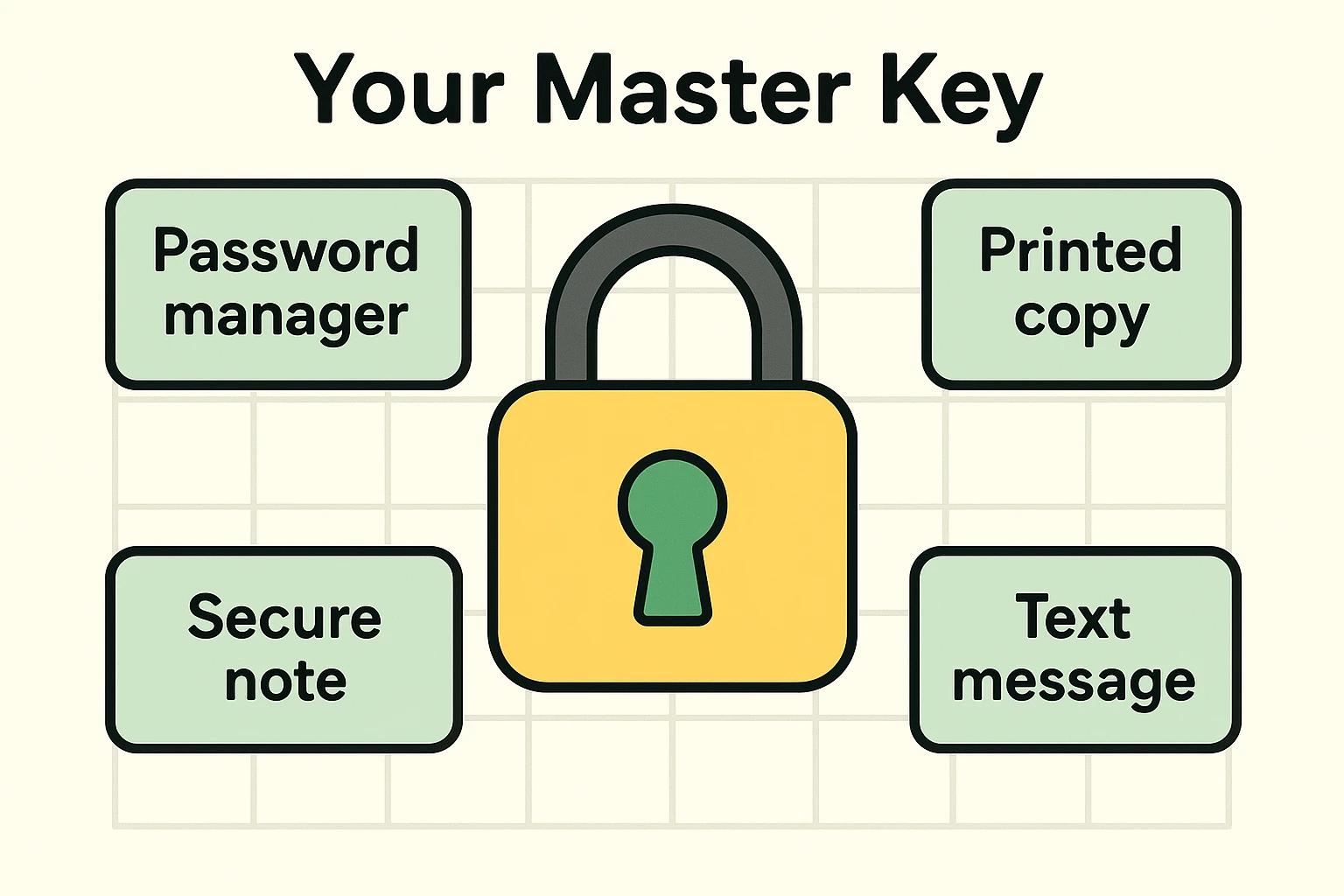
Before we start calling customer service hotlines and listening to elevator music for three hours, let’s play detective. When you first set up that two-step verification security, many services (like GoogleGoogle is a multinational technology company known for its internet-related products and services, i... More or Facebook) suggested you save a list of “Backup Codes.”
At the time, you probably thought, “I’ll never need these, I have a phone!” and clicked “Next.” But, there is a decent chance you actually saved them without realizing it.
Think of Backup Codes like a physical spare key you hide under the flower pot. Even if you lose the main key (your phone), the spare still opens the door.
Where to look for these digital spare keys:
If you find them, congratulations! You can type one of those codes in place of the one your missing phone would have generated. If not, don’t worry. We move to Plan B.
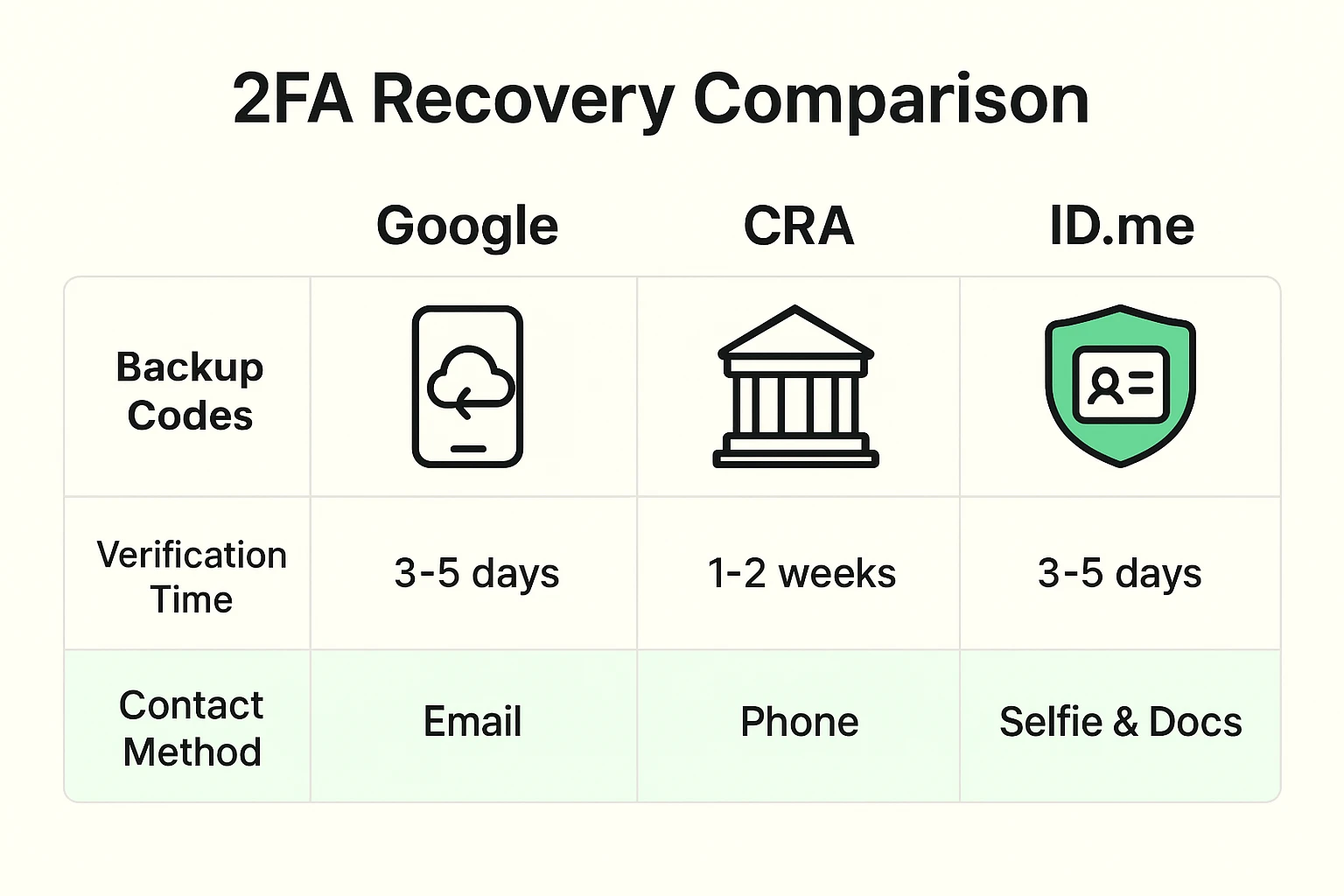
Not all accounts are created equal. Getting into your Pinterest account is a different beast than getting into the CRA (Canada Revenue Agency) or ID.me. We have broken this down into three levels of difficulty so you know exactly what to expect.
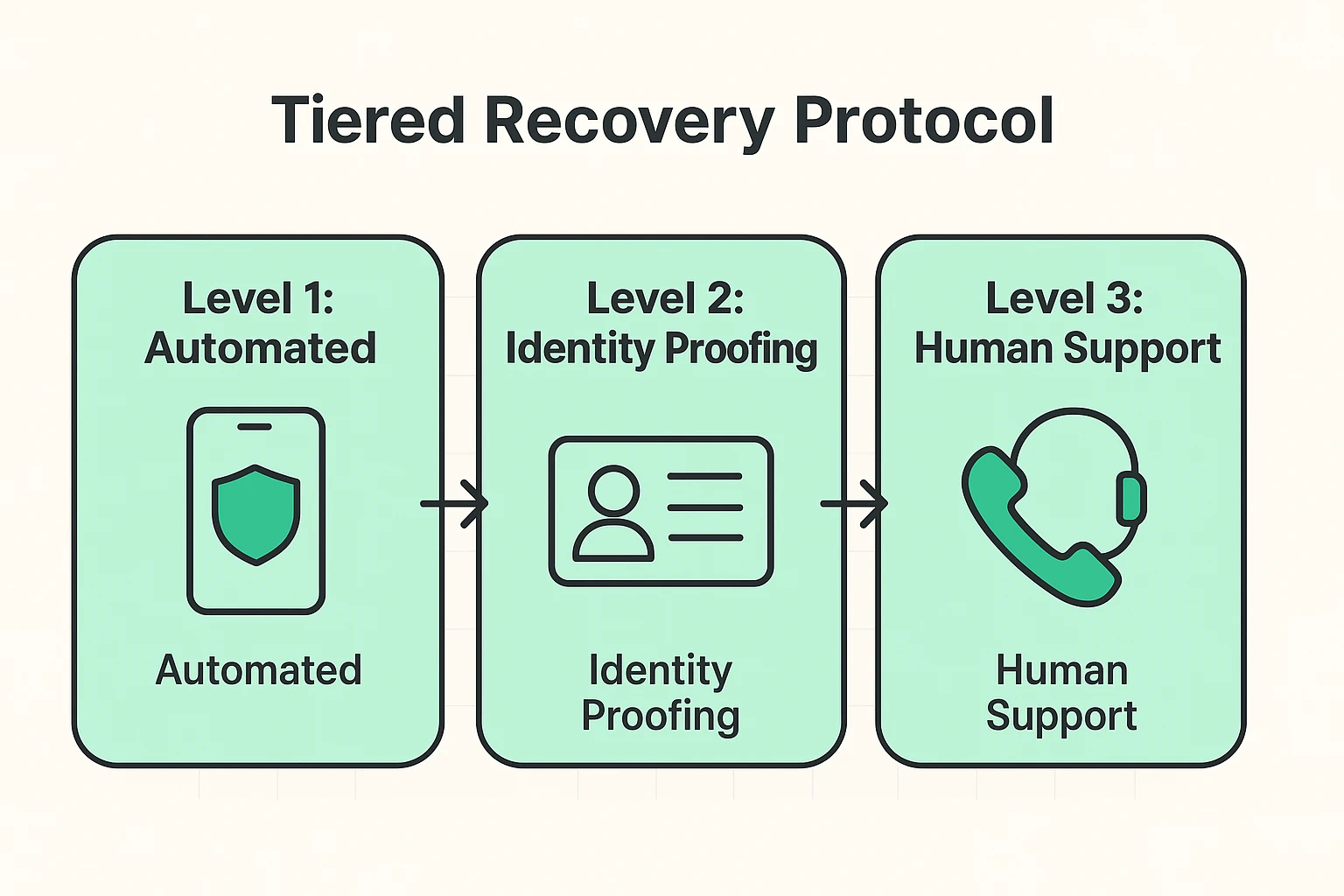
Big tech companies know people lose phones. They usually have an automated back door built in.
This is where things get serious. If you use ID.me (for veterans’ benefits or social security) or need to access the CRA, they don’t just take your word for it. They need to know you are really you.
For ID.me Recovery: You will likely need to go through a “Selfie Verification” process. Yes, you have to take a picture of your face.
For Canada Revenue Agency (CRA): If you cannot sign in, you usually have to call them. But don’t just dial blindly! When you look for their contact number, make sure you check their website carefully to ensure you aren’t dialing a scammer. The real CRA will never ask you to pay a fee to unlock your account.
Have these ready before you call the CRA:
Banks are notoriously strict, which is annoying when you are locked out, but comforting when you think about your life savings.
Most banking apps do not have an automated “I lost my phone” button that works instantly. You will need to call them.
Once you are back in (and you will get back in), let’s set up your digital life so this never happens again.
1. Use “Cloud-Syncing” Apps
Some authenticator apps, like Authy or Microsoft Authenticator, have a “cloud"The cloud" refers to storage and services that are accessed over the internet instead of being stor... More backup” feature. This means if you lose your phone, you just buy a new phone, log into the appAn app (short for application) is a program that helps you do specific tasks on your smartphone, tab... More, and poof—all your codes reappear like magic.
2. Print the Backup Codes (Seriously)
We are giving you permission to be old-school. When you set up 2FA, print the backup codes. Put that piece of paper in your actual, physical fireproof box or file cabinet where you keep your birth certificate. Hackers can’t hack a piece of paper in a locked drawer.
Unlikely. Unless you taped your passwords to the back of the phone (please tell me you didn’t), they can’t get into your banking app without your password, even if they have the phone.
It stands for “Time-Based One-Time Password.” It’s just fancy tech-speak for those 6-digit codes that change every 30 seconds. Think of it as a “digital mood ring” that changes colors, except it’s numbers.
Yes! This is a great backup strategy. You can install your Authenticator app on your iPad or tablet. That way, if your phone takes a swim in the toilet, your tablet can still generate the codes you need.
Losing a phone is a hassle, but it isn’t the end of your digital life. It is just a very annoying speed bump. By knowing where your backup codes are and understanding that every service—from Google to the CRA—has a recovery process, you can replace panic with a plan.
Now, go check that junk drawer. You might find those backup codes right next to those spare batteries you’ve been hoarding since 1998.