Newsletter Subscribe
Enter your email address below and subscribe to our newsletter

Enter your email address below and subscribe to our newsletter
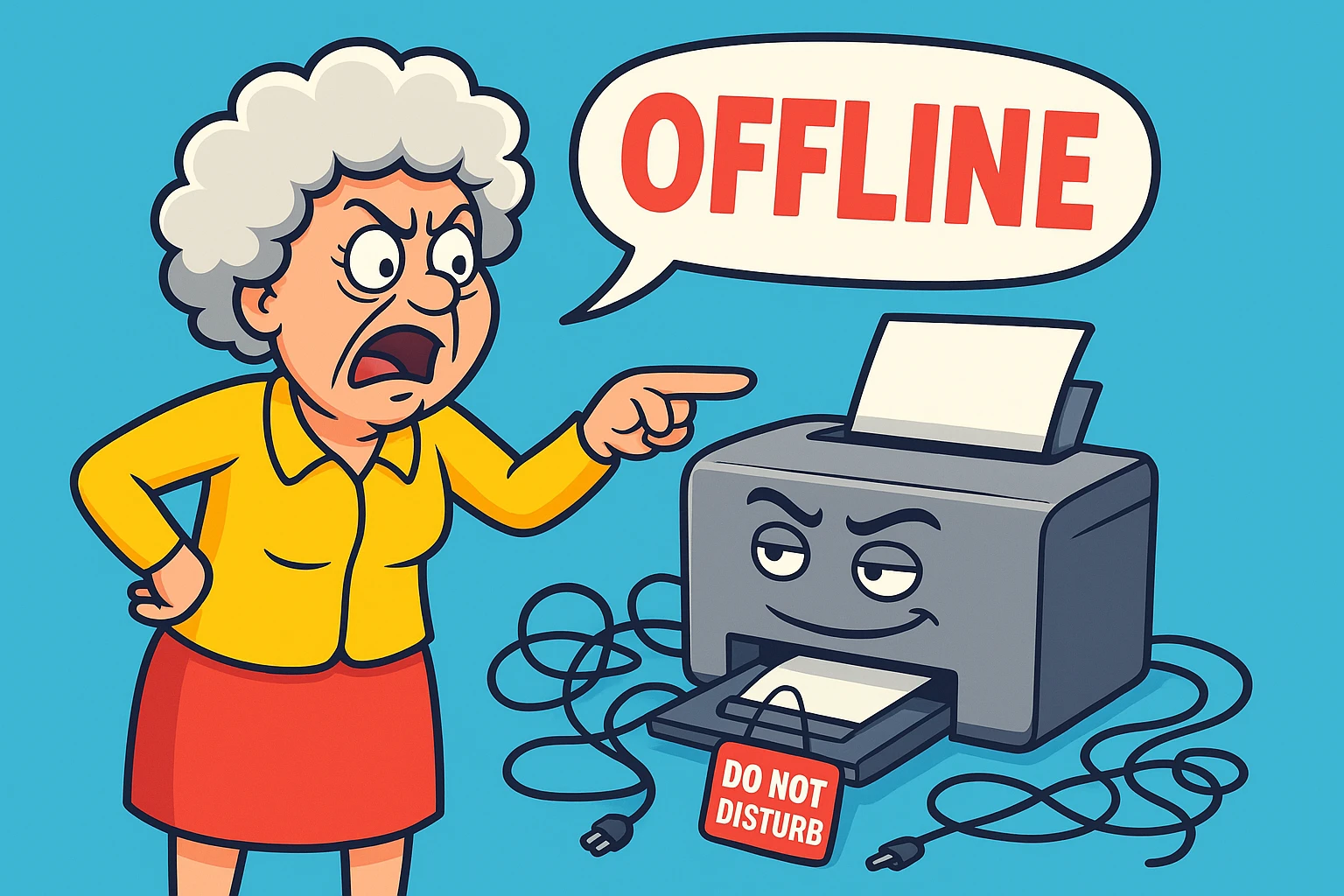
Picture this: You have exactly ten minutes before you need to leave for the airport. You just need to print your boarding pass. You hit “Print,” grab your bag, and walk over to the printer, expecting to see that warm sheet of paper waiting for you.
Instead? Silence.
The printer is sitting there. Its lights are on. It’s humming that low, confident hum that suggests it is ready for action. It is plugged into the wall. It is plugged into the computer. By every physical law of the universe, it is online.
But your computer screen disagrees. A little gray icon stares back at you with the digital equivalent of a shrug, displaying the one word that strikes fear into the hearts of PC users everywhere: Offline.
If you have ever had the urge to throw a piece of office equipment out a second-story window, you are not alone. This is one of the most common—and maddening—tech glitches out there. It feels like your computer is gaslighting you.
But here is the good news: Your printer is likely not broken. It hasn’t joined a union strike, and you probably don’t need to buy a new one. “Offline” is usually just a fancy way of saying your devices are giving each other the silent treatment.
Let’s figure out why they aren’t talking, and how to get the conversation flowing again.
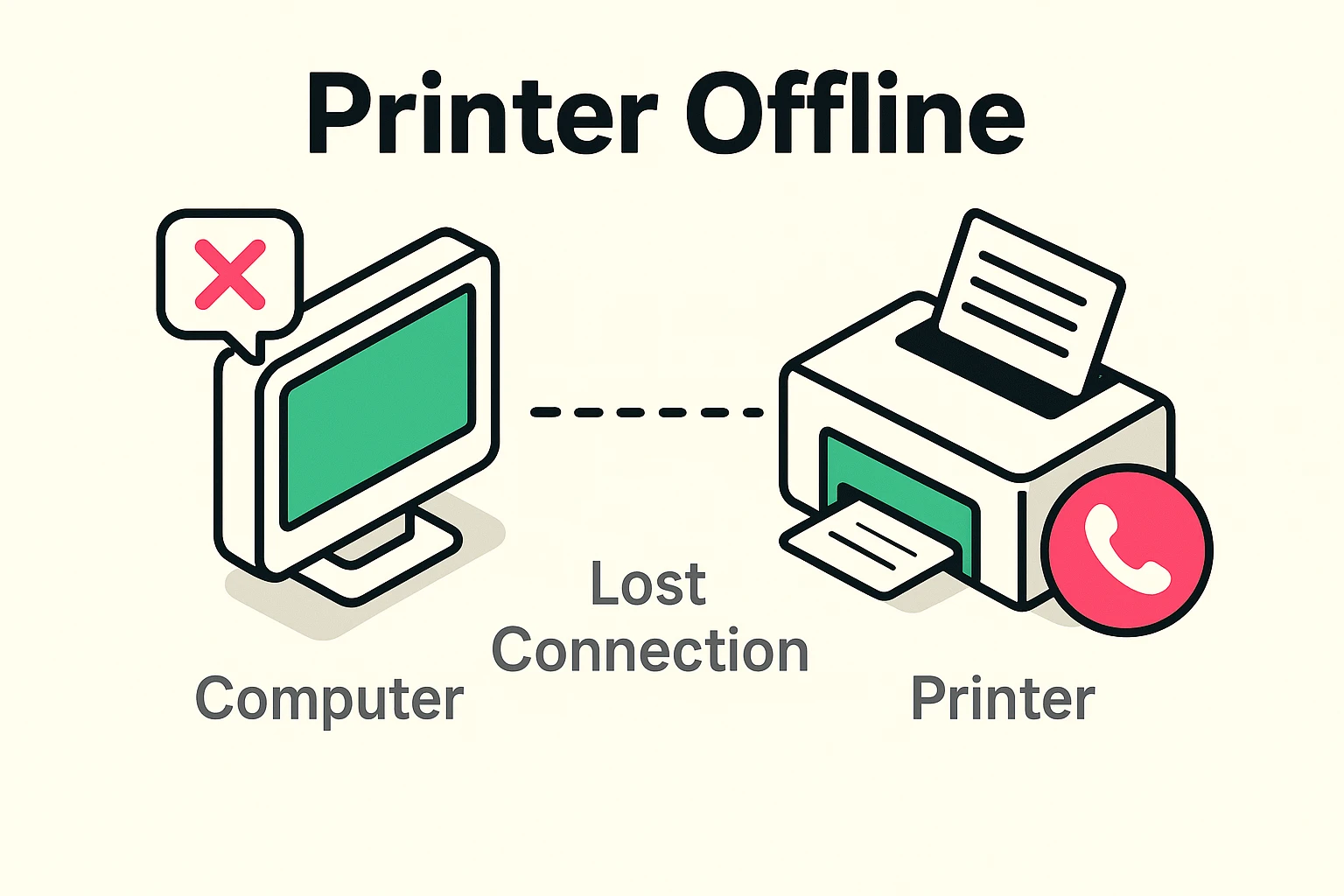
Before we start pushing buttons, it helps to understand what is actually happening. When we see “Offline,” we tend to think the printer is powered down or broken.
But in computer-speak, “Offline” doesn’t mean “Dead.” It means “Unreachable.”
Think of your computer trying to print a document like a person trying to make a phone call.
The printer might be sitting right there, wide awake. But if the computer thinks the line is dead, it won’t even try to send the document. Our job isn’t to fix a broken machine; it’s just to check the phone lines and make sure the printer picks up the call.
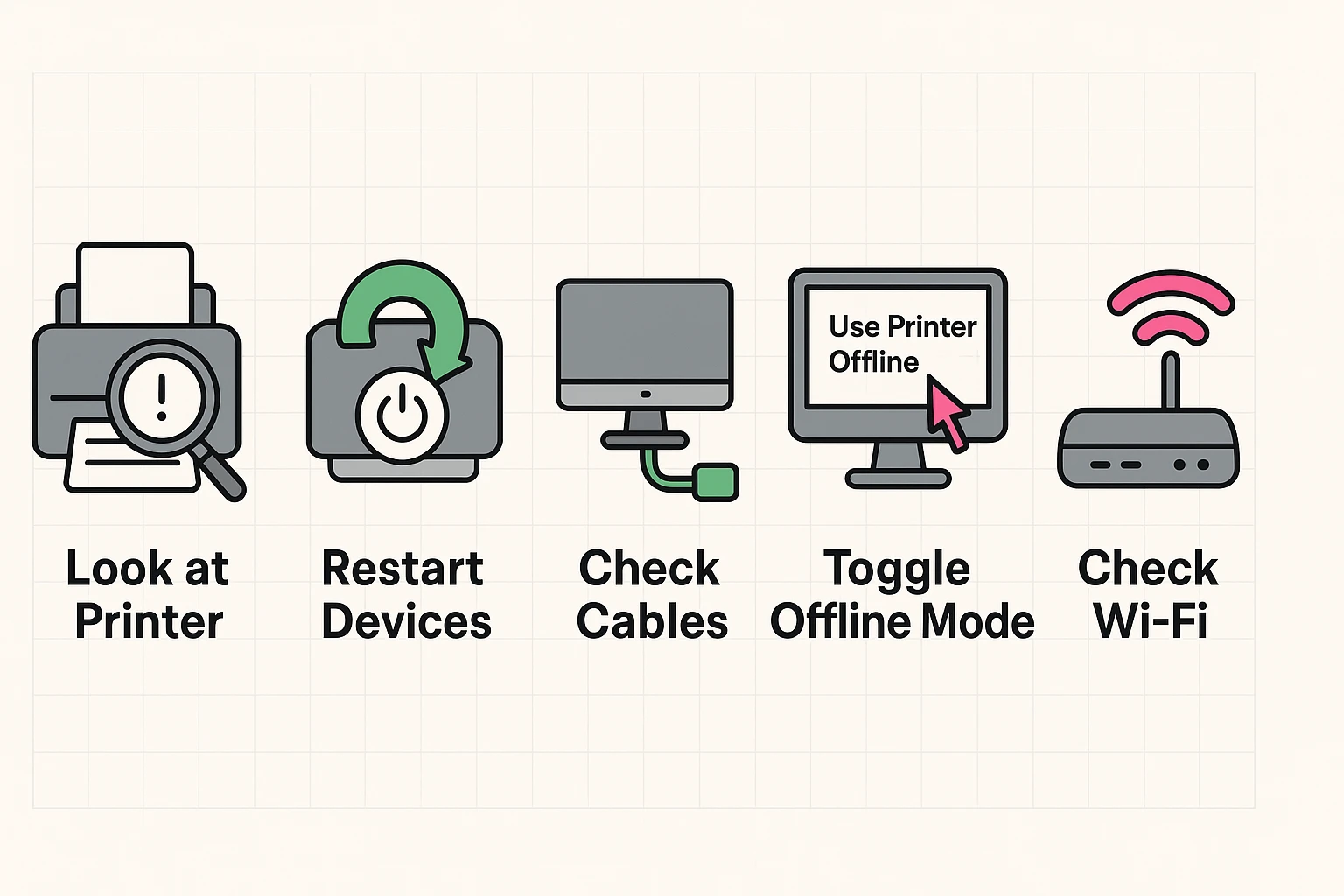
I know, I know. Every tech support person says this, and it sounds like a cop-out. But there is a reason it’s the number one tip: It works.
Computers and printers get tired. Sometimes their internal software gets a little confused—like walking into a room and forgetting why you went in there.
Check your computer screen. Did the status change to “Ready”? If yes, celebrate! If not, let’s keep going.
Sometimes the problem isn’t digital wizardry; it’s gravity. Or a cat.
If your printer connects with a USB cable (that looks like a thick cord connecting directly to the PC):
If your printer is Wireless (Wi-Fi):
This is the most common culprit for the “Plugged in but Offline” mystery. Sometimes, your computer accidentally toggles a setting that forces the printer to stay offline, even when it’s working perfectly. It’s like putting your phone on “Airplane Mode” and wondering why you aren’t getting calls.
Here is how to check it on a Windows computer (don’t worry, it’s painless):
Suddenly, your printer might wake up and spit out the last five things you tried to print.
Imagine a one-lane tunnel. If the first car breaks down, none of the cars behind it can move.
The same thing happens with printing. If you tried to print a document three weeks ago and it failed, that “ghost job” might still be sitting in the line (the queue). Your computer is so focused on trying to print that old file that it won’t let your new boarding pass through.
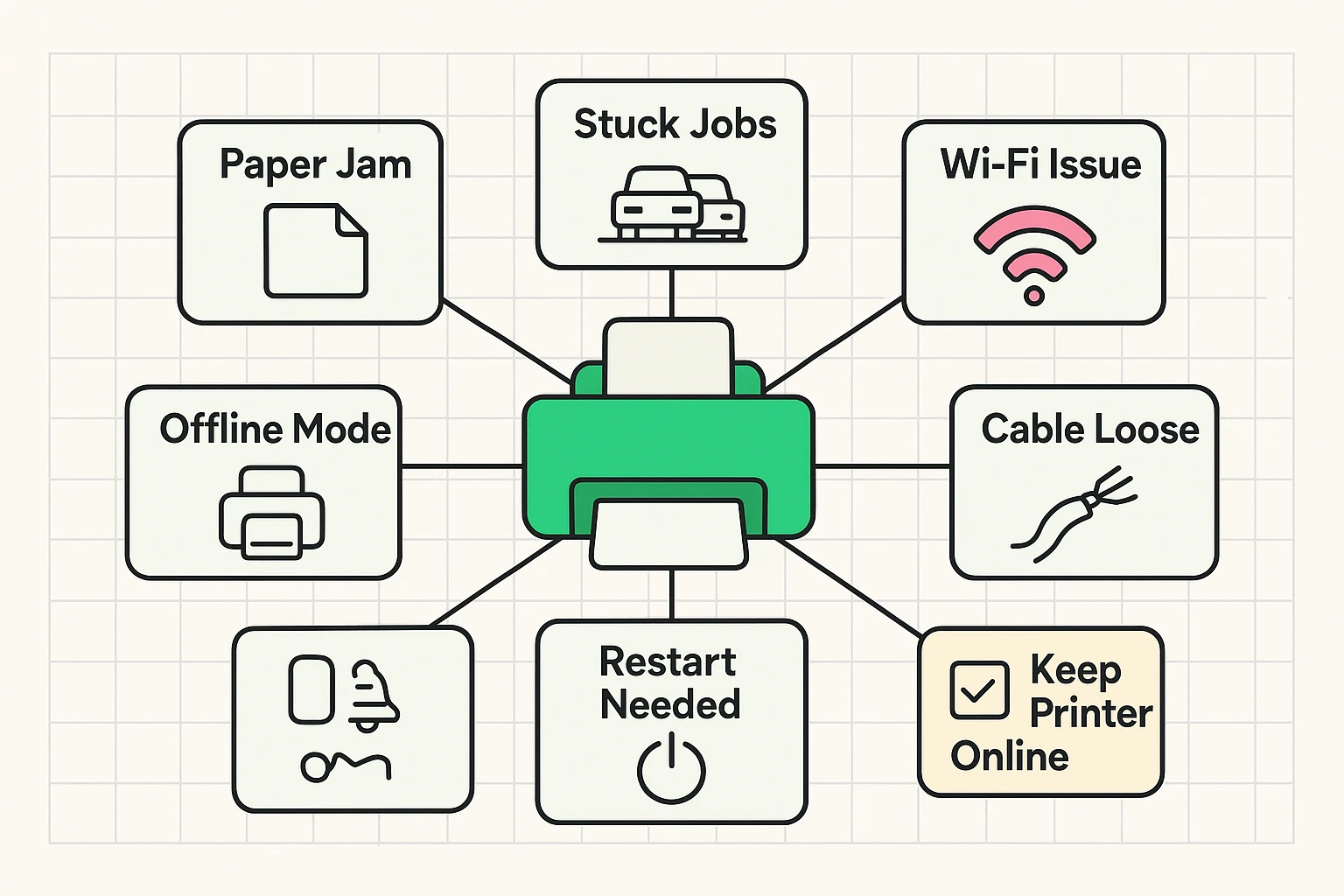
Often, it’s a Wi-Fi issue. If your internet router flickers or restarts, the printer might lose the signal and not automatically reconnect. It’s like falling asleep in a meeting; sometimes you wake up and don’t know what’s going on until someone nudges you (restarts the printer).
Usually, a paper jam will give you a specific “Paper Jam” error. However, some older printers just panic and go silent when they are jammed. It’s always worth opening the lid and checking for crinkled paper.
You might hear this term thrown around by tech support. A “Driver” is just a small piece of software that acts as a translator between your computer and printer. If the steps above didn’t work, visiting the manufacturer’s website (like HP or Canon) to download the latest driver is a good advanced step—but usually, the restart or the “Use Printer Offline” check solves it.
Technology is wonderful when it works, and a test of patience when it doesn’t. Just remember: When your printer says “Offline,” it’s not a death sentence for the machine. It’s just a miscommunication.
Take a breath, check the cords, restart the machine, and verify that you haven’t accidentally told the computer to ignore the printer. You’ve got this. Now, go get that boarding pass printed!