Newsletter Subscribe
Enter your email address below and subscribe to our newsletter

You sit down at your computer with a simple mission: check your bank balance to make sure your latest utility bill cleared. You type in the password you swore you’d remember—was it Fluffy1998! or EatMoreBran$1? Miraculously, it works! But just as you celebrate, the bank’s website demands they text you a “security code.”
You scramble to find your phone, which is currently wedged deep in the couch cushions, only to unearth it just as the six-digit code officially expires. It’s enough to make you want to withdraw everything in pennies and bury it in the backyard.
If this sounds familiar, you are not alone. This extra security step is a universal irritant, right up there with automated phone menus and blister packaging. But the good news is, this minor annoyance is actually the single best way to keep your retirement funds out of the hands of cyber-scoundrels. It’s called Two-Factor Authentication (2FA), and today, we’re going to make it painless.
To understand Two-Factor Authentication, imagine your front door. Your standard password is the regular doorknob lock. It’s okay, but anyone who finds the key (or guesses it) can walk right in and borrow your good silverware.
Two-Factor Authentication is your digital deadbolt. Even if a hacker in a dark basement halfway across the world somehow steals your password, they can’t turn that deadbolt. Why? Because they need a second “key” that only you physically possess.
According to Microsoft security researchers, turning on 2FA stops an astounding 99.9% of automated cyberattacks. That’s a success rate usually only seen in my dog’s ability to hear a cheese wrapper opening from three rooms away.
Many of us avoid setting up this extra layer of security because it feels like a technical chore. Or worse, we live in fear that we’ll accidentally lock ourselves out of our own accounts forever. It’s a valid concern!
But establishing strong auth (which is just a fancy tech term for proving you are actually you when logging in) doesn’t have to mean memorizing more passwords. It also doesn’t mean you have to rely solely on those frustrating, time-sensitive text messages.
There is a much lazier, vastly superior way to handle this. It involves something you never accidentally leave at the grocery store: yourself.
Text messages (SMS) are the most common way banks send 2FA codes. But let’s be honest: the text is small, the clock is ticking, and sometimes the message just gets lost in the cellular void.
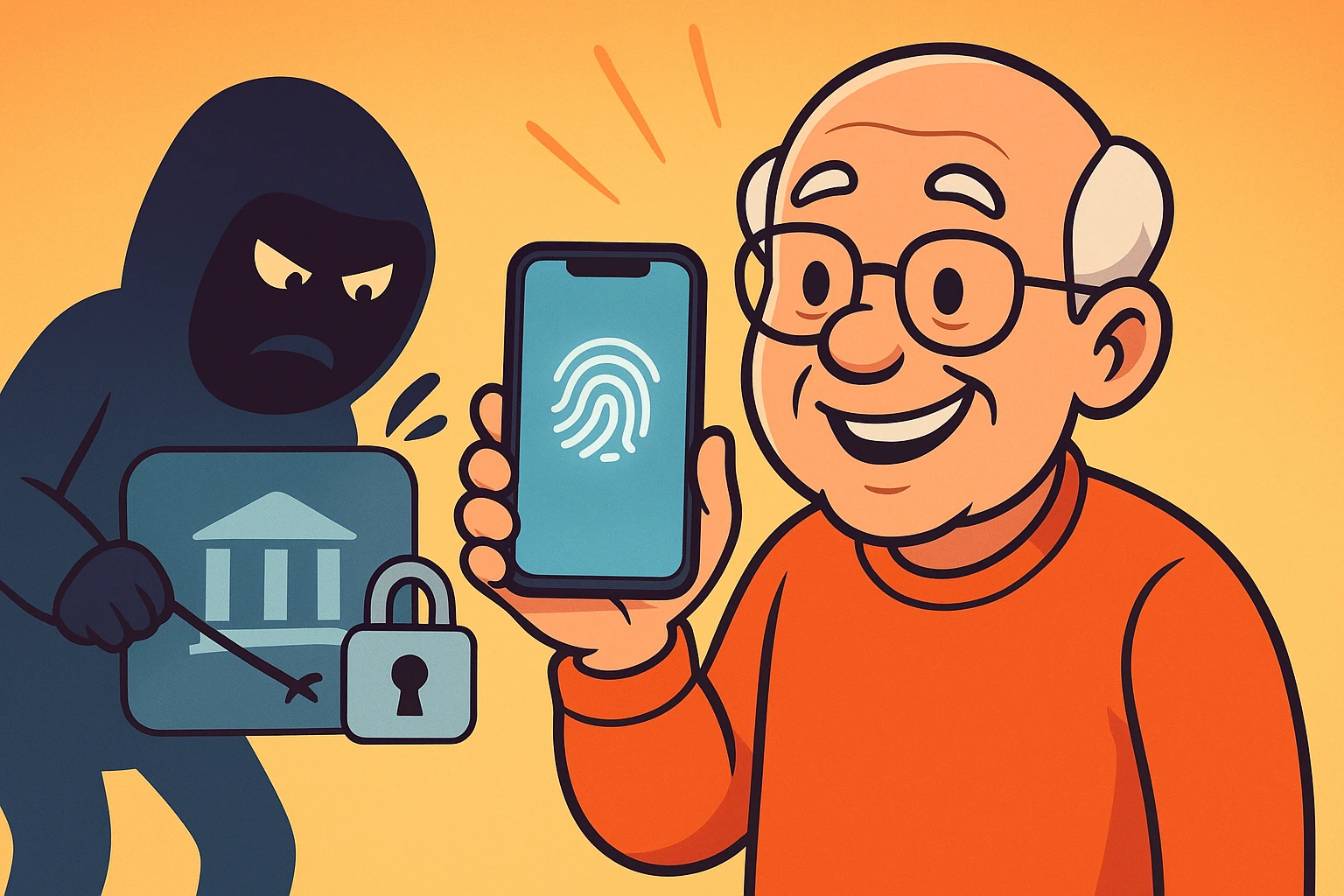
Enter “Biometrics.” This is simply a high-tech word for using your fingerprint (TouchID) or your face (FaceID) as your second security factor. Most modern smartphones and banking apps have this built right in.
Think about it from a hacker’s perspective. They might steal your password in a data breach. They might even figure out a way to intercept a text message. But they are going to have a nearly impossible time replicating your actual thumbprint unless we’re suddenly starring in a Tom Cruise spy movie.
Using your face or fingerprint is the ultimate “lazy” security. You just tap the app, look at your phone, and the bank vault opens for you—and only you.
The biggest hurdle for most folks isn’t understanding 2FA; it’s finding where your bank hid the button to turn it on. Every bank app looks a little different, much like trying to find the restroom in a newly remodeled grocery store.
However, whether you bank with a giant national branch or your local credit union, almost all banking apps use a universal “mental map” for their settings. You just need to know what symbols to look for.
Now, let’s address the elephant in the room: “What happens if I lose my phone? Will my money be trapped in the internet forever?”
This is the single biggest reason people avoid using these security features. The good news is, dealing with a 2 step verification lost phone scenario is completely manageable if you prepare in advance. When you first set up 2FA, most banks will offer you “Backup Codes” or ask for a secondary backup method, like a home landline phone number.
This is where you create what we call a “Recovery Envelope.” Print or write down those one-time backup codes, put them in a physical envelope labeled “In Case of Lost Phone,” and stick it in your filing cabinet or fire safe next to your important documents.
If your phone ever takes a swim in the toilet or gets left in a taxi, you simply open your physical envelope, type in the backup code on your computer, and you’re safely back in your account. No panic required.
Don’t just read this and go back to watching funny cat videos. Let’s take a quick, five-minute action right now to secure your digital wallet.
Grab your smartphone or tablet and open your primary banking app. Navigate to the settings (remember to look for that Gear or Profile icon) and check if biometrics (FaceID or Fingerprint) is turned on for your login.
While you’re in there, double-check that your phone number on file is correct. Even if you use your face to log in, having the correct phone number ensures the bank can reach you if they spot anything fishy on your account.
Absolutely! Most banks allow you to register multiple trusted devices. You can use FaceID to log in on your iPad while sitting on the couch, and use your fingerprint on your smartphone while out running errands.
It’s definitely much better than nothing! While very sophisticated hackers can technically intercept text messages, it takes a massive amount of effort. For the vast majority of us, an SMS text code is a perfectly fine secondary lock.
Never, ever check the box that says “Remember this device” when logging into your bank on a public or shared computer. Always let it ask you for your password and your 2FA code every single time. Treat library computers like public benches—enjoy them, but don’t leave your wallet sitting on them!