Newsletter Subscribe
Enter your email address below and subscribe to our newsletter

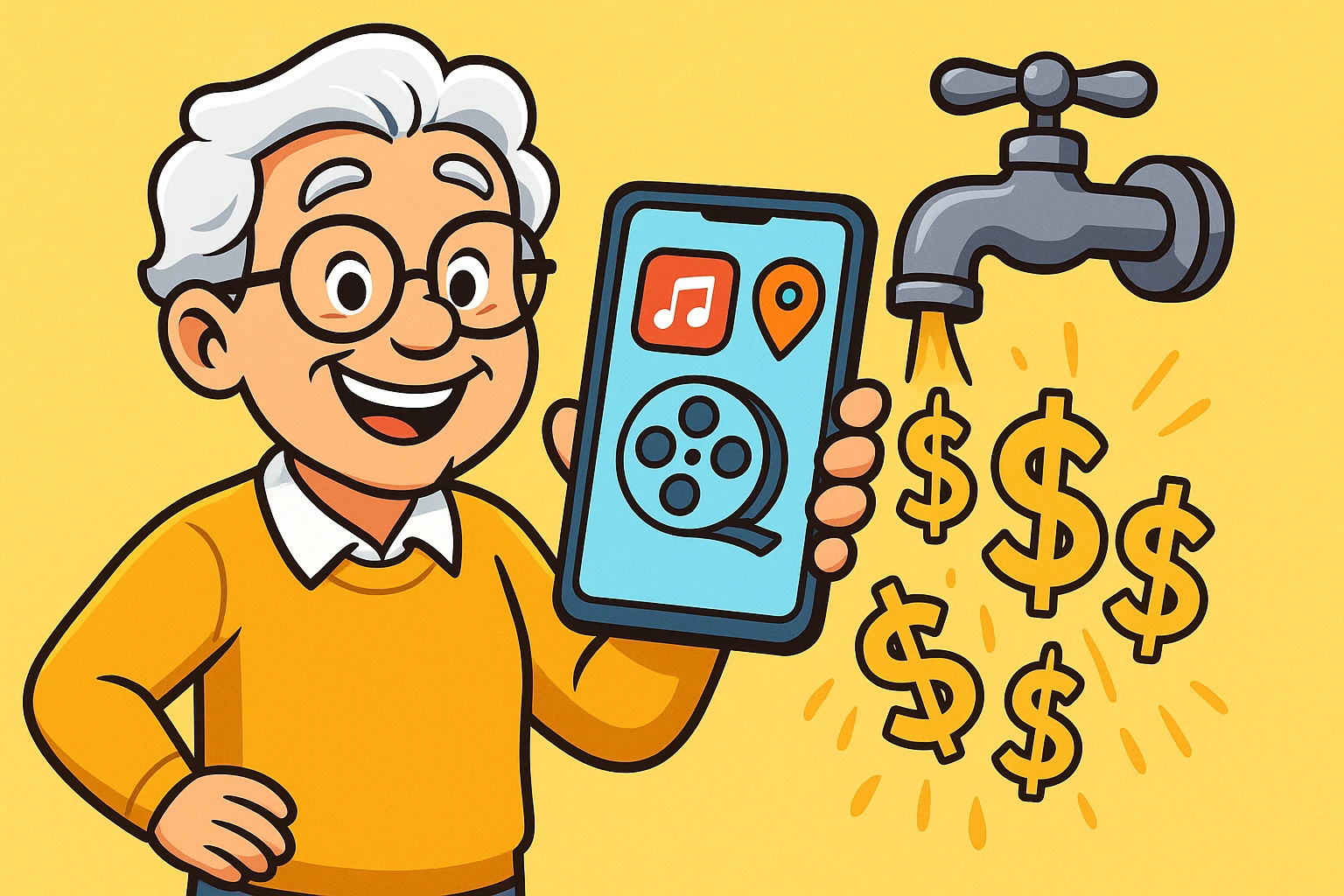
Have you ever opened your monthly cellular bill and felt your heart momentarily stop? You stare at the total, wondering if you accidentally purchased a small island or funded a secret space expedition.
Then, you look closer and realize the culprit: “Data Overage.” You’ve been penalized for the crime of listening to Frank Sinatra on your morning walk or using your phone’s map to find that new garden center.
It feels like highway robbery, right? If this sounds familiar, you are not alone. Mobile data can be a confusing, invisible force. On a limited plan, it can use up your monthly allowance. On an unlimited plan, heavy use may still slow your connection. And when you travel internationally, it can become expensive surprisingly quickly.
But the good news is that you don’t have to live in fear of your phone. You just need to learn the magical art of “downloading for offline.” Think of it as packing a digital lunchbox before you leave the house.
We’re going to show you how to use your home Wi-Fi to load up on maps, music, and movies, so you can hit the road without repeatedly streaming everything over mobile data.
To understand how to save data, we first need to clear up the difference between “streaming” and “downloading.” Tech companies love to use these words interchangeably, which is about as helpful as confusing a fire hose with a water balloon.
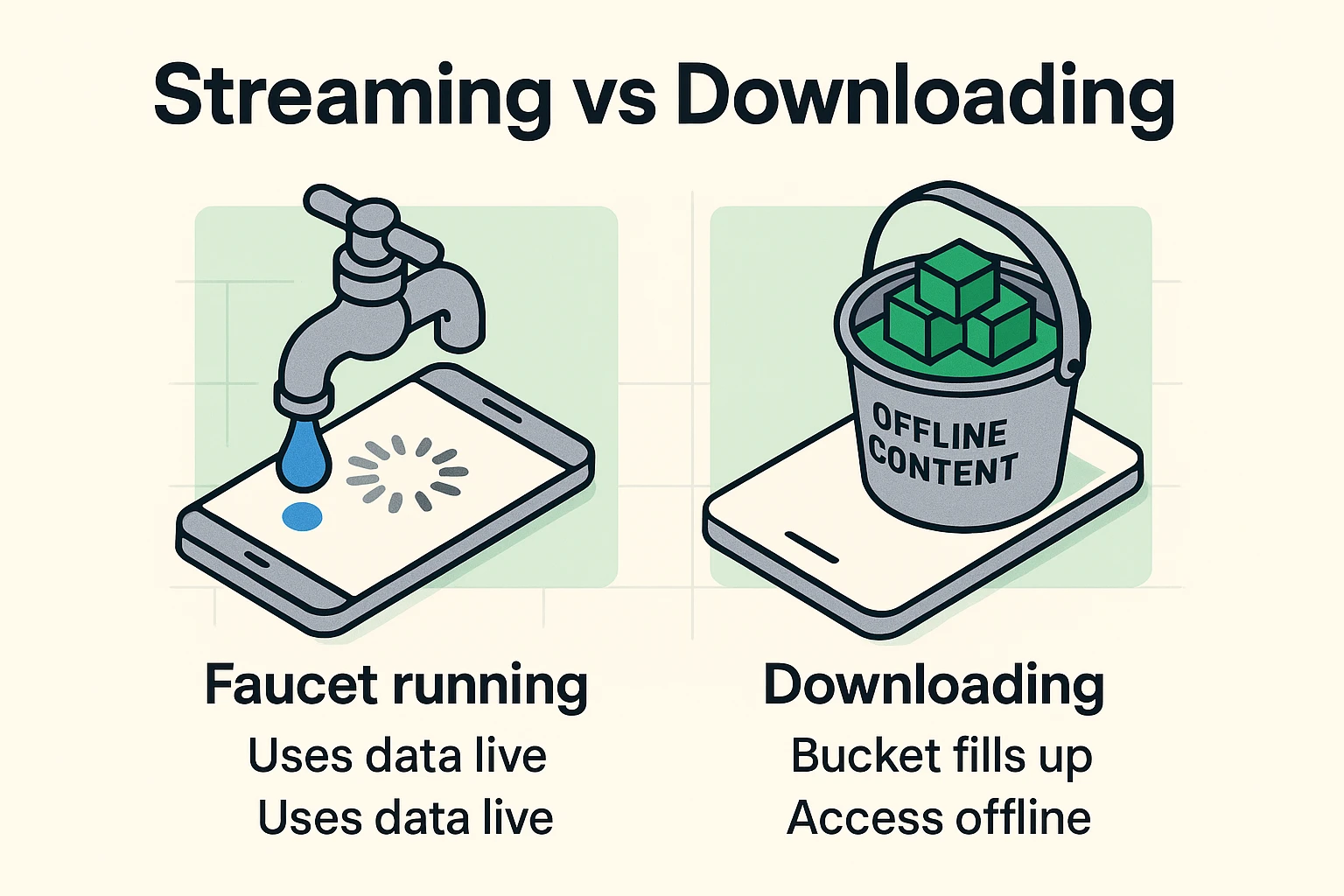
Think of streaming like leaving the kitchen water faucet running. As long as you are listening to music or watching video away from Wi-Fi, that digital water is flowing. It may count against your data allowance, reduce the amount of high-speed data you have left, or cost extra if you are roaming.
This is especially true with internet radio. Many folks think internet radio works just like old-school FM radio, where the airwaves are free. Nope! Apps like Internet shortwave radio or Pandora are data-guzzling faucets.
Downloading, on the other hand, is like filling up a bucket at home where the water (your home Wi-Fi) is already paid for. You fill the bucket, turn off the tap, and take the bucket with you. Once it’s downloaded, you can listen to that music or watch that movie in the middle of a desert without spending an extra dime.
You can also think of downloading like checking out a library book. You take it home on your Wi-Fi, put it on your phone’s digital shelf, and read it anywhere. You never have to go back to the library to flip the pages.
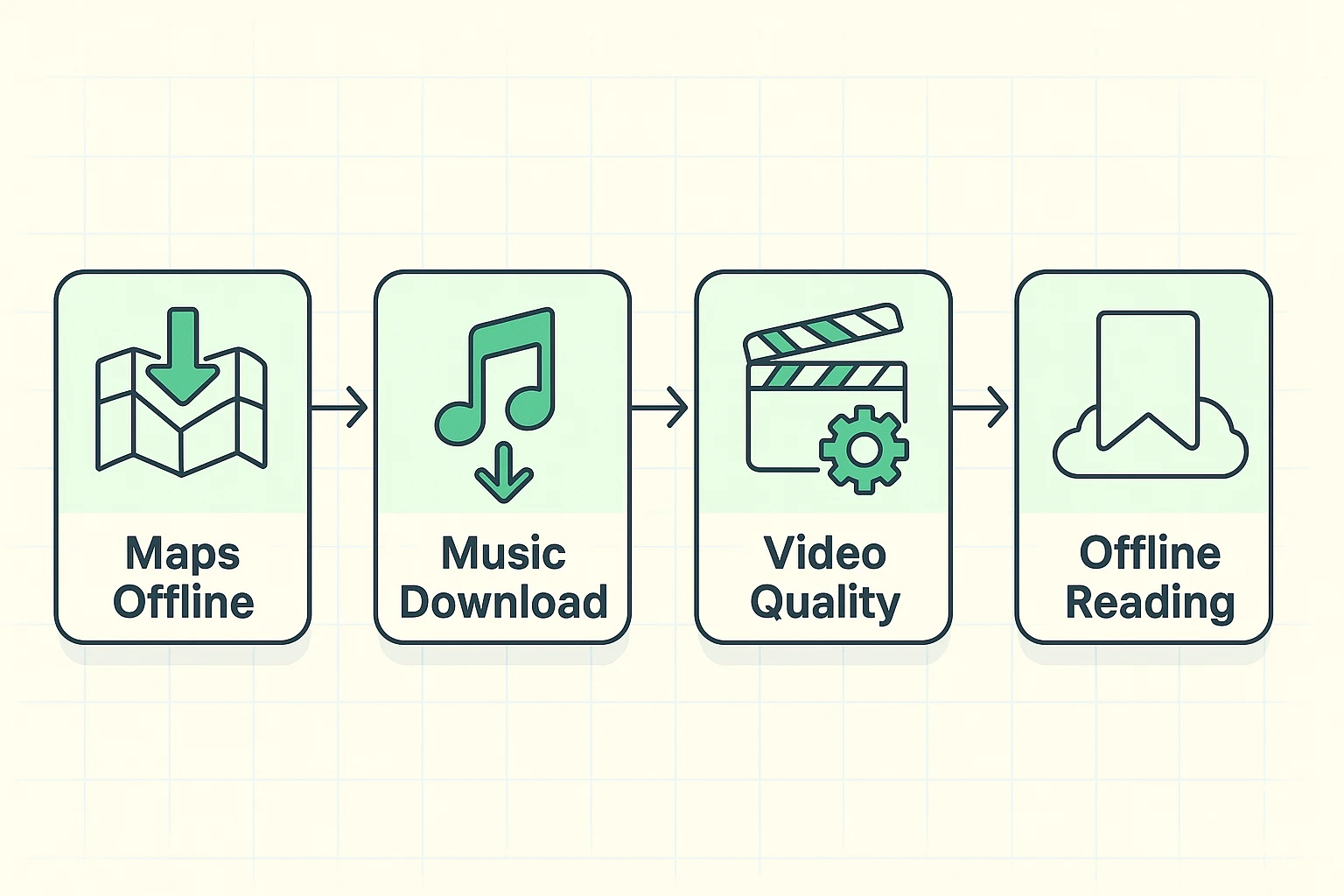
Now that we know we need to fill our buckets at home, let’s talk about how to actually do it. Instead of just telling you to “download stuff,” we’re going to give you the exact steps for the four most important things you’ll want on the road.
There is nothing quite like the panic of driving in an unfamiliar area, only to have your map app suddenly go blank because you lost your cellular connection. You’re left staring at a gray screen while your phone bravely pretends it still knows where you are.
You can prevent this by downloading the area around your route while you’re still sitting on the couch. Open the Google Maps app and tap your little profile picture or initial in the top right corner. Select “Offline maps,” and then tap “Select your own map.”
Zoom out far enough to include your starting point, destination, and the roads between them, then tap “Download.”
Now, even if you drive through a digital dead zone, your phone will know exactly where to go.
We mentioned this earlier, but it bears repeating: internet radio is not FM radio. If you listen to a streaming music app while walking the dog, you are burning through mobile data.
Instead, find your favorite playlist or album on Spotify or Apple Music while you’re connected to Wi-Fi.
You’ll need a paid subscription to download music from either service. Look for the little downward-pointing arrow—that is the universal tech symbol for “download.” Tap that arrow, and wait for it to turn green or fill in.
Congratulations, that music is now safely inside your phone!
Video uses more data than anything else on your device. Watching just one hour of high-definition video on your cellular data is like taking a match to your monthly data allowance.
Before a long flight or a road trip, open the Netflix or YouTube app on Wi-Fi. Find the movie or show you want, and look for that trusty downward-pointing arrow next to the title. YouTube downloads generally require a paid YouTube membership, and not every Netflix title can be downloaded.
Pro Tip: Look in the app’s settings and choose “Standard Quality” for your downloads. High-definition looks great, but it will fill up your phone’s internal storage faster than a grandkid fills up on Halloween candy.
Want to read the news or a long article while waiting at the doctor’s office without using data? You don’t need to print it out on paper like a medieval monk.
If you use an iPhone, open the article in Safari, tap the “Share” button—the square with an arrow pointing up—and select “Add to Reading List.” To make sure those articles are available without internet, go to Settings, tap Apps, tap Safari, and turn on Automatically Save Offline.
On Android using Chrome, tap the three dots in the top right and tap the download arrow. You can now read these pages anytime, internet or no internet.
Sometimes you do everything right. You download your music, you stay off the internet, and your data bill is still inexplicably high. What gives? Your phone might be sneaking out the back door and using data without your permission.
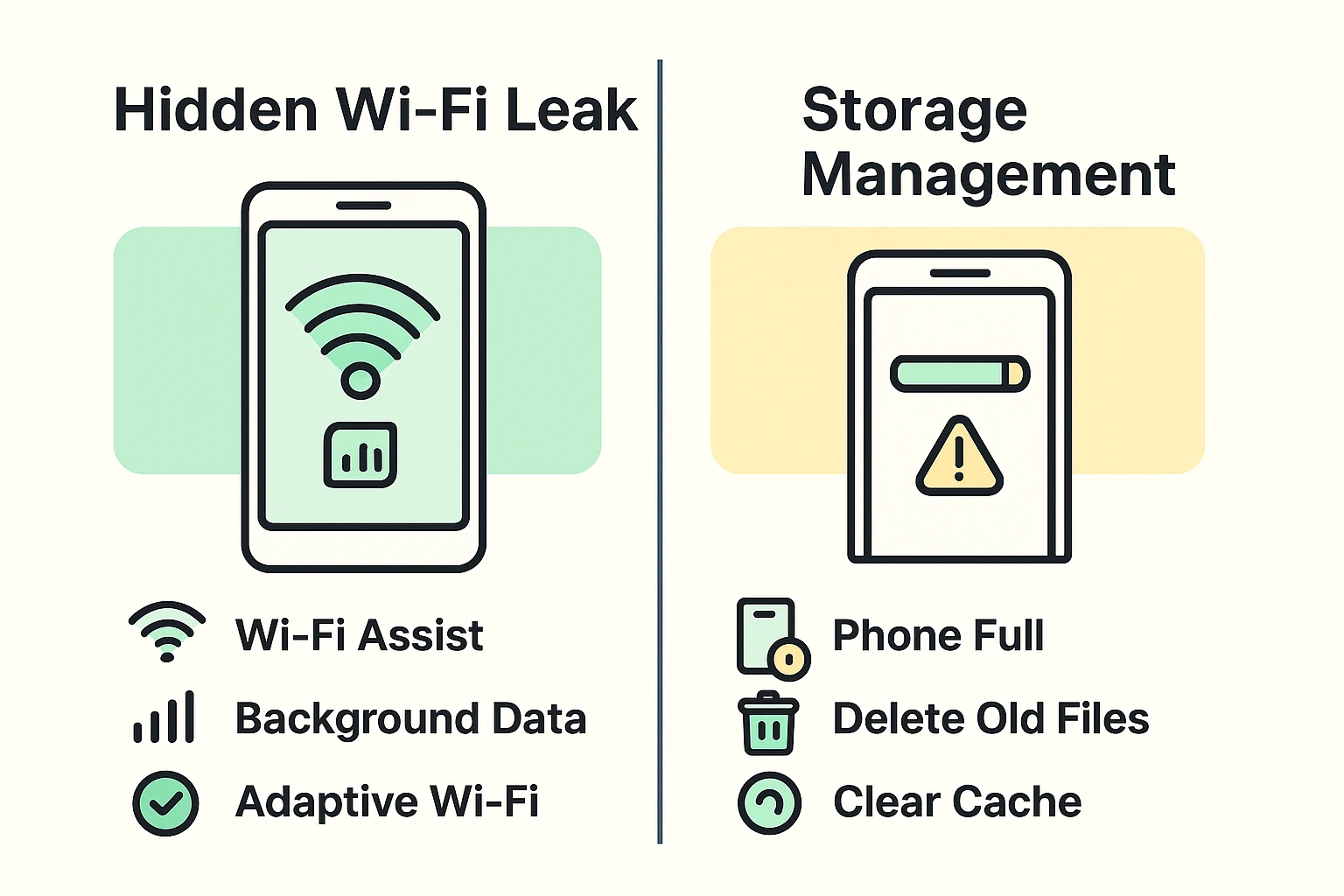
The biggest culprit is a sneaky little feature called “Wi-Fi Assist” on an iPhone. Some Android phones have a similar feature under a different name. On Samsung phones, for example, it is usually called “Switch to mobile data.”
When your home Wi-Fi gets a little weak—maybe because you walked out to the garage—your phone tries to be “helpful” by secretly switching to your cellular data to keep things running fast. It’s like a waiter pouring expensive bottled water into your glass when you asked for tap.
To stop this sneaky behavior, on an iPhone, go to Settings, tap Cellular, scroll all the way to the bottom, and turn off Wi-Fi Assist.
On a Samsung phone, go to Settings, Connections, Wi-Fi, tap the three dots, and look under Intelligent Wi-Fi for “Switch to mobile data.” Other Android phones may use different wording.
Another data thief is “Background App Refresh.” This allows apps you aren’t even using to constantly check the internet for updates. You can find this in your Settings and turn it off entirely, or just for apps you rarely use. Your phone will survive without checking for new throw pillow sales every thirty seconds.
Now, remember our library book analogy? Well, what happens if you just keep checking out library books and never return them? Eventually, your house fills up, and you can’t even open the front door.
The same thing happens to your phone. This is called running out of “Storage.” Every movie, map, and song you download takes up physical space inside your device. If you download ten movies for a vacation, you need to delete them when you get back. Usually, you can do this by tapping that same green checkmark or downloaded arrow and selecting “Remove Download.”
Finally, remember that downloads don’t necessarily last forever. Spotify requires your phone to check in online at least once every 30 days. YouTube generally requires a connection at least once every 29 days. Netflix is less predictable: downloads expire at different times depending on the movie or show.
If you keep your phone offline for a month, your downloads will magically lock themselves. Just connect to Wi-Fi for a few minutes once a month, and your digital books will stay fresh.
Yes, absolutely. Unlike an actual physical shortwave radio or a standard car FM radio, apps that stream radio stations from around the world (like WebSDR) use the internet. If you aren’t on Wi-Fi, they are drinking your cellular data at an alarming rate.
The tech world has mostly agreed on one symbol: a downward-pointing arrow. When you tap it to download, it will usually turn into a solid circle, a checkmark, or change color (like turning green on Spotify). If you don’t see the checkmark, it’s not in your bucket!
No, this is a common myth! Wi-Fi and mobile data are two entirely different things, like a train and a bicycle. You can’t convert one into the other. Wi-Fi comes from a router (usually in a building), while mobile data comes from cell phone towers.
Yes! Putting your phone in Airplane Mode turns off the cellular data connection entirely. It’s the ultimate foolproof way to make sure your phone is only playing the things you’ve successfully downloaded. Just remember, you won’t get phone calls or text messages while it’s turned on.
Taking control of your mobile data doesn’t require an advanced engineering degree. It just takes a little bit of planning and the realization that your home Wi-Fi is your absolute best friend. By filling your digital bucket before you leave the house, you can listen to endless tunes, never get lost, and watch your favorite shows without the fear of a massive phone bill.
So go ahead, grab your device, and try it right now. Download that map of your next vacation spot, save that article for the waiting room, and tuck a movie away for your next long drive. Your sanity—and your wallet—will thank you.