Newsletter Subscribe
Enter your email address below and subscribe to our newsletter

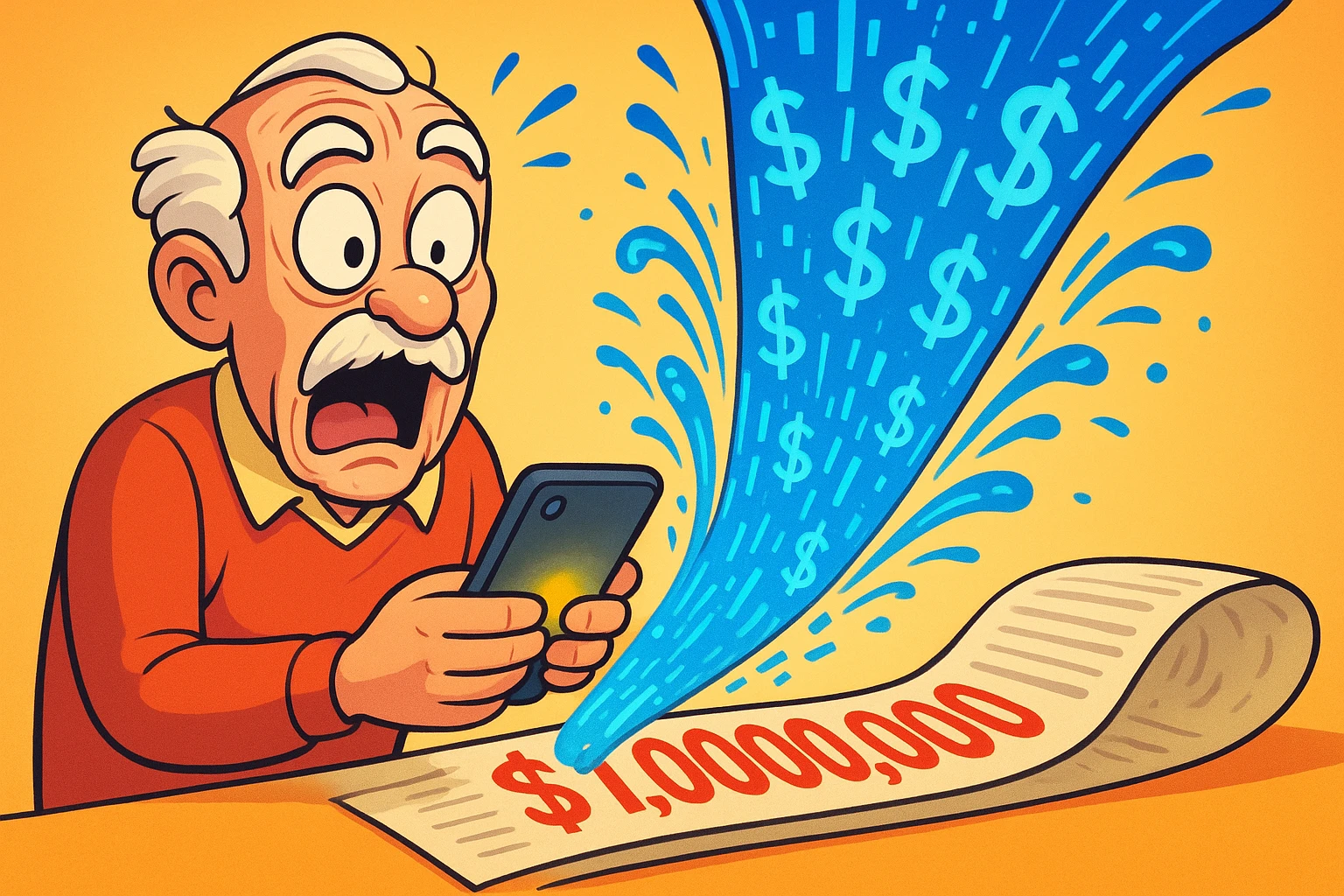
Imagine opening your monthly cell phone bill, expecting the usual $45, only to see a number that looks closer to the gross national product of a small island nation. You frantically think back over the month. Did you accidentally buy a small yacht? Did you mistakenly call Jupiter? No, the culprit is often something far more insidious and entirely invisible: mobile data.
For many of us, smartphone data is like a magical, invisible ghost that lives inside our devices, quietly gobbling up dollars while we’re fast asleep. If this has ever happened to you, you have experienced what experts call “Bill Shock,” which is exactly what it sounds like, minus the actual electricity.
The good news is that you don’t need a degree in computer science to stop this from happening. We just need to teach your phone some manners and put it on a strict allowance.
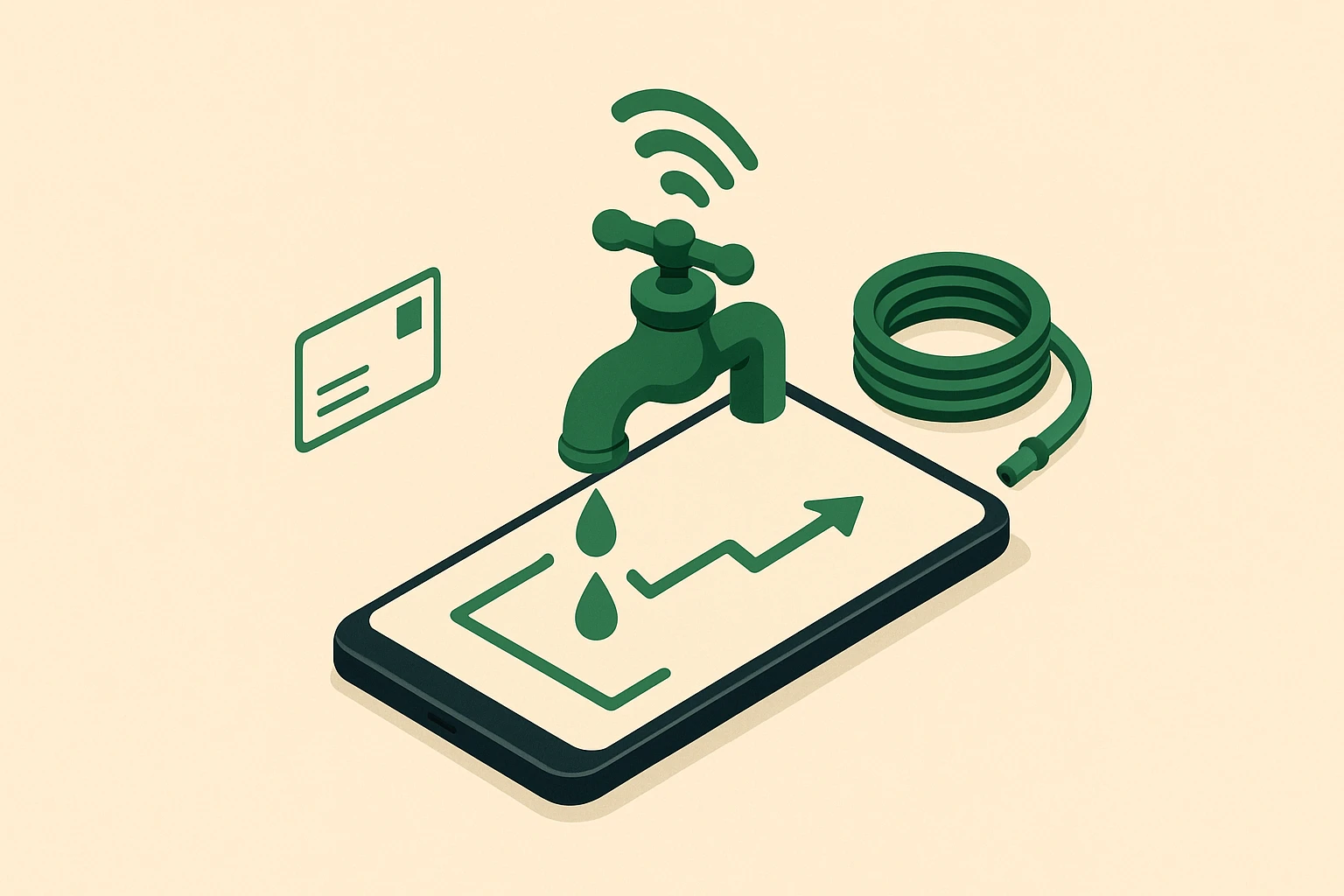
Before we start pushing buttons, let’s demystify what data actually is. Think of your monthly data plan as a bucket of water. Every time you do something on your phone away from a Wi-Fi connection, you are using a hose to drain a little water from that bucket.
Sending a quick text message? That’s like a tiny squirt from a spray bottle. Checking your email? Maybe a quick splash from a teacup. But watching a high-definition video of your grandson’s school play, or streaming a two-hour movie? That is turning on the firehose and blasting the driveway. If your bucket only holds 2 Gigabytes (GB) of water, that firehose will drain it dry before you even finish your popcorn.
But what if you aren’t watching movies? Why is the bucket still draining? This is what I call the “Invisible Drip.” Even when your phone is sitting innocently in your purse or pocket, it is secretly sipping data. It’s checking for new emails, updating your weather app, and keeping tabs on your location. It’s like a leaky faucet you didn’t know you left running.
Then there is the ultimate sneak attack: “Wi-Fi Assist.” This is a feature built into many phones that automatically switches you to cellular data if your home Wi-Fi signal gets a little weak. You might think you’re safely browsing on your home internet, but your phone has secretly decided to start using your mobile data instead. It’s like thinking you’re drinking from the tap, but your phone is secretly ordering expensive bottled water on your tab!
Now that we know the enemy, let’s build our defenses. Depending on whether you use an Android (like a Samsung Galaxy or Google Pixel) or an iPhone, your strategy will look a little different. And I’m going to be completely honest with you here: Android does this much better than Apple.
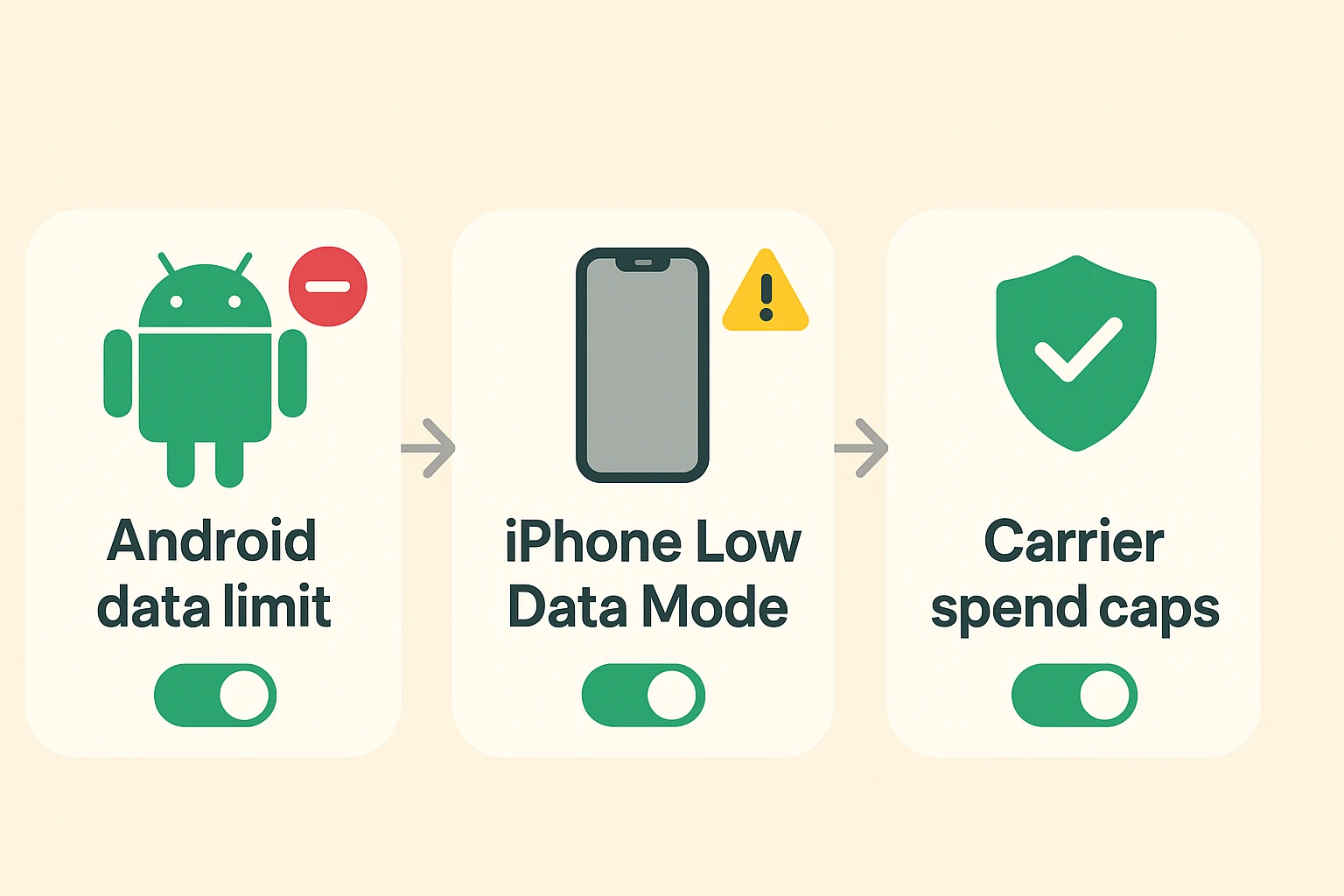
If you have an Android, you are in luck. Android phones have a built-in “hard limit.” This means you can tell your phone, “When I hit 2GB of data, cut me off entirely.” No questions asked, no sneaky overages.
To set this up, go to your phone’s Settings, tap on Connections (or Network & Internet), and then find Data Usage. Look for Billing cycle and data warning. Here, you can set a “Data Warning” (like a polite tap on the shoulder when you’re getting close) and a “Data Limit” (the bouncer who kicks you out of the club when you’ve had too much). Turn that limit on, and you’ll practically eliminate the risk of a surprise bill.
If you are on an iPhone, things are a bit trickier. Apple, in its infinite wisdom, does not include a feature to automatically cut off your data. Instead, they offer something called “Low Data Mode.” This is basically telling your phone to go on a diet, pausing those background “invisible drips” we talked about earlier.
To turn this on, go to Settings, tap Cellular, select Cellular Data Options, and toggle on Low Data Mode. It helps immensely, but remember: it will not physically stop you from going over your limit if you decide to watch an entire season of a TV show at the doctor’s office.
To stop the dreaded “Wi-Fi Assist” on your iPhone, go to Settings, tap Cellular, and scroll all the way down to the very bottom of that screen (way past all your apps). Turn the switch for Wi-Fi Assist to the off position.
Because iPhones lack a true hard stop, and because Android settings can sometimes get turned off by a rogue finger swipe, your best line of defense is actually your cellular provider (like AT&T, Verizon, EE, or T-Mobile). You can log into your account online or call their customer service to place a strict “spend cap” on your line.
If you decide to log in online to set this up, always remember to check their website to ensure you are on the official carrier page and not a convincing scam site. Once safely logged in, look for account controls, usage limits, or family settings to block overage charges.
For our friends in the UK, you actually have the law on your side! Thanks to the Digital Economy Act, telecom providers are legally required to allow you to set a monthly bill limit. If you set your cap at £0 over your monthly plan allowance, the carrier physically cannot charge you a penny more. They have to cut off your data until the next month. It is a fantastic legal shield against bill shock.
To use our bucket analogy, 1GB (Gigabyte) is about 1,000 MB (Megabytes). Practically speaking, 1GB lets you send thousands of basic text emails or browse regular web pages for hours. However, it will only let you watch about 30 to 60 minutes of high-quality streaming video. Video is the ultimate bucket-drainer!
Yes! Your regular voice calls and standard text messages (SMS) run on a completely different system than your mobile internet data. Turning off mobile data won’t stop you from calling your grandkids, chatting with friends, or dialing emergency services.
No. When you are securely connected to a Wi-Fi network (like your home router or the internet at your local library), your phone uses that internet connection instead of draining your cellular data bucket. Just remember to turn off that sneaky “Wi-Fi Assist” feature we mentioned earlier so your phone doesn’t jump ship without telling you.
Taking control of your smartphone’s data doesn’t mean you have to stop using it; it just means you’re putting yourself back in the driver’s seat.
Today, take five quick minutes to dive into your phone’s settings. Turn off Wi-Fi Assist, set up a data warning on your Android, or turn on Low Data Mode on your iPhone. Then, consider calling your carrier to ask about putting a hard spend cap on your account.
A few minutes of preventative maintenance today can save you from a massive headache (and a lighter wallet) next month. You’ve earned your money—don’t let an invisible digital drip steal it away!