Newsletter Subscribe
Enter your email address below and subscribe to our newsletter

By Chris Clark, founder of Senior Tech Cafe
Is mobile banking safe? For most people, yes: a banking app on an up-to-date phone, downloaded from your bank’s official listing and locked with a passcode, fingerprint or face, is safer than a paper checkbook.
You’re staring at your smartphone. Your bank is gently suggesting (which is to say, aggressively badgering you every time you log in) that you download its app. You hesitate. You picture yourself pressing the wrong button and wiring your life savings to a “prince” in a country that doesn’t even exist.
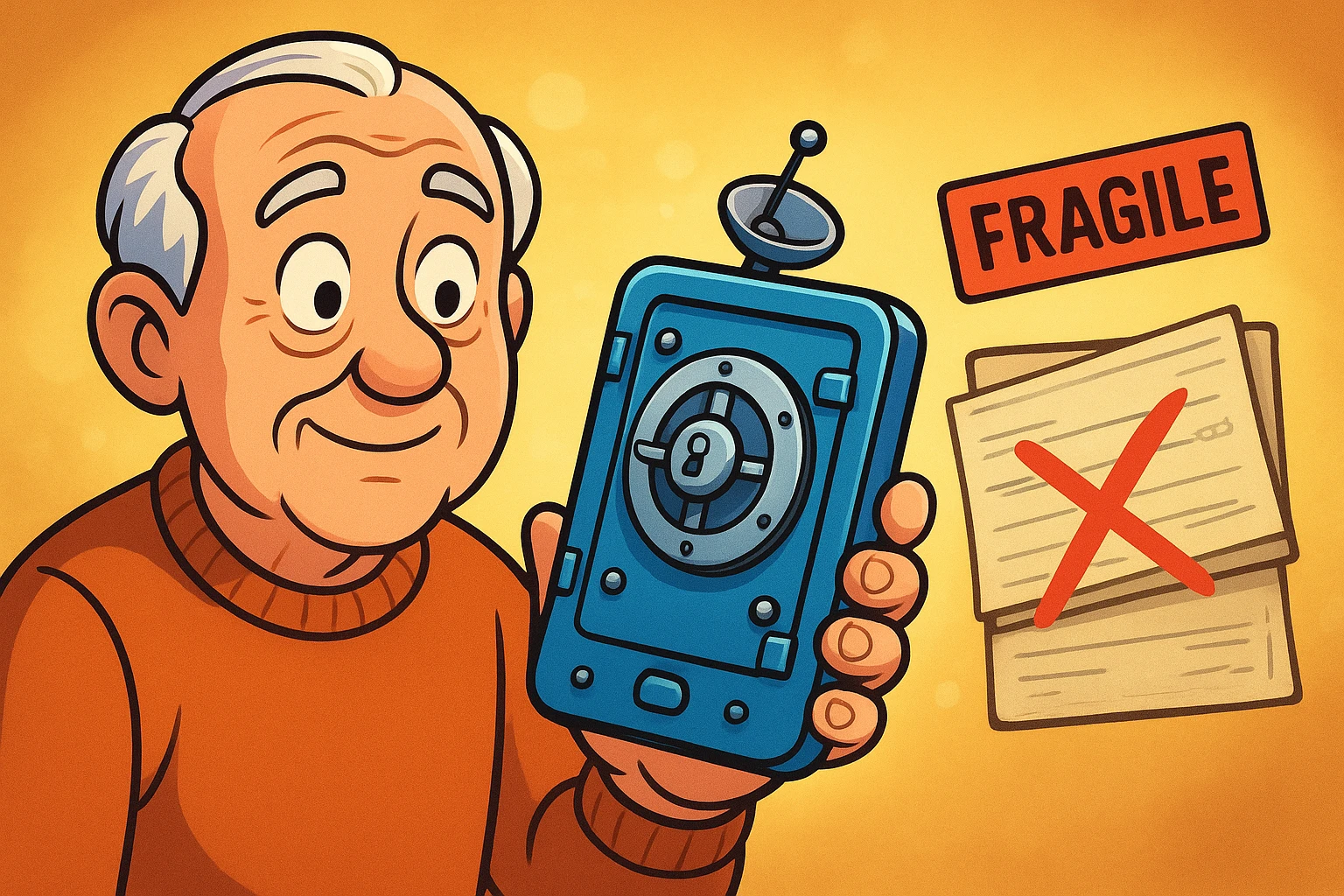
For many of us, carrying our whole bank account in our pocket feels like walking around town with our life savings stuffed into a very fragile, easily droppable glass jar. We grew up trusting thick steel vault doors, paper checkbooks, and bank tellers named Brenda who knew us by name.
But a checkbook has your name, address, routing number and account number printed right there for anyone to see. Leave it at the grocery store, and whoever finds it has most of what they need. Your phone has passcodes, encryption and alarms that Brenda could only dream of. Here’s how they work, in plain English.
When you hear tech companies talk about “bank-level security,” it usually sounds like a lot of buzzwords designed to make you stop asking questions. But the mechanics behind it are actually quite fascinating and easy to understand once you peel away the jargon.
Here are the three main “invisible bodyguards” working to keep your digital wallet safe.
You’ve probably heard of Face ID or fingerprint scanners. This is called biometric login. It sounds like something from a sci-fi movie where a laser scans your eyeballs, but it’s really just your phone checking that you’re the one holding it.
The biggest worry most people have about this is privacy. “Is my bank storing a picture of my face on the internet?” “Can the government see my fingerprints?” The answer is a resounding no.
Your face or fingerprint data never leaves your phone. On an iPhone, it’s locked inside a separate chip Apple calls the Secure Enclave, and Android phones keep it in a similar walled-off area. When you open your banking app, the app basically asks your phone, “Hey, is this the boss?” Your phone checks your face, says “Yep, it’s them,” and unlocks the vault. The bank only ever gets the yes or no.
Say you want to mail a friend your secret family recipe for potato salad on a postcard, but you don’t want the mail carrier reading it. So you write it in a code only you and your friend know. The mail carrier sees gibberish.
That’s exactly what encryption does. When your banking app talks to your bank over the internet, it scrambles your data into an unreadable code. Even if a hacker intercepted the signal while you checked your balance at a coffee shop, all they’d get is a meaningless jumble of letters and numbers.
Have you ever stepped away to make a cup of coffee, come back, and found your bank had logged you out? Typing your password all over again is annoying. You might even curse the machine under your breath.
That annoying feature? It’s actually a smart security measure called a session timeout. Think of it like a spring-loaded deadbolt. If you forget to lock your phone and leave it on a restaurant table, the banking app locks itself after a few minutes of inactivity. The exact time depends on your bank.
One of scammers’ favorite tricks is a fake banking app that looks just like the real thing. Fortunately, spotting a fake app is easier than spotting a bad toupee, if you know where to look. Before you download any financial app, run it through this quick test.
Step 1: Check the developer’s name. In the App Store or Google Play, look right below the app’s name. It should list your bank’s official name. If it says something weird like “Chase Mobile Tools by John Doe,” run away.
Step 2: Look at the review count. A real app from a major bank has hundreds of thousands of ratings, often millions. If the one you’re looking at has 14 reviews and was uploaded last Tuesday, it is not your bank. (A small local bank or credit union will have fewer, which is one more reason for step 3.)
Step 3: Go straight to the source. If you’re ever in doubt, skip the app store search. Go to your bank’s website, typing the address yourself (here’s how to check a website is legit), and use its link to download the official app.
For more red flags, see our guide on how to spot fake apps.
This is the big one. You reach into your pocket or purse, and your phone isn’t there. Panic sets in. You picture a teenager in a hoodie buying a yacht with your checking account.
Take a breath. Your banking app isn’t a pile of cash sitting on the phone. It’s a viewing window into your account, and without your passcode, fingerprint, face or banking password, whoever finds the phone can’t look through it. That’s why the most important setting on your phone is the screen lock, so that even the home screen needs a passcode, fingerprint or face scan.
If the phone does go missing:
If your phone is also where your sign-in codes arrive, losing it can lock you out of your own accounts. Here’s how to handle account recovery when you’ve lost your phone.
One of the most underused features of a mobile banking app is instant alerts. You can have the app send a text or a notification every time money leaves your account, when a purchase goes over a certain amount, or when a transaction happens outside the country. The options vary by bank; look for Alerts or Notifications in the app’s settings.
Alerts are your early warning system. If someone uses your card, you know within seconds instead of at the end of the month. They also help you keep your head when someone calls claiming there’s fraud on your account: open the app yourself and look. If the caller’s story doesn’t match what you see, here’s how to tell whether a bank fraud alert is real.
It’s like having a tiny, incredibly attentive accountant living in your pocket who taps you on the shoulder whenever a penny moves.
Digital wallet safety comes down to one clever trick: the store never sees your real card number. Apple Pay and Google Pay give the store a stand-in number tied to your phone, plus a one-time code for each purchase, and paying normally takes your face, fingerprint or passcode. A thief who steals your phone gets a locked phone, not a working card.
A few related habits for the checkout line and the checkout page:
Banking app security only goes as far as the phone it’s on and the habits around it. These are the ones worth the effort:
Mobile banking is often a little safer than banking in a web browser on a computer. Phone apps are walled off from one another, so a bad app has a hard time reaching your banking app, and phones unlock with your face or fingerprint. Either one is safe if the device is updated and your password is strong.
Some banking apps ask for your location. Some use it to spot fraud, such as a login from a country you’ve never visited, and others use it to find nearby ATMs. You can say no, or turn it off later in your phone’s settings, and the app will still handle everyday banking.
Your banking app is for managing your money: checking balances, paying bills and moving funds. Apple Pay and Google Pay are digital wallets for spending it, at a store checkout or online, without handing over your real card number. Many people use both, and they work side by side on the same phone.
Banking apps encrypt your data, so using one on public Wi-Fi is safer than it sounds. Still, a fake hotspot with a convincing name can cause trouble, so the simplest habit is to switch to your phone’s cellular data when you bank away from home. It costs a sliver of your data plan and removes the guesswork.
If you lose your phone, your banking app stays locked behind your passcode, fingerprint or face, so whoever finds it can’t simply open it. Lock or erase the phone with Find My on an iPhone or Find Hub on Android, call your bank to block access from that phone, and change your banking password.
Technology is only intimidating until someone explains it properly. You don’t need a degree in computer science to bank safely on your phone; you just need to know which deadbolts to lock.
If you haven’t yet, download your bank’s official app using the 3-step legitimacy test above. Don’t worry about learning every feature on the first day. Log in, look at your balance, turn on a couple of alerts, and log out. For everything else on keeping your money and information safe, start with our online safety guide for seniors.
Once you realize that checking your balance from your favorite armchair beats waiting in line behind a guy paying for a cashier’s check entirely in loose change, you might just find you like this whole mobile banking thing after all.