Newsletter Subscribe
Enter your email address below and subscribe to our newsletter

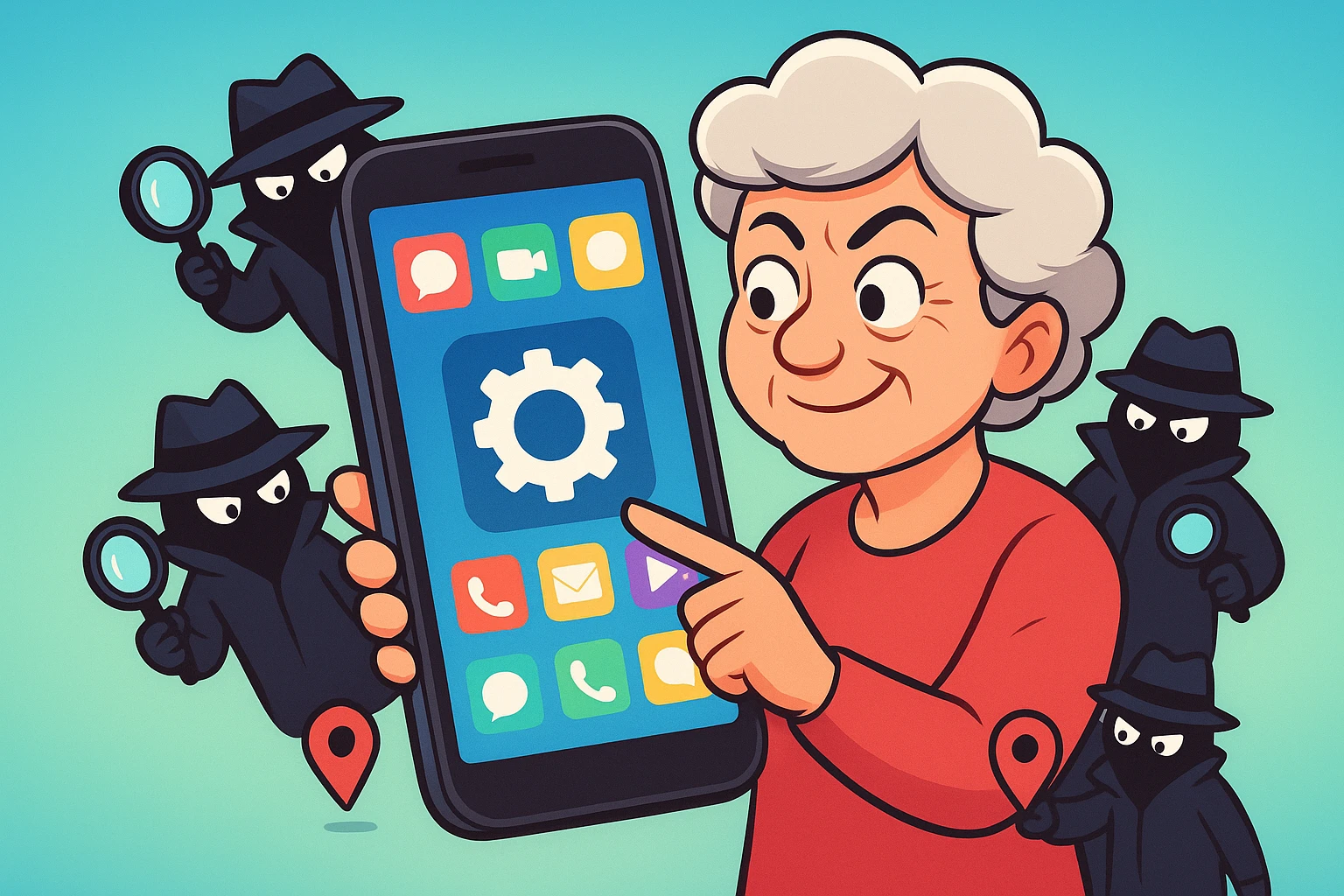
Have you ever visited a garden center to buy a single bag of potting soil, only to come home and find your phone suddenly showing you ads for competitive lawnmower racing? You start to wonder if your phone is psychic. Or perhaps it’s just gossiping behind your back with the neighborhood appliances.
If this sounds familiar, you are not alone. Your smartphone is a brilliant piece of technology, but it also has a bad habit of acting like a digital private investigator. Even when you aren’t actively using certain apps, they can quietly record your movements, creating a detailed paper trail of your daily life. It’s like having an invisible shadow that occasionally tries to sell you things.
The good news is that you don’t need to throw your phone into a river to get your privacy back. Today, we are going to shine a light on these sneaky apps and show you exactly how to turn off background location tracking. We’ll explain the jargon in plain English, walk you through the steps, and help you put your phone back in its place.
To stop your phone from tattling on you, it helps to understand how it gathers the information in the first place. Most people think there is just one “off” switch for location tracking, but there’s actually a “Sneaky Trio” at work here.
First, there are Location Services. This is the main GPS feature that tells your phone where you are on the map. Second is Background App Refresh.
This is the sneaky back window that lets apps update their content in the background. And while it doesn’t directly control location tracking, it can work alongside it to keep apps active even when you’re not using them.
Finally, there are System Services (or Location History). This is where the phone’s underlying operating system keeps a running diary of the places you visit most often. Once you know how this trio operates, stopping them is a piece of cake.
Before we start flipping switches, let’s talk about how closely these apps are watching you. Smartphones now offer a brilliant feature that lets you choose between “Precise” and “Approximate” location tracking.
Think of it as the difference between telling someone what city you live in versus giving them your exact street address. A navigation app like Google Maps absolutely needs your precise location. Otherwise, it might confidently direct you to turn left into a local duck pond.
However, your weather app or that digital Sudoku game doesn’t need to know which specific armchair you are sitting in. Giving them your “approximate” location is more than enough for them to tell you if it’s raining in your zip code.
If you have an iPhone, Apple has actually made it fairly simple to rein in your apps, but a few of the best settings are buried where you might not think to look. Let’s start with the basics.
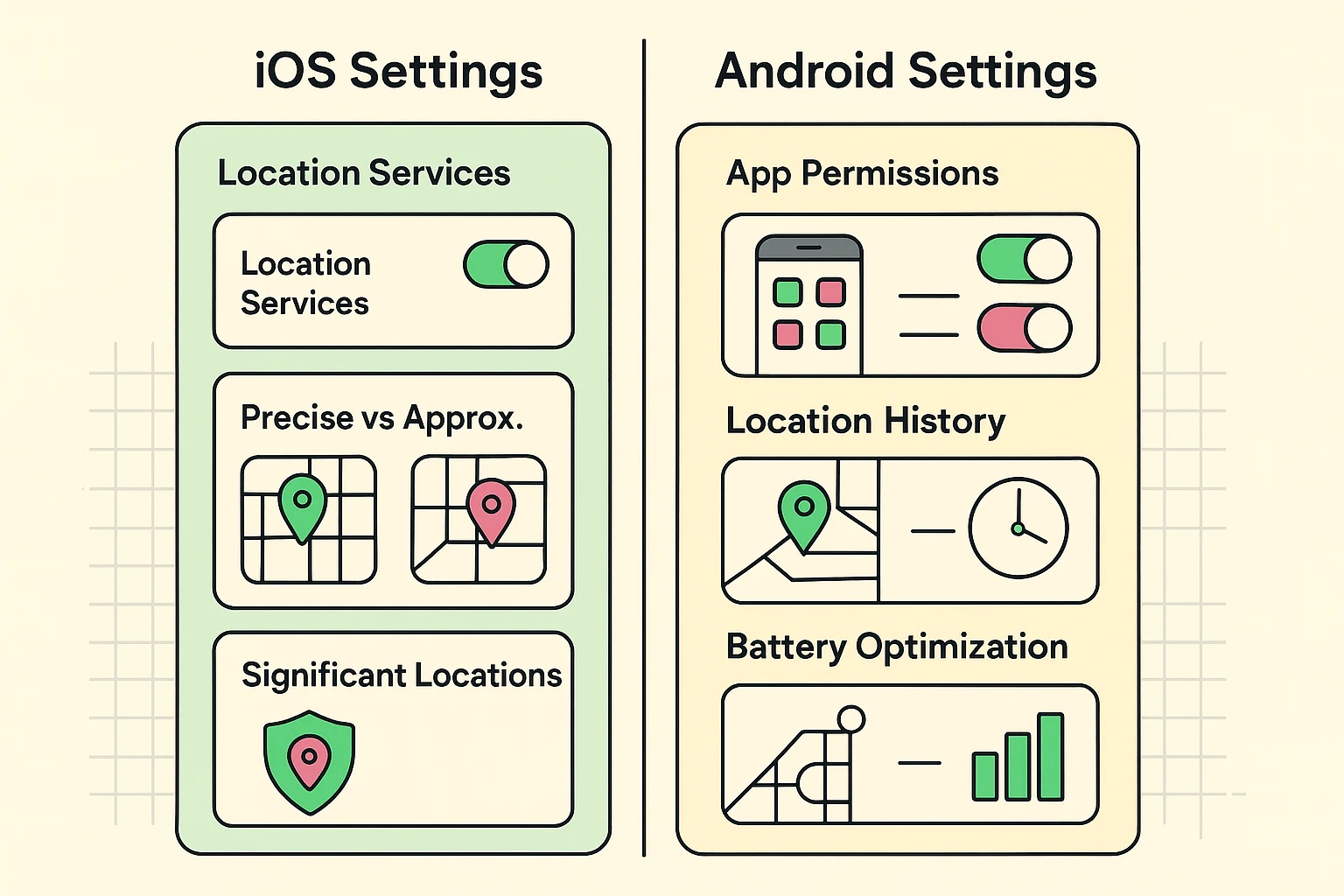
Open your Settings app (the icon that looks like silver gears), scroll down, and tap on Privacy & Security, then Location Services. Here, you’ll see a list of every app that has asked for your location. Tap on any app, and change its access to “While Using the App.” This instantly stops it from tracking you in the background.
While you are looking at an individual app, you will also see a toggle switch for Precise Location. Turn this off for anything that isn’t a map or a ride-sharing service.
Finally, let’s tackle the hidden diary. Go back to the main Location Services screen, scroll to the very bottom, and tap System Services. Scroll down again to find Significant Locations. This feature literally maps out everywhere you go. Turn it off, clear the history, and enjoy your newfound anonymity.
Android phones have menus that can look a little different depending on who made your phone (Samsung, Google, Motorola), but the core steps are just as easy. It all comes down to managing what your apps are allowed to do.
Open your Settings app and look for Location. Tap on App location permissions. Here, you can see which apps are allowed to track you “All the time” versus “Only while in use.” Move every app you can out of the “All the time” category. If you’ve never learned how to give apps permissions, don’t worry. It really is as simple as tapping the app’s name and selecting a new option.
Next, we need to deal with Google’s memory. In that same Location menu, look for Location Services and tap on Google Location History (sometimes called “Timeline”).
This feature keeps a daily log of exactly where your phone travels. You can pause this feature entirely, or set it to automatically delete your history every few months. Your phone doesn’t need to remember that you went to the hardware store three times last Tuesday.
A major reason many of us hesitate to change our phone settings is the fear that we might break something important. It’s a completely valid concern! You might be wondering, “If I turn off location tracking, will 911 still be able to find me in an emergency?”
Take a deep breath and relax. Yes, emergency services will still work. Both Apple and Google have built-in safety overrides. When you dial 911, your phone can share your location with emergency services using built-in safety features, even if you’ve limited location access for everyday apps.
Furthermore, turning off background tracking for individual apps like a flashlight or crossword puzzle won’t affect features like “Find My iPhone” or “Find My Device.” You can lock down your personal privacy without losing the ability to locate a phone that has slipped between the couch cushions.
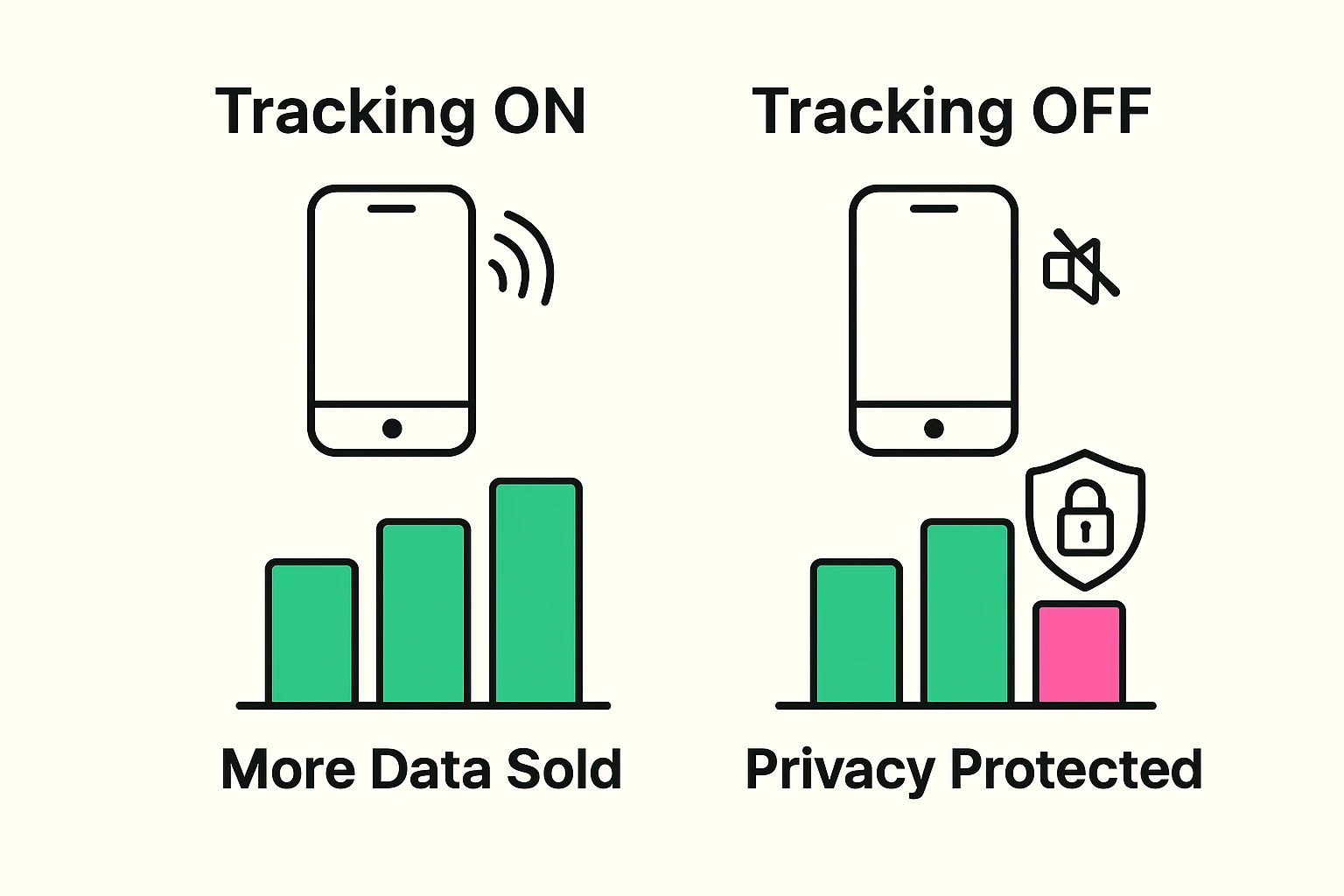
Here is my absolute favorite part about taking control of your location settings: it comes with a fantastic, immediate reward. Background tracking doesn’t just eat away at your privacy; it eats away at your battery life.
Think of background location tracking like a tiny worker inside your phone who is constantly running on a treadmill. Even when your phone screen is dark and asleep, that little worker is sweating away, checking GPS satellites and draining your power.
By turning off background location access, you are letting your phone actually rest when you aren’t using it. Many people find that after auditing their location permissions, their phone easily lasts through the entire day without needing a mid-afternoon charge. It’s a win for your privacy, and a win for your battery!
Absolutely! By setting your map apps to “While Using the App,” they will wake up and give you flawless turn-by-turn directions the moment you open them. When you close the app, they go back to sleep.
Mostly yes, but it’s a blunt instrument. Airplane mode cuts off your phone’s connection to cell towers and Wi-Fi, which stops most data from being sent or received. However, you also won’t receive phone calls or text messages. Adjusting your app permissions is a much better everyday solution.
A good rule of thumb is to do a “privacy audit” every three to six months. Every time you download a new app, it might try to sneak its way into your location permissions, so a quick seasonal checkup keeps things tidy.
You did it! You have successfully taken the digital magnifying glass away from the sneaky apps on your smartphone. You can now go to the grocery store, the doctor’s office, or your favorite secret fishing spot without a dozen different tech companies taking notes.
Take five minutes today to sit down with a cup of coffee and check the Location Services menu on your phone. Start by changing just three apps from “Always” to “While Using.”
Technology should be a tool that serves you, not a spy that monitors you. By understanding these simple settings, you are firmly in the driver’s seat. Now, if you’ll excuse me, I need to go figure out why my toaster is suddenly asking for my Wi-Fi password.