Newsletter Subscribe
Enter your email address below and subscribe to our newsletter


Picture this: You just bought your mom a brand-new smartphone. You hand her the pristine, shrink-wrapped box with a proud smile, fully expecting a joyous, Hallmark-movie moment. Instead, you get a look of sheer terror.
It’s the exact same look she might give you if you handed her a live badger and asked her to teach it algebra.
Thirty minutes later, the joy has evaporated. You’re trying to explain what “the cloud” is, while she accidentally FaceTimes the plumber. You leave feeling like a terrible teacher, and she leaves feeling like modern technology is a giant conspiracy designed specifically to make her feel foolish.
If this sounds familiar, take a deep breath. The problem isn’t her, and it certainly isn’t you. The problem is the handover. Handing a senior a smartphone straight out of the box is like handing a teenager the keys to a space shuttle and saying, “Figure it out.”
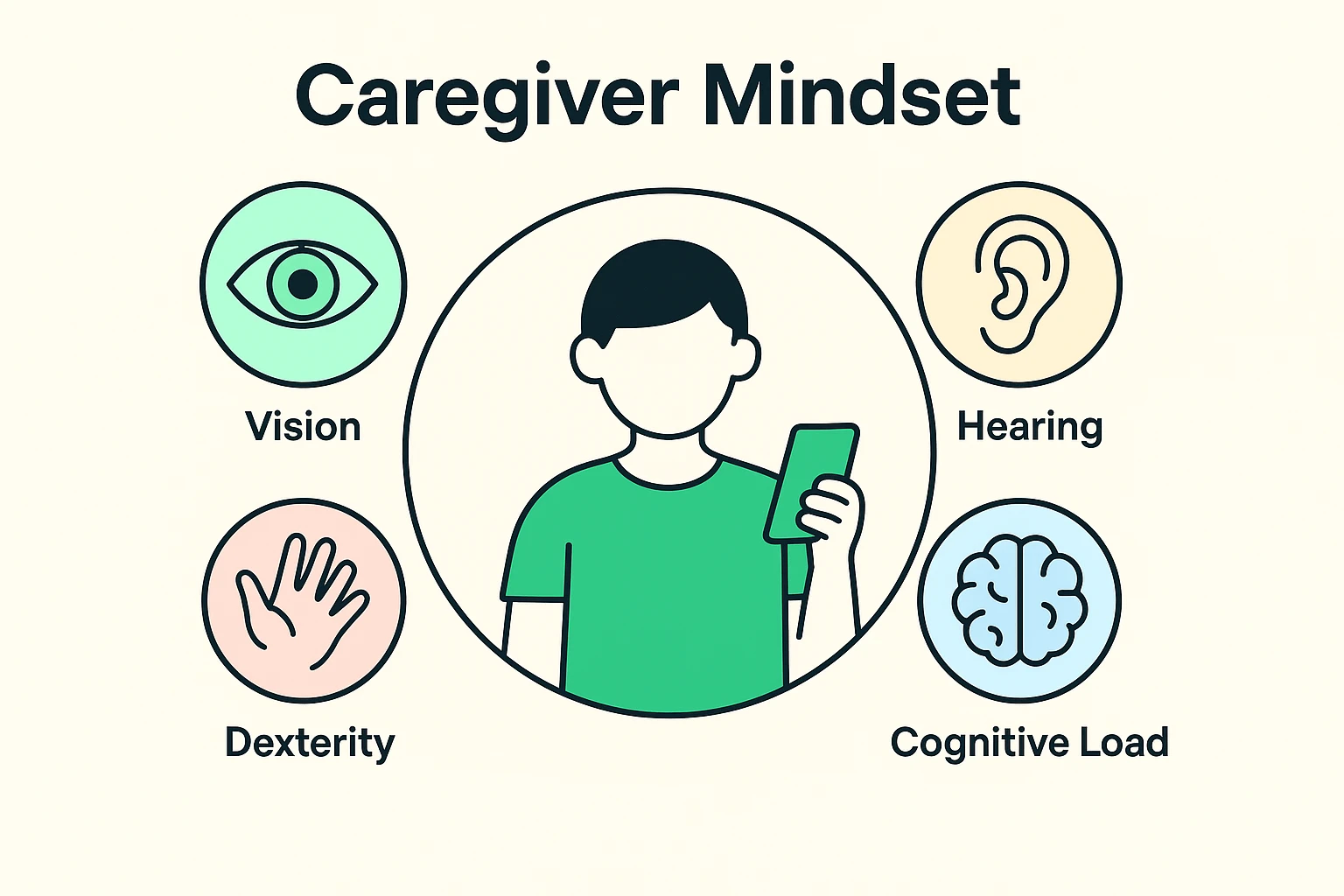
Most tech manuals focus on teaching you where the settings are hidden. But if you’re an adult child or caregiver, your mission isn’t to become an IT professor. Your mission is to achieve the “Zero-Friction Hand-off.”
This means the device should be completely tailored to their physical and cognitive needs before they ever lay eyes on it. You aren’t “dumbing it down” by hiding 90% of the apps. You are optimizing it to reduce cognitive load.
Think about it: Your dad doesn’t need the Stocks app, the Compass, or a complicated swipe gesture to check the weather. By stripping away the digital clutter, you transform a confusing supercomputer into a customized tool for connection, health, and joy.
Before we download a single app, we have to make sure the screen is actually usable. For many older adults, standard smartphone text looks like the fine print on a medication bottle.
First, crank up the text size and turn on “Bold Text” in the accessibility settings. Next, look for a setting called “High Contrast” or “Increase Contrast.” This makes buttons pop out against the background, rather than blending in like camouflage.
Finally, turn on “Reduce Motion.” Modern phones love to use swooping, zooming animations when opening apps. For seniors with sensitive vision or vertigo, these animations can literally make them dizzy. Turn them off for a snappy, straightforward experience.
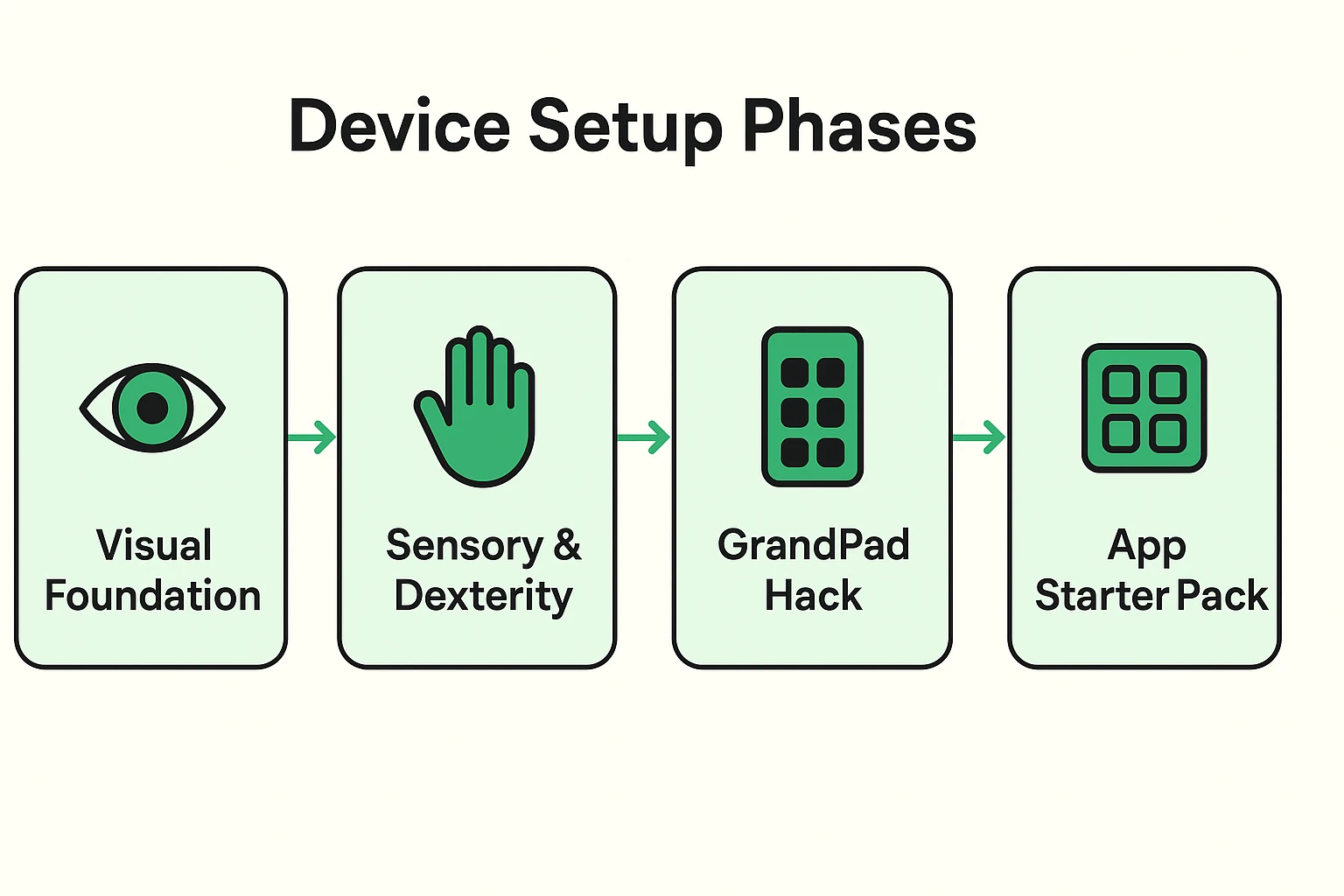
Smartphones are designed for nimble thumbs that text at the speed of light. But for hands that have earned a little arthritis, a touchscreen can be a nightmare of accidental taps and unwanted swipes.
Here is where you perform the ultimate “Confusion Audit.” Turn off complicated swipe gestures. If the phone uses haptic feedback (those little vibrations when you type), turn it off. For seniors with tremors, those vibrations can feel alarming and make the phone harder to hold.
Here’s a quick cheat sheet to match specific ailments with the right digital cure:
If you only take one piece of advice from this article, let it be this: Bypass the Phone app entirely. Teaching a senior to open the Phone app, find “Contacts,” and scroll to a name is unnecessarily complex.
Instead, use “Direct Dial Widgets.” Both Android and Apple let you create large, 2×2 square buttons on the home screen featuring a photo of a person’s face. Tapping your smiling face to call you is a massive “aha moment” that makes intuitive sense.
When it comes to apps, create a curated “Starter Pack.” You want apps for Connection (like FaceTime or WhatsApp), Joy (like an audiobook player or digital photo frame app), and Health. Speaking of health, setting up a reliable medication reminder app on their home screen can be an absolute game-changer for independent living.
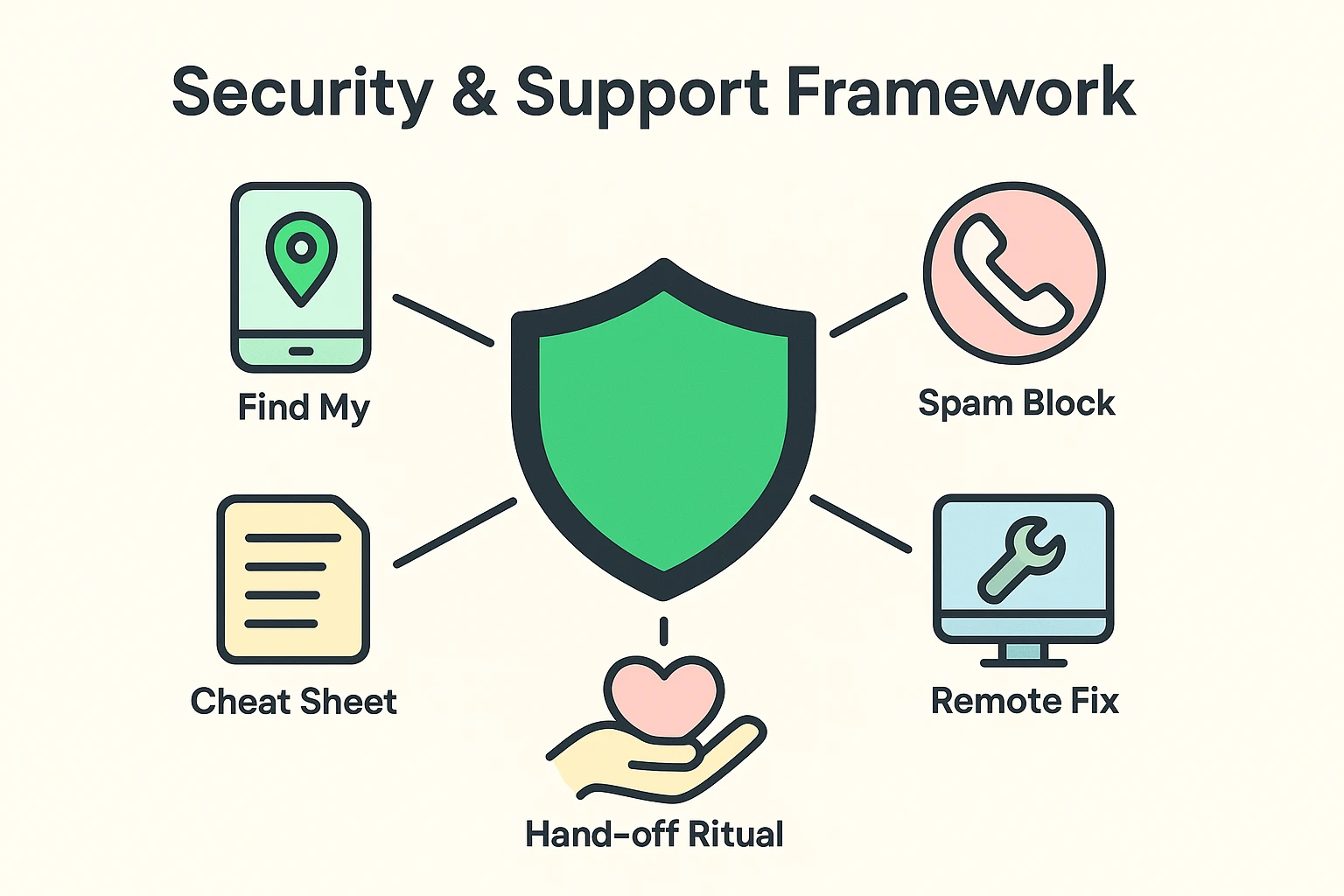
As caregivers, our biggest fear is, “What if the device breaks or they get confused, and I’m not there to help?” Before handing over the phone, we need to set up a digital safety net.
First, turn on “Silence Unknown Callers.” This is the ultimate scam-blocker. If the number isn’t in their contacts, the phone simply won’t ring, routing the spammer straight to voicemail.
Second, make sure their emergency settings are activated. Knowing how to trigger an iphone emergency sos can provide incredible peace of mind for both of you. Finally, consider installing a remote support app like TeamViewer. This allows you to “remote in” from your own house to fix a frozen screen, saving you a frustrating 45-minute drive.
You’ve tweaked the settings. You’ve deleted the clutter. Now comes the actual hand-off. Do not just drop the phone in their lap and run.
Sit down with them over a cup of coffee. Show them the photo widgets. Show them the big text. And most importantly, provide a “Printed Bridge.”
Create a simple, one-page laminated cheat sheet that mirrors their custom home screen. Write down, in plain English, what each button does and what to press if they get lost (usually the “Home” button or a simple swipe up). Having a physical piece of paper to hold onto makes the invisible digital world feel grounded and safe.
Buy whatever you are most familiar with. When they call you at 8:00 PM asking how to turn the volume up, you’ll need to be able to visualize the screen from memory to help them.
It’s all about framing. Don’t frame it as “I want to track you.” Frame it as “If you ever lose this expensive phone at the grocery store, I can use my phone to make it beep so we can find it.”
They can be, but you can actually mimic most of their features on a standard smartphone! By using iOS “Assistive Access” or downloading an Android “Launcher” app, you can turn a regular phone into a simplified, large-button device without paying a premium.
Configuring a device properly takes a little bit of time upfront, but it saves you hours of tech-support phone calls down the road. More importantly, it empowers your loved one to actually enjoy the incredible benefits of modern technology without the frustration.
Technology should work for us, not the other way around. If you’re looking for more plain-English, jargon-free guides to help the seniors in your life navigate the digital world safely, stick around and explore Senior Tech Cafe. We promise to keep the tech-speak to a minimum, and the practical advice front and center.