Newsletter Subscribe
Enter your email address below and subscribe to our newsletter

You just spent a heroic 45 minutes teaching your dad how to open photos on his new tablet. You went over the steps. He nodded. He even double-tapped the screen successfully. You left feeling like the Steve Jobs of family tech support.
Then, the very next morning, your phone rings. It’s your dad. “How do I turn on the picture box again? I pressed the shiny side and it disappeared.” You sigh, realizing you are trapped in a digital version of Groundhog Day. You could have carved a marble statue of the grandchildren and shipped it to him via horse-drawn carriage in the time it takes to explain cloud storage over the phone.
If this sounds familiar, take a deep breath. You are not alone, and more importantly, your parent is not losing their mind. Teaching tech to older adults is a unique challenge that requires a completely different approach. We are going to stop relying on spoken instructions and start building a foolproof system of visual aids.
Before we get to the fix, we need to clear something up: tech forgetfulness is usually a design mismatch, not a personal failing. According to medical professionals who study cognitive health, struggling with a new smartphone is often a “problem-solving” failure rather than a memory issue.
Think about it. Today’s devices are designed by 20-somethings in Silicon Valley who think a tiny icon of three horizontal lines intuitively means “menu.” To anyone over 60, that icon looks like a poorly drawn hamburger. When your mom forgets how to check her email, she isn’t forgetting the concept of mail. She’s struggling to navigate an interface that relies on abstract symbols instead of plain English.
This is where Cognitive-First Instruction comes in. Instead of just giving verbal tech tips, we need to create “External Memory Aids.” These are physical, visual tools that sit right next to the device to bridge the gap between the real world and the digital one.
There’s a big difference between procedural memory and declarative memory. Procedural memory is “muscle memory”—like riding a bike or typing on a physical keyboard. Declarative memory involves recalling facts and steps, like remembering what a cloud icon does.
When older adults learn new tech, relying on declarative memory is exhausting. It’s like taking a pop quiz every time they want to call their grandson. To make tech stick, we have to rely on procedural triggers.
Instead of saying, “Open the communication app,” your guide should say, “Look for the green circle with the white phone inside.” Tying an action to a specific color and shape reduces the cognitive load drastically.
The biggest hurdle for senior tech learners isn’t just forgetting steps; it’s the sheer terror of pressing the wrong button and “breaking the internet.” Panic sets in the moment an unfamiliar pop-up appears on the screen.
To combat this, every teaching session and visual aid should start with the “Home Base” strategy. Teach them where the main “Home” button is and label it as the ultimate emergency exit.
Just like a physical medication reminder helps trigger the daily routine of taking pills, a giant visual aid reminding them to press the Home button triggers a safe return to a familiar screen. Knowing they have an instant escape hatch instantly reduces technophobia.
It’s time to build your parent’s very own Tech Cheat Sheet Library. But before you open Microsoft Word, remember the golden rules of senior-friendly design. You must use a large font size (16 point or higher), high-contrast colors, and clean, sans-serif fonts like Arial or Helvetica.
The crown jewel of your toolkit should be the “Call Family” checklist. This isn’t a paragraph of text; it’s a visual 1-2-3 guide showing exactly what button to press to get human contact.
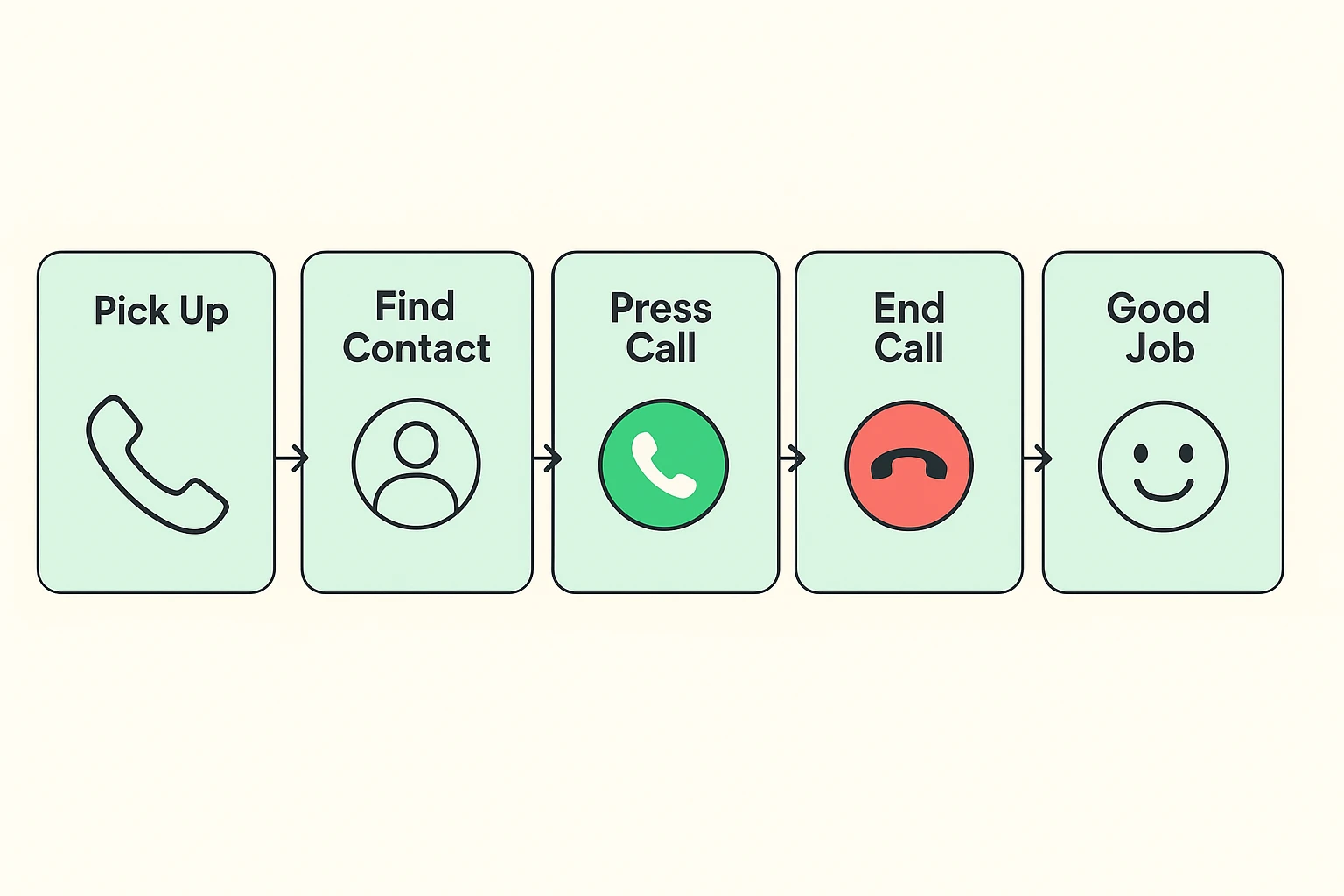
Another incredibly helpful tool is an “If/Then” flowchart. Create a visual decision tree for when things go wrong, like the Wi-Fi disconnecting or the volume muting.
Keep it extremely simple. For example: “Are you seeing a black screen? YES -> Press the button on the top right edge. NO -> Call Dave.” It takes the guesswork out of troubleshooting.
We all know password managers are the safest route, but sometimes seniors need a physical bridge to the digital world. Create a safe, physical “Emergency Tech Access” log.
Print out a heavily lined, large-text document where they can write down their crucial logins. Keep this physical log safely stored in a secure drawer, not taped to the back of the iPad. It gives them peace of mind knowing their digital keys exist in the physical world.
Here is a pro-tip that will save you hours of frustration: do not use generic clip art from the internet for your visual aids. Generic icons look nothing like the actual buttons your parent is staring at.
Instead, take a clear photograph of their specific tablet, phone, or remote control. Print that photo out and draw big, thick red arrows pointing to the exact buttons they need to press.
If they want to eventually explore fun digital hobbies, like writing their life story using memoirmaker.ai, you can create a custom printed photo showing them exactly where to click on their specific laptop screen. It makes the abstract beautifully concrete.
As the designated tech helper, you need to follow a strict protocol yourself. First and foremost: keep your hands off their device.
It is incredibly tempting to just grab the phone out of your mom’s hands, quickly tap four menus deep, and hand it back saying, “There, fixed it.” Doing this teaches them absolutely nothing and reinforces the idea that the machine is too fast and complicated for them.
Use positive reinforcement, exercise ridiculous amounts of patience, and let them press the buttons themselves. Celebrate the small victories, even if it’s just successfully finding the volume button.
To really understand why generic guides fail, you have to look at the difference between text and visuals. A bad guide says: “Navigate to settings, select Wi-Fi, and choose your network.”
That is useless to someone who doesn’t know what “navigate” means in a digital context. A good guide relies on Icon-Matching. It shows a picture of the gear icon, an arrow, and a picture of the Wi-Fi fan symbol.
Handwritten text lists rely on declarative memory, which is harder for seniors to access when stressed. Visual aids, utilizing color and exact photos of their device, trigger procedural memory and are much easier to follow independently.
Stick to high-contrast colors with clear meanings. Use bright green borders for actions they should take (“Go” or “Call”), and thick red borders for safety callouts or things they should avoid (“Stop” or “Never share your password”).
If you have created clear, custom visual aids and they still cannot master the “Home Base” emergency exit strategy after a few weeks, the interface might be too complex. At that point, it may be time to look into adaptive devices specifically simplified for senior use.
Teaching your parent to use modern technology doesn’t have to end in tears and a sudden urge to throw an iPad out the window. By shifting your approach from verbal instructions to customized, visual memory aids, you empower them to learn at their own pace.
Take five minutes today to snap a photo of their most frustrating device. Print it out, grab a thick red marker, and draw an arrow to the single most important button they need.
Tape it to their refrigerator or next to their favorite chair. You’ll be amazed at how quickly “the picture box” suddenly makes perfect sense.