Newsletter Subscribe
Enter your email address below and subscribe to our newsletter

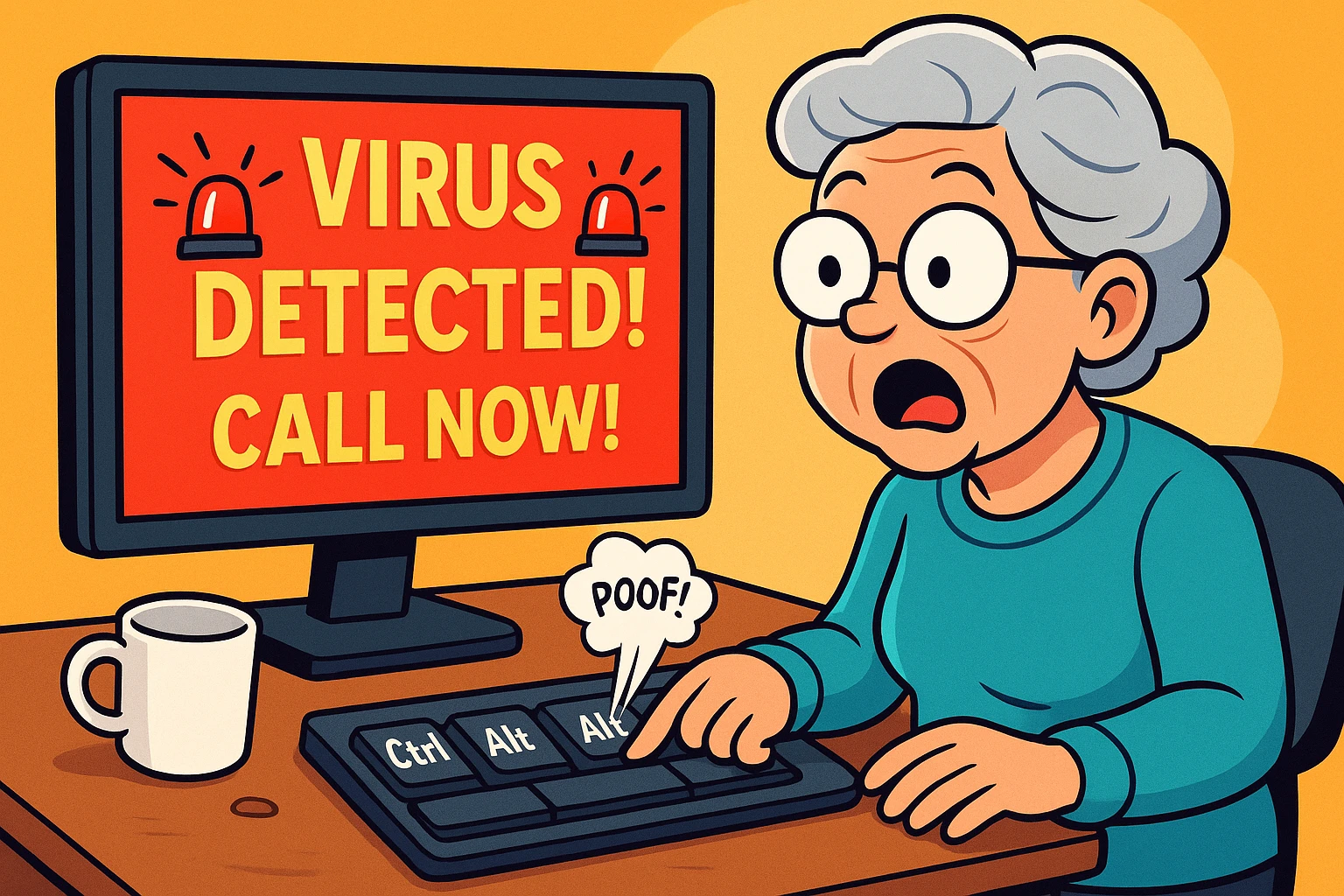
There you are, minding your own business. Maybe you’re looking up a recipe for pot roast, or trying to figure out what your grandkid meant when they texted you “bruh.”
Suddenly your screen turns bright red. A siren starts blaring through your speakers like you just launched a nuclear missile. A robotic voice announces that your computer has been infected by a super-virus, the FBI is on the way, and your hard drive will explode in five seconds unless you call an 800-number immediately.
It’s enough to make you spill your coffee and consider throwing the computer out the window. If this has happened to you, take a deep breath. You are not alone, and in most cases, your computer is not actually broken.
What you’re looking at is the digital equivalent of a carnival barker with a megaphone standing on your front lawn, screaming that your roof is caving in. They want you to panic. Today, we’re going to teach you how to turn off their megaphone, shut the blinds, and get back to your pot roast.
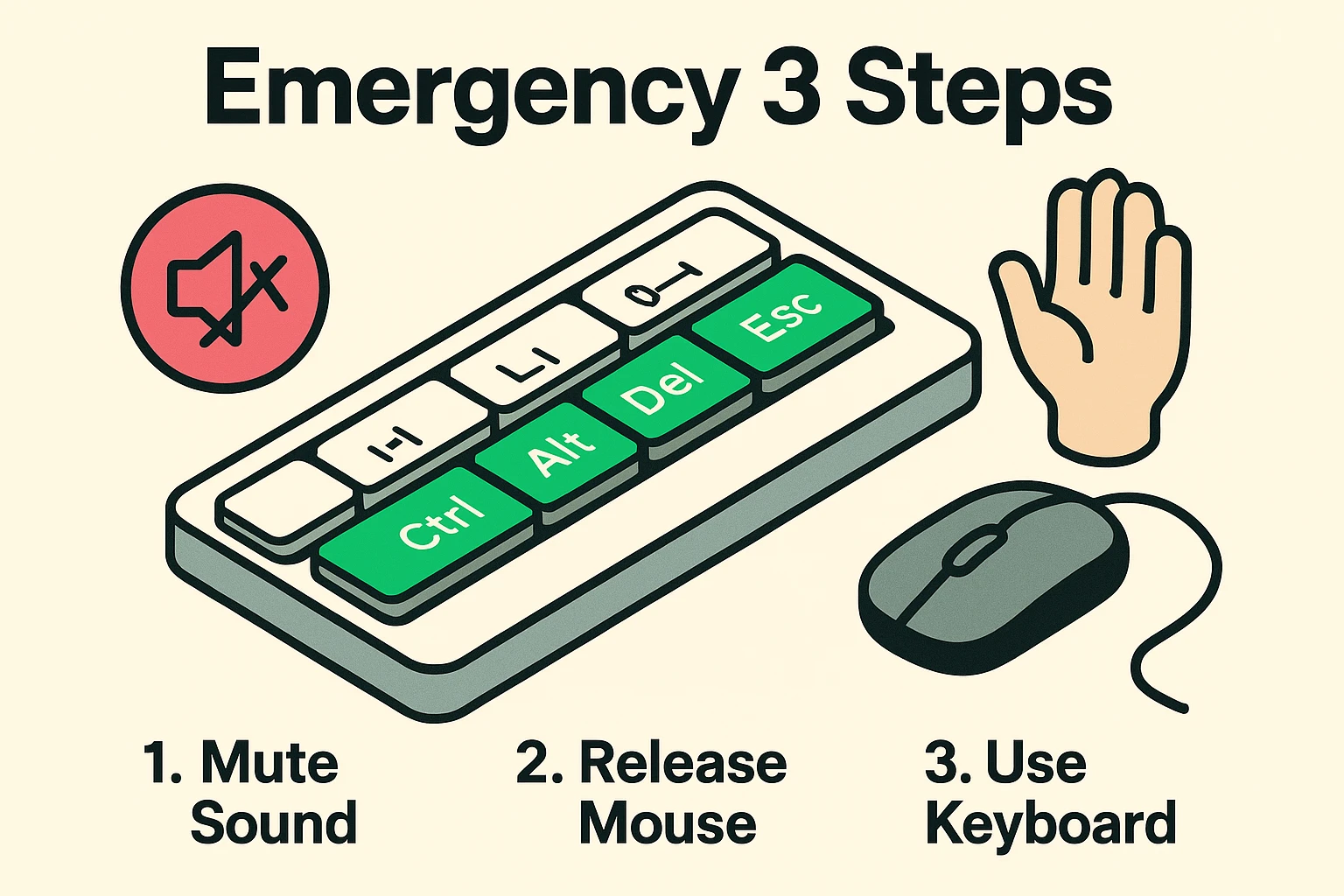
When the sirens start, your brain jumps straight into fight-or-flight. You try to click the little “X” to close the window, but your mouse feels trapped. You click everywhere and nothing happens. That’s by design.
Step one is sensory management. Reach over and mute your computer’s volume, or just switch off your external speakers. Ah, silence. Doesn’t that feel better? Your panic level drops by half the moment a robot stops shrieking at you.
Step two is just as easy: take your hand off the mouse. The scammers have hijacked your full-screen browser to build what we’ll call a “Mouse Trap.” The more you click, the more confusing pop-ups appear to lock you in. Step away from the mouse, because we’re going to make our escape with the keyboard.
The scammers are betting you don’t know there’s a quiet exit. There is. Let’s use it, gently at first.
Try the Esc key first. A lot of these screaming pages are just an ordinary website blown up to cover your entire screen, like a movie going full-screen. Press the Esc key in the top-left corner of your keyboard. That often shrinks the page back to normal and brings your tabs and buttons back, so you can simply close the bad tab (click the little X on the tab, or press Ctrl + W on Windows / Cmd + W on a Mac).
If Esc doesn’t do it, escalate. On a Windows computer, try Alt + F4 (hold Alt, tap F4). That closes the window you’re staring at. Still stuck? Press Ctrl + Alt + Delete all at once. A menu screen appears… click “Task Manager,” find your web browser (Edge, Chrome, whatever you use) in the list, and click “End Task.” Poof. Gone.
On a Mac, the magic combination is Command + Option + Escape, which opens the “Force Quit” menu. Select your browser (like Safari) and click “Force Quit.” Just like that, the bad guys vanish.
A word on the power button: holding it down to shut the whole machine off should be your last resort, not your first move. It usually works, but you might lose anything you hadn’t saved. Try the keyboard tricks above first… they’re faster and a lot less drastic.
Right now you might be thinking, “But the screen said my hard drive was infected. How did they know?” Short answer: they didn’t. They took a wild guess and hoped you’d panic.
Think of a website like a window on your house. When you visit a page, the people behind it can wave at you through the glass. But they can’t climb in and start rifling through your safe… your private files… unless you open the front door and invite them inside.
These terrifying pop-ups are basically scary posters taped to the outside of your window. As long as you didn’t call the number, download anything they offered, type in personal information, or let someone take remote control of your computer, the pop-up was just a loud, obnoxious webpage. Close it, and you’re almost certainly fine.
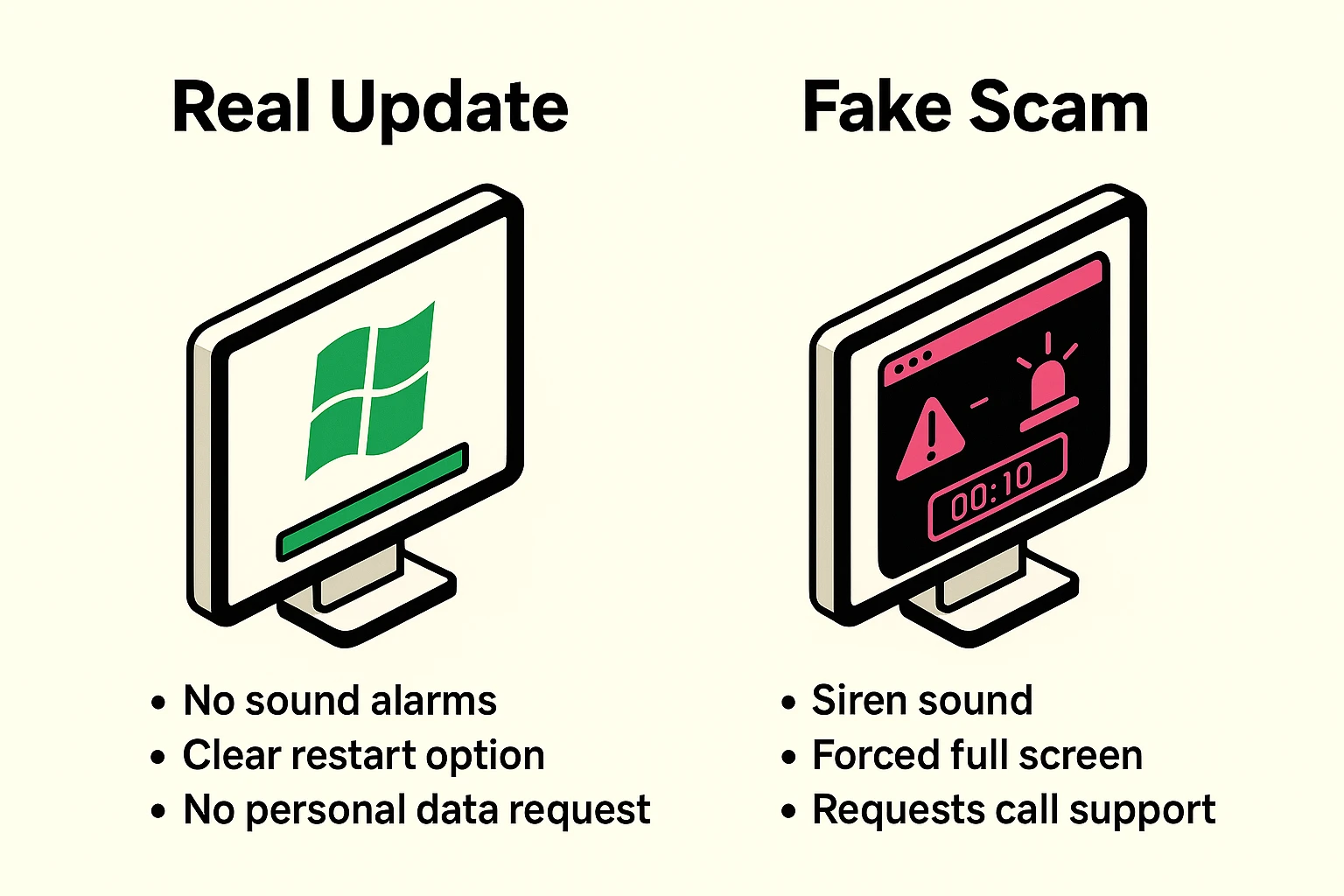
Once you know the tricks, these alerts get a lot easier to laugh at. A few dead giveaways:
Real companies don’t do this. Microsoft, Apple, and your bank will never freeze your screen, blast a siren, and post a phone number begging you to call. That is simply not how legitimate software behaves, ever.
Scammers love a familiar logo. They’ll often impersonate names you trust… Microsoft, Apple, Norton, McAfee, Google, or your internet provider… because a familiar logo lowers your guard. Some also pose as free “cleaner” or “speed booster” tools that conveniently discover a problem only they can fix.
They strike when you’re searching for something fun. Hunting for a free way to watch a popular show? Scammers plant booby-trapped links near the top of the search results, hoping you’ll click before you think. If a streaming link looks too good to be true, it usually is.
The golden rule: never trust the phone number on the scary screen. Close the window first using the keyboard tricks above. If you genuinely want to check on something, look up the company’s real customer service number yourself, from their official website.
If you’ve read this far and thought, “Oh no… I already called,” don’t spiral. Take a breath and work through this.
If you called but didn’t give them anything… no payment, no passwords, no remote access… you’re likely okay. Just hang up, and don’t pick up if that number calls back.
If you let them take remote control of your computer, disconnect from the internet right away. Turn off your Wi-Fi or unplug the network cable. Then call a trusted local computer technician, or your real antivirus company using a number you look up yourself, to have the machine checked. Scammers sometimes leave software behind so they can sneak back in.
If you handed over a credit card number, bank details, or gift card codes, contact your bank or card company immediately. The sooner you report it, the better your odds of stopping or reversing the charge. Gift cards are tougher to recover, but report them anyway.
And change the passwords for your important accounts… email and banking first. Do it from a different device, like your phone, in case your computer isn’t fully cleaned up yet.
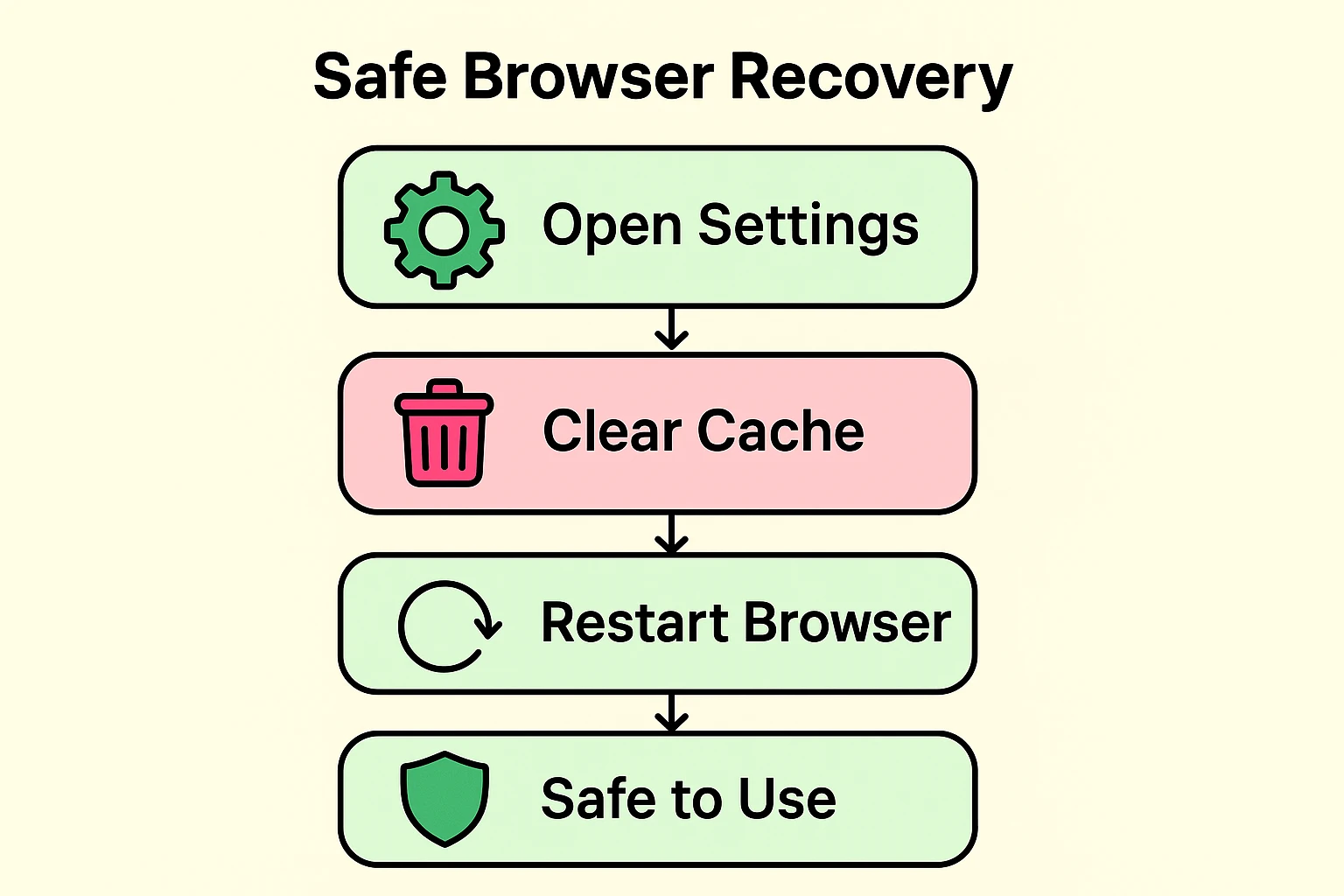
You’ve force-closed the browser and the screaming has finally stopped. Nicely done. But if you reopen your browser and it cheerfully reloads that same horrible page, here’s how to break the cycle.
Don’t restore your tabs. When the browser reopens and asks if you’d like to “Restore Pages,” say no. That button is exactly what drags the scam page right back in.
Clear your recent history and site data. This helps the browser forget the scam page instead of fetching it again like an overeager golden retriever bringing you the same disgusting tennis ball. You’ll usually find this under “History” or “Privacy” in your browser’s menu.
Check your notifications. This is the sneaky one. Some scam sites trick you into clicking “Allow,” which lets them keep firing fake “virus” alerts at you even after you’ve left the site. People often mistake these for real antivirus warnings. In Chrome, Edge, Firefox, or Safari, open Settings and look for “Notifications” or “Site Permissions,” then remove any site you don’t recognize.
Peek at your extensions. If the pop-ups keep coming back no matter what, a shady browser add-on may be the culprit. Remove anything in your extensions list that you don’t remember installing.
Most likely not. If you didn’t call the number, download a program they offered, type in personal information, or give anyone remote access, your computer and files are almost certainly fine. The pop-up was just a very loud webpage trying to rattle you.
Absolutely not. The FBI, the IRS, and your local police do not hand out fines through a browser pop-up. If you were truly in trouble with the law, they’d knock on your door, not freeze your search for banana bread recipes.
They’re betting that older adults didn’t grow up swimming in this technology, so they pile on confusing jargon and loud noises to trigger a panic response… hoping you’ll reach out for their “help” with a problem they invented out of thin air. Knowing the trick is exactly what takes away their power.
The internet shouldn’t feel like a haunted house where digital goblins leap out to scare you. Now that you know the “Stop, Drop, and Mute” routine and the secret keyboard exits, you’re officially the boss of your computer again.
Here’s a tip worth the thirty seconds: jot your escape shortcuts on a sticky note and park it near your monitor. Windows folks: Esc, then Alt + F4, then Ctrl + Alt + Delete. Mac folks: Command + Option + Escape. Think of it as your personal “break glass in case of emergency” card.
If you’re ready for more ways to outsmart the bad guys without earning a computer science degree, browse our other guides on spotting and avoiding online scams. Keep your volume low, your confidence high, and happy browsing.