Newsletter Subscribe
Enter your email address below and subscribe to our newsletter


By Chris Clark, founder of Senior Tech Cafe
Software updates are important because most of them fix security holes that criminals already know about, which is why your phone keeps nagging you to install them.
You know the feeling. You pick up your phone to check the weather or send a quick email to your niece, and a window pops up. It has an alarming amount of text, a few ominous icons, and a button that demands you “Update Now.”
It feels less like a helpful suggestion and more like a digital ultimatum. It’s the technological equivalent of a mechanic knocking on your car window at a red light, yelling, “We need to swap your engine right now or the wheels might fall off!”
Your instinct is to look for “Remind Me Later” (or, ideally, a button that says “Go Away and Never Return”). But ignoring that pop-up is usually riskier than tapping it. Here’s why updates happen, how to tell a real one from a fake, and how to install them without holding your breath.
There are three perfectly good reasons to hate updates. They’re inconvenient. They might move your favorite icons or change the font size to “Microscopic.” And there’s the worry that the update itself will break something that was working fine five minutes ago.
But updates aren’t mainly about rearranging your menus. Most of them are security updates: fixes for weak spots someone has found in your phone’s or computer’s software.
Think of your device as a house with a sturdy front door. One day the company that made the door discovers that burglars can pick the lock with a bent paperclip and a piece of dried linguine. A security update is the company sending a free locksmith to change the tumblers so the linguine trick stops working. Nobody tears down the house or hauls off your furniture.
Here’s the catch. Once a fix is out, word of the weak spot gets out too, and criminals go looking for devices that haven’t installed it. Tapping “Later” is telling the free locksmith to come back next month while the burglars already know which door to try.

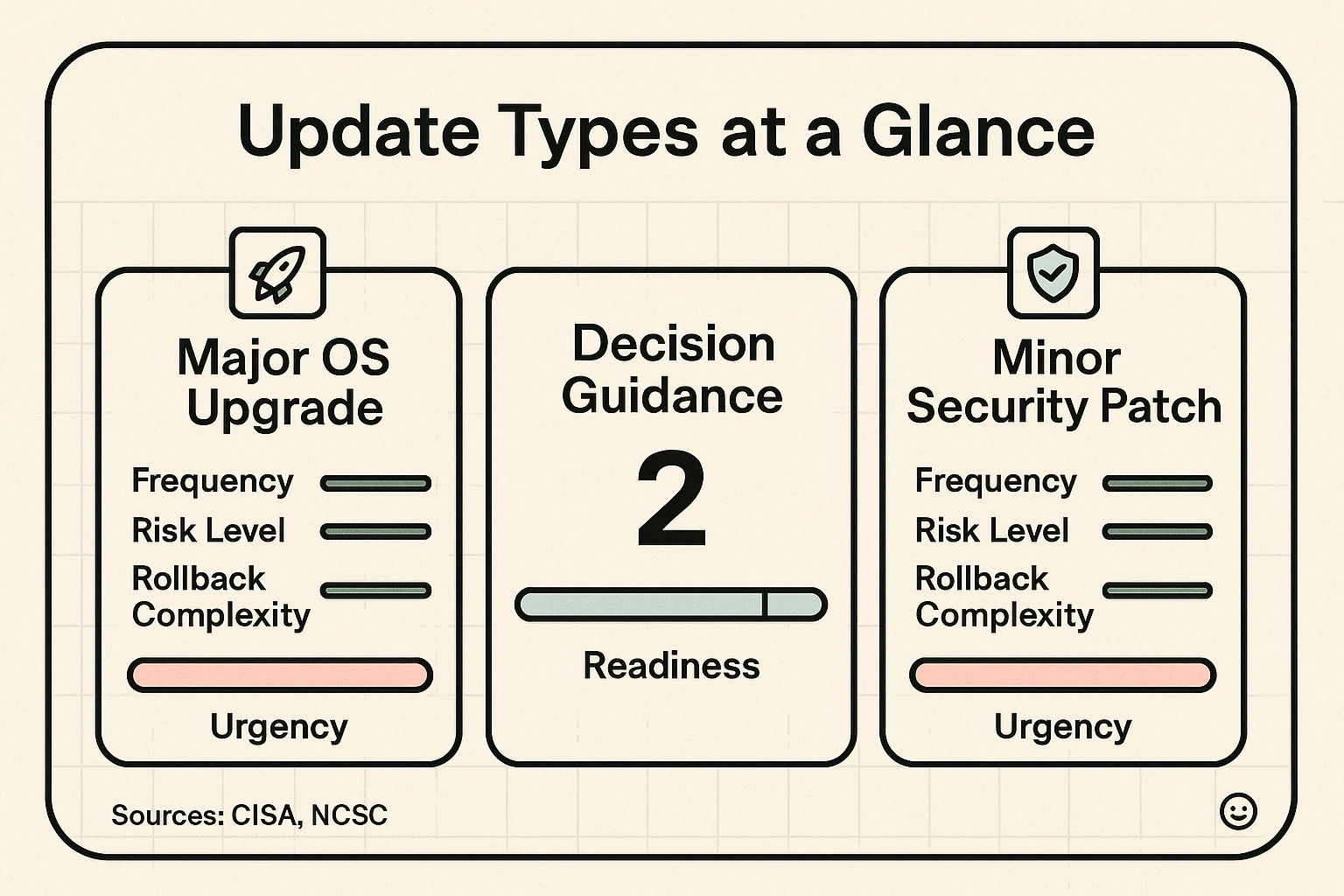
Not all updates are created equal. Mixing up a major system overhaul with a tiny security fix is like confusing a kitchen renovation with changing a lightbulb. Knowing which is which helps lower your blood pressure.
Major upgrades (the renovation). These come about once a year and change the big number at the front. Apple, for instance, went from iOS 18 straight to iOS 26 in 2025, so its version numbers now match the coming year, like a car’s model year. Big upgrades add features, change how things look, and can take 30 minutes or more to install.
Security updates (changing the locks). These are small, quick and frequent. They don’t change how your phone looks; they fix invisible problems deep inside the system. These are the ones to install as soon as they show up.

Yes, you should update your phone, and for security updates, the sooner the better. The only update worth a short wait is the big yearly upgrade (more on that below). Everything else, install when it arrives or let your phone do it overnight.
The bigger worry is a device that has stopped getting updates altogether. Phones and computers eventually age out, and after that the holes stop getting fixed. On an Android phone you can check: open Settings, tap About phone, then Android version, and look at the security update date. If it’s many months old and checking for updates finds nothing, your phone has probably aged out.
If you have a Windows 10 computer: Microsoft ended regular support in October 2025, but home users can still get security updates through its Extended Security Updates program until October 12, 2027. It’s free if you back up your PC settings to your Microsoft account, or a one-time $30 otherwise. To sign up, open Settings, then Update & Security, then Windows Update, and look for Enroll now.
When a device can’t get security updates anymore, it’s time to plan a replacement. Before you pass the old one along, wipe your data off it properly.
The main reason people fear updates is the worry that something will go wrong. It rarely does. But “rarely” isn’t much comfort if you’re the one staring at a blank screen.
The secret to updating without anxiety is preparation. You wouldn’t paint a room without putting down a drop cloth. Before you tap Install, run through these three steps.
This is your safety net. Updates are designed to leave your photos, contacts, apps and messages exactly where they are. A backup covers the rare time something goes wrong, so you don’t lose your photos of the grandkids or that recipe for peach cobbler.
On an iPhone or iPad, that’s iCloud Backup or your computer. On Android, it’s the backup built into your Google account. On a computer, use an external hard drive or the computer’s own backup tool.
Updates need room to unpack. If your phone says “Storage Almost Full,” delete some old videos or unused apps first. A stuffed phone trying to update is a recipe for a headache.
Never update on a low battery. If your phone dies in the middle of brain surgery (software installation), it might not wake up. Plug it into the charger before you start. Google suggests at least 75% battery before an Android update.
Connect to your home Wi-Fi, too. Updates are big files. Download one over cellular data and it’ll take ages and eat into your monthly plan.
You’re prepped. Now you have two routes: let your devices update themselves, or do it yourself when it suits you. Most people should pick the first.
We recommend this for most people. With automatic updates on, your device usually waits until you’re asleep, plugged in and on Wi-Fi to do the dirty work. You wake up, and everything is fresh. Menu names shift a little between versions, but these are current:
If you’d rather supervise, that’s fine too. When the notification shows up, pick a time when you won’t need your device for at least 30 minutes. Make yourself a cup of tea, plug in, and start the update:
Partway through, the screen will go black, then show a logo and a slow progress bar. That’s normal. Don’t press any buttons and don’t try to turn it off and on again. It can take anywhere from a few minutes to half an hour, so drink the tea.
A tip for the big yearly upgrade: you don’t have to be first in line. Wait a week or two and let the eager early adopters find the bugs. Small security updates are different. Install those right away.
Despite your best efforts, sometimes technology misbehaves. Maybe the power flickered or the internet cut out. Now your screen is black, or it’s showing a logo that isn’t moving.
Don’t panic. Modern devices are surprisingly resilient.
If the screen is frozen, or the device keeps restarting over and over (a problem tech people call a boot loop), a force restart usually kicks it back into gear. That’s a specific button combination for your model, and it doesn’t erase anything.
If the update seems stuck on a “preparing” or “getting your phone ready” screen for more than an hour, the same force restart is usually the cure. If nothing works, contact the maker’s support before you try anything labeled “reset,” because a factory reset does erase your data.
Here’s the tricky part. Sometimes that pop-up telling you to update isn’t from Apple or Microsoft. It’s from a scammer.
Fake update warnings usually appear while you’re browsing the web. They rely on fear: flashing red lights, countdown clocks, and language like “CRITICAL VIRUS ALERT.” Here’s how to spot one:
When in doubt, ignore the pop-up. Go to your actual Settings and look for Software Update. If a real update is waiting, it’ll be listed there. If not, that pop-up was a liar.
If you use Chrome, turning on Enhanced Safe Browsing adds a lookout that warns you about dangerous downloads before they land.
A software update rarely makes a phone slower for long. For a day or two after a big upgrade, your phone may feel sluggish or warm while it reorganizes files behind the scenes. After that, speed usually returns to normal. Very old phones can struggle with the newest software, but skipping security updates is the bigger risk.
Software updates can drain the battery faster for a day or two after a major upgrade, while the system re-sorts your photos and files behind the scenes. That’s temporary. After a few days, battery life usually returns to normal. If it’s still draining quickly a week later, check the battery settings or ask the phone maker’s support.
Yes, you still need security updates even if you never bank online. An unpatched computer or phone can be hijacked to attack other computers, or used to steal your email password and scam your friends. Your email alone holds enough to reset most of your other accounts. Updating is part of being a good digital neighbor.
Usually, no. Once a software update is installed, going back to the old version is difficult or impossible, and it would remove the security fixes too. That’s why it’s worth waiting a week or two before installing a big yearly upgrade. Security updates are small and change little you’ll notice, so install those right away.
A zero-day is a software flaw that criminals found and started using before the company that makes the software knew about it, so the company had zero days to fix it. When the news says a zero-day is being exploited, install the fix as soon as it arrives. Apple, Google and Microsoft all patch them regularly.
Updating your software is one of the simplest ways to protect yourself. It doesn’t take a degree in computer science, just a little preparation and a willingness to tap a button.
Know the difference between the big renovations and the small lock changes, run through the checklist, and that terrifying “Update Now” pop-up becomes just another routine chore, like taking out the trash, but without the risk of raccoons.
So plug in, back up, and let the update run. Then keep going with our online safety guide for seniors, and lock down your phone, tablet and computer while you’re at it.