Newsletter Subscribe
Enter your email address below and subscribe to our newsletter


You know the feeling. You sit down at your computer or pick up your phone, ready to check the weather or send a quick email to your niece. Suddenly, a window pops up. It has an alarming amount of text, a few ominous icons, and a button that demands you “Update Now.”
It feels less like a helpful suggestion and more like a digital ultimatum. It’s the technological equivalent of a mechanic knocking on your car window at a red light, yelling, “We need to swap your engine right now or the wheels might fall off!”
Your instinct is probably to look for the “Remind Me Later” button—or ideally, a button that says, “Go Away and Never Return.” We get it. Change is scary, especially when it involves the device you rely on for banking, photos, and staying in touch with the world. There is a genuine fear that clicking that button will break something that was working perfectly fine five minutes ago.
But here is the truth: ignoring that little pop-up is usually riskier than clicking it. We are going to walk you through exactly why updates happen, how to tell the good ones from the bad ones, and how to install them without holding your breath the entire time.
Let’s be honest about why we hate updates. First, they are inconvenient. Second, there is the fear that the update will move your favorite icons or change the font size to “Microscopic.” And third, there’s the worry that the update itself will crash your device.
However, updates aren’t just about changing the colors of your menus. They are primarily about security.
Think of your computer or smartphone like a house. When you first bought it, the locks were brand new and secure. But over time, burglars (hackers) figure out how to pick those locks. Software companies issue updates to change the locks before the burglars get in.
The data backs this up. In the first half of 2025 alone, the Cybersecurity and Infrastructure Security Agency (CISA) added 132 new vulnerabilities to their database—an 80% jump from the previous year. That sounds terrifying, but it’s actually good news: it means the “good guys” found the holes and created patches (updates) to fix them before the “bad guys” could exploit them.
When you delay an update, you are essentially leaving your front door unlocked after the neighborhood watch warned you about a break-in.
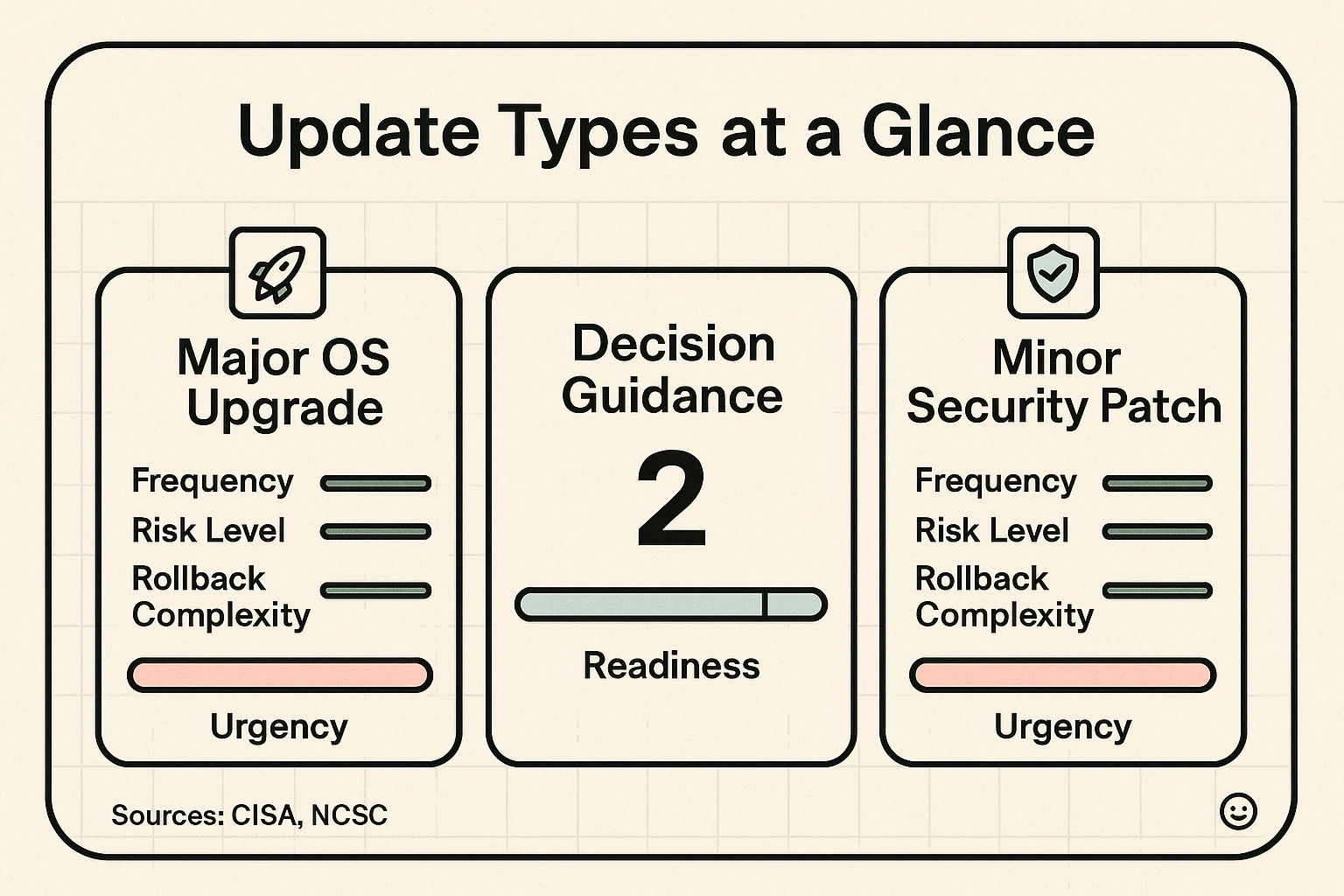
Not all updates are created equal. Mixing up a major system overhaul with a tiny security fix is like confusing a kitchen renovation with changing a lightbulb. Knowing the difference helps lower your blood pressure.
1. Major OS Upgrades (The Renovation): These usually happen once a year. They often have names (like Android 15 or macOS Sequoia) or big number jumps (iOS 17 to iOS 18). These updates add new features, change how things look, and might take 30 minutes or more to install.
2. Minor Security Patches (Changing the Locks) :These are small, quick updates. They don’t usually change how your phone looks; they just fix invisible problems deep inside the system to keep you safe. These are critical and should be done as soon as possible.
The main reason people fear updates is the worry that something will go wrong. While production failures are statistically rare (occurring in less than 0.03% of cases according to industry data), that doesn’t help if you are the 0.03%.
The secret to updating without anxiety is preparation. You wouldn’t paint a room without putting down a drop cloth, right? Treat your device the same way. Before you ever hit “Install,” run through this quick checklist.
This is your safety net. If the update fails, a backup ensures you don’t lose your photos of the grandkids or that recipe for peach cobbler. Use iCloud (iPhone), Google Drive (Android), or an external hard drive (Computer).
Updates need room to unpack. If your phone is constantly yelling at you about “Storage Almost Full,” delete some old videos or unused apps first. A stuffed phone trying to update is a recipe for a headache.
Never update on a low battery. If your phone dies in the middle of brain surgery (software installation), it might not wake up. Plug it into the charger before you start.

Now that you’re prepped, let’s talk about the actual process. You have two main routes here: manual and automatic.
We generally recommend this for most seniors. You can go into your settings and toggle on “Automatic Updates.” Your device will usually wait until you are asleep, plugged into power, and connected to Wi-Fi to handle the dirty work. You wake up, and everything is fresh.
If you prefer to supervise the process, that’s fine too. When you see the notification, find a time when you don’t need your phone for at least 30 minutes. Make yourself a cup of tea, plug the device in, and hit “Install.”
Pro Tip: Don’t be the first in line for a major operating system update (like iOS 18). Wait a week or two. Let the eager tech enthusiasts find the bugs first. However, for security patches (usually numbered like 17.1.2), install those immediately.
Despite your best efforts, sometimes technology just misbehaves. Maybe the power flickered, or the internet cut out. Now your screen is black, or it’s showing a scary logo that isn’t moving.
Don’t panic. Most modern devices are resilient.
If your screen is frozen or the device keeps restarting over and over—a frustrating issue tech experts call a bootloop—there are specific button combinations you can press to force a restart. This usually kicks the system back into gear.
If the update stalls and you see a message about getting your phone ready stuck on the screen for more than an hour, a “hard reset” is often the cure. This doesn’t erase your data; it just forces the phone to take a deep breath and try again.

Here is the tricky part. Sometimes that pop-up telling you to update isn’t from Apple or Microsoft. It’s from a scammer trying to trick you.
Fake update notifications often pop up while you are browsing the web. They rely on fear. They use flashing red lights, countdown clocks, or terrifying language like “CRITICAL VIRUS ALERT.”
How to spot a fake:
When in doubt, ignore the pop-up. Go to your actual Settings menu and look for “Software Update.” If there is a real update waiting, it will be listed there. If not, that pop-up was a liar.
This is a common myth. While very old phones might struggle with brand-new software, updates generally include “performance improvements” that make things run smoother. Keeping old software is actually more likely to cause glitches over time.
Immediately after a major update, your battery might drain faster for a day or two as the system re-organizes its files behind the scenes. This is temporary. After a few days, battery life usually returns to normal or even improves.
Yes. Even if you only use your computer for solitaire and recipes, an unpatched computer can be “hijacked” by hackers to attack other computers or steal your email password to scam your friends. It’s part of being a good digital neighbor.
Generally, no. Once you update, you are usually committed. This is why we suggest waiting a week or two before installing massive “Major OS” updates. Check the news (or Senior Tech Cafe!) to see if people are complaining about it first.
Updating your software is one of the most powerful things you can do to protect your digital life. It doesn’t require a degree in computer science; it just requires a little preparation and the courage to click a button.
By distinguishing between the major renovations and the minor lock-changes, and by running through your safety checklist, you can turn that terrifying “Update Now” popup into just another routine chore—like taking out the trash, but without the risk of raccoons.
So, plug in your device, back up your photos, and let that update run. Your digital locks will be stronger for it.