Newsletter Subscribe
Enter your email address below and subscribe to our newsletter

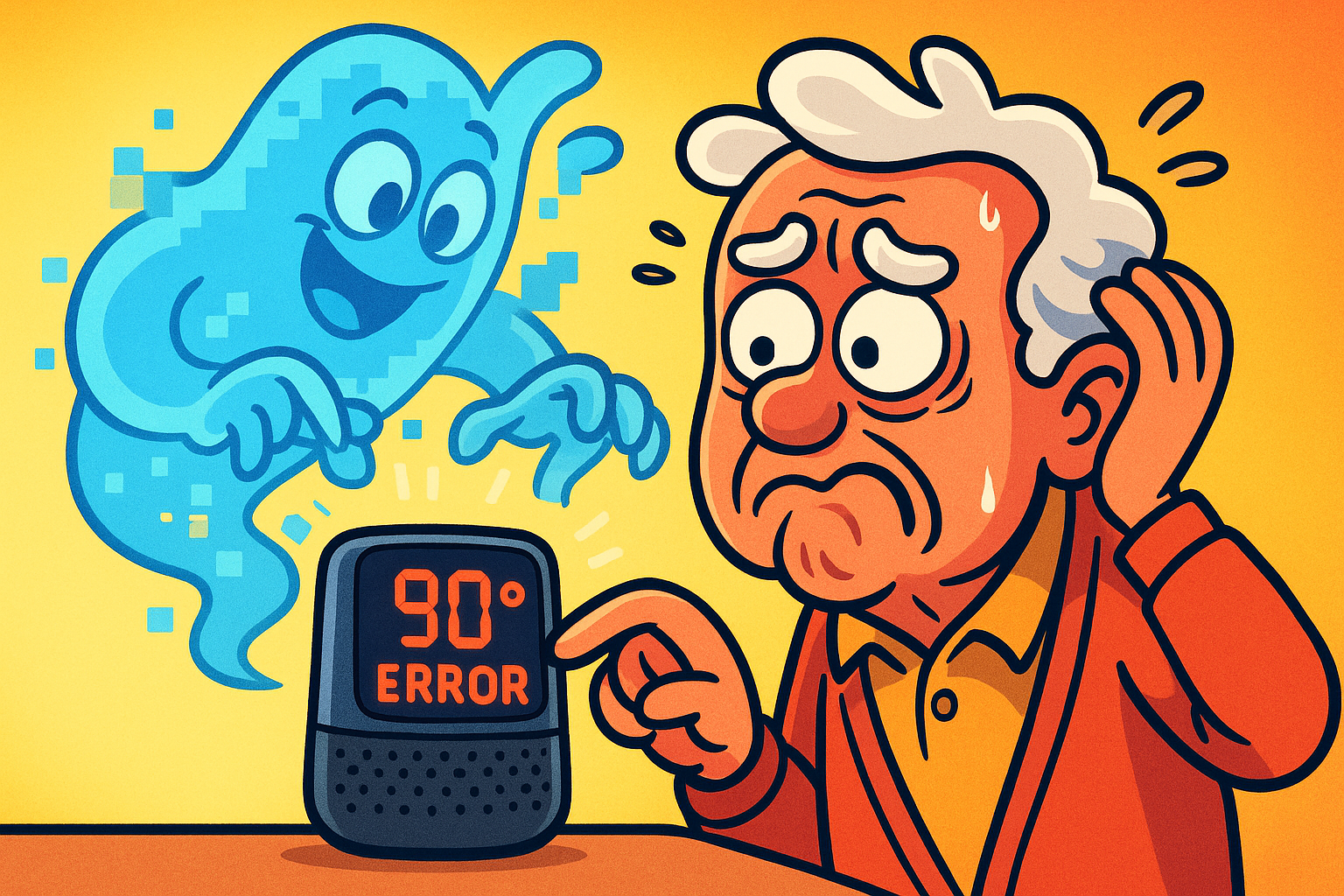
You know that feeling when you put your glasses down on the kitchen table, turn around for exactly three seconds to pour a cup of coffee, and when you turn back, the glasses have vanished into another dimension? They haven’t moved. You haven’t moved. And yet, they are gone.
Computers do the exact same thing, but with your files.
You click “Save.” You see the little progress bar zip across the screen with satisfying efficiency. You feel productive. Then, ten minutes later, you go to open that recipe for “Aunt Martha’s World Famous Pot Roast,” and—poof. It’s gone. It’s not in Documents. It’s not in Pictures. You start to wonder if you hallucinated the entire typing process.
If you’ve ever wanted to throw your laptop out the window because it “ate” your homework (or your tax return), you are not alone. Navigating digital storage often feels like trying to find a specific needle in a stack of needles. But here is the good news: Your file is almost certainly still there. It’s just playing hide-and-seek, and you’re about to become the world champion seeker.
We’re going to solve the mystery of the missing file, explain why your “full” phone is acting like a rebellious teenager, and help you decide whether you need to buy more storage or just clean out the digital lint.
Before we start tearing the floorboards up, it helps to understand why files seem to disappear. Contrary to popular belief, there isn’t a tiny gremlin inside your hard drive eating PDFs for lunch.
According to data storage research, “missing” files are usually the victim of one of three culprits:
Stop clicking randomly. Panic clicking is how we end up opening 40 internet tabs and accidentally changing the system language to Swedish. Instead, let’s use a methodical approach.
Modern computers (Windows and Mac) use something called semantic indexing. That’s just tech-speak for a very efficient librarian who lives inside your computer and reads every title. You just have to know how to ask the librarian the right question.
Here is the logical flow you should follow before you start worrying about data recovery software:
Both Windows and Macs have a “Recent” list. It’s exactly what it sounds like. If you saved the file ten minutes ago, it will be at the top of this list, regardless of what obscure folder it actually lives in.
Don’t look through folders manually. That’s like looking for a book in the library by walking down every aisle. Use the search bar (usually near the Start button or the top right of a folder window).
If you use OneDrive, Google Drive, or iCloud, your computer might have been helpful (read: annoying) and saved the file to the cloud instead of your hard drive. Check those specific folders.
Has your phone ever told you “Storage Full” right when you’re trying to take a picture of your grandchild doing something adorable? It’s heartbreaking.
We are currently in a tech cycle where supply constraints are making new devices more expensive, so we are keeping our old phones and laptops longer—sometimes up to 4 or 5 years. The problem is, we keep taking high-resolution photos and downloading apps that grow larger with every update.
When your storage gets full, your device slows down. This is because computers use empty storage space as “thinking room” (called swap memory). If the drive is packed to the gills, the computer has no room to think, so it starts stuttering.
You have two choices: Buy more space (usually cloud storage) or clean up the mess. Before you pull out your credit card, try cleaning the “digital attic.”
Most of us are hoarding digital clutter we don’t need. Do you really need that blurry photo of your thumb from 2019? Or the PDF of the restaurant menu from a vacation you took three years ago?
Quick Wins for Freeing Space:
Okay, so you searched, you checked the cloud, and you emptied the trash. The file is still missing. Or worse, you found the file, but when you click it, you get an error message that looks like it was written by an angry robot.
This is where we move from “organization” to “recovery.”
If a file is truly gone (deleted) or corrupted, you might need software tools. But be careful—the internet is full of “Free Recovery” tools that are actually just expensive spyware in a fancy hat.
Here is how to evaluate your options:
Microsoft offers a free tool called Windows File Recovery.
Tools like Recuva or OfficeRecovery are more user-friendly. They act like metal detectors for your hard drive, scanning for “ghosts” of files that haven’t been fully overwritten yet.
When you are deciding between spending hours learning a complex tool or spending money on a simpler one, use this comparison to weigh the trade-offs.
The “Cloud” is just a fancy word for “someone else’s very secure computer.” For most seniors, major providers like Google or Apple are actually safer than your home computer because they have armies of security guards (both digital and real). Just make sure you use a strong password and Two-Factor Authentication.
If your computer is slow only when downloading, it might be your Wi-Fi, not the computer. However, if your hard drive is old (an HDD) rather than the newer, faster type (SSD), the computer might struggle to write the information as fast as it arrives. It’s like trying to drink from a firehose.
Sometimes. When you empty the bin, the computer doesn’t scrub the data immediately; it just marks that space as “available to be written over.” If you stop using the computer immediately and run recovery software, you have a decent chance. If you wait a week, that space will likely be used for something else, and the file is gone forever.
Technology can feel like a runaway train, but file management is one area where you can grab the steering wheel.
Start simple. Search first. Clean up your “digital attic” occasionally to keep things running smooth. And if a file truly goes missing, don’t panic—check the “Recent” folder before you call the Geek Squad. Most of the time, your data isn’t lost; it’s just misplaced.
Remember, even the most tech-savvy teenagers lose files. The difference is, now you have the toolkit to find them. Happy hunting!