Newsletter Subscribe
Enter your email address below and subscribe to our newsletter

Picture this: You’ve just received an email from your grandniece. It’s titled “Wedding Photos,” and you are ready to see the dress, the cake, and Uncle Bob’s questionable dance moves. You click the file with the enthusiasm of a kid opening a birthday present.
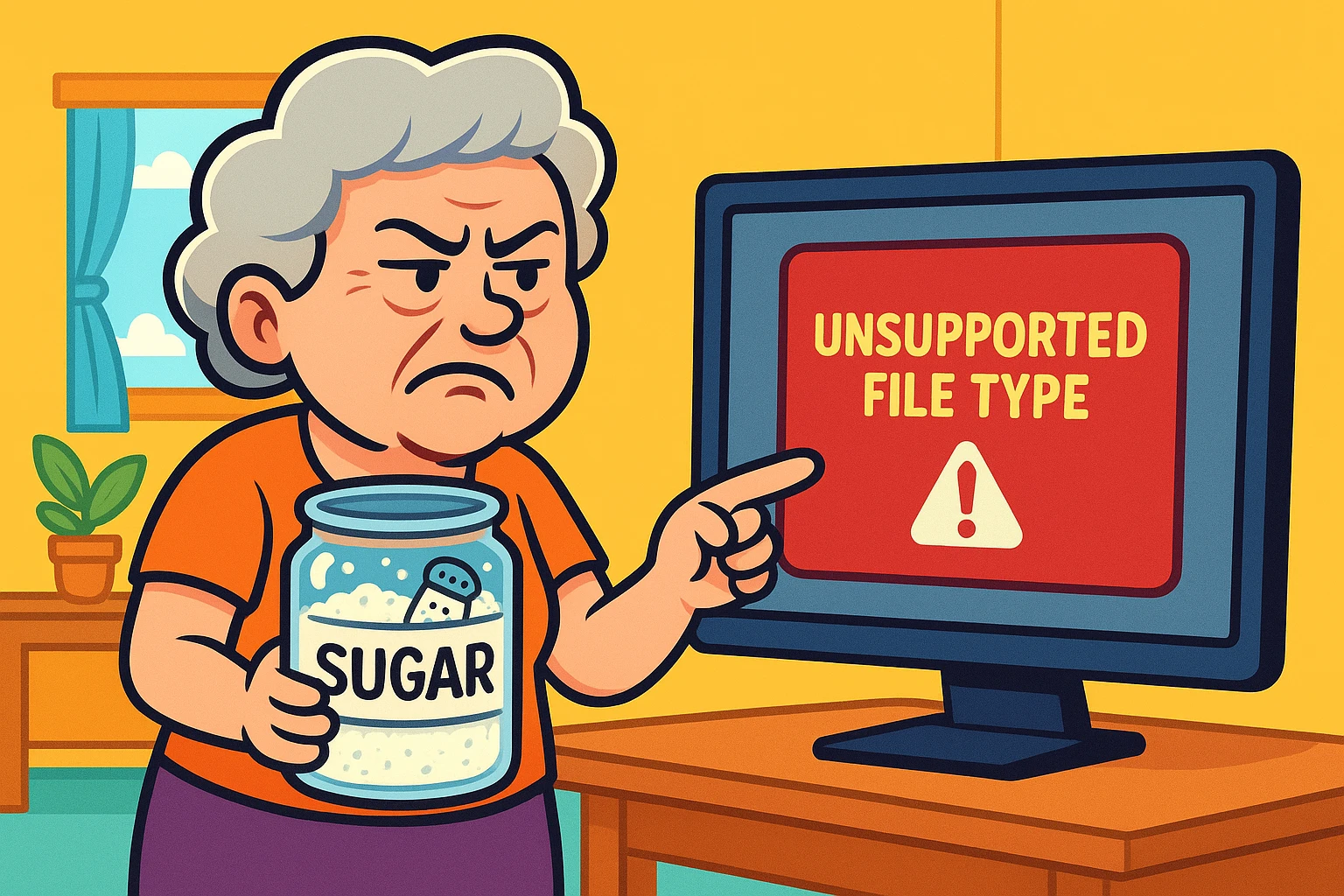
But instead of a beautiful bride, you get a gray box. A tiny, digital bouncer has stepped in front of your screen, crossed its arms, and muttered the computer equivalent of “You’re not on the list.”
“Unsupported File Type.”
Or perhaps its cousin, “Windows cannot open this file.”
It’s one of the great indignities of modern life. You own the computer. You own the file. Yet, they refuse to speak to each other, leaving you in a technological standoff. Did the file break? Did you delete something important? Is the computer just being moody?
Before you panic and assume the wedding photos are lost to the digital abyss, take a deep breath. Usually, the file is perfectly fine; it’s just speaking a language your computer doesn’t currently understand. Think of it less like a technical failure and more like a translation error.
We’re going to demystify why this happens, how to peek under the hood of these files, and how to get them open without needing a degree in computer science.
To understand why your computer is giving you the silent treatment, you have to understand how it identifies files.
Every file has two parts:
Grandma's_Cookies)..docx, .jpg, .pdf).Think of the extension as a label on a jar. If the label says “Sugar,” your computer (the chef) prepares to use it for baking. It calls up a program like Microsoft Word or your Photo Viewer to handle it.
However, sometimes the label is wrong.
Imagine someone put salt in a jar but slapped a “Sugar” label on it. If you try to bake a cake with it, the result is going to be terrible.
Computers face the same issue. If a photo file is accidentally named wedding.txt (a text file label), your computer will try to open it in Notepad. Instead of a picture, you’ll see a wall of gibberish characters that looks like a cat walked across your keyboard.
But here is the fascinating part: The file knows what it is, even if the label is wrong.
Deep inside every file is a “Magic Number” (yes, that is the actual technical term). It’s a digital signature hidden at the very beginning of the file data that screams, “Hey! I’m actually a photo!” or “I’m a spreadsheet!”
When you get an “Unsupported File Type” error, it usually means one of two things:
.odt) but doesn’t have a program installed that knows how to read it.When you hit that error wall, don’t start clicking wildly. We are going to play detective using a simple three-step process.
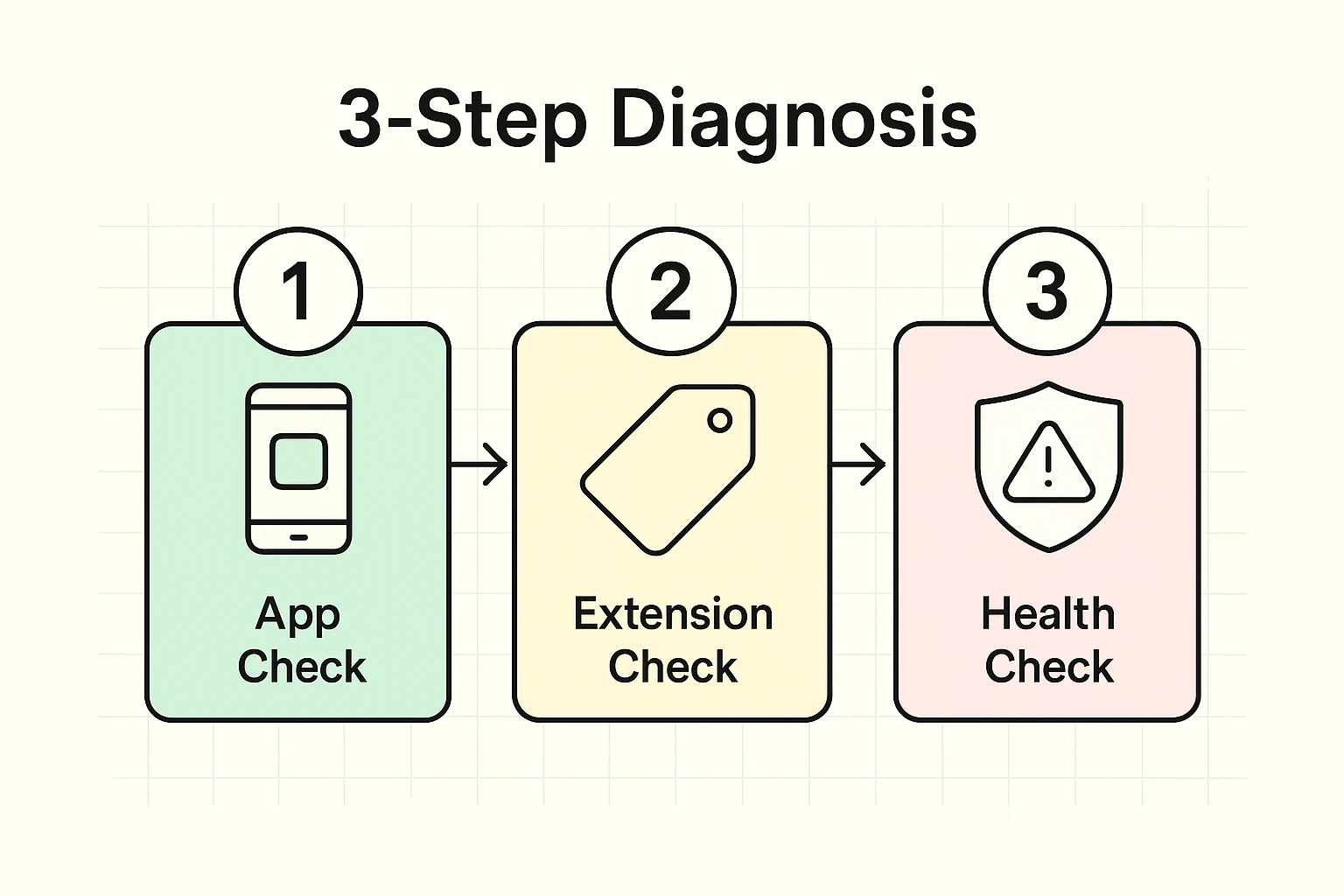
Most of the time, the file is fine, but you don’t have the right software installed. This is common with files sent from Apple devices to Windows computers, or vice versa.
.HEIC (a common iPhone photo format) on an older Windows laptop.Sometimes, helpful relatives or email programs accidentally rename files.
Statement.pdf.exe or just Photo with no letters after it..docx..jpg to the end.If you have the right app and the right extension, but it still won’t open, the file might be “corrupted.”
This means the “Magic Number” or the data inside was damaged during the download. It’s like receiving a book where the first ten pages have been ripped out.
You will eventually run into file types that look like someone fell asleep on the keyboard. Here are a few common offenders and what they actually are:
When you can’t open a file, you might be tempted to Google “Convert file to PDF free online.”
Pause right there.
There are many websites that offer to convert files for you. You upload your file, they switch the format, and you download it back. This is fine for a picture of a sunset or a public flyer.
However, never upload sensitive documents to these sites.
When you upload a file to a free conversion site, you are handing a copy of that data to a stranger’s server. For sensitive items, stick to downloadable software installed on your own computer (like the ones mentioned above) so your private data never leaves your house.
This often happens if the “default program” changed. For example, maybe you installed a new photo app that “took over” opening pictures, but it’s not working right. Right-click the file, choose “Open With,” and select your old familiar app.
Generally, no. Renaming a file from .docx to .jpg doesn’t change the data inside; it just confuses the computer. If you rename it back to .docx, it should work again. However, always try to remember what the original name was!
A Codec is like a decoder ring for video files. If you get a “Missing Codec” error, it means you have the video player (the projector), but you don’t have the specific key to read that specific reel of film. Downloading VLC Media Player usually fixes this instantly because it comes with almost every decoder ring built-in.
The “Unsupported File Type” error is one of those tech headaches that feels personal, but it’s really just a miscommunication. The computer is a stickler for rules—it needs the label (extension) to match the contents (magic numbers), and it needs the right tool installed to do the job.
By checking your apps, verifying the extension, and using safe, universal tools, you can handle almost anything the digital world throws at your inbox.