Newsletter Subscribe
Enter your email address below and subscribe to our newsletter

By Chris Clark, founder of Senior Tech Cafe
To change your router password, sign in to the router’s app or its settings page with the admin login printed on its sticker, then change both the Wi-Fi password your devices use and the admin password that controls the router itself. Here’s how, step by step.
The usual story goes like this. You bring home a new Wi-Fi router, a sleek, blinking plastic box that promises to beam the internet to your tablet at warp speed. You plug it in, type the gibberish password from the sticker (something like “X7qP9zL42”), and voilà, you’re online.
You dust off your hands, declare yourself a technological genius, and never look at that little box again.
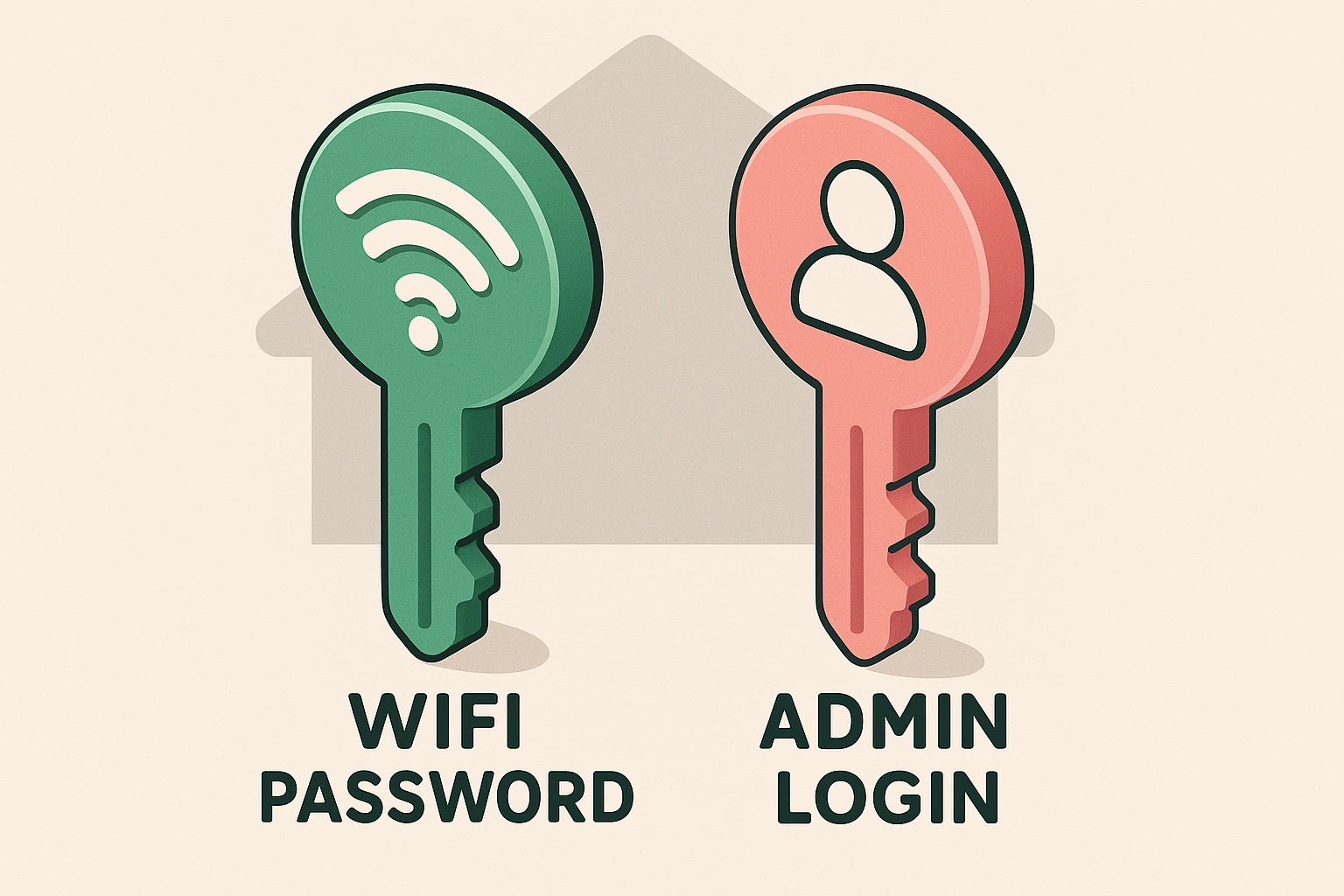
Leaving a router exactly as it came out of the box is like buying a state-of-the-art vault and leaving the combination set to 1-2-3-4. Plenty of people do it: in a 2025 survey of 3,242 British broadband users by the comparison site Broadband Genie, 81% had never changed their router’s admin password.
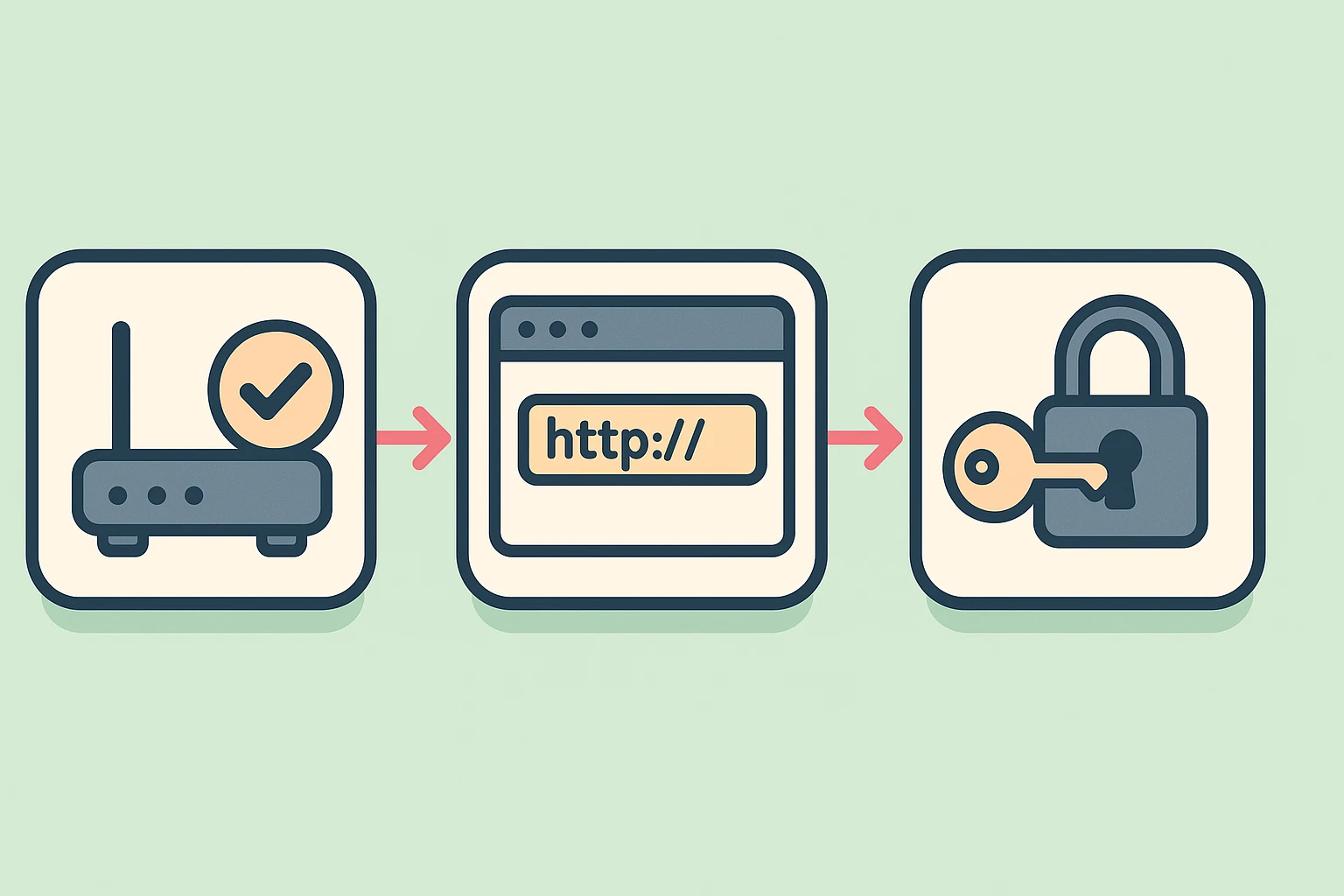
To change the locks, you first need to reach the router’s control panel. There are two ways in, and which one you use depends on your router.
The app route. Many newer routers, and most of the ones internet companies rent out, are managed with a phone app: Xfinity, Spectrum, NETGEAR’s Nighthawk, TP-Link’s Deco or Tether, and so on. Some, like eero and Google Nest Wifi, work only through their app. If your router has one, it’s the easiest way to do everything below. With eero and Nest Wifi there’s no separate admin password at all: whoever controls the account in the app controls the router, so keep that account, and the email or phone number it signs in with, locked down.
The sticker route. For everything else, pick up your router (gently, please) and look at the sticker on the back or bottom. You’re looking for three things. First, the router’s address, called an IP address, which works like a direct intercom line to the box: a string of numbers with dots, such as 192.168.1.1, 192.168.0.1 or 10.0.0.1 (some brands use a web address like routerlogin.net instead). Second, the admin username, often just “admin.” Third, the default router password. Write all three down.
If you’re using the app, skip ahead. Otherwise, take that piece of paper to a computer or tablet connected to your router. This next step trips up a lot of people.
Type the address (like 192.168.1.1) into the address bar at the very top of your browser, not into the Google search box in the middle of the page. Type it into Google and you’ll get a pile of confusing search results about computer networking.
Typing it in the address bar is like dialing a phone number directly. Searching for it is like asking the operator to look it up. Press Enter, and a login screen should appear.
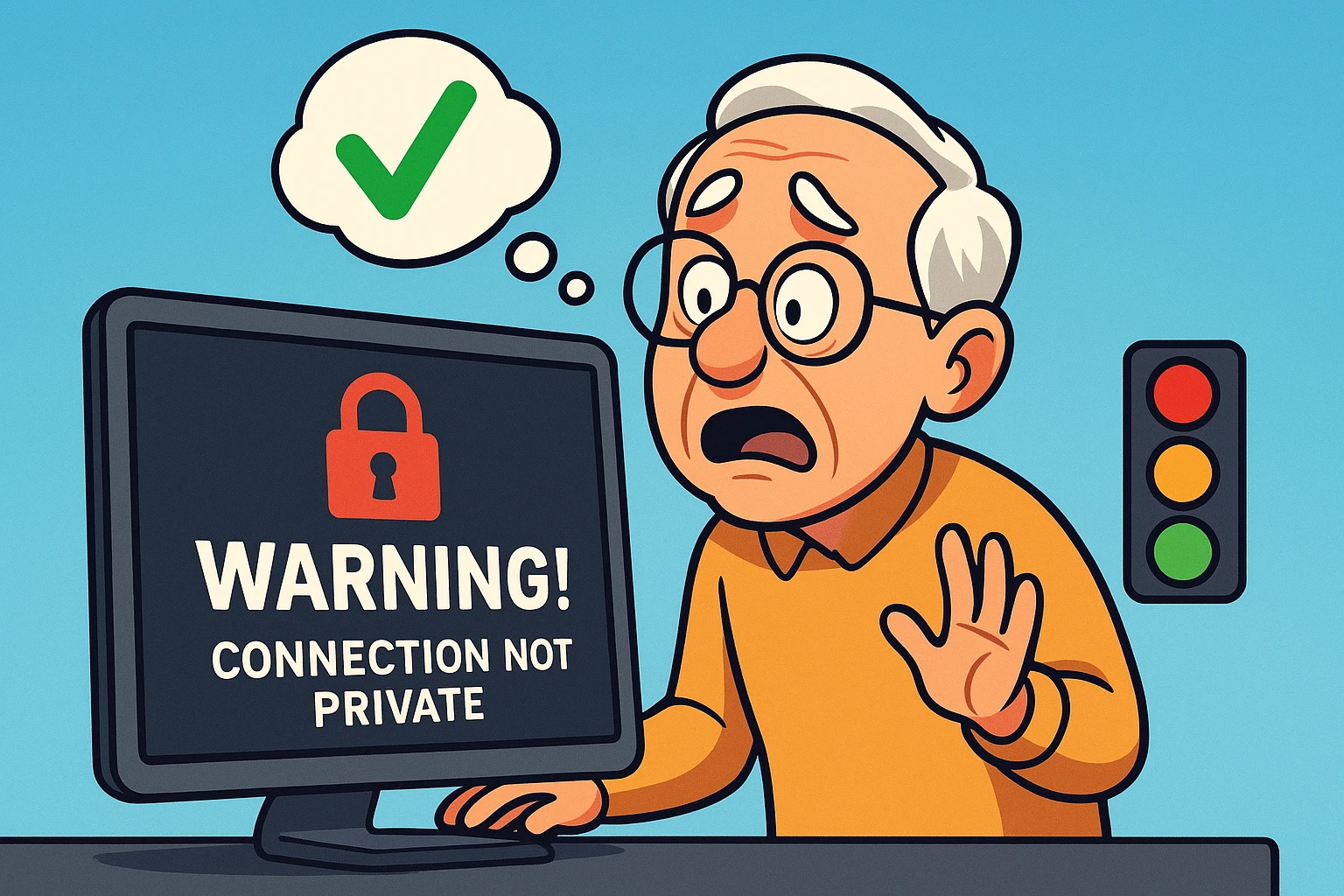
Your browser may first warn that the connection is “not secure” or “not private.” For your own router’s address, at home, that’s expected: the router can’t show the kind of ID card a public website does. Here’s what that warning means and when it’s safe to continue. And if you ever need a manual from the router maker, check that you’re on the official website, not a copycat.
You’ve made it to the vault. Sign in with the admin username and default password from the sticker. The screen may look like the control panel of the Space Shuttle. Don’t panic.
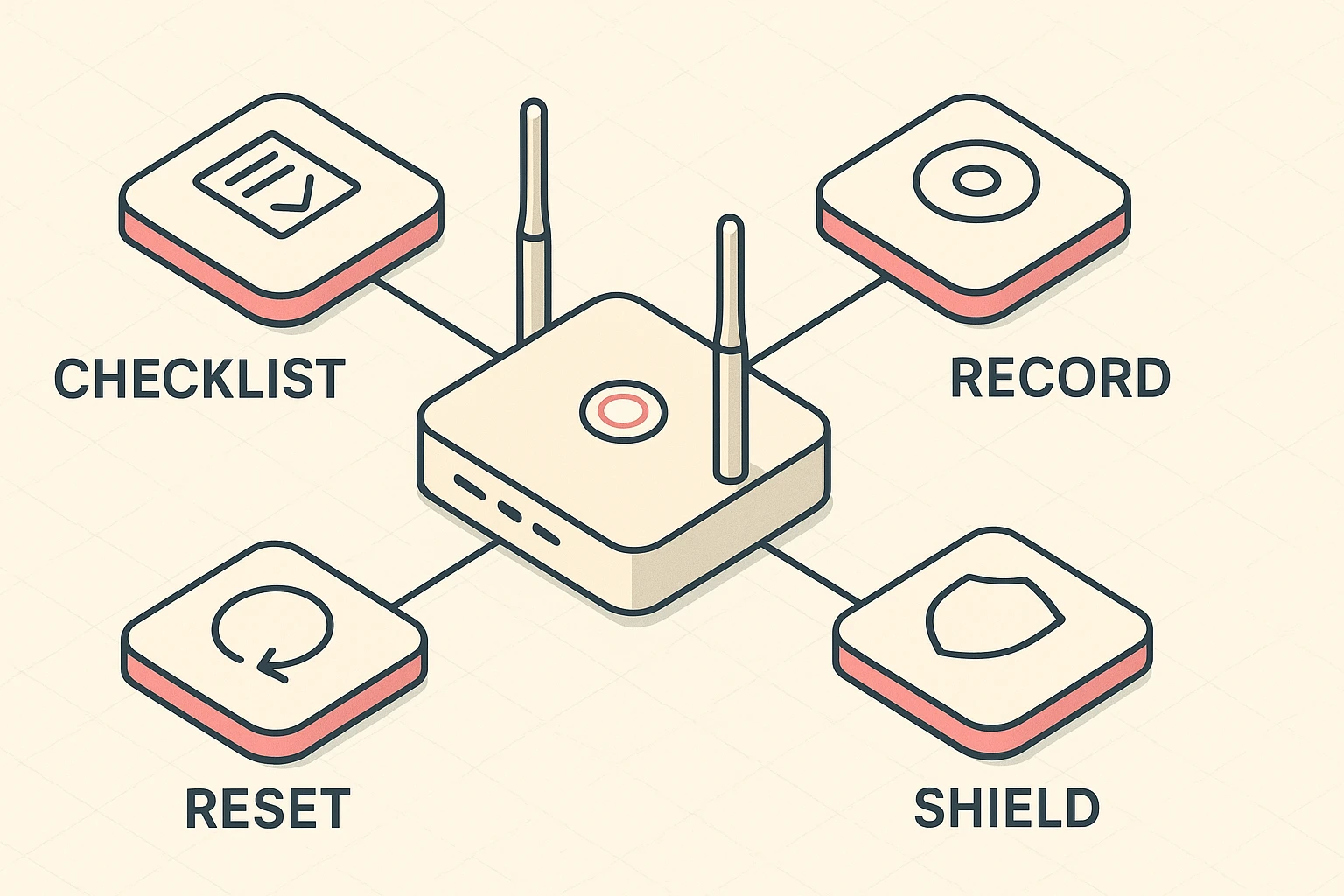
Look for a menu called something like Administration, System, Security or Advanced. Names vary by brand. Then change two things:
Fair warning: changing the Wi-Fi password kicks every device off the network, so your phone, tablet, smart TV and printer will each need the new password. Changing only the admin password doesn’t disconnect anything.
The FTC’s home Wi-Fi advice adds a few quick checks once you’re in the control panel:
Then sign out of the control panel, the same way you’d lock the vault behind you.
I can hear the nervous thoughts already. “What if I click the wrong thing? What if my smart TV stops working? What if I break the internet for the whole neighborhood?”
You won’t break your router by changing its settings. Almost every router has a tiny reset button on the back, usually sunk inside a little hole so you can’t press it by accident.
If you get completely locked out, grab a paperclip and press and hold that button for about 10 seconds (the manual gives the exact time for your model). The router will blink, restart and go back to exactly how it came out of the box. It’s your own digital time machine.
The catch with time machines: everything you changed is erased. The Wi-Fi name and password go back to the ones on the sticker, every device has to reconnect, and you’ll need to change the passwords again. If the router came from your internet company, its app or support line can help you set it back up.
The default router password is the admin password the maker set at the factory, usually printed on a sticker on the router’s back or bottom, next to a username that’s often just “admin.” Older routers sometimes shared one default, like “password,” across every unit, which is why it’s the first thing to change once you’re signed in.
Your router can’t show the kind of security certificate public websites use, so your browser warns you. When you’ve typed your own router’s address, such as 192.168.1.1, while connected to your home network, it’s safe to click Advanced and continue. Don’t do that on any other website without checking first.
Yes. Changing the Wi-Fi password means your phone, tablet, smart TV, printer and anything else on the network will need the new password before they can get back online. It takes a few minutes of reconnecting. Changing only the admin password doesn’t disconnect anything, so your devices won’t notice at all.
There’s no need to change it on a schedule. Change both the admin and Wi-Fi passwords once, when you set the router up, and again if you think someone you no longer trust has them, such as a former housemate or a contractor. A strong password you never share beats one you change every month.
Write down your new admin password and Wi-Fi password. Don’t hide them on a sticky note under your keyboard, which is the first place a snoop looks. Put them in a password manager, or in a “Security Folder” (a regular old paper file folder works beautifully) tucked away somewhere safe.
Then, while you’re on a roll, set up a guest Wi-Fi network so visitors and smart gadgets stay off your main one. For the rest of the checklist, start with our online safety guide for seniors.