
By Chris Clark, founder of Senior Tech Cafe
Here’s how to set up guest WiFi in one sentence: open your router’s app or settings page, switch on the guest network, and give it its own name and password.
That’s the short version. Here’s why it’s worth five minutes.
It’s Thanksgiving. The turkey is carved, the gravy is hot, and your grandkids have just burst through the door. Before they even compliment your centerpiece, they ask the Golden Question of the 21st century: “Grandma, what’s the WiFi password?”
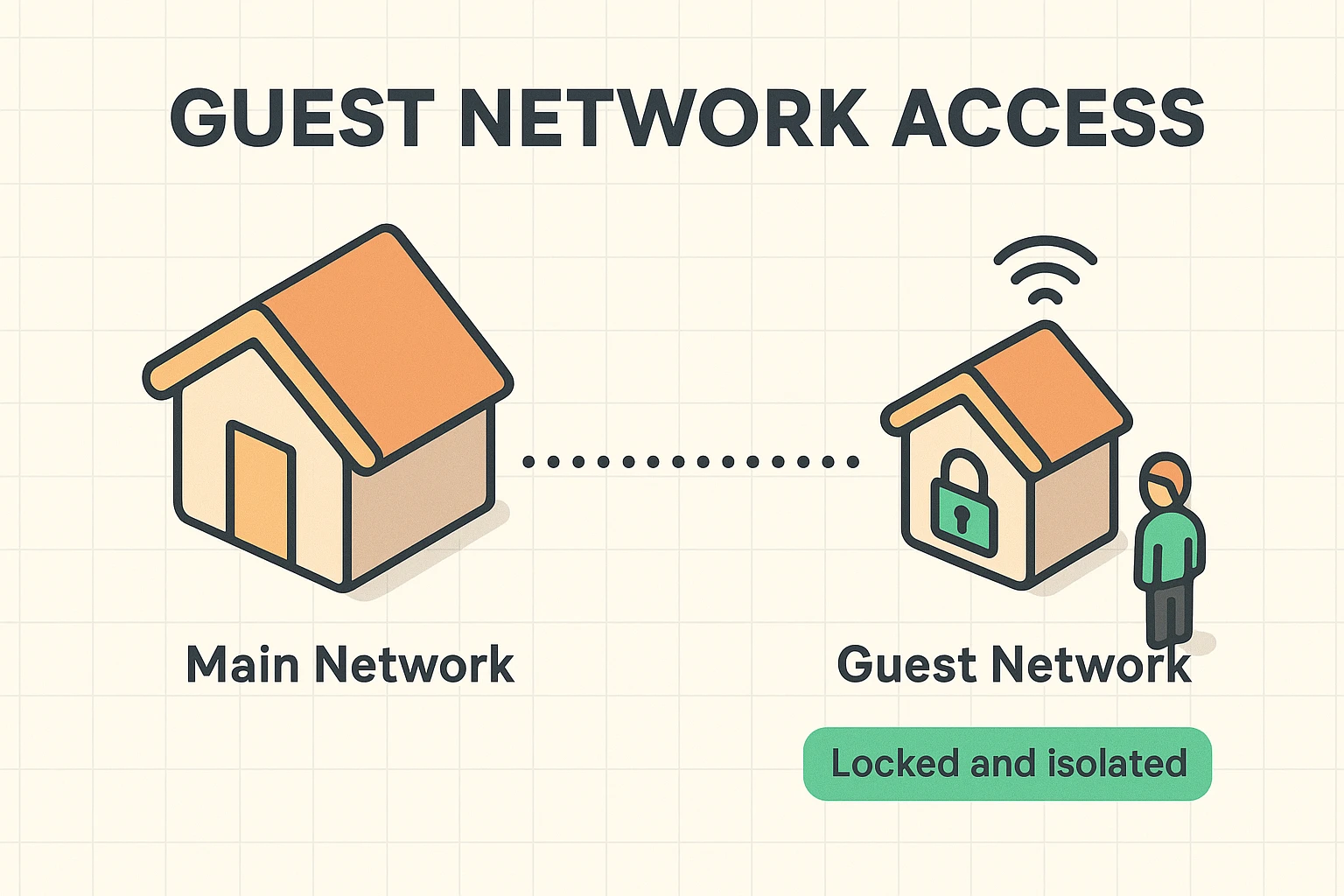
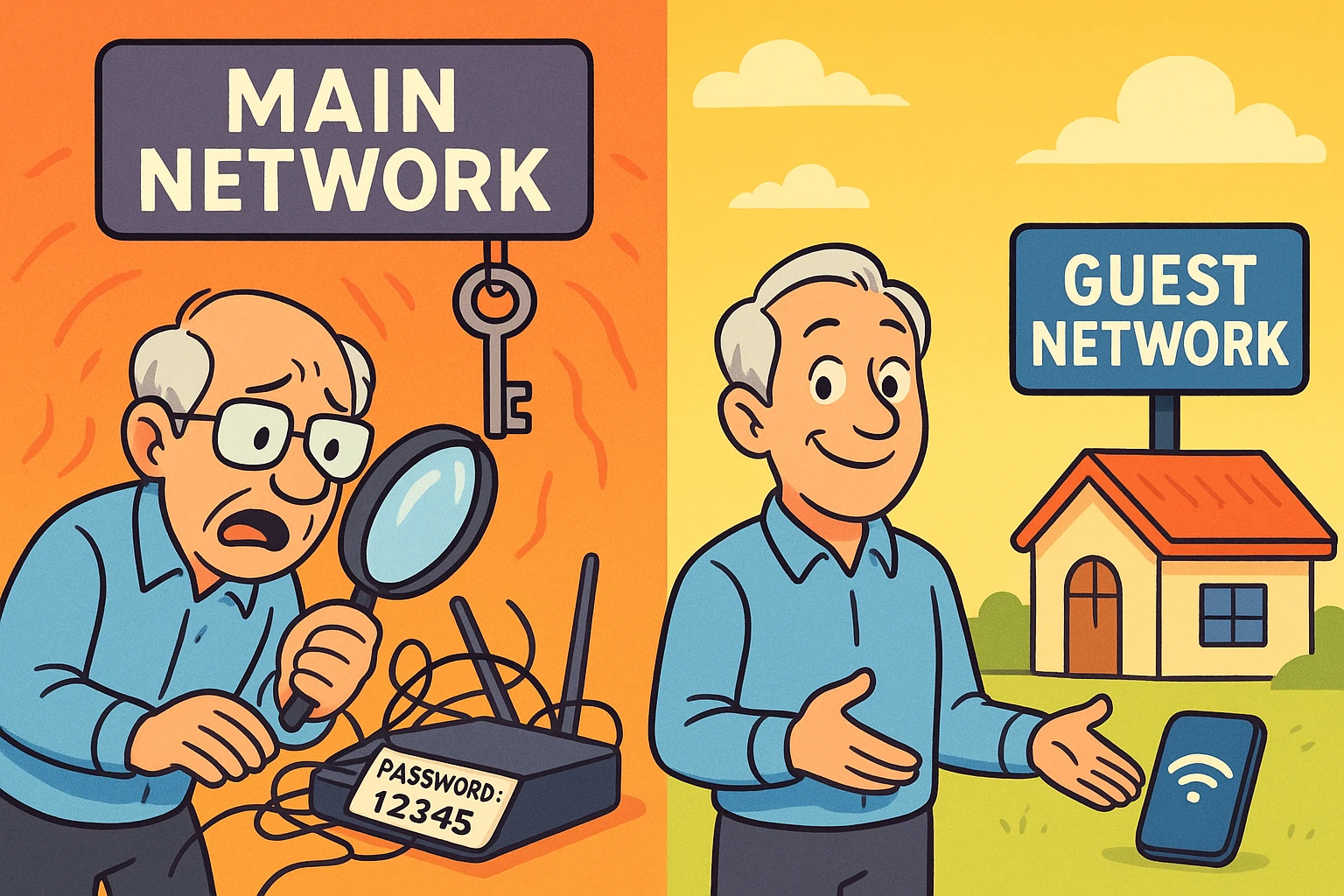
Suddenly you’re on your hands and knees with a flashlight, squinting at a sticker on the back of your router that’s covered in dust bunnies, trying to work out whether that character is a capital “O” or the number “0.” Meanwhile, the grandkids are staring at their phones like they’re defusing a bomb.
Eventually you hand over the password. The same one you use for your iPad, your smart TV and maybe even your online banking.
Giving out your main WiFi password is the digital equivalent of giving a houseguest the key to your front door, the combination to your safe and unrestricted access to your filing cabinet, just because they asked to use the bathroom.
A guest network is the better way. It sounds fancy, like something a hotel would have, but it’s a simple feature built into most modern routers. It lets you be the gracious host without handing over the keys to your digital life.
A guest network is a second WiFi network, broadcast by your own router, that gets visitors online but keeps them away from your computers, printers and other devices.
Think about your property. Your main WiFi network is your house. Inside are your personal things: your photos, your tax returns, the smart gadgets that run the thermostat. Giving someone your main password invites them into the living room.
A guest network is a detached guest house. It has electricity (internet access) and a comfy chair, but there’s no door connecting it to the main house. When your nephew connects to it:
It’s not just about trust. You might trust your grandson completely. But do you trust the questionable apps he downloaded last week?
If a guest’s phone or laptop has picked up malware (a digital virus) and joins your main network, that virus can sometimes spread to your devices. On a guest network, it’s stuck in the guest house. It can’t cross the yard to get to you.
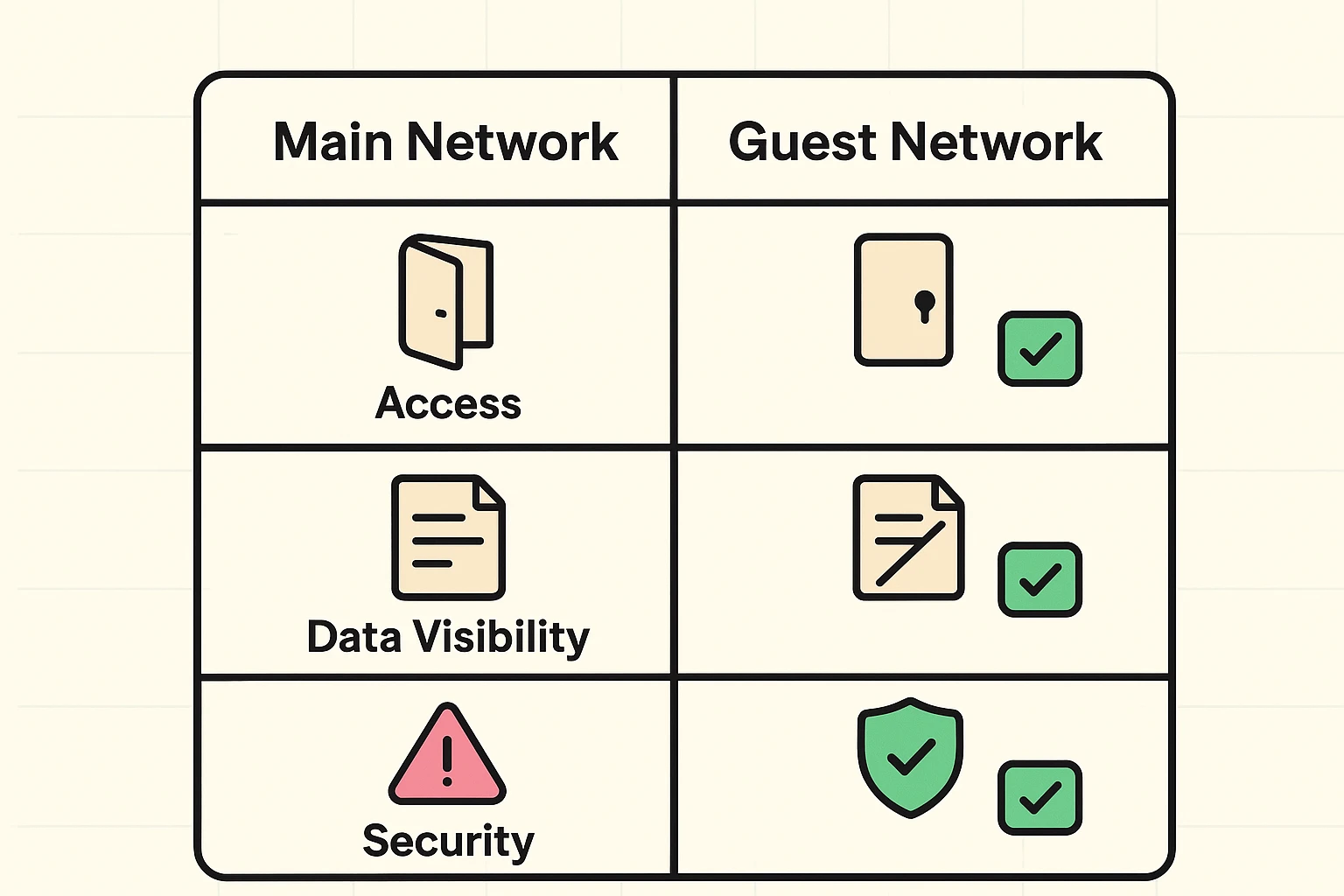
A guest network also keeps well-meaning visitors from poking at things they shouldn’t, like sending 40 vacation photos to your printer or stumbling onto the shared folder with your tax records. And some routers let you cap how much of your internet speed guests can use, so a Great British Bake Off marathon in the spare room doesn’t leave your own show buffering.
A guest network isn’t only for guests. Smart plugs, video doorbells, smart speakers and that coffee maker that connects to the internet for reasons nobody can explain aren’t known for their security. Putting them on the guest network keeps a hacked gadget away from the computer that holds your banking.
One catch: some gadgets need to be on the same network as the phone that controls them, and printers and streaming sticks often stop showing up when they’re separated. If a device misbehaves on the guest network, move it back. (Some routers, Google’s among them, let you share chosen devices with the guest network.) Our guide to smart home privacy settings covers the other ways to lock those gadgets down.
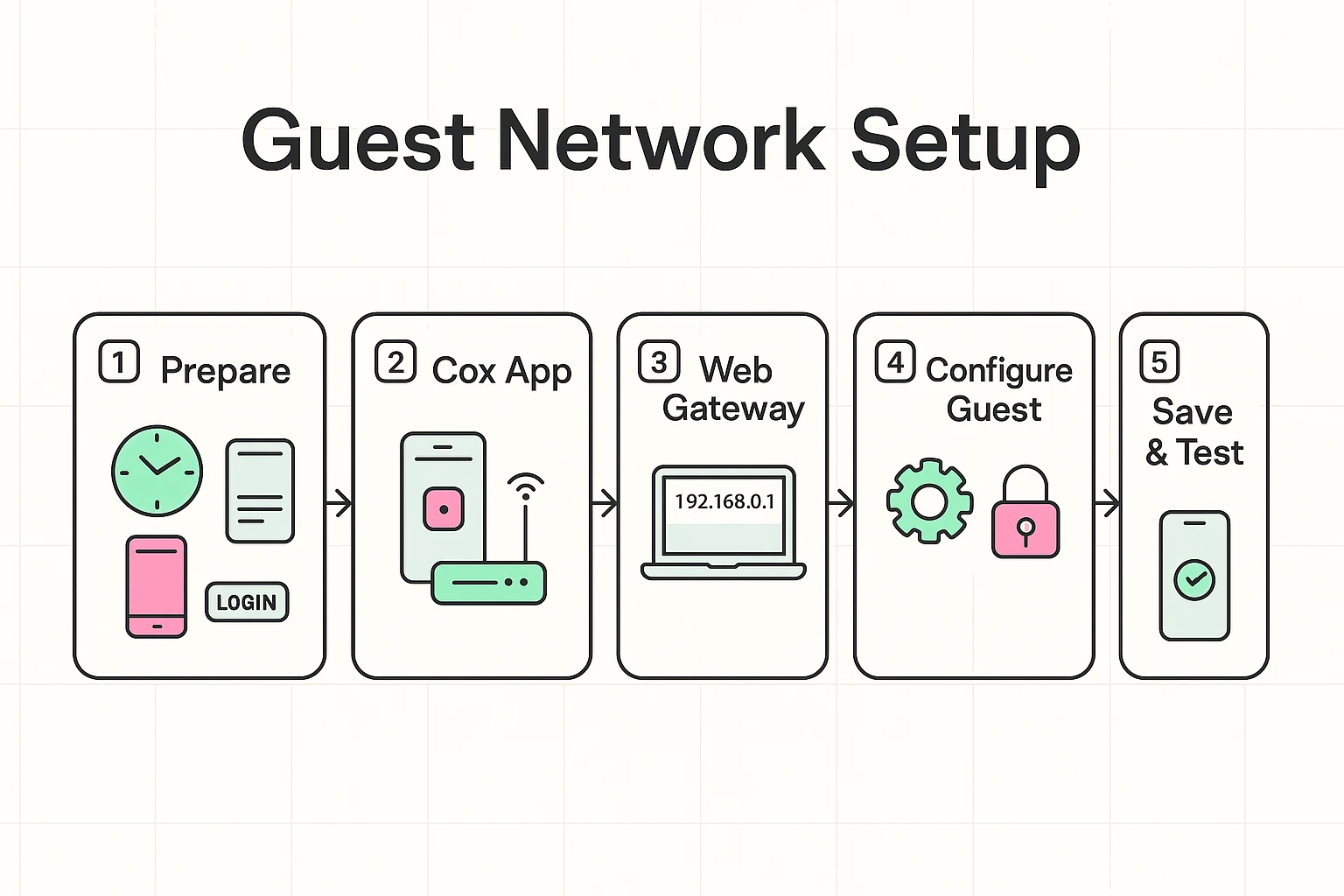
Setting up guest WiFi takes about five minutes on most home routers: sign in to the router’s app or settings page, find Guest Network (or Guest WiFi), turn it on, and give it a name and password. The exact buttons depend on who made your router, so below are the routes for the most common setups.
Three things, one of them optional:
Many people use the combined modem and router their internet company supplies. These vary a lot. Some let you turn on a guest network in the provider’s app; some don’t offer one at all.
Start with your provider’s app (Cox, Xfinity, Spectrum and others all have one) and look under the WiFi or network settings for a guest option. If there isn’t one, call the provider and ask. They can tell you whether your equipment supports it, and what your options are if it doesn’t.
Most routers sold in the last several years come with a phone app, and that’s the easiest route. Here’s where the guest switch lives on popular brands:
Other brands have similar menus, and the maker’s support site will have the exact steps for your model.
No app? Use a web browser on a computer connected to the router. Type the router’s address into the address bar: routerlogin.net for NETGEAR, tplinkwifi.net for TP-Link, router.asus.com for ASUS, or for most others 192.168.1.1 or 192.168.0.1 (the sticker or manual will say). Sign in, then look for Guest Network, often on the main menu or under Wireless.
Whichever route you take, the setup is the same:
You aren’t done until you’ve checked that it works. It takes a minute:
Now do yourself a favor. Write the guest password on an index card and stick it on the fridge. Next time the family comes over, you don’t have to crawl on the floor. You just point to the fridge and say, “Help yourself, but stay out of the main house.” (Some router apps can also text the password to guests or show a code their phones can scan.)
A guest network is a separate WiFi network, broadcast by your own router, that gives visitors internet access without letting them reach your computers, printers or files. It has its own name and password, so you never hand out your main password. Most routers sold in recent years include one, though it’s often off until you switch it on.
Turning on a guest network doesn’t slow your internet by itself. Guests share the same connection, though, so if several of them stream movies at once, everyone slows down, just as they would on your main network. Some routers let you cap how much speed the guest network can use, which keeps your own shows from buffering.
No. People on your guest WiFi can’t see your devices, your files or the websites you visit on your main network, as long as the guest network keeps guests separate, which most routers do automatically. If your router has a setting that lets guests reach your local network, leave it switched off and the walls stay up.
You don’t have to turn off guest WiFi when visitors leave. It has its own password, so neighbors can’t just hop on, and leaving it on means it’s ready for the next visit. If you’d rather, switch it off in the router’s app, and some routers can turn guest access off automatically after a set time.
If your router doesn’t have a guest network, check your internet provider’s app first, since rental equipment sometimes hides it there. If it truly isn’t offered, ask the provider about your options. A router old enough to lack a guest network has probably stopped getting security updates too, which is reason enough to retire it.
With a guest network in place, your home WiFi is no longer the low-hanging fruit for digital snoops. Visitors get online, and your computer, printer and files stay in the main house.
While you’re thinking about the network, it’s worth checking the devices you carry, too. Our guides to securing your phone, tablet and computer and staying safe on public WiFi pick up where this one leaves off, and our online safety guide for seniors has the full checklist.