Newsletter Subscribe
Enter your email address below and subscribe to our newsletter

By Chris Clark, founder of Senior Tech Cafe
Google account recovery is free, and it all runs through one page: g.co/recover. Google asks you a few questions to prove the account is yours, and you’ll have the best chance if you answer them from a phone or computer you’ve used before, at home.
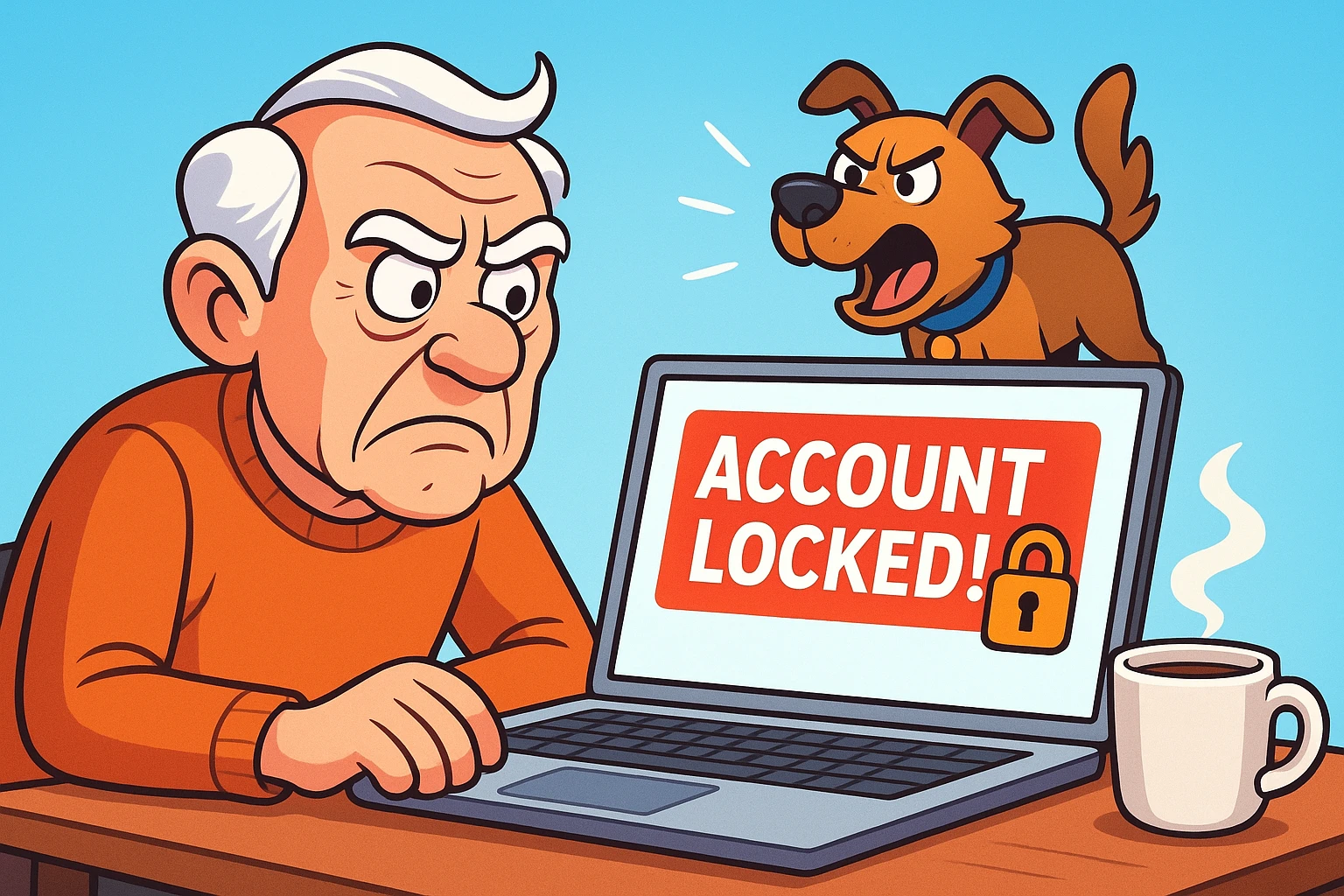
Here’s how it usually starts. You sit down with your coffee, type the password you’d swear on your favorite spatula is correct, and the screen shakes its head at you. You try again with a capital P. Then with the old cat’s name. Nothing.
Being locked out isn’t just about missing emails. Your Google account holds your photos, your contacts and your calendar, so it can feel like coming home to find the locks changed. Google isn’t punishing you. It doesn’t recognize you, so it’s barking like an overprotective guard dog.
Here’s how to get back in, and how to keep a spare key for next time.
Most people are locked out of their Google account for one of two reasons: they’ve forgotten the password, or Google doesn’t recognize the sign-in and wants more proof before letting anyone in. Google isn’t being difficult, like a toddler refusing peas. It’s trying to stop someone who has stolen your password.
To decide whether it’s really you, Google looks at clues like these:
Sign in from a new iPad at a hotel in Florida with a password you haven’t typed in a year, and every one of those clues looks wrong at once. To get back in, you want as many of them as possible to look right again.
If you think someone else changed your password, that’s a hacked account rather than a forgotten one. The recovery page is the same, and our hacked account recovery guide covers what to do once you’re back in.
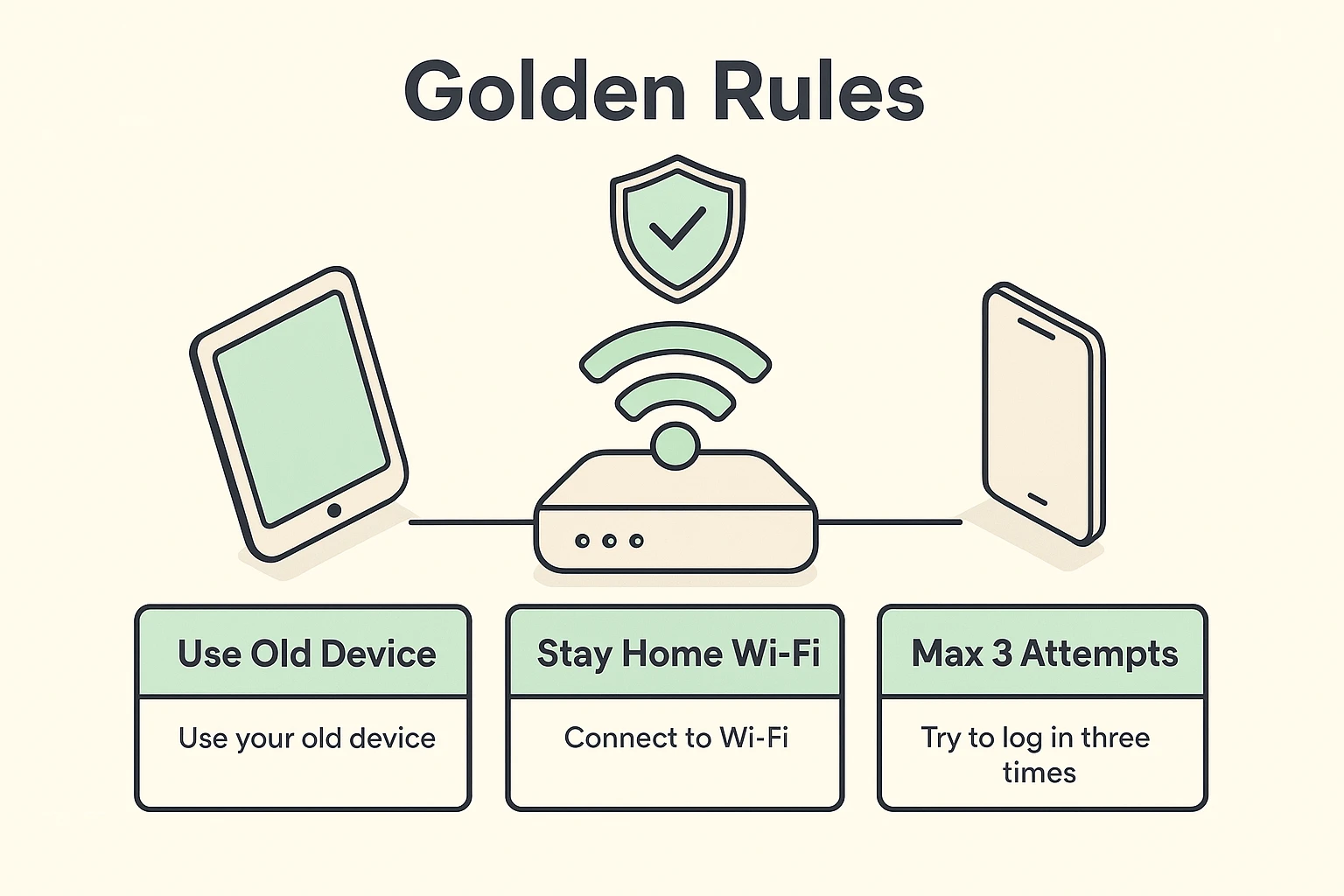
There’s no need to rush. Google says wrong guesses won’t kick you out of the recovery process, and there’s no limit on how many times you can try. What helps is setting things up so Google sees the clues it trusts. These three steps take a minute and make a real difference.
Don’t try to recover your account on a brand-new computer or a friend’s phone. Find the device you’ve signed in on most often, the dusty laptop or the phone with the cracked screen, and use the same browser you normally use on it. Google trusts that combination.
Google’s own advice is to skip as little as possible. If you’re unsure of an answer, take your best guess instead of moving to another question. A wrong guess won’t end the process, but a skipped question gives Google one less reason to believe you. Watch for typos and capital letters, too.
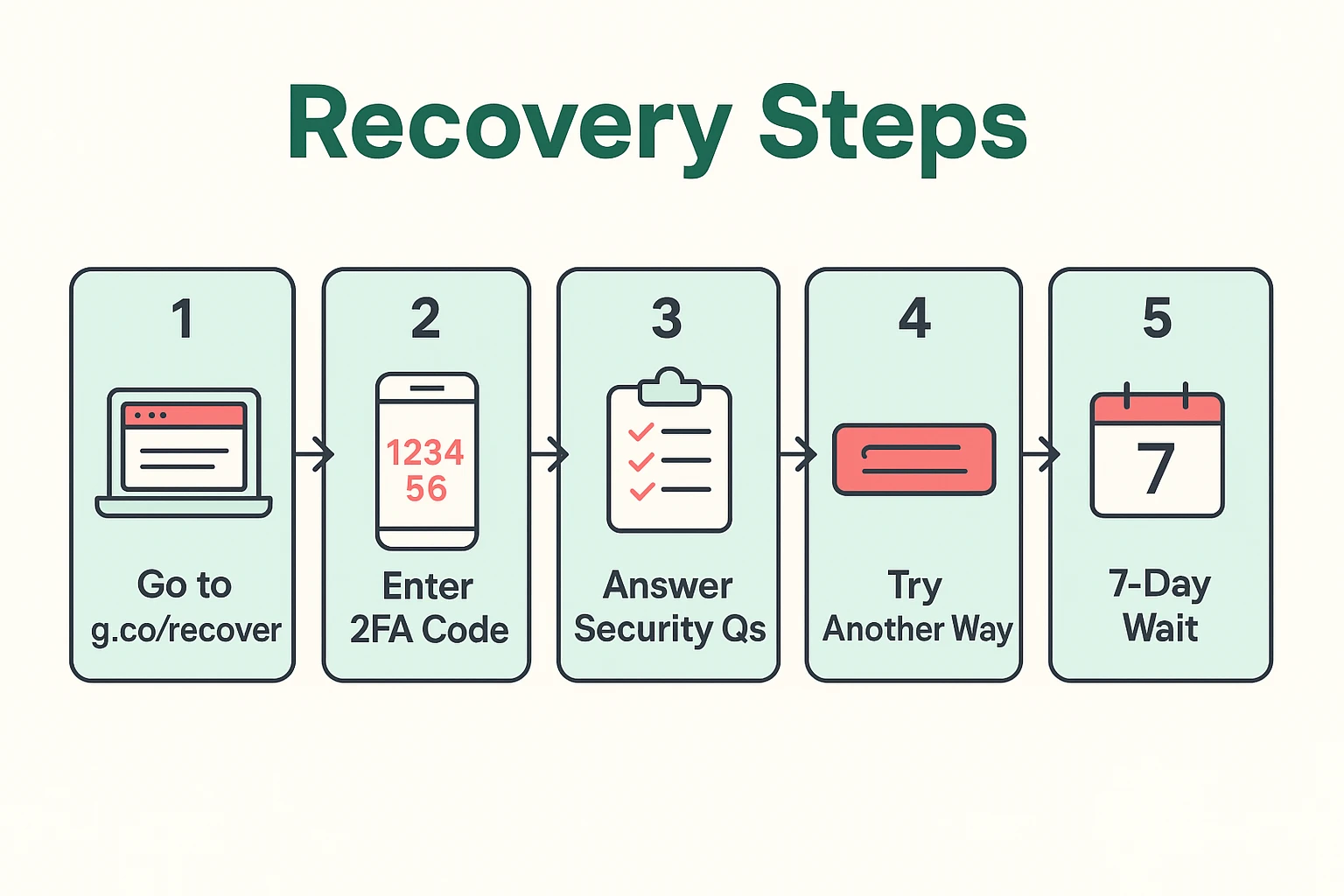
To recover your Google account, go to g.co/recover on a device you’ve signed in on before, enter your Gmail address, and answer Google’s questions as well as you can. Gmail and every other Google service share this one recovery page, so getting back into one gets you back into all of them.
Here are the steps in order:
If you no longer have the phone number or backup email on the account, Google has to rely on everything else: your device, your location and your answers. It’s slower, but it can still work.
Here’s what to do:
If something about the request looks unusual, Google may put the account on a security hold. That’s a waiting period, from a few hours to several days, while Google alerts the account’s real owner in case the request came from someone else. If Google confirms it’s you, it emails a link to reset your password.
If you get “Google couldn’t verify this account belongs to you”, you can try again from a device you normally sign in on, even during a hold, which can speed things up. Otherwise, submit once and go do some gardening.
If nothing works, Google’s last-resort advice is to create a new account. Our guide to account recovery without a recovery email or phone covers other accounts in the same spot.
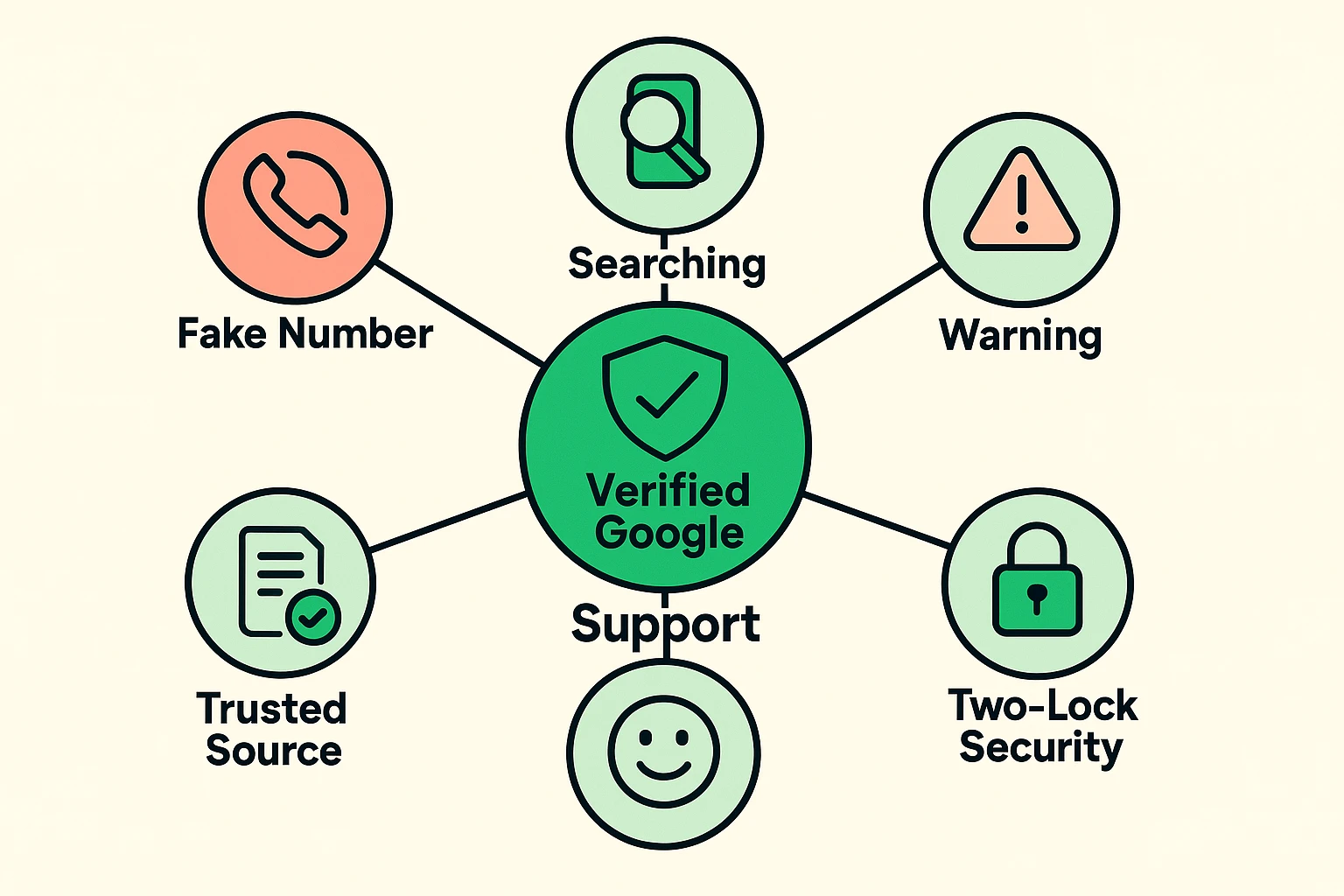
When you’re desperate, you’re vulnerable, and scammers know it. Search for a Google phone number and you’ll find plenty promising to unlock your account for a fee.
Google doesn’t have a phone number for account recovery. Its help pages say plainly that you can’t call Google for help signing in, and they warn against outside recovery services. Google also never asks for your password or verification codes by email, phone call or text.
If you call a number and the person on the line wants remote access to your computer, a code from your phone, or your credit card to “verify your identity”, hang up. If you find a company claiming it can help, check their website carefully for red flags before giving it anything. (Spoiler alert: they’re usually fake.)
Once you’re back in, spend ten minutes on these three settings. They’re the spare keys Google will ask for next time. All three live in your Google account under Security & sign-in, in the section called How you sign in to Google.
Click Recovery phone and Recovery email and make sure both are current. Use a mobile number that gets texts and belongs only to you. Changes can take up to seven days to take effect, so don’t wait until you’re locked out.
If you change your phone number in the future, updating Google should be the second thing you do (right after calling your kids to tell them the new number).
Backup codes are the Golden Ticket, but they only work if you’ve turned on 2-Step Verification, the setting that asks for a code from your phone as well as your password. If you have, here’s how to get them:
Each code works once. If you’re ever locked out, click Try another way at sign-in and enter one of them. Don’t share them with anyone; Google only ever asks for one on its own sign-in page.
A recovery contact is someone you trust, with their own Google account, who can vouch for you if you’re locked out. Google added the option recently, and it’s the one setting here that still works if you’ve lost your phone and your backup email at the same time.
Click Recovery contacts, then Add recovery contact, and enter the person’s email address. They have seven days to accept, and there’s another seven-day wait before Google will use them. You can’t add one while you’re locked out, so do it now. Pick someone who’ll answer within 15 minutes when you call.
No. Google says plainly that you can’t call it for help signing in to your account. Recovery happens only through the online recovery page at g.co/recover. Any phone number or company offering to unlock a Google account, especially for a fee, isn’t Google, and you shouldn’t give it your password, codes or remote access.
If Google is satisfied with your answers, you can set a new password right away. If something about the request looks unusual, Google may put a security hold on it, which can last from a few hours to several days. Google then emails you a link to reset your password.
Google asks for the recovery details saved on your account, even if they’re years out of date. Click Try another way to get a different question. Once you’re back in, update your recovery phone and email under Security & sign-in so the next lockout asks about details you actually have.
You can try again. Use a phone or computer you’ve signed in on before, at home, in your usual browser, and answer every question as well as you can. If it still fails after several tries, Google’s advice is to create a new account and set up recovery options this time.
Getting locked out is stressful, but it’s manageable. It’s the digital equivalent of misplacing your car keys: frustrating, not the end of the world. Use your usual device at home, answer every question you can, and ignore anyone who offers to unlock your account for money.
Once you’re in, turning on two-factor authentication is the best way to make sure the next person locked out is a hacker. For the rest of the checklist, start with our online safety guide for seniors.
Now go pour that second cup of coffee.