Newsletter Subscribe
Enter your email address below and subscribe to our newsletter

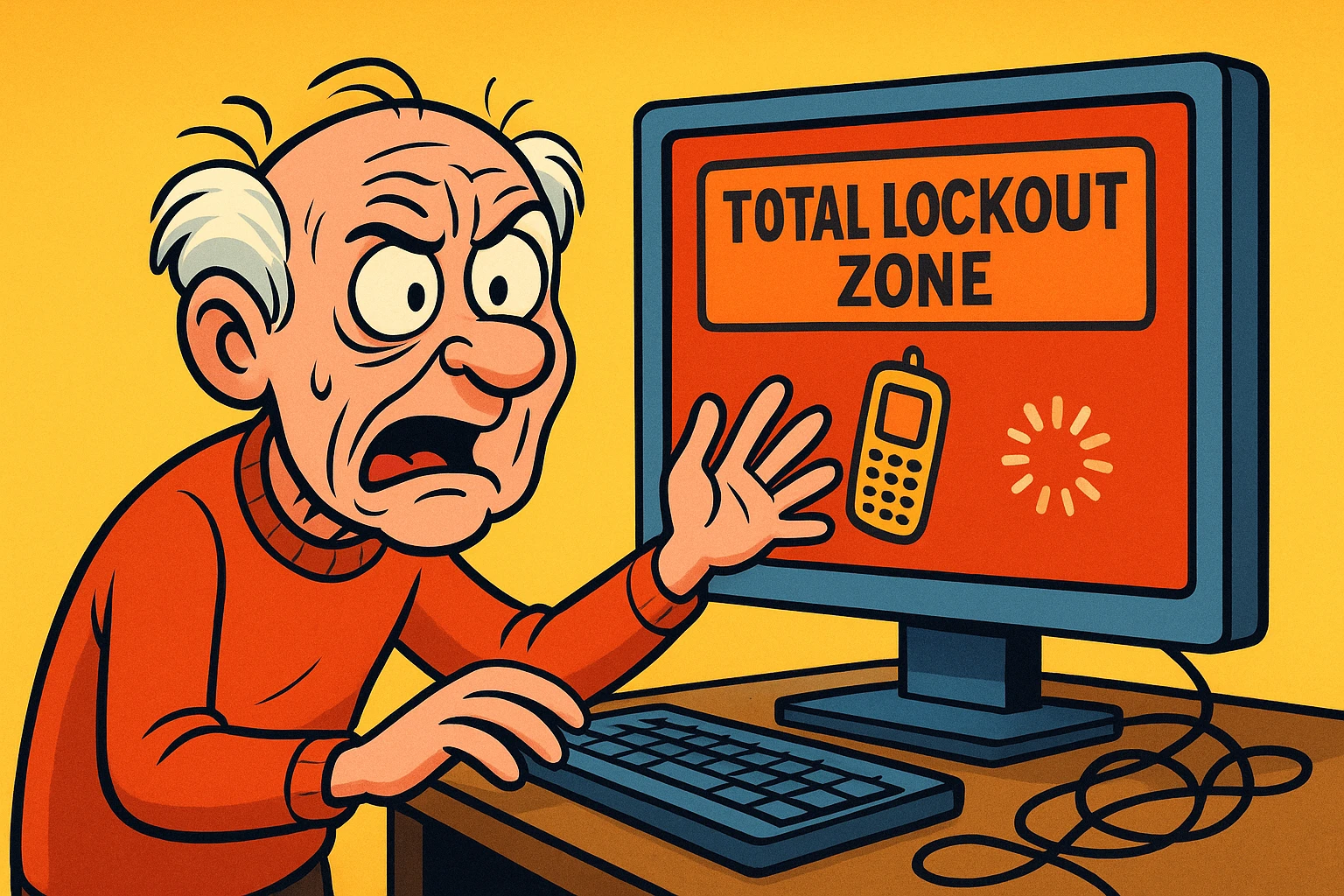
Account recovery without recovery email or phone starts with one rule, and it’s the opposite of what instinct tells you. Stop trying to log in.
Repeated failed attempts can trigger a longer security hold, and they make a legitimate owner look exactly like somebody breaking in.
So pause and gather what you’ve got.
The last password you remember. Roughly when you created the account. Devices you’ve used it on. Where you usually sign in from. Any backup codes you saved.
Then open the provider’s official recovery page by typing the address yourself, rather than clicking a search result.
And never pay a stranger who claims they can get around the provider’s security checks. Nobody can.
You have time here. Taking it works in your favor.
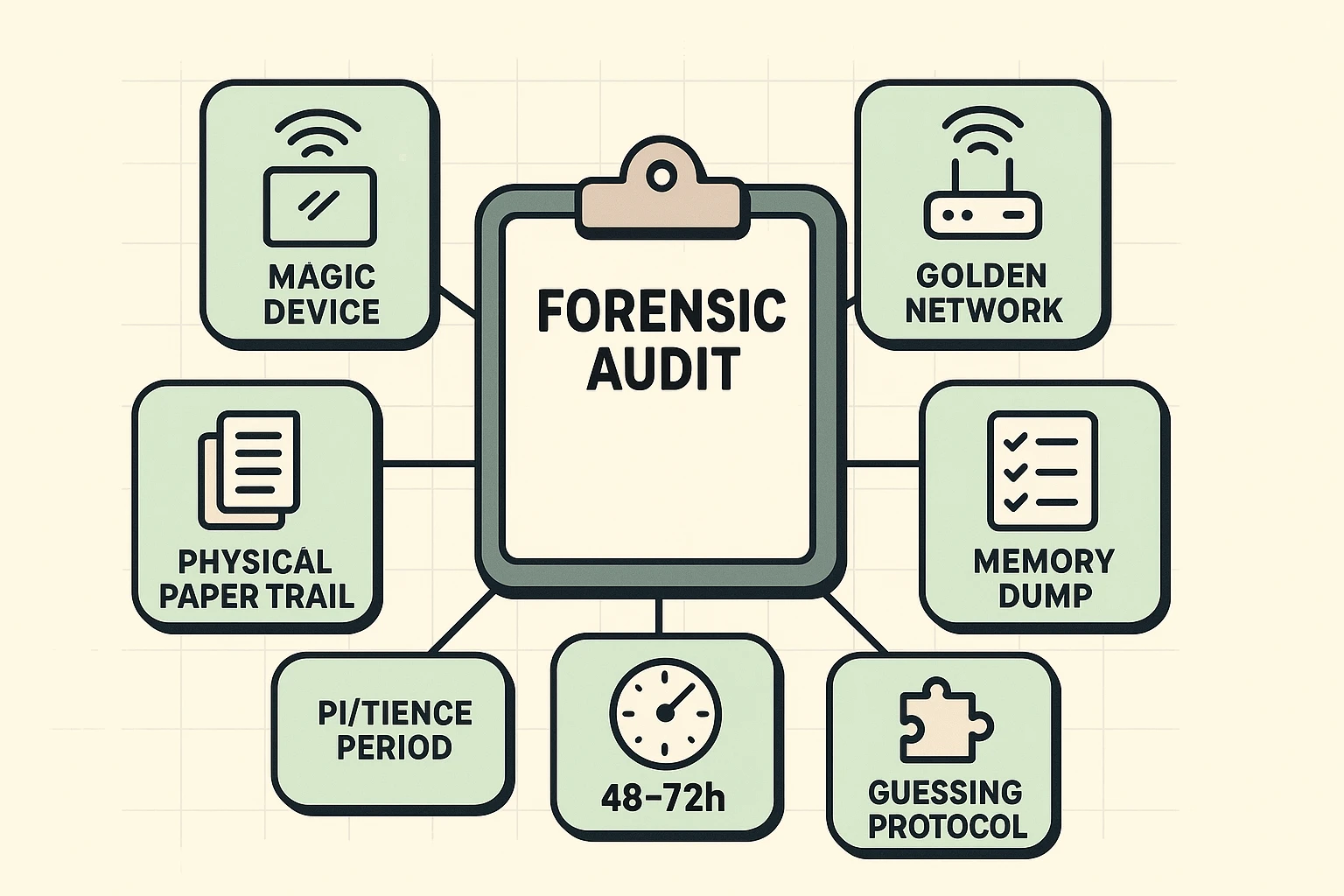
Three different problems look identical from the outside, and each one needs a different response. Work out which you’ve got before you do anything else.
If the password simply stopped working, use the official “Forgot password” path. Once.
If you lost the phone you used for two-factor authentication, look for a backup code, a device you’re still signed in on, or the provider’s “try another way” option.
If your recovery details changed and you didn’t change them, the account is hacked rather than locked. That’s a different emergency.
In that case, secure your email and financial accounts first, warn your contacts, and use the provider’s compromised-account process instead of the ordinary reset.
For that scenario, our guide on what to do when an account was hacked walks through the full process.
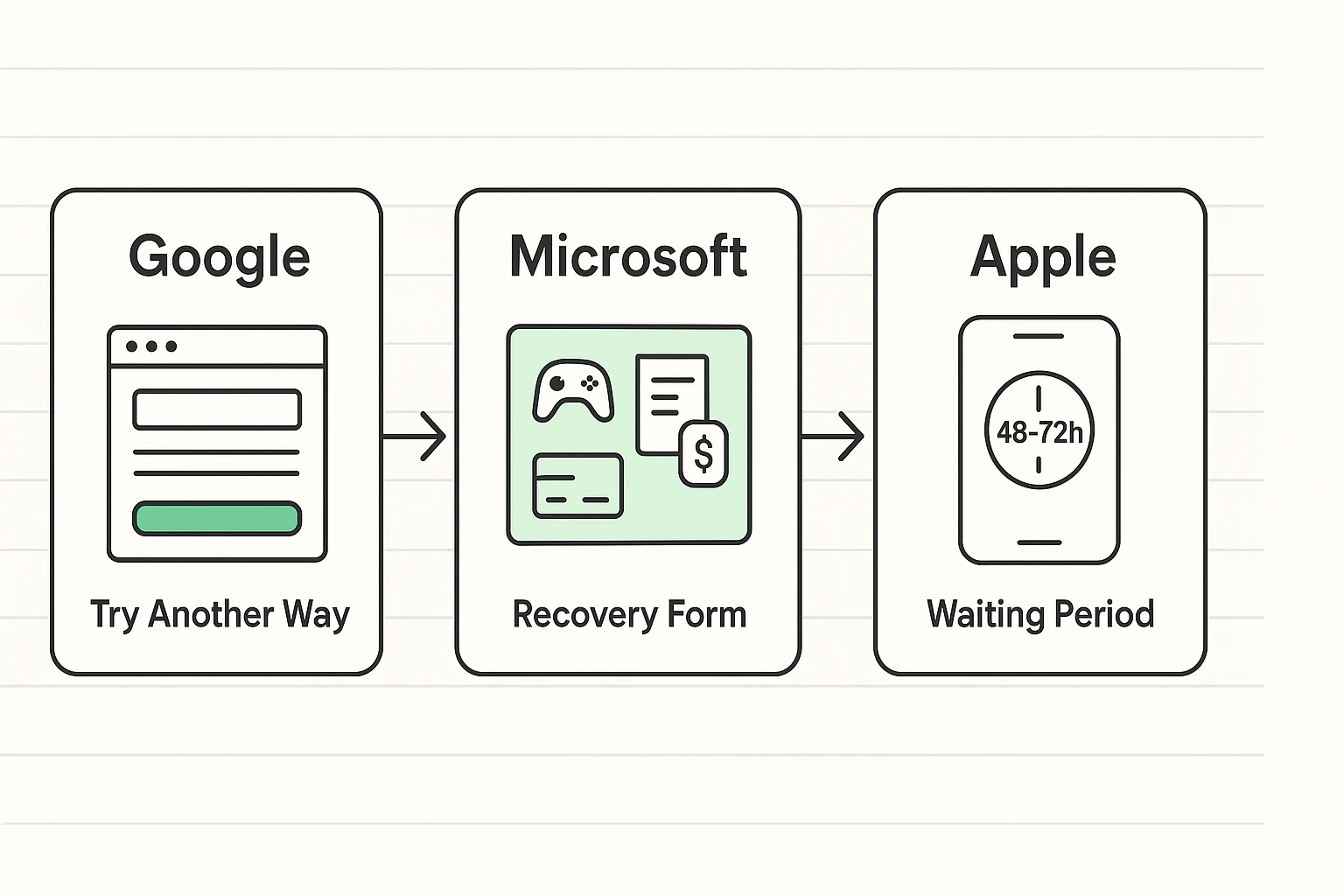
If the phone is gone, work down this list and stop as soon as something works.
Once you’re back in, remove the lost device from the account, generate a fresh set of backup codes, and add a second recovery method so this doesn’t happen twice.
And don’t read a one-time code to anyone who calls or messages you. That’s the whole scam, and it works because the code arriving feels like proof the caller is legitimate.
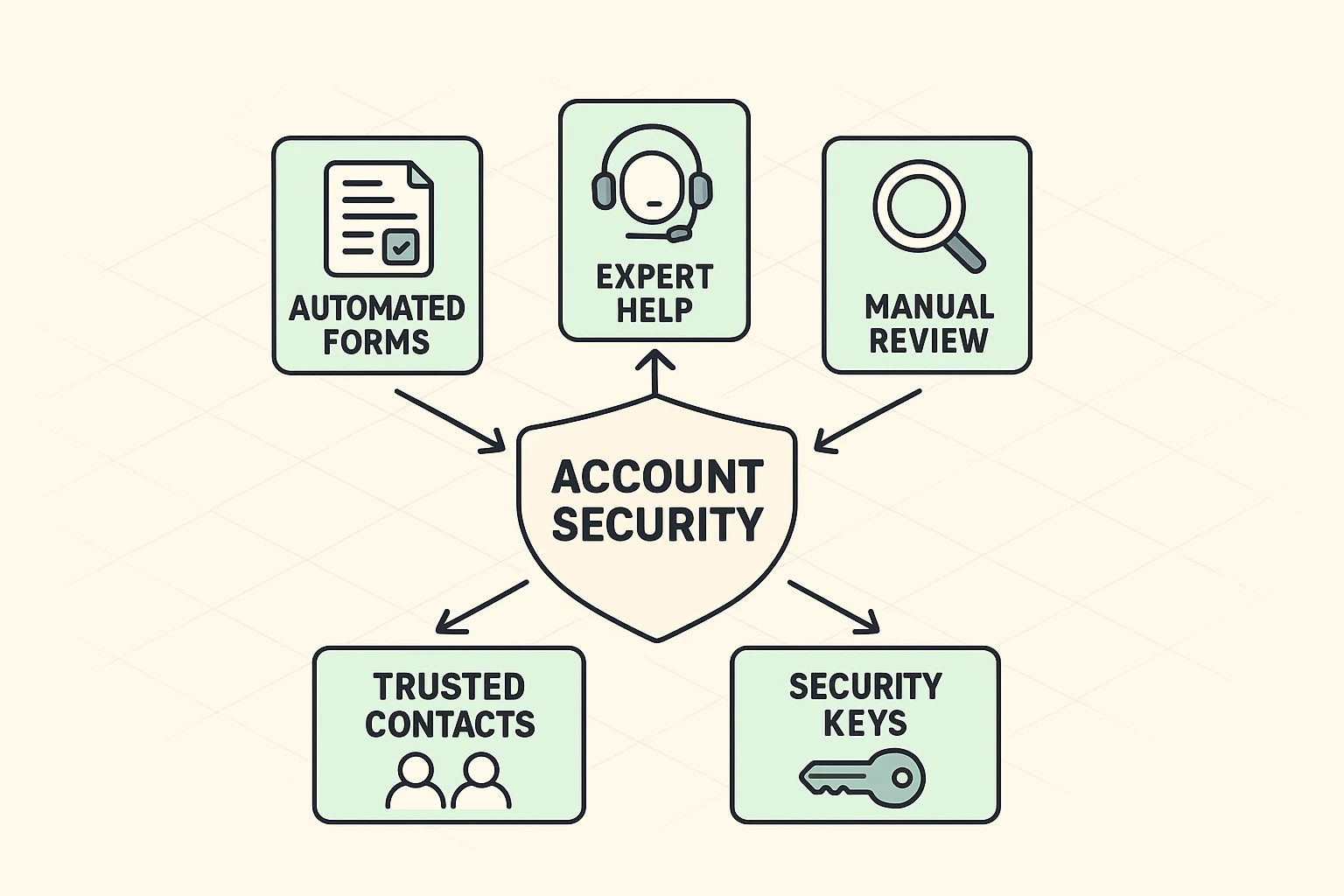
A locked-out account is a two-person job more often than people admit, and there’s a right way to do it.
If you’re the one helping, your job is everything except the typing.
The helper sits beside the owner. They find the provider’s official recovery page, organize the dates and documents, and read each prompt out loud.
The owner types the passwords and the codes, and makes the decisions.
That split matters. A helper shouldn’t set up a secret recovery address, keep copies of identity documents, or work the account pretending to be the owner. Each of those creates a bigger problem than the one it solves.
Once access is back, write down the recovery methods the owner agreed to, and keep that note somewhere secure.
When you’re desperate, it’s tempting to search for something like “Gmail support phone number.” Be careful what you find.
Google, Facebook, and Microsoft don’t have a phone number you can call to reset a lost password. If a search turns one up anyway, that’s your first clue it isn’t real.
Call one of those numbers and you might reach a friendly stranger named “Steve” who asks for your credit card “to unlock the server.” Hang up. That’s the whole scam.
Always verify a support channel through the company’s own website, never through a number from a search result or a pop-up. And if anyone asks for money to reset a password, walk away.
A password manager’s master password isn’t like a website password, and that difference is the whole story here.
Most website passwords can be reset because the company holds your data. A password manager encrypts your vault so the company can’t read it. That’s the point of it. It also means some providers genuinely cannot let you back in.
Check the provider’s official documentation for an emergency-access contact, a recovery key, or an account-reset option. Then look for any recovery kit you saved when you set it up. People print those and forget them immediately.
If recovery really isn’t possible, it’s slow but it isn’t the end. Secure your email first, since that’s how you reset everything else. Then reset the important accounts one at a time and build a new vault as you go.
Never send an encrypted vault or a recovery key to a paid recovery expert. There’s nothing they can do with it that you can’t, and plenty they can do that you wouldn’t like.
Getting back in is the halfway point. Do these before you close the laptop, or you’ll be back here again.
If you haven’t already, take a few minutes to set up two-factor authentication so this is harder to repeat.
Save the backup codes somewhere secure and separate from the device. A drawer beats a note on the phone that just went missing.
And if the account can’t be recovered at all, tell your important contacts, change the email address on your banking and government accounts, and watch for messages sent in your name.
For the wider picture, our online safety for seniors guide pulls scams, privacy, and security together in one place.
Sometimes. Use a device and network the account already recognizes, choose the provider’s official recovery form or their “try another way” option, and give accurate evidence like an old password or roughly when you opened the account. It isn’t guaranteed once no trusted device or verifiable history remains, but it’s worth a careful attempt.
Try a saved backup code first, then another device you’re still signed in on. If the number is still yours, your carrier can move it to a replacement SIM. Failing those, use the provider’s official recovery form. Once you’re back in, remove the lost device and generate a fresh set of backup codes.
No. Nobody outside the company can legitimately get around a major provider’s security, so anyone promising it is running a scam. Don’t pay a recovery expert, and never share a password, one-time code, recovery key or identity document with someone who contacted you first. Use the provider’s own recovery page instead.
Check the provider’s official recovery options, emergency-access settings, and any recovery kit you printed when you set it up. Some encrypted vaults genuinely can’t be opened without the master password or recovery key. If yours is one of them you still have a path forward, but it means rebuilding rather than recovering.