Newsletter Subscribe
Enter your email address below and subscribe to our newsletter

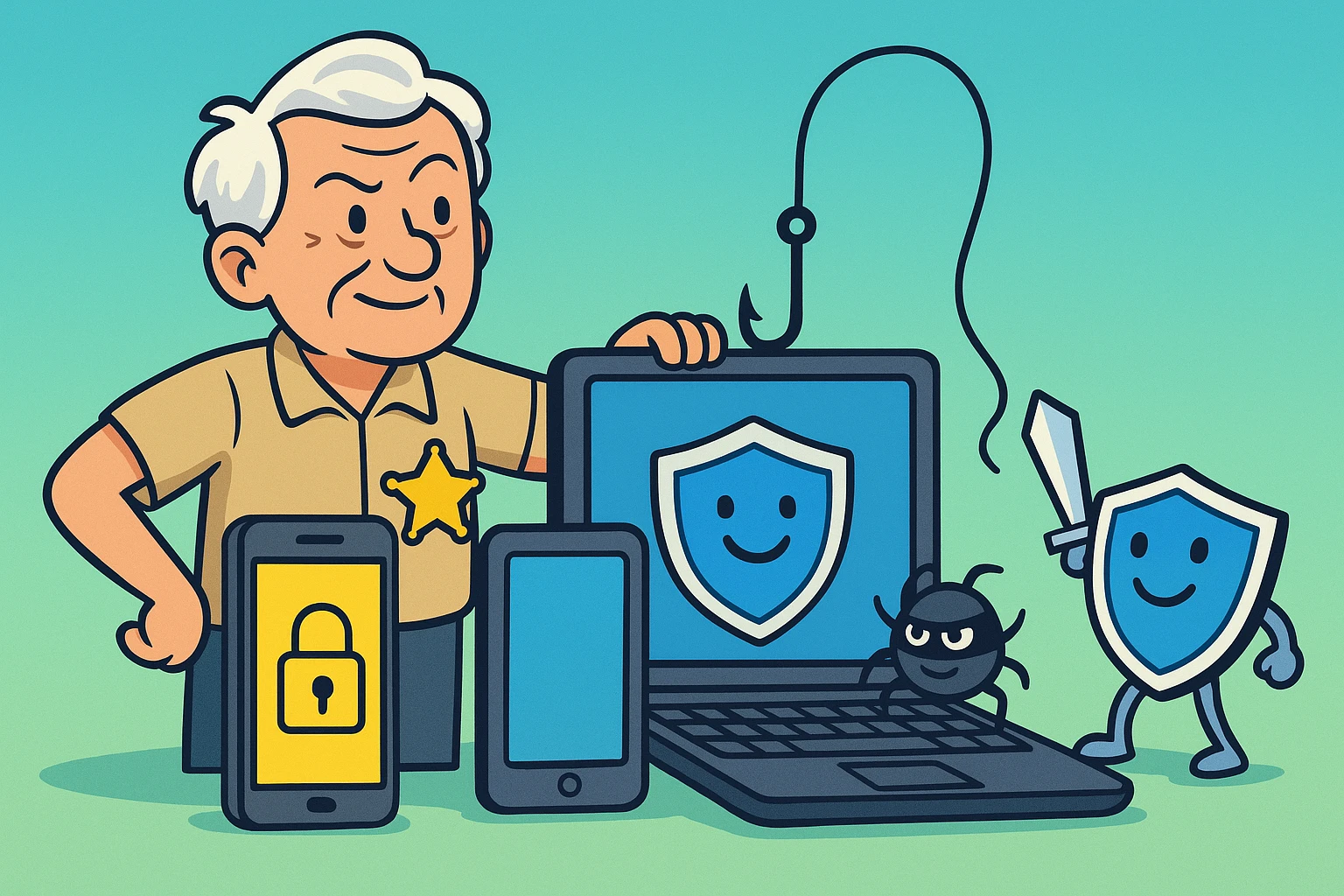
Device security for seniors comes down to four settings that head off most of the trouble. A strong screen lock, automatic updates, current account-recovery details, and device tracking.
Turn those on before you buy anything extra. Locking the front door beats installing a second alarm.
After that, look at app permissions, lock-screen notifications, backups, and the firewall on each computer.
The steps below are split by platform, so you can do the devices you own and ignore the ones you don’t.
Six things, and then this mostly runs without you.
Set a six-digit or longer PIN, a password, a fingerprint, or face unlock. Set the lock to kick in immediately, or within a minute of the screen going dark.
Turn on automatic updates for both the operating system and your apps.
Confirm the recovery email and phone number on your main Apple, Google or Microsoft account. People skip this one, and it’s the one that matters when something goes wrong.
Switch on Find My or Find My Device, and back up your photos and documents.
Then write your recovery instructions down and keep them somewhere secure, away from the device itself. That’s one afternoon of work, once.
Most device loss isn’t dramatic. It’s a phone left on a table.
Don’t leave one unattended in a car, at an airport charging station, or on a restaurant table while you look at the menu.
Use a case, and write the model and serial number down somewhere that isn’t the device. Learn how to mark it lost from another device before you need to.
Skip unknown USB charging cables and public computers for anything involving data. A borrowed cable can carry data, not just power. Use your own charger and a wall outlet.
And before a repair, trade-in or recycling, back it up, sign out of your accounts, and follow the manufacturer’s own erase process. Deleting the photos isn’t the same thing.
A locked phone isn’t as private as it looks. Text previews, appointment details, and verification codes all appear on the lock screen by default.
Which means anyone who glances at it on the coffee table can read them without touching it.
On iPhone, open Settings, then Notifications, then Show Previews, and choose When Unlocked.
On Android, search Settings for lock screen notifications and choose to hide sensitive content. The wording varies by manufacturer, so search rather than hunt.
Keep the alerts you genuinely need visible, like calls or medication reminders. Hide the banking, email and message previews.
On iPhone and iPad, keep iOS or iPadOS current, install apps only from the App Store, and go through Settings, then Privacy & Security. Turn on Find My, and remove any configuration profile you don’t recognize.
Traditional antivirus can’t scan iOS the way it scans a computer, because Apple doesn’t let apps see that much. So updates, phishing awareness and account security are what actually protect you there.
On Android, keep both Android and Google Play system updates current, leave Google Play Protect switched on, install from trusted stores, and go through Permission Manager.
A reputable security app can help on Android in a way it can’t on iPhone. It still doesn’t replace safe downloads and current updates.
No app rescues a device you never update.
A firewall is the screen door on your internet connection. Both Windows and Mac include one, and it should be on.
On Windows, search for Windows Security, open Firewall & network protection, and check that your active network shows the firewall as on.
On Mac, open System Settings, then Network, then Firewall, and switch it on. On older macOS versions it lives under Privacy & Security instead.
Don’t switch a firewall off to make an unfamiliar app work. If a program you trust genuinely needs access, allow that one program, then remove the exception when you’re finished with it.
Open the Privacy or Permissions section and go through camera, microphone, location, contacts and photos.
Our guide on how to review app permissions safely goes category by category if you want more detail.
Plenty of apps ask for far more than they need, because asking costs them nothing.
Allow access only where the feature obviously requires it, and pick the narrower option when it’s offered. While Using the App rather than Always. Selected Photos rather than all of them.
Delete apps you no longer use, which removes their permissions along with them.
One caution. Don’t delete anything labeled System, UI, driver or security component unless the manufacturer’s own support page says it’s optional. Those aren’t apps.
Come back to this every three months, and any time you install something unfamiliar.
Everything above applies to your smart doorbell, thermostat, and camera too, plus two things specific to them: a strong, unique router password, and firmware updates for every connected device.
Our guide on smart home privacy settings walks through router setup and device-by-device settings in full.
Once a month, ten minutes.
Confirm your backups actually completed rather than assuming they did. Remove apps you’ve stopped using. Look at recent sign-ins on your main accounts. Check that device tracking still works.
Leave automatic updates on, and restart the device when an update asks you to. Half-installed updates protect nobody.
Replace hardware that no longer receives security fixes. There’s a point where a device stops being old and starts being a liability.
And if a pop-up announces your device is infected and displays a phone number, close it without calling. That number belongs to the scammer. It’s the entire purpose of the pop-up.
Use your built-in security dashboard or the manufacturer’s official support page instead.
For the wider picture, our online safety tips for seniors guide pulls scams, privacy, and security together in one place.
Turn on a strong screen lock, automatic updates, account recovery details, device tracking and backups. Then review lock-screen notifications and app permissions. Those cover what people actually run into: a lost phone, an out-of-date system, and an account you can’t get back into. Extra security apps can wait.
Traditional antivirus can’t scan iOS the way it scans a Windows computer, because Apple limits what any app is allowed to see. So the protection that matters is iOS updates, App Store downloads, phishing awareness, Find My, a strong Apple Account password and two-factor authentication.
Yes. Keep the built-in Windows or macOS firewall switched on. If one specific program you trust needs access, allow that program rather than turning the firewall off. Switching it off to fix one stubborn app exposes everything else too, and it’s very easy to forget to switch it back on.