Newsletter Subscribe
Enter your email address below and subscribe to our newsletter


Remember the old family photo albums? The ones that weighed as much as a Buick and featured pages covered in that sticky magnetic plastic that permanently fused your Uncle Phil’s wedding photo to a picture of a 1974 Plymouth Volaré? Sharing those memories used to be easy. You just hauled the album out of the closet, dusted it off, and forced your captive audience to sit on the sofa while you narrated.
Today, your grandkids live three states away, and your photos are trapped inside a sleek rectangular piece of glass that occasionally rings. Trying to show a physical photo over a video call usually involves holding it up to your computer camera with trembling hands. The result is a blurry, glare-filled image that looks less like your graduation day and more like a confirmed UFO sighting.
If this sounds familiar, you are not alone. Technology has made it incredibly easy to talk to anyone, anywhere, at any time, but it somehow made sharing our actual history feel like assembling Swedish furniture blindfolded.
The good news? There is a wonderful, simple solution called a Virtual “Show and Tell.” By using a magical little feature called “screen sharing,” you can broadcast your old photos directly onto your family’s screens, crisp and clear. We are going to show you exactly how to do it, without requiring a degree in computer science.
Before we talk about which buttons to push, let’s talk about why this matters. Sharing old stories isn’t just a fun way to pass a Sunday afternoon. It can encourage conversation, strengthen family connections, and give your memory a little exercise.
Researchers call the structured, guided version of this activity “Reminiscence Therapy.” Studies suggest it can improve mood, life satisfaction, and sometimes cognitive function in older adults. An informal family photo call is not quite therapy, of course, but it uses the same basic ingredient: meaningful memories and someone interested enough to listen.
For your family, it’s a chance to build a bridge across the digital divide. When you share the story behind the photo, you are giving your kids and grandkids a gift that a simple text message can never match. And here is the ultimate secret: the story matters far more than the photo quality.
To share a photo on your computer or tablet, it first needs to actually be on your computer or tablet. If your memories are currently sitting in a shoebox under the guest bed, we need to do the “analog-to-digital shuffle.”
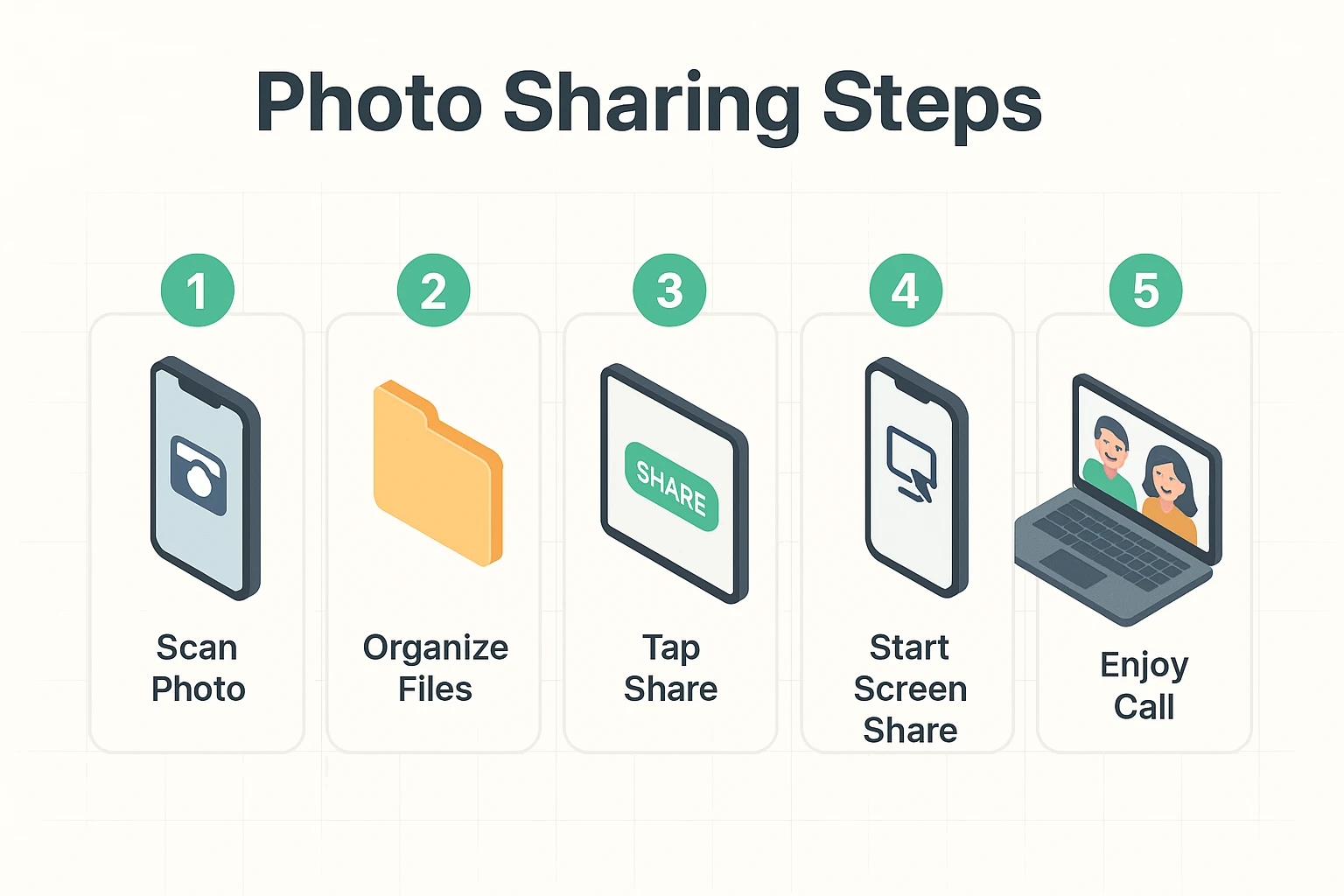
Don’t panic—you don’t need to buy an expensive scanner. You already own a portable scanner: your smartphone.
There are wonderful, free apps designed specifically for this, like Google PhotoScan. Lay your old photo flat on a table, point your phone’s camera at it, and follow the dots that appear on the screen. PhotoScan combines several quick images to reduce glare and helps crop the edges. It’s like having a tiny, magical photo lab right in your pocket.
Once you’ve snapped a picture of the old photo, it lives in your phone’s photo gallery, right next to the 47 accidental pictures of your thumb. You are now ready for the main event.
The phrase “screen share” can sound intimidating, but it’s just a fancy way of saying, “Look at what I’m looking at.” Imagine taking a transparent copy of your photo and putting it on an overhead projector for the whole room to see. That’s all screen sharing is.
Whether you are using Zoom, FaceTime, Google Meet, or WhatsApp, the basic idea is the same—but the buttons are not. Look in the call controls for words such as “Share,” “Share Screen,” “Screen Sharing,” or “Present Now.”
In Zoom, for example, tap or click “Share.” On an iPhone using FaceTime, tap the screen to reveal the controls, tap “More,” then choose “Screen Sharing” and “Share My Screen.” Other apps will walk you through a similar process.
You won’t break the internet, and you won’t accidentally launch a satellite. When you are finished, return to the call controls and look for “Stop Sharing,” “Stop Share,” or “Stop Presenting.”
Pro Tip for families: If you have a younger relative helping you set this up, ask them to make you a “Printable Tech Placemat.” This is just a simple sheet of paper they can mail you with a big picture of exactly what the “Share” button looks like on your specific device.

A great Virtual Show and Tell isn’t a one-way lecture; it’s a conversation. This is where a family member (maybe a tech-savvy grandchild) can step in as the “Story Weaver.”
The Story Weaver’s job is to ask the right follow-up questions to unlock the memories. Instead of just saying, “That’s a nice picture,” they can ask the “Magic Questions.”
Good Magic Questions include: “What was the weather like that day?” or “How much did that car cost back then?” or “Who was standing just outside the frame?” These prompts help bypass the simple facts and dive straight into the rich, emotional details of the past.
Staring at thousands of photos can feel overwhelming. To make things easy, don’t try to share your entire life story in one sitting. Pick a theme and choose just 3 to 5 photos to share. Here are a few great ideas to get you started:
This is a very common fear! The easiest way to stay safe is to use the “Share Photos” option rather than “Share Screen” if your app allows it. This ensures your family sees only the pictures you select, not your email inbox or bank website.
If there is no “Share Photos” option, close anything private before the call and open the photos you plan to show. On a computer, choose the photo app’s window instead of your entire screen whenever that option is available.
Absolutely not. Current versions of Apple’s FaceTime, Zoom, Google Meet, and WhatsApp include screen sharing at no additional charge. The exact controls—and whether the feature works on an older device—will vary, so make sure your app and device software are up to date.
If your computer starts buffering or freezing like a deer in headlights, turn off your own camera’s video feed while you share the photo. This frees up your internet connection to focus entirely on transmitting the picture and your voice clearly.
You now have the blueprint to turn a standard, boring Sunday video call into a genuine family event. You understand the health benefits of nostalgia, how to get your physical photos onto your device, and the basic steps to beam them across the country.
Your homework is simple. Don’t try to digitize your entire basement today. Just pick one photo. Use your smartphone to take a picture of it. Then, call a family member, tell them you’re practicing a new tech trick, and hit that “Share” button.
You might just find that bridging the digital divide is the most fun you’ve had online in years.