Newsletter Subscribe
Enter your email address below and subscribe to our newsletter

By Chris Clark, founder of Senior Tech Cafe
Website trackers are small bits of code on web pages that record what you look at and report it to advertisers, which is why a pair of orthopedic shoes you browsed once can follow you around the internet for a month.
You go to check the weather, and there are the shoes. You log in to read the news, and the shoes are waiting for you, practically tapping their toes. It’s like walking into a department store, looking at a blender, and then having a salesman follow you to your car, sit in your backseat, and whisper blender prices all the way home.
If this happens to you, you’re not losing your mind. You’re simply experiencing the modern internet, which is less like a library and more like a bustling bazaar where everyone is taking detailed notes on what you look at. For years, we were told that clearing our computer’s cookies was the magic fix for this snooping. Take out the digital trash now and then, and your privacy would be restored.
Unfortunately, the tech world has gotten much sneakier since then. While you’ve been diligently sweeping up cookies, the internet has invented invisible cameras and digital sketch artists to track your every move. The good news is that you don’t need a degree in computer science to stop them. You just need to know what to look for and which switches to flip.
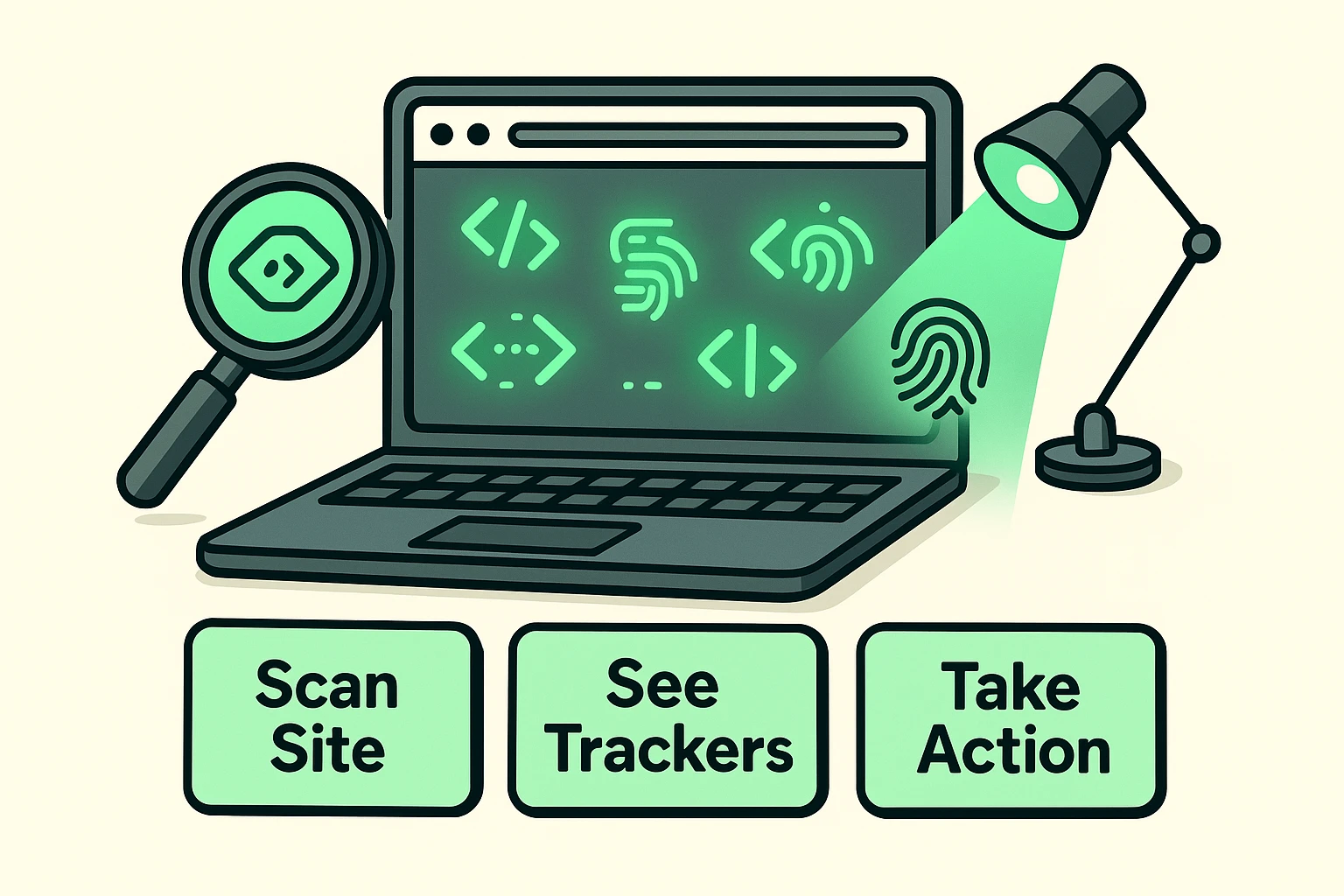
Before we start blocking things, it helps to see the invisible trackers hiding in plain sight. There’s a brilliant, free tool created by an investigative journalism group called The Markup. It’s called Blacklight, and it works like a physical exam for websites.
Think of it like shining a blacklight in a cheap motel room (actually, on second thought, let’s not think about that). Instead, think of it as a pair of X-ray glasses for the internet. You type in the address of your favorite news site or shopping page, and Blacklight scans it on the spot.
It shows you the ad trackers, hidden pixels and data-collecting scripts running in the background while you read an article, and which companies are getting your data. Try it on a website you visit every day. Don’t be surprised if the list is long. It’s a real eye-opener that proves you aren’t being paranoid. The internet really is watching.
For a second opinion, try Cover Your Tracks, a free test from the Electronic Frontier Foundation, a respected digital-rights group. Instead of scanning a website, it scans your own browser and tells you how easy you are to pick out of a crowd. That’s your browser fingerprint, and we’ll get to it in a minute.
To reclaim your privacy, you need to know who you are fighting. The tech industry uses a lot of confusing jargon to describe data collection, likely hoping you’ll get bored and leave your settings alone. We aren’t going to let them win. Let’s break down the three main culprits using plain English.
Cookies are small files a website leaves on your computer to remember you. Some are helpful, like the ones that keep you logged into your bank account, so you don’t have to type your password every five seconds. Think of these as a helpful “Hello, My Name Is” sticker you wear at a polite party.
However, “third-party cookies” are the bad guys. These are name tags placed on you by advertisers who don’t even own the website you are visiting. They follow you from site to site, which is how the orthopedic shoes know you moved from a shopping site to a weather site.
If cookies are name tags, pixel tags are tiny, silent security cameras. A pixel tag is literally a microscopic image, often just one single dot on your screen, that you cannot see with the naked eye. They are embedded in web pages and, most annoyingly, in emails.
When you open an email containing a hidden pixel, it secretly sends a message back to the sender. It tells them exactly what time you opened the email, what kind of device you used, and whether you clicked anything. If you’ve ever felt like a salesman knew the exact second you read their email, it’s because a pixel tag told them.
Browser fingerprinting is the sneakiest method of all. Say you get smart and clear all your cookies. You take off your name tag. Browser fingerprinting doesn’t care. Instead of leaving a file on your computer, it looks at the unique combination of your computer’s details.
It notes your screen size, the fonts you have installed, the language you use and which version of your browser you have. It pieces those clues together like a police sketch artist drawing a composite portrait. Even without a name tag, a tracker can recognize you, because very few people share your exact combination.
One trick is called canvas fingerprinting. The website asks your browser, behind the scenes, to draw a small picture you never see. Every computer draws it a tiny bit differently, depending on its graphics hardware and software, so the finished drawing works like a signature. Visit a different site next week, it asks for the same drawing, recognizes the brushstrokes, and says, “Aha! It’s the shoe shopper!”
That’s why fingerprinting is a bigger deal than annoying ads. It lets companies build a long-running profile of your habits that survives every cookie cleanup you do.
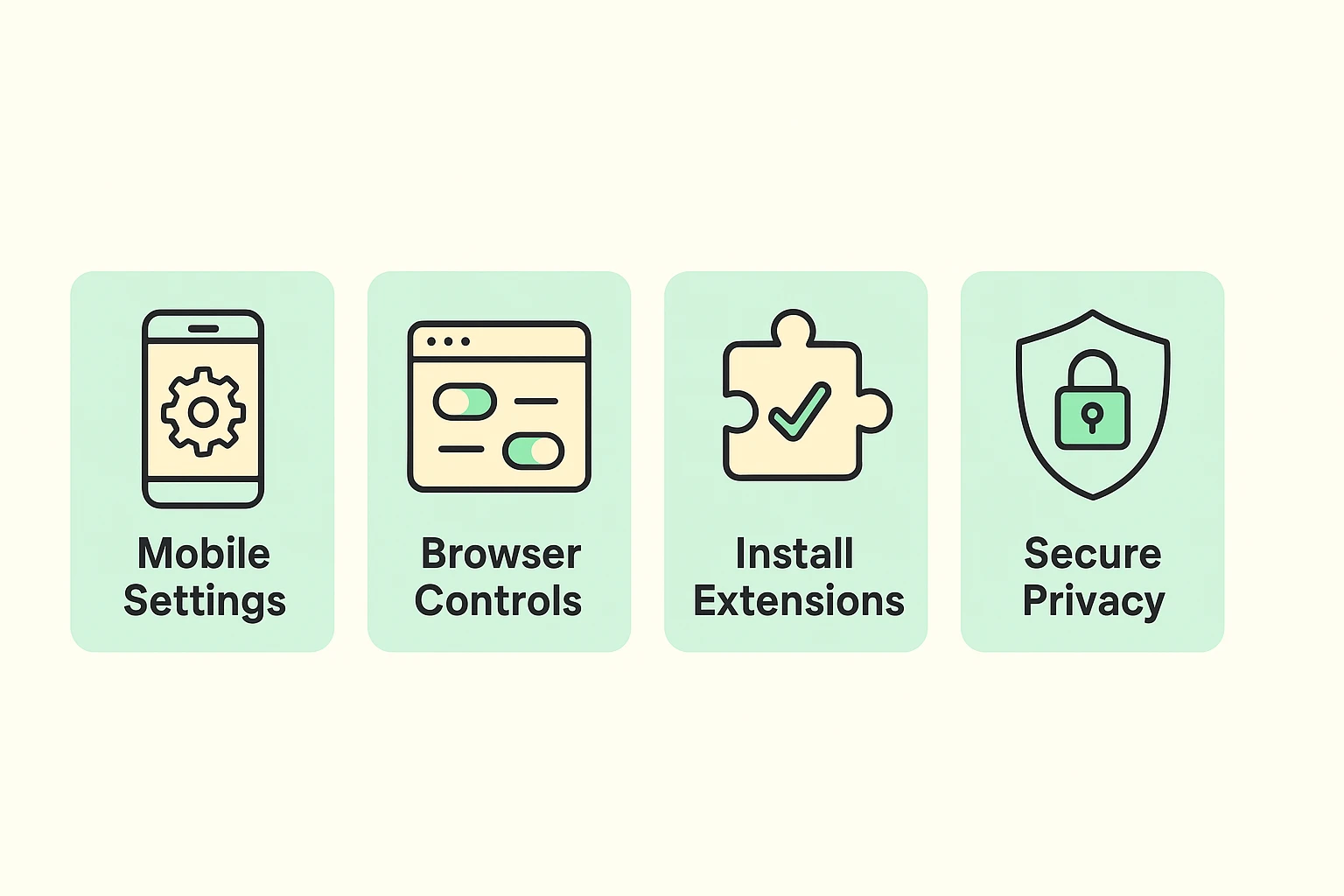
To stop websites from tracking you, do three things: block third-party cookies in your browser settings, add a free tracker-blocking extension, and use a browser with fingerprinting protection built in. No single switch stops every tracker, but those three together shut out most of them.
You don’t have to accept being tracked as the price of using the internet. Here’s how to slam the door on these digital peeping Toms, starting with the switches you already have.
Your web browser (Chrome, Safari, Edge or Firefox) is your vehicle for getting around the internet. Most browsers come from the factory with the windows rolled down and the doors unlocked. Flip a few switches to fix that. Menu names shift a little between versions, but these are current.
If a site acts up after you tighten things, most browsers let you relax the setting for that one site without undoing it everywhere.
Your smartphone is basically a tracking device that also makes phone calls. Apps follow you just like websites do, using an advertising ID, a code your phone hands to apps so advertisers can recognize you from one app to the next.
Your phone also loves to know where you are, which is a separate setting. Here’s how to stop apps tracking your location in the background.
If you really want to put a force field around your computer, add a browser extension. An extension is a tiny, free program you add to your web browser to give it superpowers.
Two are worth your time. uBlock Origin is like a tough bouncer who stands at the door of your browser and turns away ads and trackers before they even load. On Chrome and Edge, get the version called uBlock Origin Lite, because Google changed its extension rules and the original no longer runs there (as of 2026, it’s gone from the Chrome store entirely). Firefox still takes the full version. Privacy Badger, built by the Electronic Frontier Foundation, learns which trackers are following you and blocks them.
The best part? They really are install-and-forget. You add them from your browser’s extension store with a couple of clicks, and they do the heavy lifting in the background. You’ll probably notice websites loading faster, because all that invisible garbage isn’t loading anymore.
Extensions and settings cut down on cookies and pixels. Browser fingerprinting is harder to stop that way, and the single biggest improvement is simply using a browser that fights it for you.
Firefox and Brave both have fingerprinting protection built in, and Safari has it too once you switch it on for all browsing. Switching from Chrome to one of them is like trading a glass house for a brick one. Both are free, and both will bring over your bookmarks and saved passwords in a few clicks. You don’t have to change a single setting; they start protecting you the moment you open them.
Chrome is a perfectly good browser. Just remember that Google is an advertising company first, and its browser reflects that.
The tech world is full of half-truths, and it’s easy to get a false sense of security. Two myths do the most damage.
Many people believe that opening a Private or Incognito window makes them invisible on the internet. It doesn’t. Incognito mode only tells your browser not to save your history on your computer after you close the window.
Your internet provider can still see where you go. The websites you visit still know you’re there. The trackers and pixel tags still load, and your fingerprint is exactly the same. Using Incognito mode to hide from tech companies is like closing your eyes and assuming nobody in the room can see you. It’s great for hiding a gift purchase from a spouse who shares your computer, and that’s about it.
A VPN, or virtual private network, is useful for hiding your location and protecting you on public Wi-Fi. It does almost nothing about browser fingerprinting or cookies. Using a VPN to stop fingerprinting is like wearing a very good disguise and then handing your business card to everyone you meet. They might not know where you live, but they still know exactly who you are.
Browser fingerprinting is a way of recognizing your computer without leaving anything on it. A website reads details like your screen size, installed fonts, language and browser version, then combines them into a profile that’s often unique to you. Clearing cookies doesn’t touch it. Browsers with built-in fingerprinting protection, like Firefox, Brave and Safari, make it harder.
Your phone almost certainly isn’t listening to your conversations to choose your ads. It doesn’t need to. Website trackers, app data, your location history and your friends’ searches paint a detailed enough picture on their own. The ads feel like eavesdropping because the tracking is that good, which is a creepier answer, but a fixable one.
Blocking website trackers rarely breaks anything, but now and then a video won’t play or a checkout page won’t load. When that happens, turn off your blocker for just that one site, using the extension’s button next to the address bar. Everything else stays protected, and the misbehaving site gets back to work.
No. The best tools for stopping website trackers are free: the privacy settings already in your browser, extensions like Privacy Badger and uBlock Origin Lite, and privacy-minded browsers like Firefox and Brave. If a company wants a monthly fee to stop trackers, keep your wallet closed. You can do better for nothing.
To stop tracking pixels in email, tell your email app not to load images automatically. In Gmail, turn on Ask before displaying external images. On an iPhone, turn on Protect Mail Activity in the Mail settings. Senders then can’t tell when you opened their message, or from where.
Browsing the internet shouldn’t feel like walking through a shopping mall with a swarm of invisible paparazzi trailing behind you. Tech companies have worked hard to make data collection confusing, but you can push back.
Start by running that Blacklight scan to see who’s watching. Then take five minutes to adjust your browser settings and install a tracker blocker. Once that’s done, turn off personalized ads on Google and Facebook, and if you want to go further, remove your information from data brokers, the companies that buy and sell what the trackers collect.
For the rest of the privacy checklist, see our online safety guide for seniors. The internet is a whole lot more fun when you get to browse in peace.