Newsletter Subscribe
Enter your email address below and subscribe to our newsletter

By Chris Clark, founder of Senior Tech Cafe
Learning how to turn off personalized ads takes about ten minutes, and it’s the quickest way to stop Google and Facebook turning everything you do online into a sales pitch.
You’re standing in your kitchen, casually mentioning to your spouse that your lower back has been acting up and maybe you should look into a new mattress. Two hours later, you log onto Facebook to see pictures of your grandkids, and bam. There’s an ad for an orthopedic mattress. Next to an ad for a chiropractor. Next to an ad for an “ergonomic back-saving chair” that looks like it was designed by aliens.
Did your phone listen to you? Is there a tiny corporate spy hiding behind your toaster? It certainly feels that way. But the reality is much less dramatic, yet somehow equally annoying.
What you’re experiencing is the “magic” of personalized advertising. These tech giants don’t need a microphone in your kitchen, because they already have a mountain of data about your daily habits. It’s like having a digital personal assistant who has boundary issues and never, ever stops taking notes.
The good news? You can tell these digital snoops to back off, and it doesn’t require an engineering degree or a tin foil hat.
Before we start clicking buttons, let’s translate some of this Silicon Valley jargon into plain English. Tech companies love words that sound cute and hide things that are intrusive.
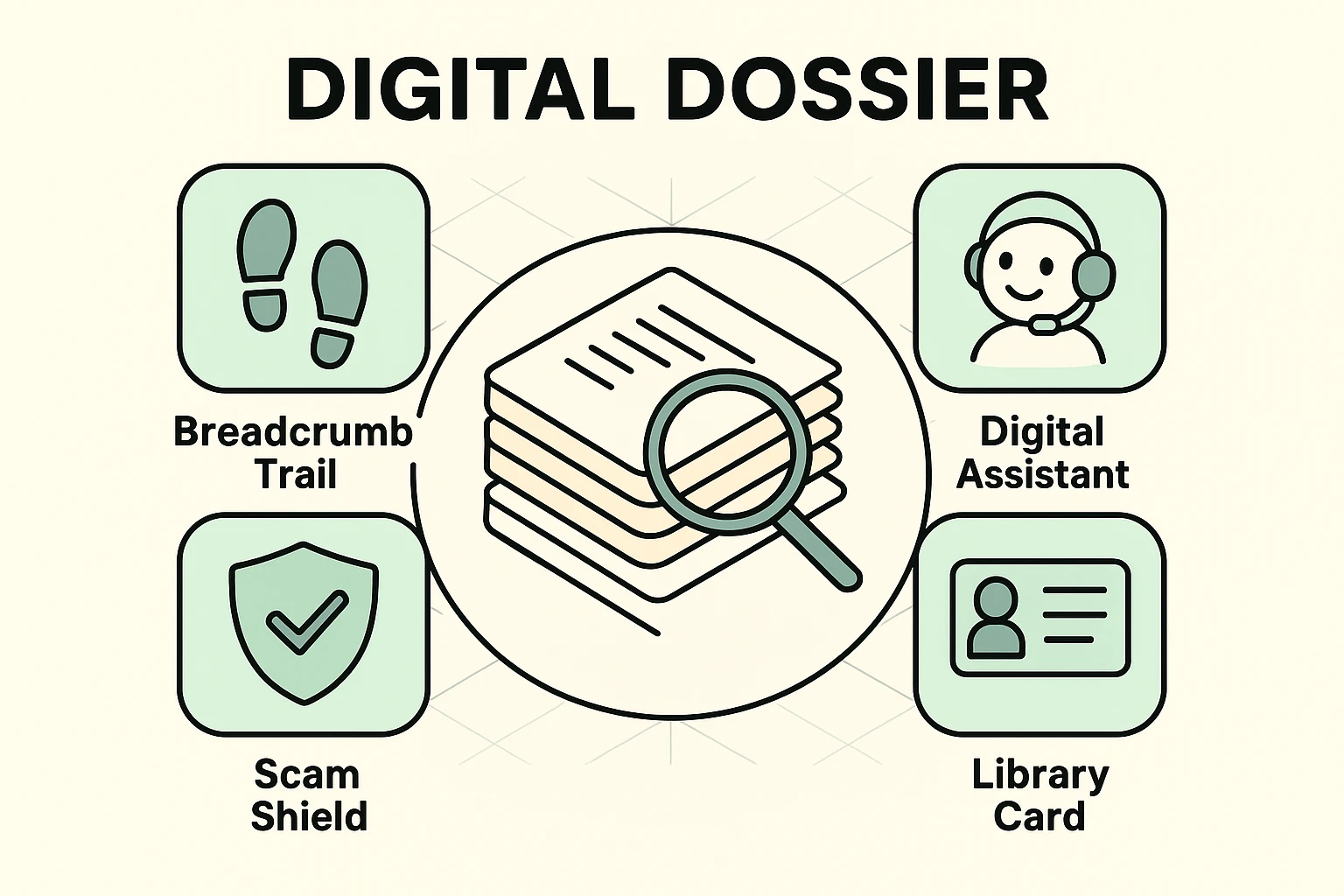
Cookies and pixels: In the real world, cookies are delicious and involve chocolate chips. In the digital world, they’re a breadcrumb trail. As you wander around the internet, your browser drops digital breadcrumbs, and advertisers sweep them up to see where you’ve been and what you’ve clicked. Pixels are invisible images on web pages that report back when you visit.
Ad personalization: Tech companies say this means showing you “more relevant ads.” In plain English, it means digital profiling. They’re building a file on your interests, habits and even your politics, usually without you realizing it.
Algorithms: This sounds like something out of a sci-fi movie. Really, it’s that nosy digital assistant again. It connects the dots between a garden hose you searched for on Google and the flower seeds you bought on a completely different website.
You might be thinking, “Who cares if they know I like gardening? Let them show me ads for wheelbarrows!” But leaving ad personalization fully turned on is about more than pesky ads. It’s about your safety.
A detailed ad profile works like a giant, glowing magnet for predatory, gray-area marketers. Scammers and aggressive salespeople can buy targeted ads like anyone else, and they use them to push sketchy weight-loss pills, high-interest loans and “miracle” joint supplements priced like prescription drugs.
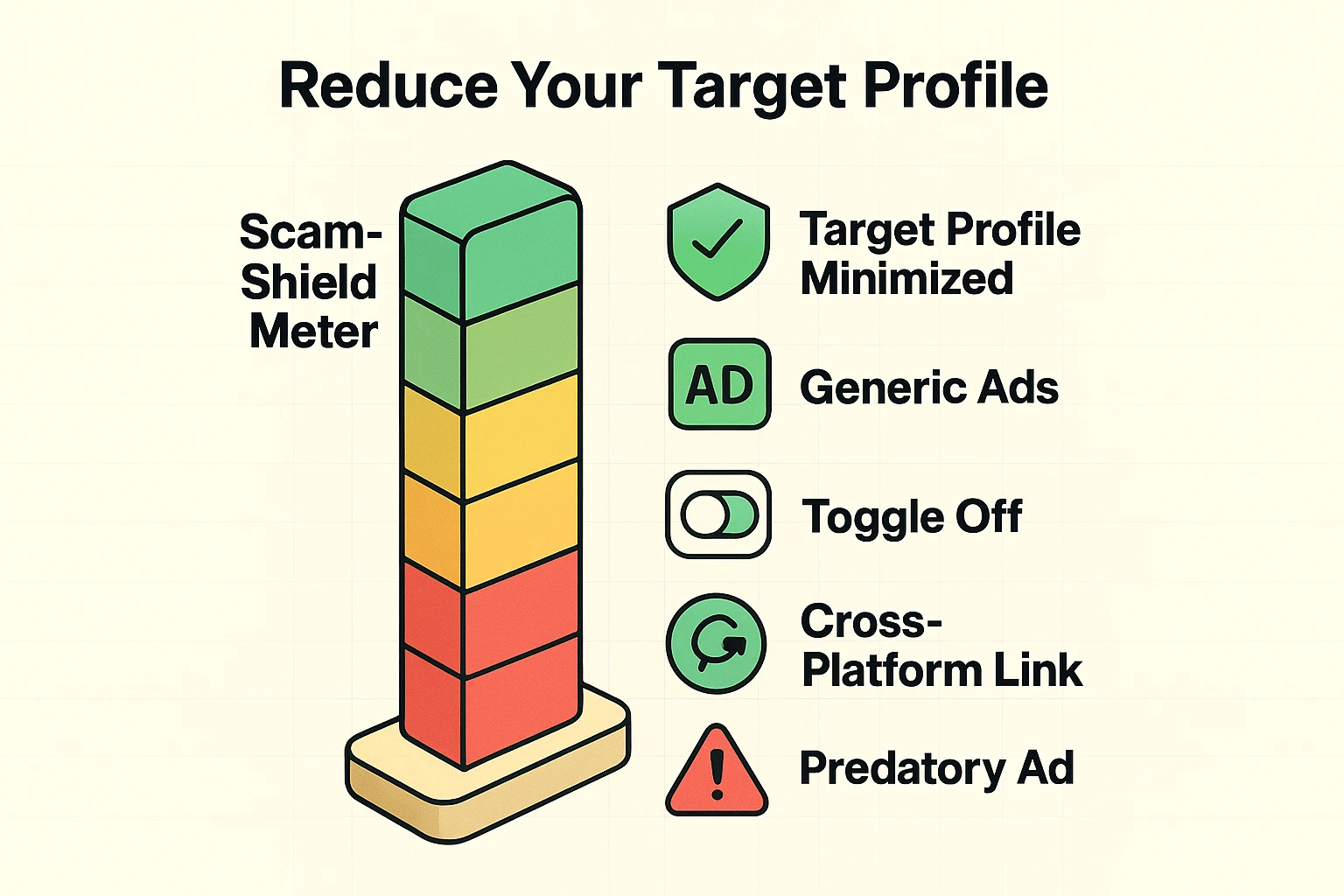
Turning off personalization shrinks your target profile. You essentially pull the blinds shut on your digital windows. You’ll still see ads, but they’ll be generic, like billboards on a highway, rather than a pitch built around your age and your aches.
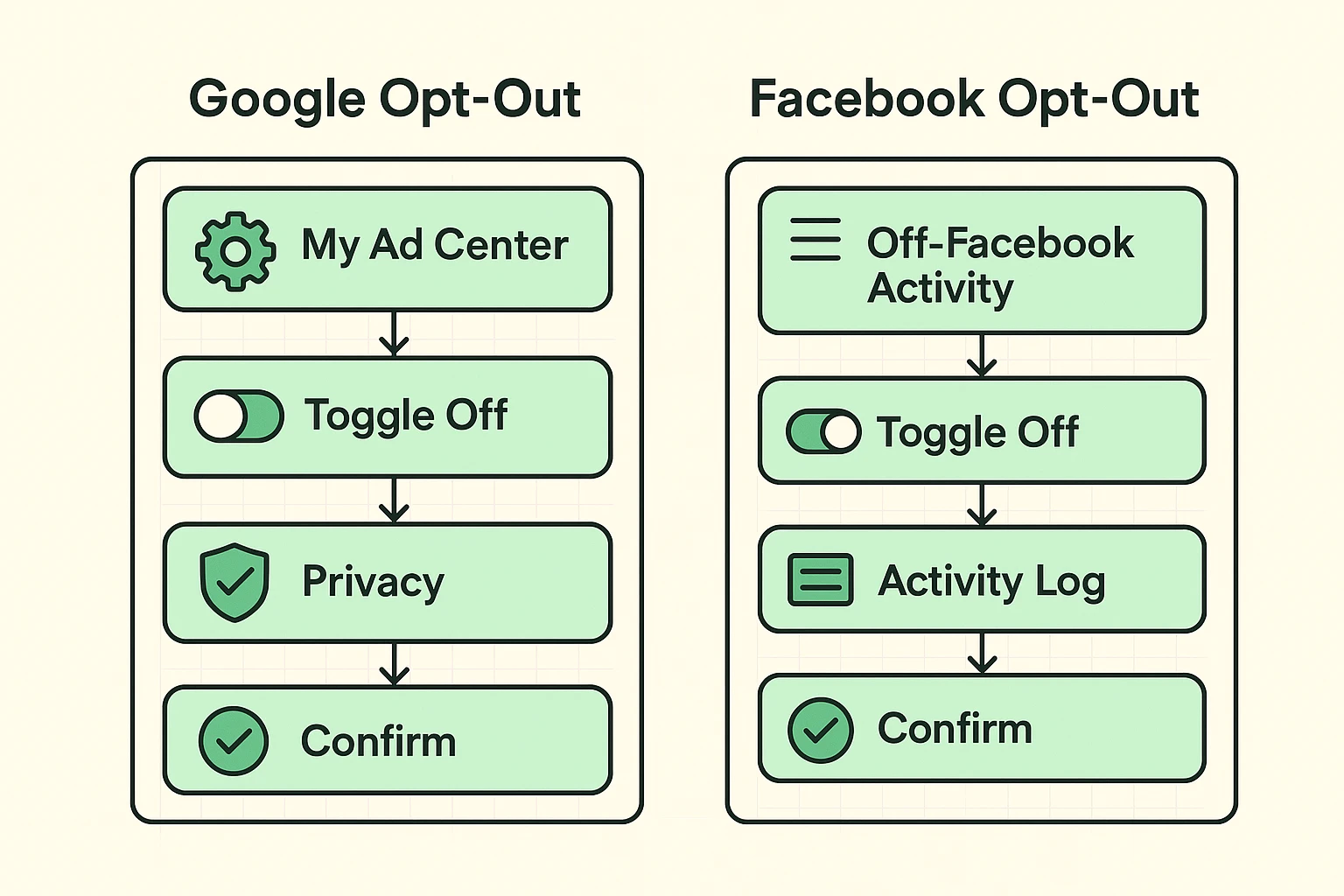
To turn off personalized ads, switch off Personalized ads in Google’s My Ad Center, then open Facebook’s Accounts Center and stop it using your activity from other businesses. On a phone, also delete your advertising ID. Each takes a couple of minutes, and the steps are below.
You need to do both companies, because they don’t share one off switch. Each one collects from the same places, though: the websites and apps you use every day, many of which carry Google’s and Facebook’s trackers. Grab a cup of coffee, crack your knuckles, and let’s do a little digital spring cleaning.
Google keeps its ad settings in a dashboard called My Ad Center. Here’s how to flip the switch:
Ads that Google places on other companies’ websites have a separate switch. Open Google’s partner ads setting and turn that off too.
To turn off personalized ads on Facebook as far as it allows, stop Meta (Facebook’s parent company) from using what other businesses tell it about you. Facebook is notorious for tracking what you do even when you aren’t on Facebook. Here’s how to cut that invisible leash:
In 2026 Meta folded its old Off-Facebook Activity controls into that one Activity from other businesses setting, so older guides that send you looking for them won’t match your screen. If you don’t see the new setting yet, Meta is still rolling it out.
One catch: in the US, Facebook doesn’t let you switch off personalized ads entirely. It will still use what you do on Facebook itself, like the pages you follow and the posts you linger on. While you’re in there, it’s worth running through our Facebook privacy settings guide too.
So you’ve tamed Google and Facebook. Give yourself a pat on the back. But plenty of other ad companies are watching, too, and your phone hands them a name tag.
On an iPhone: Open Settings, tap Privacy & Security, then Tracking, and turn off Allow Apps to Request to Track. Then go back, tap Apple Advertising, and turn off Personalized Ads for Apple’s own ads in the App Store and Apple News.
On an Android phone: Open Settings and look for Ads. Depending on your phone, it’s under Privacy or under Google, then All services. Tap Delete advertising ID.
For everyone else on the web: The advertising industry runs a free opt-out page called WebChoices, where you can opt out of dozens of ad companies at once. It can look intimidating, spin for a while, and throw a scary-looking error. Don’t panic; it hasn’t broken your computer. Just click the button to opt out of all of them. One catch: your choices are stored as cookies, so clearing your cookies undoes them.
If fiddling with web pages gives you a headache, a free tracker-blocking extension does the job automatically. Here’s how website trackers work and how to block them.
Now that you’ve adjusted those settings, one big misunderstanding needs clearing up: turning off ad personalization is not the same thing as installing an ad blocker.
You’re still going to see ads. The internet is mostly free because ads pay the bills. But instead of hyper-specific ads for the exact brand of arthritis cream you looked up yesterday, you’ll see generic ones. Think car commercials, local grocery store sales, or laundry detergent.
And about that Incognito or Private Browsing window your web browser offers. A lot of folks think it makes them invisible, like a Harry Potter invisibility cloak.
It doesn’t. Incognito mode just means your computer won’t save your history for your spouse to see. Your internet provider and the websites you visit still know you’re there, and Google’s own help page says sites using its services still share your activity with Google, including for ads.
Tech companies love to update their systems, and they move or rename privacy settings along the way. Meta did exactly that in 2026. It’s wildly frustrating, like a garden weed that keeps growing back.
So make a habit of a five-minute privacy checkup. Pick a day, say the first of the month, right before you pay your bills. Open Google’s My Ad Center and Facebook’s Accounts Center and make sure your choices are still in place. It takes less time than making a cup of tea.
Not sure it’s working? Three signs the snoops have left the building:
No. Turning off personalized ads changes the kind of ads you see, not how many. You’ll get generic ads based on things like the page you’re reading and your rough location, instead of ads built from your history. Think of a highway billboard rather than a salesman who knows your shoe size.
Turning off personalized ads won’t stop scammers, but it makes their job harder. Shady advertisers can use the same targeting tools as everyone else, so a smaller profile means fewer ads aimed squarely at your age, health worries or wallet. Keep treating any ad that promises miracle cures or easy money with suspicion.
An advertising ID is a code your phone gives to apps so advertisers can recognize you from one app to the next. It’s a name tag your phone wears everywhere. On Android you can delete it in Settings. On an iPhone, turning off tracking requests stops apps from using it.
Not in the US. Facebook lets you stop it using your activity from other businesses’ websites and apps, and you can trim your ad topics, but ads will still be based on what you do on Facebook itself. Meta offers fuller choices, including an ad-free subscription, only in Europe and the UK.
For Google, no. The personalized ads switch belongs to your Google account, so turning it off once covers every device where you’re signed in. Facebook’s settings follow your account too. Your phone’s advertising ID is separate, though, so delete it on Android or turn off tracking requests on an iPhone.
Your online privacy is worth protecting, and these small steps put you back in the driver’s seat. If you want to go further, remove your information from data brokers, the companies that buy and sell the profiles advertisers use. For the rest of the checklist, start with our online safety guide for seniors.
The next time you mention a sore back in your kitchen, you can relax. Facebook wasn’t listening then, and now it knows a lot less about you anyway.