Newsletter Subscribe
Enter your email address below and subscribe to our newsletter


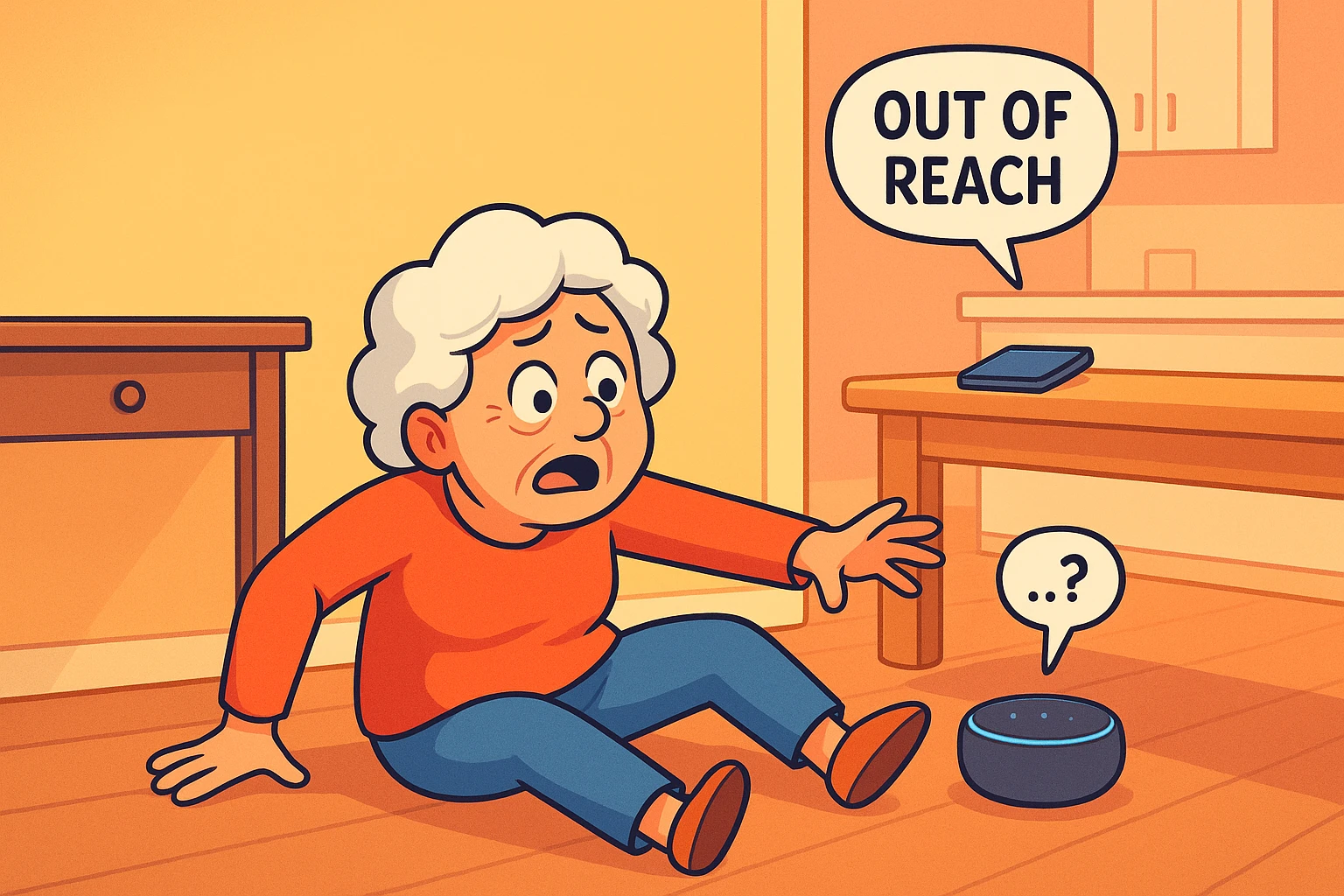
Have you ever found yourself locked in a shouting match with a plastic cylinder (i.e. Alexa) on your kitchen counter? You just wanted to set a simple six-minute timer for your pasta. You ask nicely. The cylinder does nothing. You ask a little louder. Still nothing.
By minute three, you are aggressively barking at the machine like a drill sergeant, the dog is hiding under the sofa, and your pasta has officially turned to mush. If this sounds familiar, take a deep breath and give your vocal cords a rest. You are not losing your mind, and you are certainly not alone.
For many seniors, especially those with naturally soft, raspy, or hoarse voices, smart speakers can feel incredibly dumb. But here is the secret the tech companies don’t openly advertise: it’s not your voice that is the problem; it’s their software.
We are going to play a little tech-support detective to figure out why your smart speaker is giving you the silent treatment. Then, we’ll walk through some surprisingly simple adjustments to make your device listen to you, exactly as you are.
To understand how to fix the problem, we need a quick, painless lesson in how these gadgets actually “hear.” Smart speakers use something called Automated Speech Recognition (ASR). ASR is basically a digital ear that is highly trained to listen for very specific acoustic frequencies.
Here is the catch: most of these devices were programmed in Silicon Valley testing labs to recognize the booming, energetic voices of 20-something tech developers. As our voices age, we naturally experience something called a “frequency shift.” We might lose certain high or low pitches, or our voices might become breathier.
When your voice doesn’t hit the exact frequencies the machine expects, the speaker simply assumes it’s background noise and goes back to sleep. The solution isn’t to strain your throat trying to yell louder. Instead, try speaking a bit lower, from your chest rather than your throat. Lowering your pitch can sometimes hit the exact frequency “sweet spot” the device is waiting for.
Before we fiddle with any hidden digital settings, let’s talk about real estate. Where your speaker lives in your house makes a massive difference.
If your Amazon Echo or Google Nest is perched on a high bookshelf, tucked behind a potted fern, or sitting right next to a blaring television, it doesn’t stand a chance. We call this the “Coffee Table Rule.” You want the device at roughly the same height as your mouth when you are speaking to it, and as close to your standard sitting area as possible.
Think of your smart speaker like a hard-of-hearing uncle at Thanksgiving. You wouldn’t try to tell him a secret from across the room while the TV is blasting a football game. Move the speaker closer to your favorite armchair. Eliminate the physical “dead zones” in your living room, and you’ll find you won’t need to project your voice nearly as much.
Different brands have different ways of dealing with background noise and soft voices. Depending on which device you own, you have a few software tricks up your sleeve.
If you have a Google Assistant, you are in luck. Google actually includes a literal slider in its app called “Wake Word Sensitivity.” You can open the Google Home app, find your speaker, and crank that sensitivity dial all the way up. It will start listening much more intently for its name.
Alexa, on the other hand, doesn’t have a sensitivity slider. Instead, she relies on something called “Voice ID.” You can go into the Alexa app and read a few specific phrases out loud so she can learn the unique quirks, pitch, and cadence of your exact voice.
(A quick privacy note: setting up Voice ID means you are allowing Amazon and Google to create a stored digital profile of your voice. If sharing your biometric data gives you the creeps, skip this step and rely on the physical placement tricks instead!)
Here is a brilliant workaround that most instruction manuals entirely misrepresent. Amazon and Google both feature a “Whisper Mode.” The manufacturers market this as a polite way to ask for the weather without waking up your sleeping spouse.
But Whisper Mode is a secret weapon for seniors with vocal fatigue or hoarseness. When the device enters Whisper Mode, it stops looking for standard vocal volume and starts actively scanning for the breathy, low-frequency sounds of a whisper.
If you have a naturally raspy or very quiet voice, you can train your device to use “Whisper-as-Baseline.” By intentionally whispering to your device, it will switch into its highly sensitive listening mode and whisper back to you. It takes a little practice, but it completely removes the need to shout.
Some days, your throat just isn’t up for a chat. Maybe you’ve got a cold, or perhaps you just suffer from vocal fatigue in the evenings. On those days, remember that you do not need to be polite to a computer chip.
Many of us naturally talk to smart speakers like they are human. We say, “Alexa, would you please be a dear and turn on the living room lights for me?” That is a lot of words for a tired throat. Cut to the chase. Just say, “Alexa. Lights.” The robot’s feelings will not be hurt.
For days when speaking is completely out of the question, you can use built-in accessibility features like “Tap to Alexa” on Echo Show devices (which have screens). This lets you tap a button on the screen to turn off the lights, lock the doors, or check the weather without uttering a single syllable. Google offers a similar feature on mobile phones called “Action Blocks.”
Televisions broadcast audio in highly engineered, crisp frequencies that microphones love. Your voice is organic and dynamic. If your speaker is placed near the TV, the TV’s frequencies will easily overpower your voice. Always place your smart speaker at least a few feet away from any TV or radio.
Most standard smart speakers don’t have a plug-in port for a traditional microphone. However, if you use your smartphone as your digital assistant, you can connect a Bluetooth headset or a small lapel microphone to your phone to pick up soft whispers flawlessly.
Not at all. In fact, if you struggle with vocal strain, Whisper Mode can save your vocal cords from the fatigue of trying to project your voice across the room. Just remember that the speaker will whisper back, so you might need to turn the device’s baseline volume up to hear it clearly!
If standard voice recognition fails, look into your smartphone’s accessibility settings. Both Apple and Android offer advanced assistive tech that allows you to type commands or create custom visual buttons on your screen that communicate directly with your smart home devices.
Technology is supposed to make our lives easier, not leave us hoarse, frustrated, and eating overcooked pasta. If your smart speaker isn’t pulling its weight, remember that you hold the cards.
By adjusting where the speaker sits, keeping your commands short, and utilizing clever features like Whisper Mode or Wake-Word Sensitivity, you can tame even the most stubborn digital assistant. Don’t be afraid to poke around in your device’s app settings and see what works best for your unique voice.
After all, it is your house. The robot is just living in it.